- Business & Productivity
- Personal Finance Mnagement
- Bluetooth PC Dialer
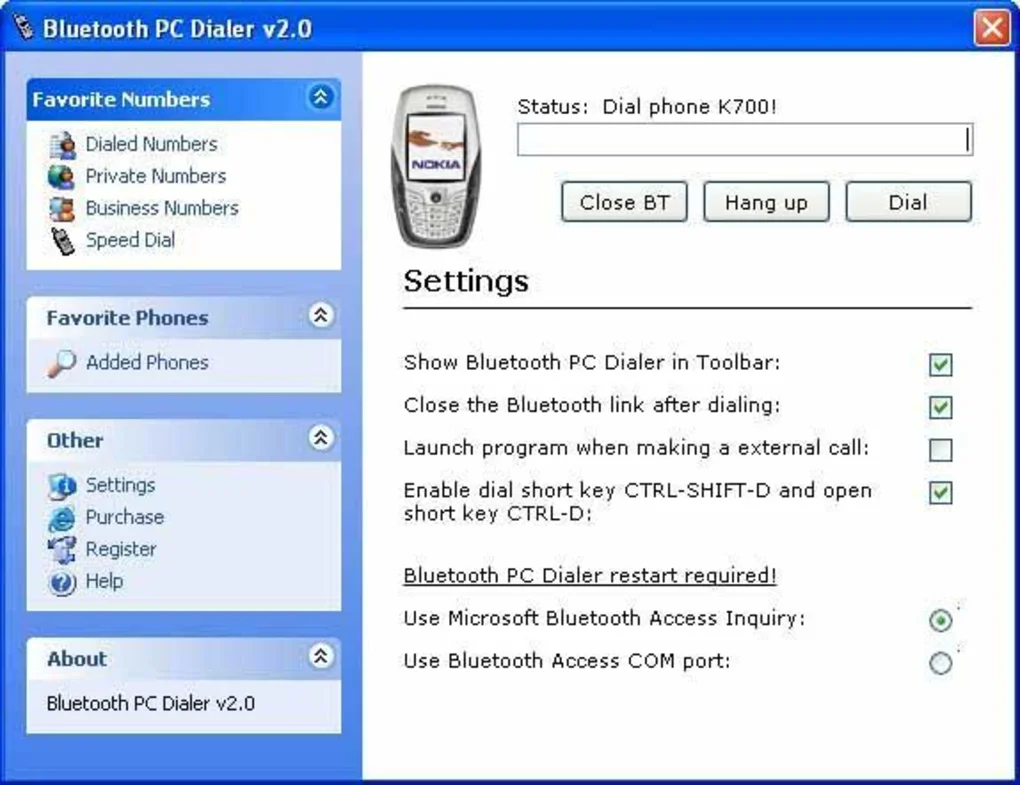
Bluetooth PC Dialer is designed to bridge mobile telephony with desktop systems, allowing users to control phone calls directly from a PC interface.
The software helps users:
- Manage phone calls from computer
- Improve productivity in office environments
- Reduce switching between phone and PC
- Streamline customer communication
- Enable hands-free calling operations
- Integrate calling with desktop workflows
It is commonly used in:
- Offices and corporate environments
- Call centers
- Customer support teams
- Freelancers handling client calls
- Small business communication setups
Depending on the version, users may get:
- Contact syncing tools
- Dial pad interface on PC
- Call recording (in some tools)
- Call history logs
- Audio routing options
- Notification system for incoming calls
One major advantage of Bluetooth PC Dialer is convenience because it allows full phone call control without physically handling the mobile device.
📌 What is Bluetooth PC Dialer?
Bluetooth PC Dialer is a utility software that allows users to make and receive phone calls from a computer by connecting a mobile phone via Bluetooth.
It essentially turns your PC into a calling interface where your phone handles the network, while the computer manages dialing, contacts, and call control.
It is commonly used in:
- Call centers
- Office communication setups
- CRM-based calling systems
- Personal hands-free calling
- Business customer support environments
🚀 Key Uses
- Making calls directly from PC
- Receiving mobile calls on computer
- Managing contacts from desktop
- Dialing numbers using keyboard
- Call logging and history tracking
- Hands-free communication
- Office call management systems
- Customer support calling workflows
- Integrating with CRM tools (in some setups)
- Reducing dependency on mobile phone handling
💻 System Requirements (General)
For PC
- Microsoft Windows (Windows 7/8/10/11)
- Bluetooth adapter or built-in Bluetooth
- 2GB–4GB RAM minimum
- Audio input/output device (microphone + speakers/headset)
- Software installed for dialer connection
For Mobile
- Android or iOS smartphone
- Bluetooth enabled
- Active SIM card for calling
- Pairing permissions enabled
🔄 Alternatives
- Microsoft Your Phone (Phone Link)
- BlueStacks dialer integrations
- Zoiper (VoIP calling apps)
- Skype (PC calling system)
- WhatsApp Desktop calling
- Google Voice (region-dependent)
- 3CX Softphone
❓ FAQ
Q1. What is Bluetooth PC Dialer used for?
It is used to make and receive phone calls from a computer using a Bluetooth-connected mobile phone.
Q2. Does it require internet?
No, it uses your mobile network for calls, not internet.
Q3. Can I use my PC microphone for calls?
Yes, most setups allow PC mic and speakers or headset.
Q4. Is it suitable for office use?
Yes, especially in call centers and customer support environments.
Q5. Does it store call history?
Yes, many versions include call logs and contact management.
🔄 Best Alternatives
Features
✔ Make and receive calls from PC
✔ Bluetooth phone connection
✔ Desktop dial pad interface
✔ Contact list synchronization
✔ Call history tracking
✔ Hands-free communication
✔ Microphone and speaker support
✔ Keyboard dialing support
✔ Lightweight system tool
✔ Office communication support
✔ Notification for incoming calls
✔ Easy pairing with mobile
✔ Productivity-focused design
✔ Simple user interface
👍 Pros & 👎 Cons
Pros
- Very convenient for office use
- Hands-free calling from PC
- Improves productivity
- Easy to connect via Bluetooth
- Reduces mobile handling
- Useful for call centers
Cons
- Requires stable Bluetooth connection
- Limited advanced VoIP features
- Audio quality depends on devices
- Not ideal for large-scale enterprise telephony
- Setup may vary by device compatibility
Expert Review
Bluetooth PC Dialer is a practical communication tool for users who want to manage mobile calls directly from their computer.
Its strongest advantages are:
- Easy hands-free calling
- Improves office productivity
- Simple Bluetooth-based setup
- Useful for call centers and customer support
It is especially helpful for users who spend long hours on calls and want a more comfortable desktop-based calling experience.
However, it depends heavily on Bluetooth stability and does not replace full VoIP or enterprise communication systems.
How to Install
⚙️ Installation Guide (General Overview)
Step 1: Install Software on PC
Install Bluetooth PC Dialer on your Windows system.
Step 2: Enable Bluetooth
Turn on Bluetooth on both PC and mobile.
Step 3: Pair Devices
Connect mobile phone with PC via Bluetooth pairing.
Step 4: Grant Permissions
Allow call, contacts, and audio access.
Step 5: Configure Audio Settings
Select microphone and speaker devices.
Step 6: Sync Contacts
Import phone contacts into PC interface.
Step 7: Test Call
Make a test call to verify connection.
Step 8: Use Dial Pad
Start dialing directly from PC.
Step 9: Manage Calls
Answer, mute, or end calls from desktop.
Step 10: Maintain Connection
Keep Bluetooth active during usage.
Apps Specs
Licence
Trial
Latest Update
June 24, 2026
Platform
Windows
Downloads
Devlopers
Top Downloads
Related Topics
Disclaimer
This content is provided for educational and informational purposes only. We do not host, store, or distribute any software files on our servers. All trademarks, product names, and logos belong to their respective owners.
We strongly recommend downloading software only from official websites or trusted sources. We are not responsible for any damage, data loss, or issues that may occur from the use of third-party software.
Users should ensure they comply with all applicable laws and software licensing agreements in their country before downloading or using any software mentioned on this website.
You may also like
Alternatives to
Expore Apps