- Utilities & Tools
- File Managers
- WinSetView
WinSetView is a lightweight Windows utility designed to control and customize how File Explorer displays folders and files.
It allows users to set default view preferences such as layout, sorting, grouping, and column settings across all folders in Windows Explorer.
This tool is mainly used by advanced users, IT administrators, and customization enthusiasts who want consistent and structured file viewing behavior in Windows.
Instead of manually changing view settings for each folder, WinSetView applies global settings system-wide.
📌 What is WinSetView?
WinSetView is a Windows configuration utility that modifies File Explorer’s default viewing behavior.
Windows normally remembers folder views individually, which can become inconsistent over time. This tool solves that problem by allowing users to define a unified view system.
Users can control:
- Folder view style (Details, List, Icons, Tiles)
- Sorting order (Name, Date, Type, Size)
- Column visibility in Details view
- Default behavior for all folders
- File grouping preferences
It essentially enforces a consistent file browsing experience across the entire system.
File management utility for PC
WinSetView is a free and open-source utility that was developed by LesFerch for desktop PCs. This file manager tool provides an easy way for users to set folder views in Windows Explorer. They can choose from its selection of various list views and have applied to a specific or across all folders.
Compared to other programs like Multi Commander, which provides an alternative to the built-in file explorer in Windows, WinSetView aims to be a complementary tool than a replacement. It lets users have more control over and options for folder views that the native app does not fully provide.
How do I use WinSetView?
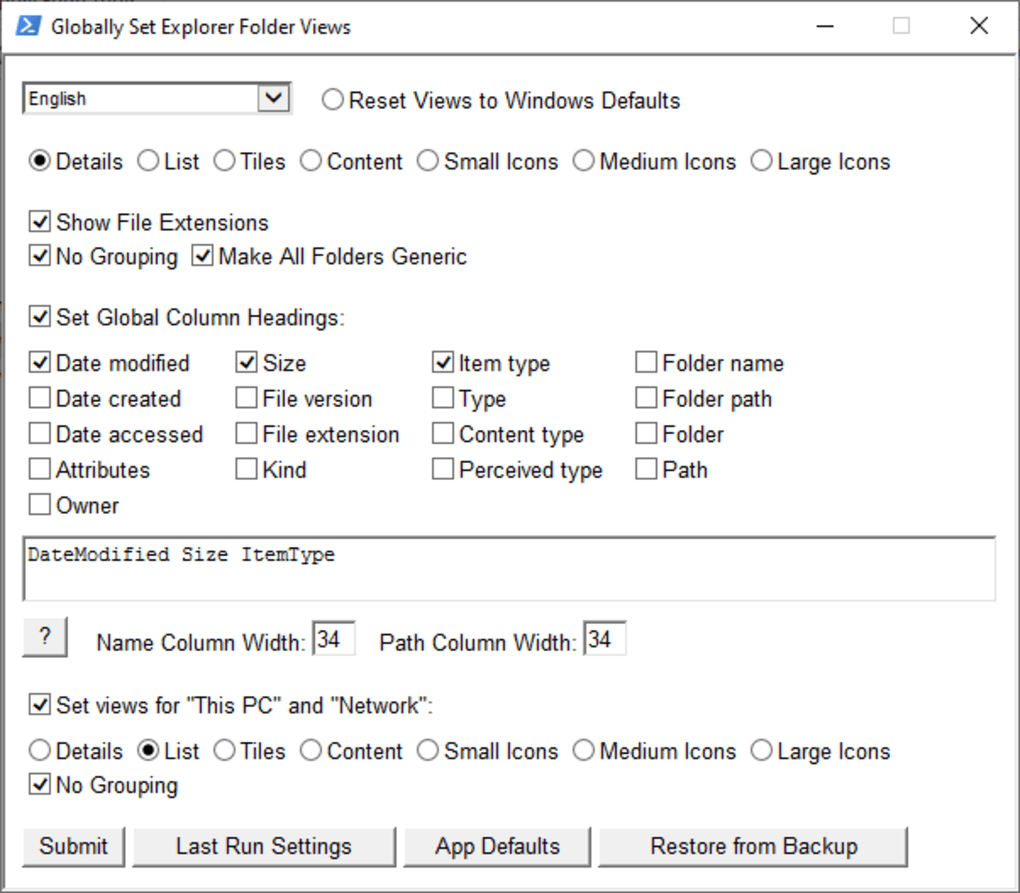
To start, double-click on the .hta file and a GUI will appear wherein you can start configuring. The top row has view options, including Details, List, Tiles, etc. Next, you can Show File Extensions, enable No Grouping of files and folders, Make All Folders Generic (system folders), and Keep “Apply to Folders” Views to retain changes made using Windows Explorer.
For view options that feature columns, you can Set Global Column Headings for them. Some of the details that you can set include Date Modified, File Size, Item Type, Folder Name, Path, Attributes, and many more. You can also set the width for Name and Path Columns. Lastly, you can choose to apply Set views for “This PC” and “Network”.
To apply all your change, click on the Submit button. The Last Run Settings will restore previous settings. Click on App Defaults to reset everything, and use Restore from Backup to load backups created by WinSetView. If you want to revert to Windows Explorer, you can click on the Reset Views to Windows Defaults option located at the very top.
A handy and useful tool
If you’re the type of user who likes to have full control over how you manage and organize your files and folders, then, WinSetView is worth trying out. It addresses one of the long-standing quirks in Windows Explorer and does it flawlessly. If you’re not satisfied with using it, you can completely reverse any changes you made.
🚀 Key Uses
📁 File Explorer Customization
Used to standardize how all folders appear in Windows Explorer.
⚙️ System Organization
Helps users maintain a clean and predictable file structure view.
🧑💻 IT Administration
Useful for setting uniform file view policies across multiple systems.
💻 Productivity Improvement
Reduces time wasted adjusting folder views repeatedly.
🧹 System Cleanup Configuration
Helps reset inconsistent folder view settings caused by Windows memory behavior.
💻 System Requirements (General)
Minimum Requirements
- Operating System: Windows 10 / Windows 11
- RAM: 1GB minimum (very lightweight tool)
- Storage: Very low disk space required
- Processor: Any modern CPU
Recommended Requirements
- RAM: 2GB or more
- Storage: Minimal requirement
- System Access: Administrator rights for applying system-wide settings
🔄 Alternatives
- Winaero Tweaker
- Folder Options (Windows built-in)
- QTTabBar
- Classic Shell / Open-Shell
- File Explorer settings manual configuration
❓ FAQ
Q1. What is WinSetView used for?
It is used to customize and standardize Windows File Explorer view settings.
Q2. Is WinSetView safe?
Yes, it is safe when downloaded from trusted sources.
Q3. Does it affect system performance?
No, it is extremely lightweight and does not impact performance.
Q4. Can I reset changes?
Yes, settings can be reverted or reset anytime.
Q5. Do I need installation?
Most versions are portable and do not require installation.
Q6. Does it work on Windows 11?
Yes, it supports modern Windows versions.
🔄 Best Alternatives
Features
✔️ Global File Explorer view settings
✔️ Default folder layout customization
✔️ Column management in Details view
✔️ Sorting rule configuration
✔️ Folder type standardization
✔️ Apply settings system-wide
✔️ Lightweight portable utility
✔️ No installation required (in most versions)
✔️ Reset Explorer view settings
✔️ Consistent file browsing experience
✔️ Supports Windows 10 and Windows 11
✔️ Advanced Explorer customization control
✔️ Backup and restore configuration options
👍 Pros & 👎 Cons
Pros
- Consistent File Explorer experience
- Saves time on manual folder setup
- Lightweight and portable
- Easy to use for system customization
- Works across Windows versions
- No heavy system resource usage
Cons
- Limited to File Explorer customization only
- Not useful for general users who don’t modify views
- Advanced options may require understanding Windows Explorer behavior
- No visual GUI-heavy interface like modern apps
- Changes may confuse beginners if misconfigured
Expert Review
WinSetView is a very useful customization utility for users who want full control over how Windows File Explorer behaves.
Its biggest strength is consistency. Windows normally changes folder views dynamically, which can feel messy over time. This tool solves that by enforcing a uniform structure across all directories.
It is especially helpful for:
- Power users
- Developers
- IT administrators
- Organized file management users
However, it is not necessary for casual users who are comfortable with default Windows Explorer behavior.
Overall, it is a lightweight but powerful customization tool for improving file management consistency in Windows systems.
How to Install
⚙️ Installation Guide (General Overview)
Step 1: Download Tool
Download WinSetView from a trusted source.
Step 2: Extract Files
Unzip the downloaded package.
Step 3: Run Application
Launch the executable file.
Step 4: Select View Preferences
Choose:
- Folder view type
- Sorting rules
- Column layout
- Global settings
Step 5: Apply Settings
Confirm and apply system-wide changes.
Step 6: Restart Explorer (if needed)
Restart File Explorer to apply changes fully.
Apps Specs
Licence
Free
Latest Update
June 24, 2026
Platform
Windows
Downloads
1
Devlopers
Top Downloads
Related Topics
Disclaimer
This content is provided for educational and informational purposes only. We do not host, store, or distribute any software files on our servers. All trademarks, product names, and logos belong to their respective owners.
We strongly recommend downloading software only from official websites or trusted sources. We are not responsible for any damage, data loss, or issues that may occur from the use of third-party software.
Users should ensure they comply with all applicable laws and software licensing agreements in their country before downloading or using any software mentioned on this website.
You may also like
Alternatives to
Expore Apps