- Utilities & Tools
- Data Recovery
- UltData -Windows Data Recovery

UltData – Windows Data Recovery is a file recovery and storage restoration software designed to recover deleted, formatted, corrupted, or inaccessible files from Windows-based storage devices such as HDDs, SSDs, USB drives, SD cards, external hard drives, and partitions.
The software is commonly used for recovering documents, photos, videos, audio files, and other digital data after accidental deletion, formatting, partition loss, virus attacks, or operating system crashes.
📌 What is UltData – Windows Data Recovery?
UltData – Windows Data Recovery is a Windows-focused recovery utility designed to restore lost or inaccessible files from damaged or modified storage environments.
The software is commonly used for:
- Deleted file recovery
- Formatted drive recovery
- Partition restoration
- USB recovery
- SD card recovery
- HDD and SSD recovery
- RAW drive recovery
- Multimedia restoration
One of the biggest strengths of the software is support for multiple recovery scenarios across different Windows storage environments.
Users commonly lose data because of:
- Accidental deletion
- Disk formatting
- Virus attacks
- Partition loss
- File system corruption
- System crashes
- Storage device failures
The software is commonly used by:
- Home users
- Students
- Office users
- Small businesses
- Photographers
- IT technicians
Depending on the version and feature set, UltData – Windows Data Recovery may support:
- Quick scan recovery
- Deep scan recovery
- Partition recovery
- RAW partition recovery
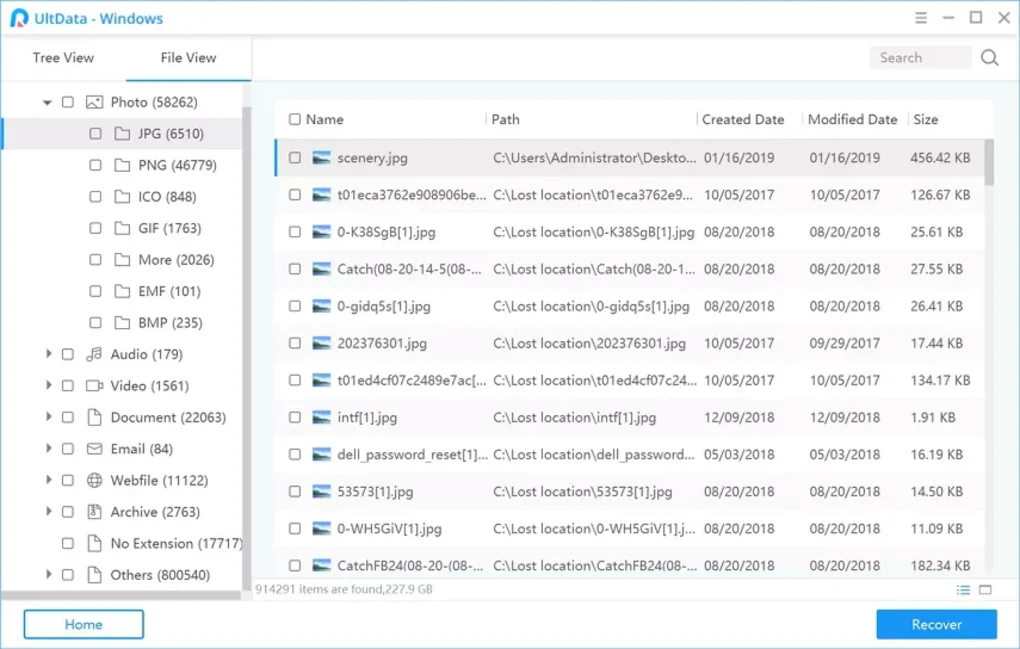
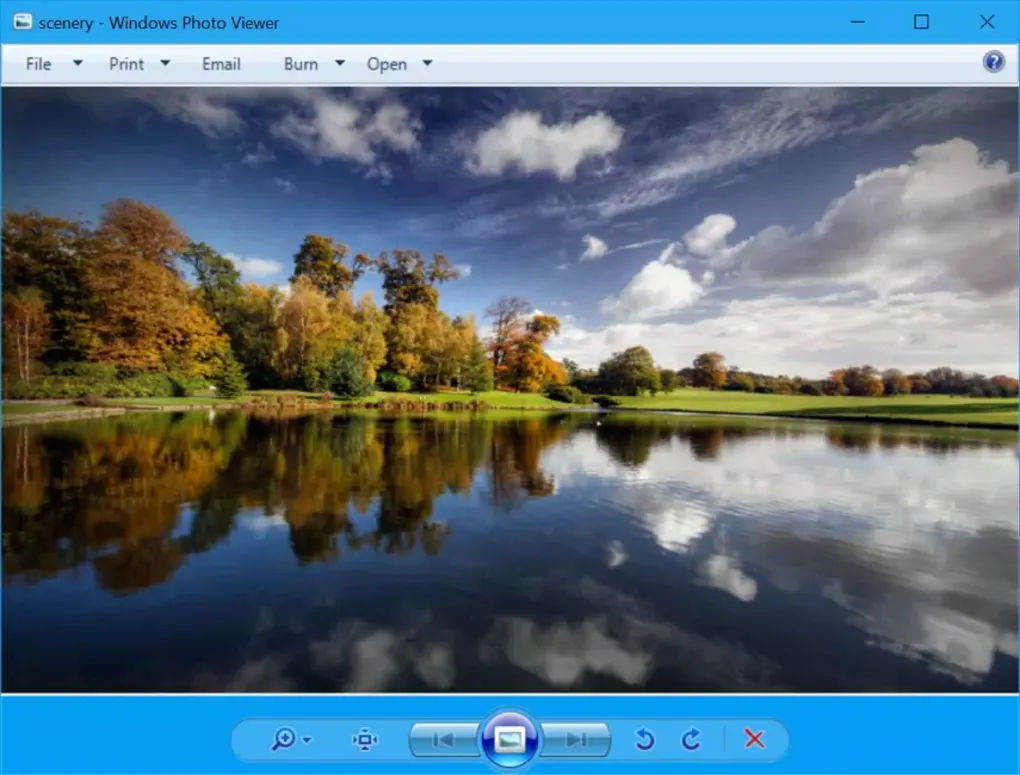
- File preview functionality
- External drive recovery
- USB recovery workflows
- SD card recovery
- File filtering systems
- Selective recovery workflows
- Formatted drive restoration
- Multi-file-system support
- Device scanning systems
The software may recover file types including:
- Photos
- Videos
- Documents
- Audio files
- ZIP archives
- PDFs
- Office files
- Project files
One major feature category is deep scanning.
Deep scans attempt to locate recoverable file signatures even after severe file system damage or formatting.
Another important feature is partition recovery.
Users sometimes lose partitions because of:
- Corrupted partition tables
- Failed resizing operations
- Partition deletion
- Operating system installation errors
- Disk management mistakes
The software may help restore files from damaged or missing partitions.
The software generally supports file systems such as:
- NTFS
- FAT32
- exFAT
and storage devices including:
- HDDs
- SSDs
- USB flash drives
- SD cards
- External hard drives
- Portable storage devices
Preview functionality is another useful capability because users can inspect recoverable:
- Images
- Documents
- Videos
before restoration.
However, users should understand several important limitations.
Recovery success is never guaranteed.
Once deleted sectors become overwritten by new data, successful recovery becomes significantly harder or impossible.
SSD recovery may also face limitations because of:
- TRIM functionality
- Garbage collection systems
- Secure erase behavior
which may permanently remove deleted data blocks.
Another important limitation involves physical hardware failure.
Software recovery tools generally cannot fully repair:
- Failed SSD controllers
- Broken NAND chips
- Mechanically damaged HDDs
- Severe platter damage
Such situations usually require professional recovery laboratories.
Deep scans on large storage devices may additionally require significant time depending on:
- Storage size
- Damage severity
- File count
- Device speed
Users should avoid installing recovery software onto the same drive containing lost data because installation may overwrite recoverable sectors.
The recovery software ecosystem also contains fake or misleading recovery utilities online, so users should always use trusted sources.
Overall, UltData – Windows Data Recovery acts as a Windows storage recovery and file restoration platform designed to help users recover deleted files, restore partitions, and retrieve inaccessible data from various storage devices.
💻 System Requirements (General)
Minimum Requirements
- Operating System:
Windows 7 / Windows 10 / Windows 11 - Processor:
Intel or AMD compatible processor - RAM:
Minimum 2GB–4GB RAM - Storage:
Additional free storage space for recovered files - Supported File Systems:
NTFS / FAT32 / exFAT
Recommended Requirements
- RAM:
8GB RAM or more - Storage:
SSD recommended for faster scanning performance - Additional Recommendations:
- External recovery destination drive
- Stable power supply
- Minimal drive activity after data loss
🔄 Alternatives
Users commonly compare UltData – Windows Data Recovery with:
- EaseUS Data Recovery Wizard
- Wondershare Recoverit
- Disk Drill
- Recuva
- Bitwar Data Recovery
❓ FAQ
Q1. What is UltData – Windows Data Recovery mainly used for?
It is mainly used for recovering deleted or inaccessible files from Windows storage devices.
Q2. Can it recover formatted drives?
Yes, formatted drive recovery is commonly supported.
Q3. Does it support USB and SD card recovery?
Yes, removable storage recovery is commonly included.
Q4. Can it recover RAW partitions?
Yes, RAW partition recovery support may be available.
Q5. Why should recovered files be saved elsewhere?
Saving to the same drive may overwrite recoverable sectors.
Q6. Does SSD recovery have limitations?
Yes, SSD TRIM and garbage collection reduce recovery effectiveness.
Q7. Can physically damaged drives always be recovered?
No, severe physical damage usually requires professional recovery laboratories.
🔄 Best Alternatives
Features
- ✔️ Deleted file recovery
- ✔️ Deep scan recovery modes
- ✔️ Partition restoration support
- ✔️ RAW drive recovery
- ✔️ HDD and SSD compatibility
- ✔️ USB and SD card recovery
- ✔️ File preview functionality
- ✔️ Formatted drive restoration
- ✔️ File filtering systems
- ✔️ External drive support
- ✔️ Selective file recovery
- ✔️ Multi-file-system compatibility
- ✔️ Windows compatibility
- ✔️ Beginner-friendly interface
- ✔️ Multimedia file restoration
👍 Pros & 👎 Cons
Pros
- Supports multiple recovery scenarios
- Beginner-friendly interface
- Deep scans improve recovery chances
- Useful for formatted drive recovery
- Supports removable storage devices
- Preview functionality improves usability
- Works with common file systems
- Supports photo and video recovery
Cons
- Recovery success is not guaranteed
- SSD TRIM limits recovery effectiveness
- Overwritten files may become unrecoverable
- Deep scans may take significant time
- Physical hardware failures require professionals
- Some advanced features may require paid versions
- File integrity after recovery may vary
Expert Review
In my opinion, UltData – Windows Data Recovery is useful because accidental deletions, formatting mistakes, and partition problems are extremely common, and recovery software gives users a practical opportunity to restore important data before considering expensive professional recovery services.
One of the biggest strengths is simplicity. The software combines:
- Deleted file recovery
- Deep scans
- Partition restoration
- External drive recovery
within a relatively beginner-friendly interface.
Preview functionality is another major advantage because users can identify recoverable files before restoring large amounts of data.
Support for removable storage devices also makes the software useful for recovering:
- Camera photos
- USB documents
- SD card videos
- Portable storage files
However, users should clearly understand that no recovery software can guarantee complete restoration.
Recovery success depends heavily on:
- Whether data was overwritten
- Storage device condition
- SSD behavior
- File system damage severity
- Timing after data loss
Another important point is that users should stop using affected drives immediately after data loss because continued activity can overwrite recoverable sectors.
For accidental deletions, formatted drives, partition issues, and common logical storage failures, UltData – Windows Data Recovery can be a practical recovery solution for both regular users and technicians.
How to Install
⚙️ Installation Guide (General Overview)
Step 1: Download the Software
Obtain the installer from a trusted source.
Step 2: Install Carefully
Avoid installing onto the affected drive containing lost files.
Step 3: Launch the Software
Open the recovery interface.
Step 4: Select Recovery Mode
Choose:
- Deleted recovery
- Deep scan
- Partition recovery
- RAW recovery
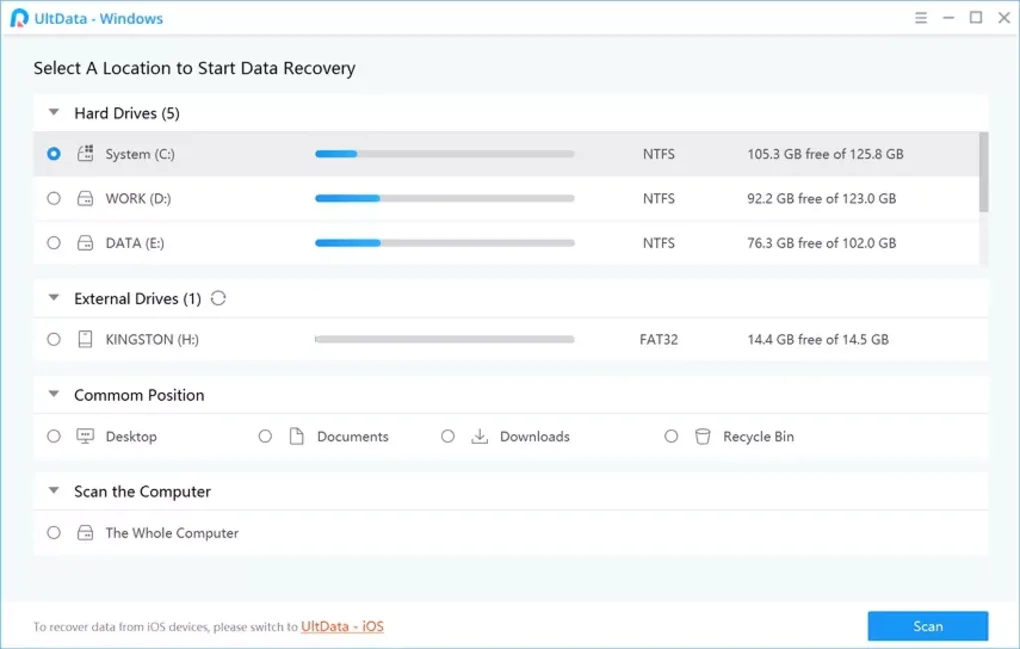
Step 5: Select the Target Device
Choose the affected drive or partition.
Step 6: Start the Scan
Allow the software to analyze the storage device.
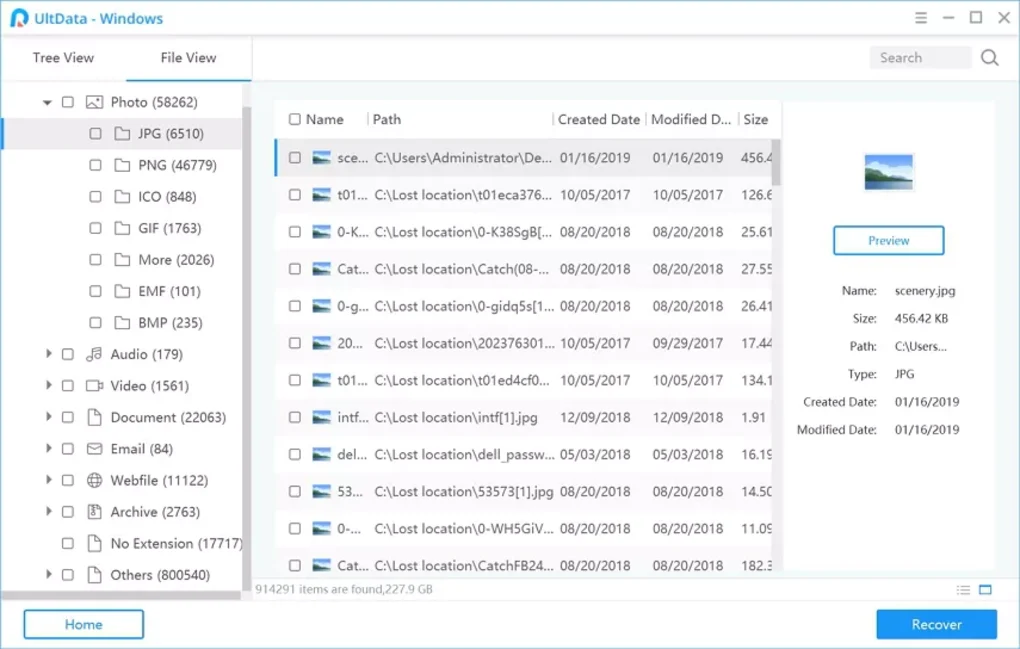
Step 7: Preview Recoverable Files
Review available recovery results before restoration.
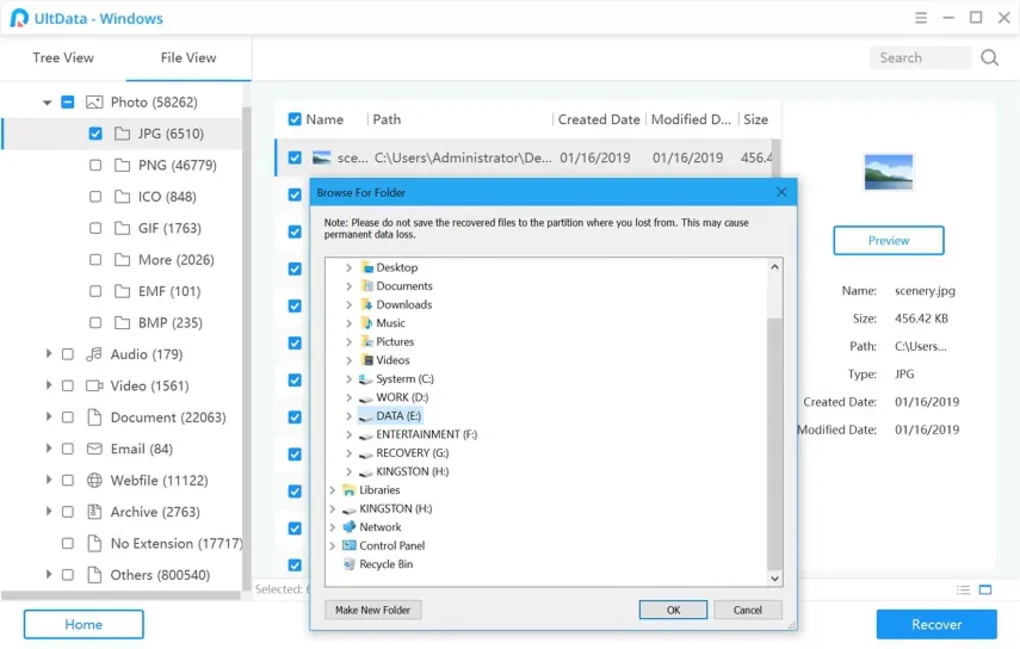
Step 8: Recover Important Data
Save recovered files to a different drive.
Step 9: Verify File Integrity
Check whether recovered files open correctly.
Step 10: Maintain Backup Strategies
Use cloud and local backups for future protection.
Apps Specs
Licence
Trial
Latest Update
June 24, 2026
Platform
Windows
Downloads
4
Devlopers
Top Downloads



Related Topics
Disclaimer
This content is provided for educational and informational purposes only. We do not host, store, or distribute any software files on our servers. All trademarks, product names, and logos belong to their respective owners.
We strongly recommend downloading software only from official websites or trusted sources. We are not responsible for any damage, data loss, or issues that may occur from the use of third-party software.
Users should ensure they comply with all applicable laws and software licensing agreements in their country before downloading or using any software mentioned on this website.
You may also like





Alternatives to


Expore Apps