- Utilities & Tools
- Screen Capture
- Bandicam Screen Recorder

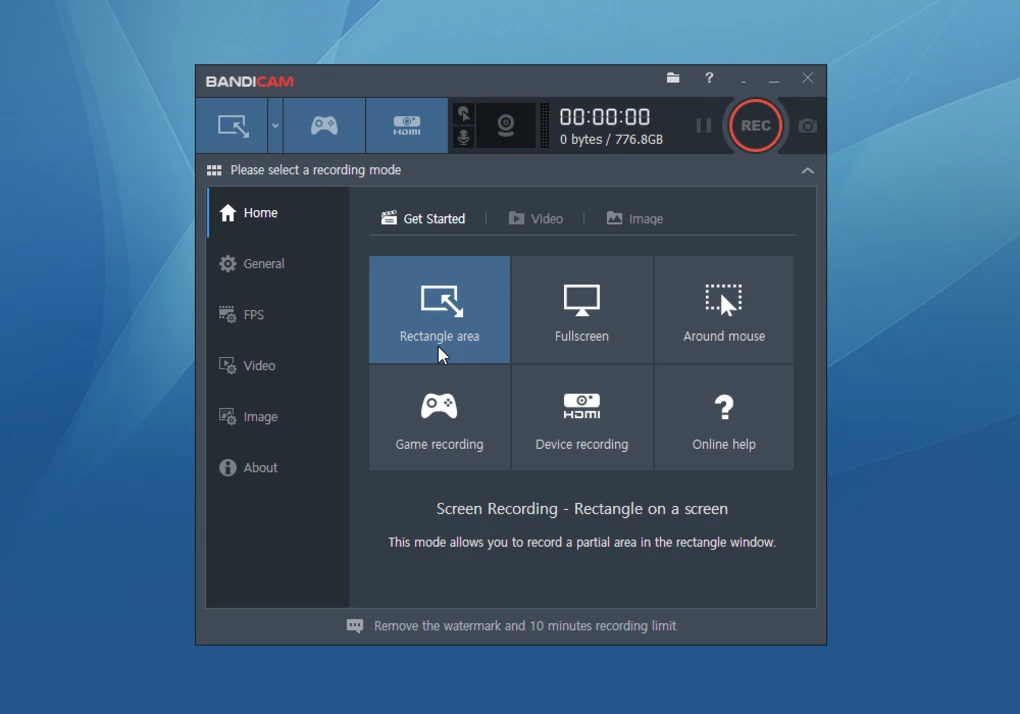
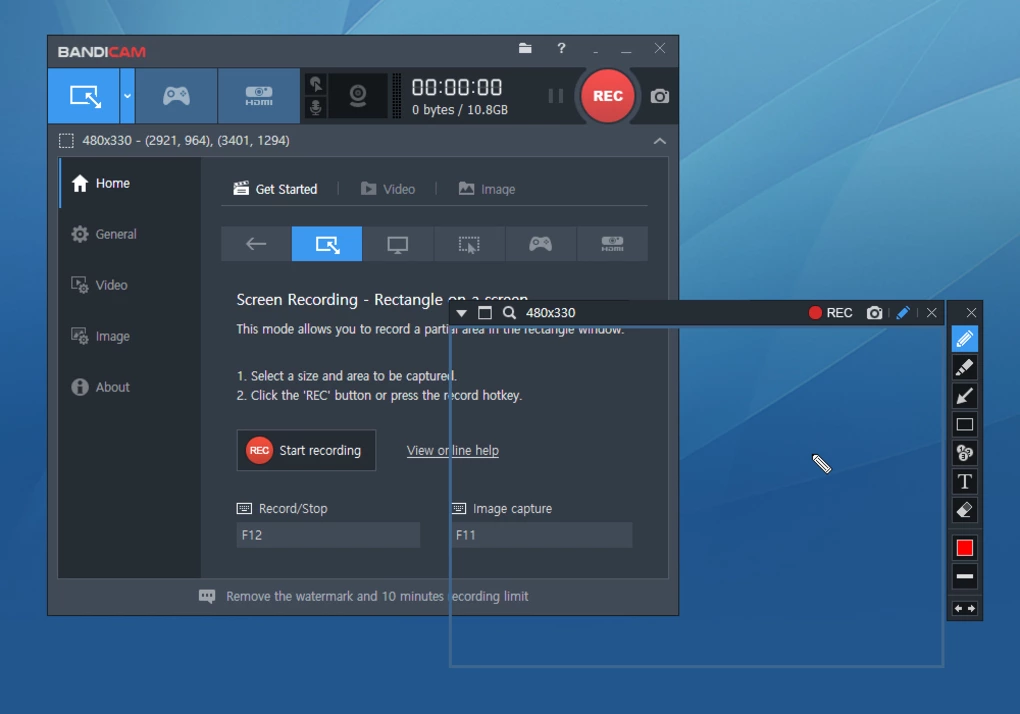
Bandicam is a high-performance screen recording and gameplay capture application designed for recording desktop activity, PC games, webcams, and external devices on Windows systems.
The software is widely known for:
- Gameplay recording
- HD screen capture
- Low-lag performance
- High compression efficiency
- Webcam overlays
- Real-time recording
It is commonly used by:
- Gamers
- YouTubers
- Streamers
- Teachers
- Technical support users
- Content creators
because of its balance between recording quality and performance optimization.
📌 What is Bandicam?
Bandicam is a Windows screen recording utility designed to capture:
- PC games
- Desktop screens
- Applications
- External devices
- Webcam content
The software supports recording in high quality while keeping file sizes relatively optimized through video compression technologies.
Bandicam is commonly used for:
- Gameplay videos
- Software tutorials
- Online class recording
- Presentation capture
- Technical demonstrations
It is especially popular among gamers because it supports:
- High FPS recording
- Hardware acceleration
- DirectX/OpenGL/Vulkan game capture
🚀 Key Uses
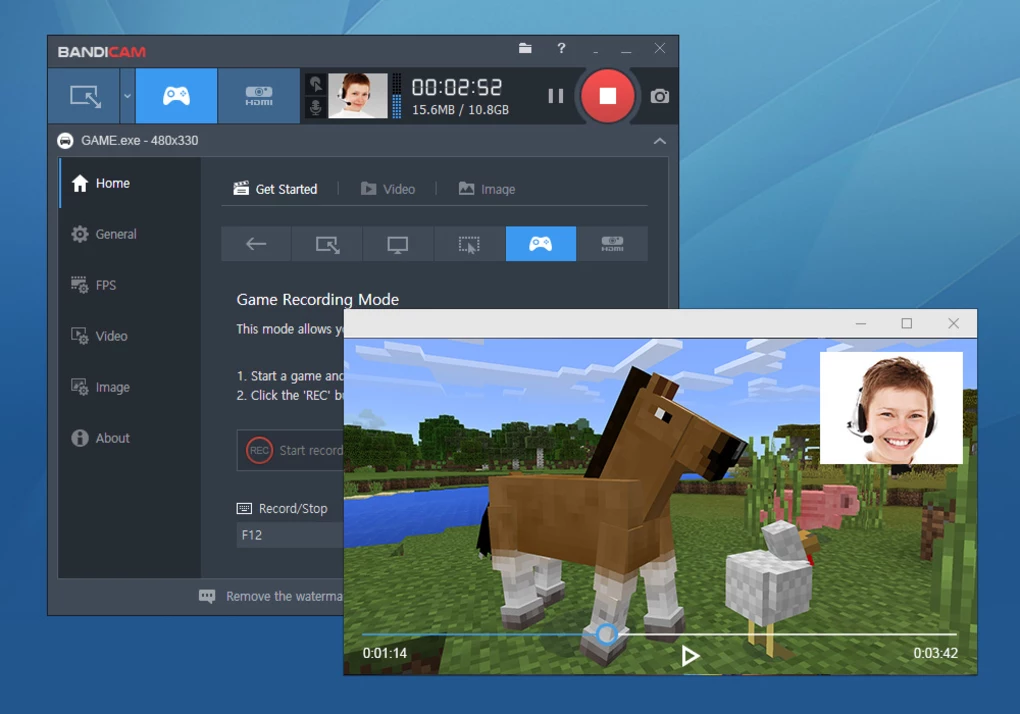
🎮 Gameplay Recording
Used for capturing PC games with high-performance recording support.
🧑🏫 Educational Tutorials
Helps users create learning videos and software guides.
📹 Content Creation
Useful for YouTube videos, reviews, and demonstrations.
💼 Presentation Recording
Captures office presentations and remote meetings.
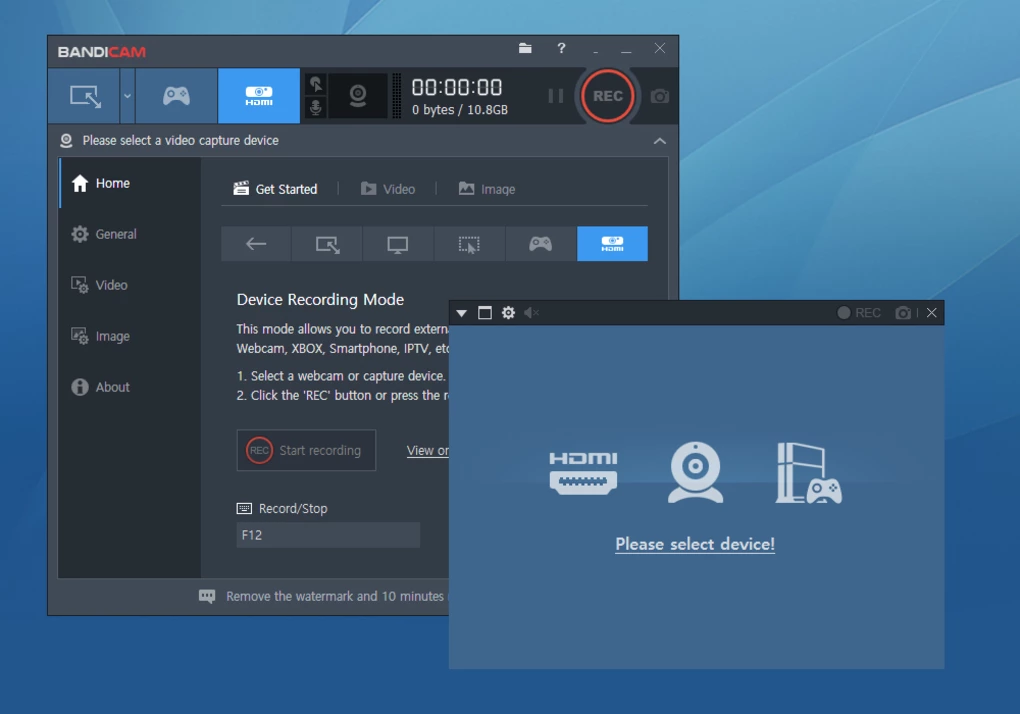
📷 Webcam & Device Recording
Supports webcams and external HDMI/video devices.
💻 System Requirements (General)
Minimum Requirements
- Operating System: Windows 7 / 8 / 10 / 11
- RAM: 2GB minimum
- Storage: Free disk space for recordings
- Processor: Intel or AMD compatible CPU
- GPU: DirectX/OpenGL compatible graphics hardware
Recommended Requirements
- RAM: 4GB or more
- Storage: SSD recommended for better recording performance
- GPU: Dedicated graphics card recommended
- Processor: Multi-core CPU for HD/4K recording
- Audio Devices: Microphone and speakers/headset
🔄 Alternatives
- OBS Studio
- Action!
- Camtasia
- Movavi Screen Recorder
- Debut Video Capture Software
- iTop Screen Recorder
❓ FAQ
Q1. What is Bandicam mainly used for?
It is mainly used for gameplay recording, desktop capture, tutorials, and webcam recording.
Q2. Does Bandicam support gameplay recording?
Yes, it is widely used for recording PC games.
Q3. Can it record microphone and system audio?
Yes, both audio sources are supported.
Q4. Does it support webcam overlays?
Yes, webcam overlay functionality is available.
Q5. Is Bandicam suitable for YouTube videos?
Yes, many creators use it for YouTube tutorials and gameplay content.
Q6. Is Bandicam free?
A free version is available, but it may include recording limitations and watermarks.
Features
✔️ Full-screen desktop recording
✔️ Gameplay recording support
✔️ High FPS capture workflows
✔️ Webcam overlay integration
✔️ System audio and microphone recording
✔️ Hardware acceleration support
✔️ Real-time drawing and annotation tools
✔️ Scheduled recording functionality
✔️ Device recording support
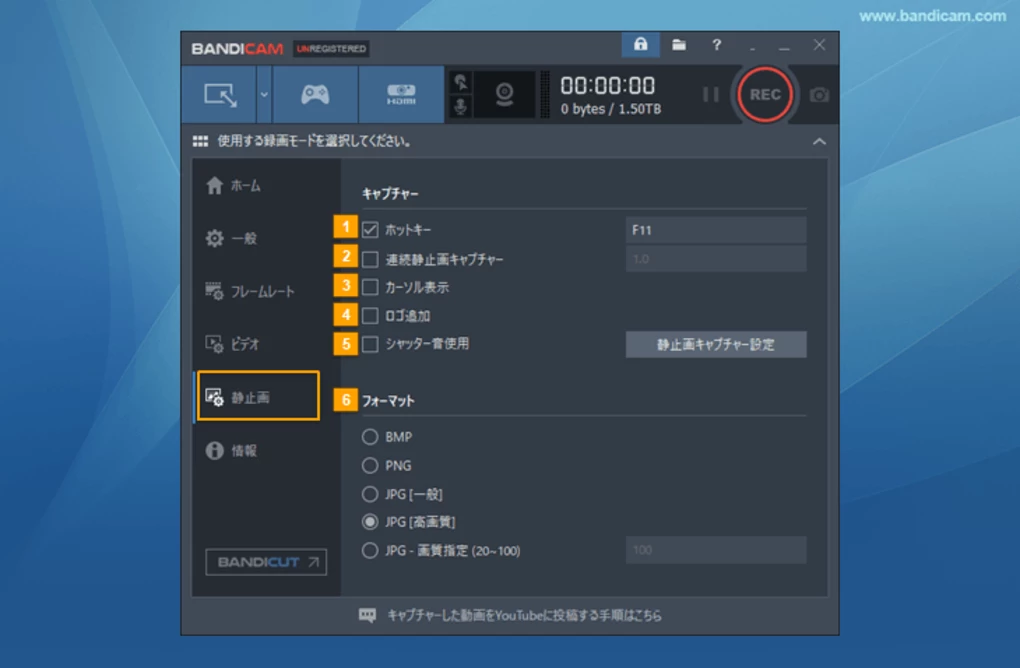
✔️ Screenshot capture tools
✔️ Chroma key webcam effects
✔️ Multiple export format support
✔️ High compression efficiency
✔️ Beginner-friendly recording interface
👍 Pros & 👎 Cons
Pros
- Excellent gameplay recording performance
- High-quality video output
- Optimized compression reduces file size
- Hardware acceleration support
- Beginner-friendly interface
- Reliable long-duration recording support
Cons
- Free version may include watermarks
- Advanced editing tools are limited
- High-resolution recording may require powerful hardware
- Premium features require paid license
- Long recordings can consume large storage space
Our Analysis
Bandicam is one of the most popular screen recording tools for gamers and content creators because of its strong balance between performance and recording quality.
Its biggest strengths are:
- High FPS gameplay capture
- Efficient video compression
- Hardware acceleration support
- Stable long-duration recording
This makes it especially useful for:
- Gamers
- YouTubers
- Teachers
- Streamers
- Technical support workflows
The software remains relatively easy to use while still offering powerful recording settings for advanced users.
However, users needing advanced post-production editing may still require separate video editing software because Bandicam focuses mainly on recording rather than editing.
Overall, Bandicam is a reliable and high-performance screen recording solution for gameplay, tutorials, and desktop capture workflows.
⚙️ Installation Guide (General Overview)
Step 1: Download Software
Obtain Bandicam from a trusted source.
Step 2: Install Application
Run installer and complete setup.
Step 3: Launch Program
Open the Bandicam dashboard.
Step 4: Choose Recording Mode
Select:
- Screen recording
- Game recording
- Device recording
Step 5: Configure Settings
Adjust:
- Resolution
- FPS
- Audio devices
- Webcam overlay
Step 6: Start Recording
Begin desktop or gameplay capture.
Step 7: Save or Export Video
Store recording in desired location and format.
About SoftwareDownloading Editorial Team
The SoftwareDownloading Editorial Team researches Windows software, compatibility information, features, alternatives, and software-related guides for SoftwareDownloading.in.
Our pages are prepared using available product information and relevant documentation. When an application has not been personally tested, we distinguish research-based analysis from hands-on testing. Learn more about our review process
Apps Specs
Developer
Licence
Trial
Version
7.1.0.2151
Platform
Windows
Download Clicks
2
Page Reviewed
September 27, 2026
Top Downloads




Related Topics
Disclaimer
This content is provided for educational and informational purposes only. We do not host, store, or distribute any software files on our servers. All trademarks, product names, and logos belong to their respective owners.
We strongly recommend downloading software only from official websites or trusted sources. We are not responsible for any damage, data loss, or issues that may occur from the use of third-party software.
Users should ensure they comply with all applicable laws and software licensing agreements in their country before downloading or using any software mentioned on this website.