- Utilities & Tools
- Data Recovery
- Droidkit

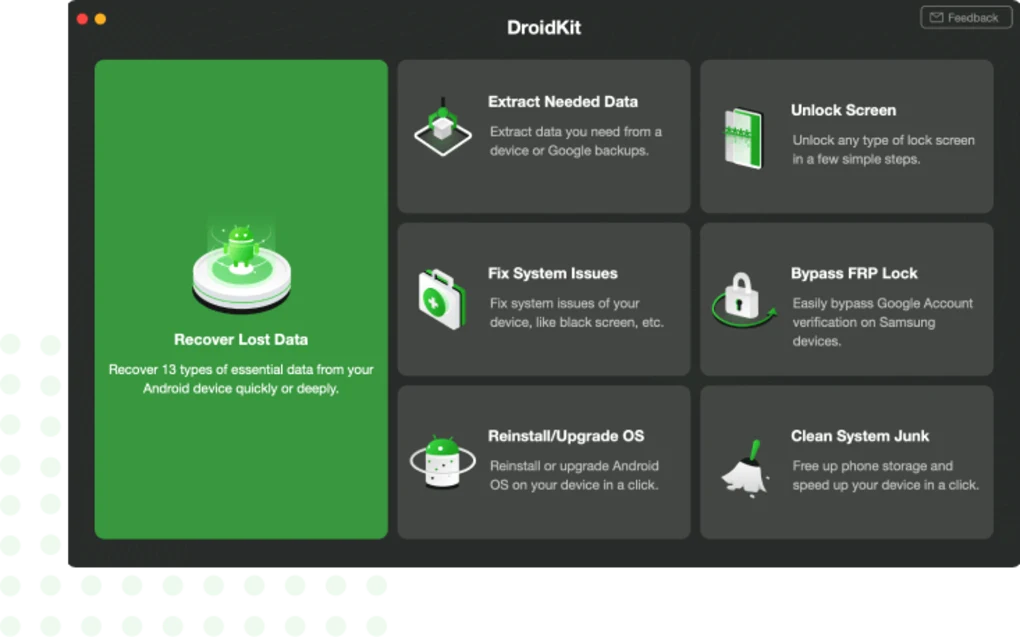
DroidKit is an Android device recovery, repair, unlocking, and management software suite designed to help users recover lost data, repair Android system issues, unlock screens, manage device content, and perform maintenance tasks.
The software is primarily developed for Android smartphones and tablets.
📌 What is DroidKit?
DroidKit is an all-in-one Android toolkit designed to provide multiple recovery and maintenance functions for Android devices.
The software is commonly used for:
- Android data recovery
- Screen unlocking
- System repair
- File extraction
- Device maintenance
- WhatsApp recovery
- FRP-related assistance
- SD card recovery
One of the biggest strengths of DroidKit is multi-function integration.
Instead of requiring separate applications for different Android recovery tasks, the software combines multiple tools into a single platform.
The software is commonly used by:
- Android users
- Mobile repair technicians
- IT support users
- Smartphone owners
- Data recovery users
Depending on the version and supported device models, DroidKit may include:
- Deleted data recovery
- Photo recovery
- Video recovery
- Contact recovery
- WhatsApp recovery
- Screen unlock tools
- PIN/password removal assistance
- Android system repair
- SD card recovery
- Device optimization tools
- Data extraction systems
- File management
- System cleanup tools
- FRP-related functionality
- Device diagnostics
The software may support recovery of:
- Photos
- Videos
- Contacts
- Messages
- Documents
- App data
- WhatsApp content
One major feature is Android data recovery.
Users commonly lose mobile data because of:
- Accidental deletion
- Factory reset
- System crashes
- Water damage situations
- Corrupted storage
- Failed updates
Another major feature is Android system repair.
Some Android devices experience issues such as:
- Boot loops
- Black screens
- System crashes
- Frozen startup screens
- Update failures
Repair tools attempt to restore normal system operation.
The software may also include screen unlocking assistance for situations involving:
- Forgotten PINs
- Password locks
- Pattern locks
However, users should understand that unlocking features may have important limitations depending on:
- Android version
- Device manufacturer
- Security patch level
- Device encryption
Some operations may also result in data loss.
Another feature category involves Google FRP (Factory Reset Protection) assistance.
FRP is a security feature on Android devices that helps prevent unauthorized access after factory resets.
Users should only use such functionality on devices they legally own or are authorized to service.
The software generally supports many Android brands such as:
- Samsung
- Xiaomi
- OnePlus
- OPPO
- Vivo
Compatibility may vary significantly depending on model and Android version.
The software is generally available for:
- Windows
- macOS
It typically requires:
- USB connections
- Device drivers
- USB debugging (in some operations)
However, users should understand several important limitations and considerations.
Data recovery success is never guaranteed.
Recovery depends heavily on:
- Device encryption
- Storage overwriting
- Android security systems
- Physical storage damage
Modern Android devices use strong encryption and security protections that can limit recovery capabilities.
Another important consideration is account and device security.
Users should only connect trusted recovery software to devices containing sensitive information.
Operations involving:
- Unlocking
- System modification
- Recovery access
may affect device warranties or security status.
Overall, DroidKit acts as a multifunction Android recovery and maintenance platform designed to assist with data recovery, device repair, unlocking workflows, and Android management tasks.
💻 System Requirements (General)
Minimum Requirements
- Operating System:
Windows 7 / Windows 10 / Windows 11 / macOS - Processor:
Intel or AMD compatible processor - RAM:
Minimum 4GB RAM - Storage:
Several GB of free space recommended - Connection:
USB cable for Android device connection
Recommended Requirements
- RAM:
8GB RAM or more - Storage:
SSD recommended for faster processing - Additional Requirements:
- Android USB drivers
- Stable USB connection
- Backup storage for recovered files
🔄 Alternatives
Users commonly compare DroidKit with:
- Dr.Fone
- Tenorshare UltData
- iMobie PhoneRescue
- EaseUS MobiSaver
- Android Data Recovery
❓ FAQ
Q1. What is DroidKit mainly used for?
It is mainly used for Android data recovery, repair, and device management.
Q2. Can it recover deleted Android photos?
Yes, photo recovery is one of its common features.
Q3. Does DroidKit support WhatsApp recovery?
Yes, some versions support WhatsApp data recovery.
Q4. Can it repair Android boot problems?
Yes, system repair tools may help with boot loops and crashes.
Q5. Does Android encryption affect recovery success?
Yes, modern Android encryption can significantly limit recovery.
Q6. Is USB debugging always required?
Some advanced operations may require USB debugging.
Q7. Can all Android devices be unlocked successfully?
No, compatibility varies depending on device model and Android version.
Features
- ✔️ Android data recovery
- ✔️ Photo and video recovery
- ✔️ WhatsApp recovery
- ✔️ Screen unlock assistance
- ✔️ Android system repair
- ✔️ SD card recovery
- ✔️ Contact and message recovery
- ✔️ Device cleanup tools
- ✔️ File extraction systems
- ✔️ Boot issue repair
- ✔️ USB device support
- ✔️ Android maintenance tools
- ✔️ Multi-brand compatibility
- ✔️ Windows and macOS support
- ✔️ Beginner-friendly interface
👍 Pros & 👎 Cons
Pros
- Multiple Android tools in one suite
- Useful for accidental data loss
- Beginner-friendly interface
- Supports many Android brands
- Helpful for boot-related problems
- Includes device maintenance features
- WhatsApp recovery support
- Simplifies Android troubleshooting
Cons
- Recovery success is not guaranteed
- Modern Android encryption limits recovery
- Some features may erase device data
- Device compatibility varies
- Unlocking support may not work on all models
- Advanced repairs may require technical knowledge
- Certain features may need paid versions
Our Analysis
In my opinion, DroidKit became popular because Android users increasingly need multifunction recovery and repair tools rather than separate single-purpose applications.
One of the biggest strengths is convenience. Combining:
- Recovery
- Repair
- Unlocking
- Cleanup
- File extraction
into one suite simplifies Android troubleshooting for non-technical users.
The software appears especially useful for common problems such as:
- Accidental deletion
- Boot loops
- Forgotten lock screens
- SD card recovery
- WhatsApp recovery
The beginner-friendly interface is also important because many mobile recovery tools are highly technical.
However, users should understand that modern Android security is extremely strong.
Features involving:
- Data recovery
- Unlocking
- FRP-related workflows
may not work consistently across all devices because manufacturers continuously improve encryption and security protections.
Another important limitation is recovery reliability. Once encrypted data becomes overwritten or inaccessible, software recovery success can become very limited.
Users should also be cautious about sensitive device access because mobile recovery tools often interact with highly private information.
For Android users needing an all-in-one troubleshooting and recovery toolkit, DroidKit can be a practical solution, especially for common software-related recovery and maintenance scenarios.
⚙️ Installation Guide (General Overview)
Step 1: Download the Software
Obtain the installer from a trusted source.
Step 2: Install the Application
Complete the installation process on Windows or macOS.
Step 3: Connect the Android Device
Use a compatible USB cable.
Step 4: Enable USB Debugging (If Required)
Some features may require Android developer settings.
Step 5: Select the Required Tool
Choose functions such as:
- Recovery
- Unlocking
- System repair
- Cleanup
Step 6: Scan the Device
Allow the software to analyze the connected device.
Step 7: Review Recoverable Data
Preview available files or repair options.
Step 8: Start Recovery or Repair
Proceed carefully with selected operations.
Step 9: Save Recovered Data
Store recovered files on the computer.
Step 10: Maintain Regular Backups
Use cloud or local backups to reduce future data loss risks.
About SoftwareDownloading Editorial Team
The SoftwareDownloading Editorial Team researches Windows software, compatibility information, features, alternatives, and software-related guides for SoftwareDownloading.in.
Our pages are prepared using available product information and relevant documentation. When an application has not been personally tested, we distinguish research-based analysis from hands-on testing. Learn more about our review process
Apps Specs
Developer
Licence
Free
Version
1.0.0.7
Platform
Windows
Download Clicks
3
Page Reviewed
September 27, 2026
Top Downloads


Related Topics
Disclaimer
This content is provided for educational and informational purposes only. We do not host, store, or distribute any software files on our servers. All trademarks, product names, and logos belong to their respective owners.
We strongly recommend downloading software only from official websites or trusted sources. We are not responsible for any damage, data loss, or issues that may occur from the use of third-party software.
Users should ensure they comply with all applicable laws and software licensing agreements in their country before downloading or using any software mentioned on this website.