- Utilities & Tools
- Keyboards
- ShareMouse

ShareMouse is designed to create a unified workspace across multiple computers by allowing one mouse and keyboard to control all connected systems smoothly.
Instead of switching between different devices manually, users can simply move the cursor to another screen and continue working instantly.
It is commonly used in:
- Multi-PC office setups where users manage several systems at once
- Software development environments requiring multiple test machines
- IT support teams handling multiple systems
- Content creators using separate machines for editing and rendering
Advanced workflows include:
- Cross-device copy and paste (text, images, files)
- Secure local network communication
- Multi-monitor style extended workspace across real computers
- Automatic device detection on the same network
One of its biggest advantages is productivity improvement because it removes the need for physical KVM switches and reduces hardware dependency.
However, performance depends heavily on network stability, and wired LAN connections usually provide the smoothest experience compared to Wi-Fi.
📌 What is ShareMouse?
ShareMouse is a cross-computer input sharing utility that allows users to control multiple computers using a single mouse and keyboard over a local network.
It is mainly designed to improve productivity by enabling seamless movement of the mouse cursor and keyboard input between different Windows or Mac systems without needing extra hardware like KVM switches.
🚀 Key Uses
- Control multiple computers with one mouse and keyboard
- Seamless cursor movement between screens
- Drag and drop file transfer between systems
- Copy and paste text across computers
- Multi-monitor style workflow across devices
- Office productivity setups with multiple PCs
- Developer multi-system environments
- IT administration and system management
🔄 Alternatives
- Synergy
- Barrier (open-source alternative)
- Mouse without Borders (Microsoft)
- Input Director
- KVM hardware switch
- ShareKMC
❓ FAQ
Q1. What is ShareMouse used for?
It is used to control multiple computers with a single mouse and keyboard.
Q2. Does it require internet?
No, it works over a local network (LAN/Wi-Fi).
Q3. Can I transfer files between computers?
Yes, drag-and-drop file transfer is supported.
Q4. Is it safe to use?
Yes, it works locally within your network and is safe.
Q5. Does it support Mac and Windows together?
Yes, it supports cross-platform setups.
Features
✔ Control multiple PCs with one mouse & keyboard
✔ Cross-computer cursor movement
✔ Drag & drop file transfer
✔ Copy & paste between devices
✔ Multi-monitor style workflow
✔ Auto device detection on LAN
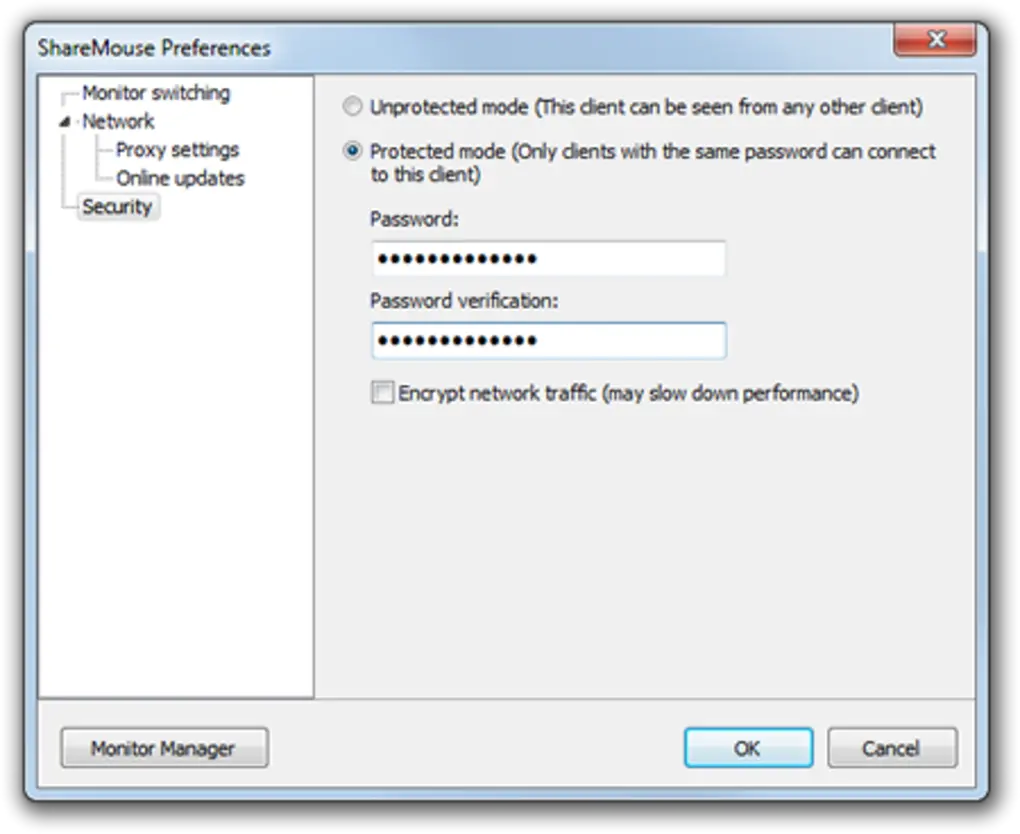
✔ Secure encrypted communication
✔ Windows and Mac support
✔ Low latency input sharing
✔ Simple setup process
👍 Pros & 👎 Cons
Pros
- Huge productivity boost
- No extra hardware needed
- Smooth multi-PC control
- Easy copy/paste between systems
- Works across Windows & Mac
Cons
- Depends on network quality
- Not ideal for unstable Wi-Fi
- Paid software (premium features)
- Setup required on multiple devices
Our Analysis
ShareMouse is a powerful productivity tool for users who work with multiple computers simultaneously.
Its biggest strength is the ability to eliminate physical switching between devices and create a smooth unified workflow across systems.
It is especially useful for developers, IT professionals, and office setups where multiple machines are used daily.
However, it performs best on stable LAN networks, and Wi-Fi setups may introduce slight lag depending on conditions.
Overall, it is a premium-grade multi-computer control tool that significantly improves workflow efficiency.
⚙️ Installation Guide (General Overview)
Step 1: Download Software
First, download ShareMouse from the official website. Make sure you choose the correct version for your operating system (Windows or macOS).
Step 2: Install on First Computer
Run the setup file and complete the installation process. During installation, the software may ask for network permissions—allow it so it can communicate with other devices.
Step 3: Install on All Other Computers
Repeat the same installation process on every computer you want to connect. All systems must have ShareMouse installed to enable communication.
Step 4: Connect All Devices to Same Network
Ensure all computers are connected to the same Wi-Fi network or LAN connection. A wired Ethernet connection is recommended for smoother performance and lower lag.
Step 5: Launch ShareMouse on All Systems
Open the software on each computer. It will automatically try to detect other devices on the same network.
Step 6: Arrange Screen Layout
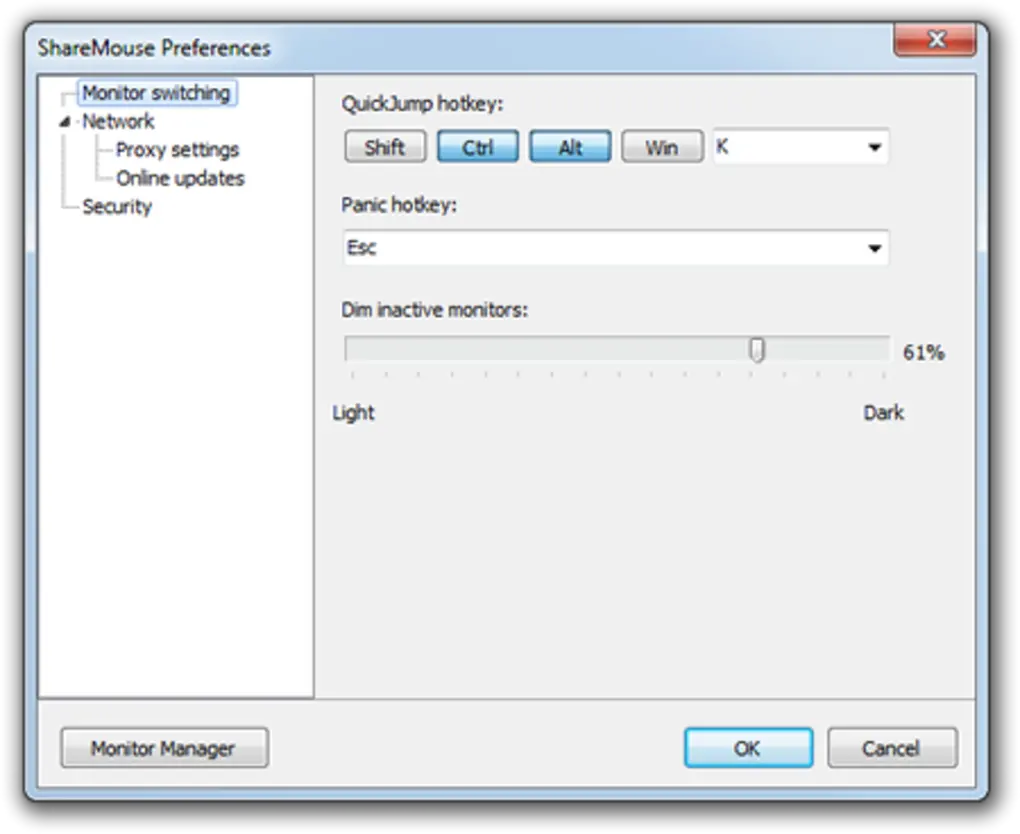
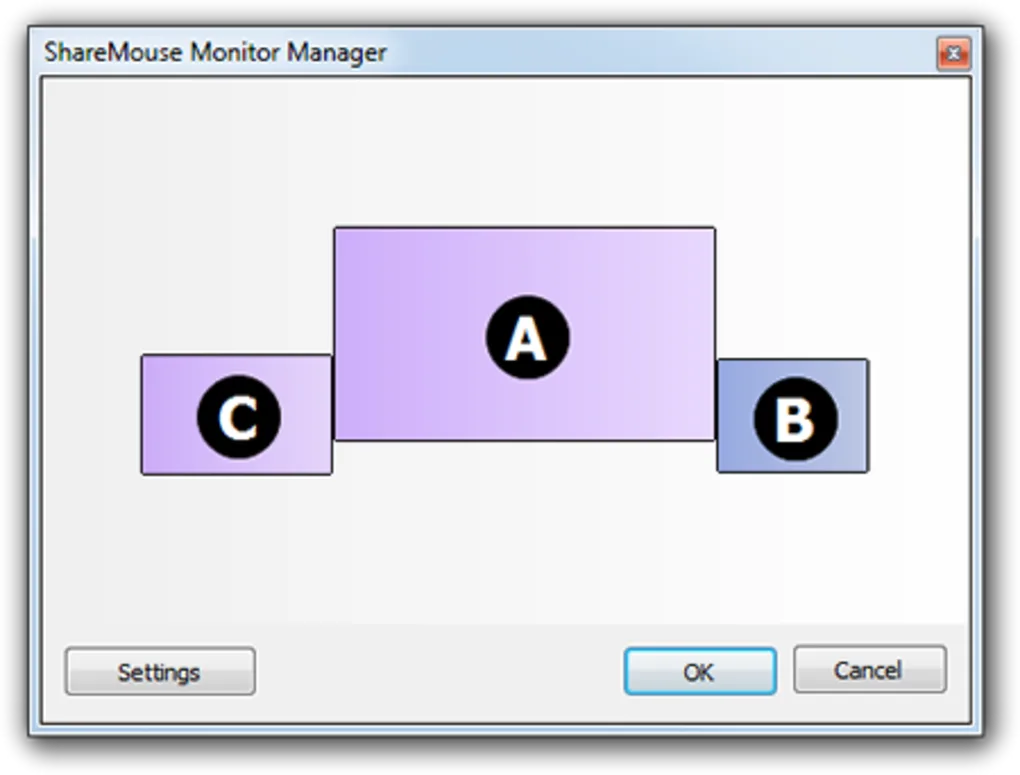
Inside the settings, arrange your monitors logically (left, right, top, bottom). This defines how your mouse will move between systems.
Step 7: Set Primary and Secondary Devices
Choose which computer will act as the primary control system. From there, your mouse and keyboard will move across connected systems.
Step 8: Start Using Seamless Control
Once setup is complete, simply move your mouse to the edge of the screen to switch between computers instantly and start working across devices.
About SoftwareDownloading Editorial Team
The SoftwareDownloading Editorial Team researches Windows software, compatibility information, features, alternatives, and software-related guides for SoftwareDownloading.in.
Our pages are prepared using available product information and relevant documentation. When an application has not been personally tested, we distinguish research-based analysis from hands-on testing. Learn more about our review process

Apps Specs
Developer
Licence
Free
Version
2.0.53
Platform
Windows
Download Clicks
4
Page Reviewed
September 26, 2026
Top Downloads



Related Topics
Disclaimer
This content is provided for educational and informational purposes only. We do not host, store, or distribute any software files on our servers. All trademarks, product names, and logos belong to their respective owners.
We strongly recommend downloading software only from official websites or trusted sources. We are not responsible for any damage, data loss, or issues that may occur from the use of third-party software.
Users should ensure they comply with all applicable laws and software licensing agreements in their country before downloading or using any software mentioned on this website.