- Utilities & Tools
- Keyboards
- KeyCombiner

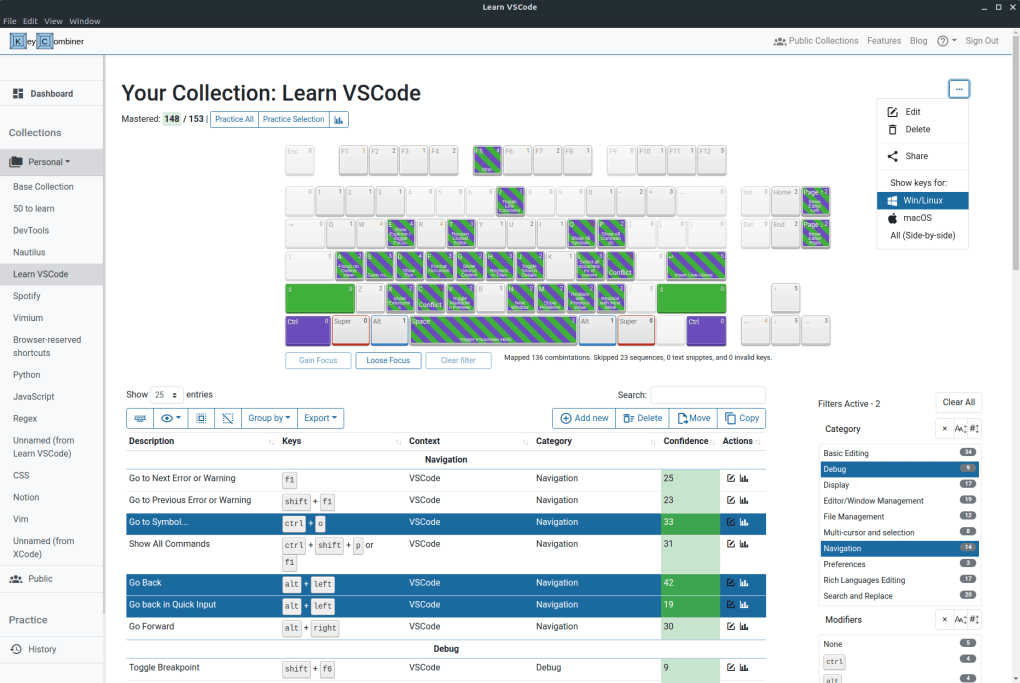
KeyCombiner is designed to improve workflow efficiency by helping users master keyboard shortcuts across different applications. Instead of memorizing shortcuts randomly, it provides a structured system where shortcuts are grouped, categorized, and practiced systematically.
It supports multiple applications and allows users to create personalized shortcut libraries. This makes it easier to transition between tools like design software, coding environments, and office applications without losing productivity.
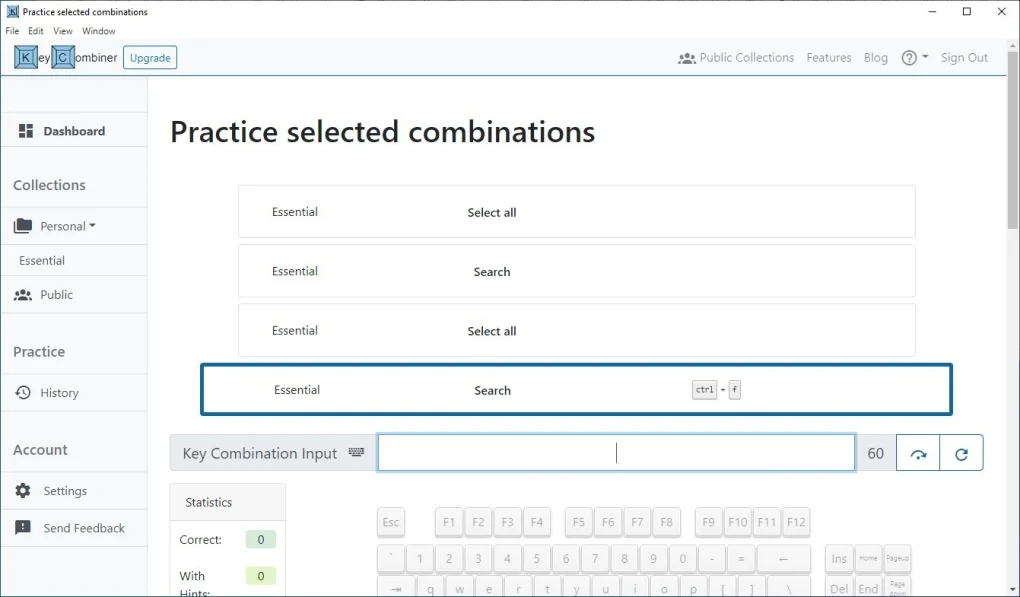
The platform often includes practice modes, search functionality, and cloud synchronization so users can access their shortcut collections from multiple devices.
📌 What is KeyCombiner?
KeyCombiner is a productivity and learning tool designed to help users learn, organize, and master keyboard shortcuts efficiently. It allows users to collect shortcuts from different applications and practice them in a structured way to improve workflow speed and productivity.
It is mainly used by professionals who rely heavily on keyboard shortcuts such as developers, designers, writers, and power users.
🚀 Key Uses
- Learning keyboard shortcuts for different software
- Organizing shortcuts by application (e.g., Photoshop, VS Code)
- Improving productivity through shortcut mastery
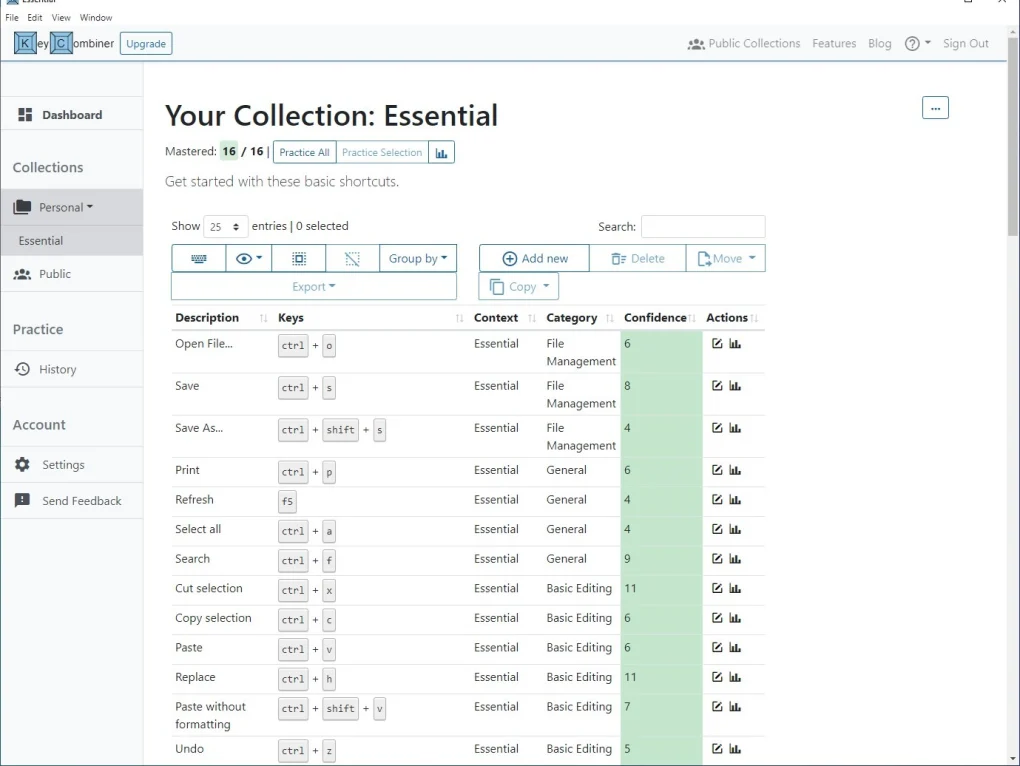
- Creating personalized shortcut collections
- Practicing muscle memory for faster workflows
- Reference tool for quick shortcut lookup
- Training new users in software efficiency
- Reducing dependency on mouse usage
💻 System Requirements (General)
Minimum Requirements
- Windows 7 / 8 / 10 / 11 or macOS support
- 1GB RAM
- Basic internet browser support (for web version)
- Low CPU usage
Recommended Requirements
- 2GB+ RAM
- Modern browser or desktop app support
- Stable internet connection (for syncing features)
- Updated OS for best compatibility
🔄 Alternatives
- CheatSheet apps (macOS built-in alternatives)
- Shortcuts.design
- Notion shortcut databases
- Excel/Sheets shortcut trackers
- Microsoft PowerToys (Shortcut Guide)
- Raycast (macOS productivity tool)
❓ FAQ
Q1. What is KeyCombiner used for?
It is used to learn and organize keyboard shortcuts for different applications.
Q2. Is it useful for beginners?
Yes, it helps beginners learn shortcuts faster and improve productivity.
Q3. Does it work offline?
Some features work offline, but syncing may require internet.
Q4. Can I create custom shortcut lists?
Yes, users can build and manage their own shortcut collections.
Q5. Is it only for developers?
No, it is useful for anyone who uses software frequently.
Features
✔ Keyboard shortcut organization system
✔ Application-based shortcut grouping
✔ Practice and learning mode
✔ Custom shortcut collections
✔ Searchable shortcut database
✔ Productivity tracking support
✔ Cross-device synchronization
✔ Web and desktop accessibility
✔ User-friendly interface
✔ Fast shortcut lookup system
👍 Pros & 👎 Cons
Pros
- Improves productivity significantly
- Helps memorize shortcuts faster
- Organized learning structure
- Useful for professionals and beginners
- Reduces mouse dependency
Cons
- Requires consistent practice
- Some features may need internet
- Advanced features may be paid
- Not useful for casual users
Our Analysis
KeyCombiner is a highly useful productivity tool for users who want to improve speed and efficiency in software usage. It is especially valuable for developers, designers, and office professionals who rely on keyboard shortcuts daily.
Its structured learning approach makes shortcut memorization easier compared to traditional methods. The ability to organize shortcuts by application is one of its strongest advantages.
Overall, it is a powerful productivity enhancement tool that helps users become faster and more efficient in their daily digital workflows.
⚙️ Installation Guide (General Overview)
Step 1: Access Platform
Open KeyCombiner via its official website or download desktop version if available.
Step 2: Create Account
Sign up to save and sync your shortcut collections across devices.
Step 3: Choose Applications
Select software (e.g., VS Code, Photoshop, Excel) whose shortcuts you want to learn.
Step 4: Import or Add Shortcuts
Add existing shortcut sets or create custom ones manually.
Step 5: Start Learning Mode
Use practice mode to test and memorize shortcuts interactively.
Step 6: Daily Practice
Regularly review and practice shortcuts to build muscle memory.
About SoftwareDownloading Editorial Team
The SoftwareDownloading Editorial Team researches Windows software, compatibility information, features, alternatives, and software-related guides for SoftwareDownloading.in.
Our pages are prepared using available product information and relevant documentation. When an application has not been personally tested, we distinguish research-based analysis from hands-on testing. Learn more about our review process
Apps Specs
Developer
Licence
Free
Version
0.2.1
Platform
Windows
Download Clicks
2
Page Reviewed
September 26, 2026
Top Downloads




Related Topics
Disclaimer
This content is provided for educational and informational purposes only. We do not host, store, or distribute any software files on our servers. All trademarks, product names, and logos belong to their respective owners.
We strongly recommend downloading software only from official websites or trusted sources. We are not responsible for any damage, data loss, or issues that may occur from the use of third-party software.
Users should ensure they comply with all applicable laws and software licensing agreements in their country before downloading or using any software mentioned on this website.