- Development & IT
- Web devlopment
- ChromeDriver

ChromeDriver is a standalone tool developed for automating the Google Chrome browser using Selenium and other browser automation frameworks. It acts as a bridge between automated testing scripts and the Chrome browser.
📌 What is ChromeDriver?
ChromeDriver is a testing and automation utility developed by Google to control the Chrome browser programmatically. It is mainly used with Selenium for automated testing of websites and web applications.
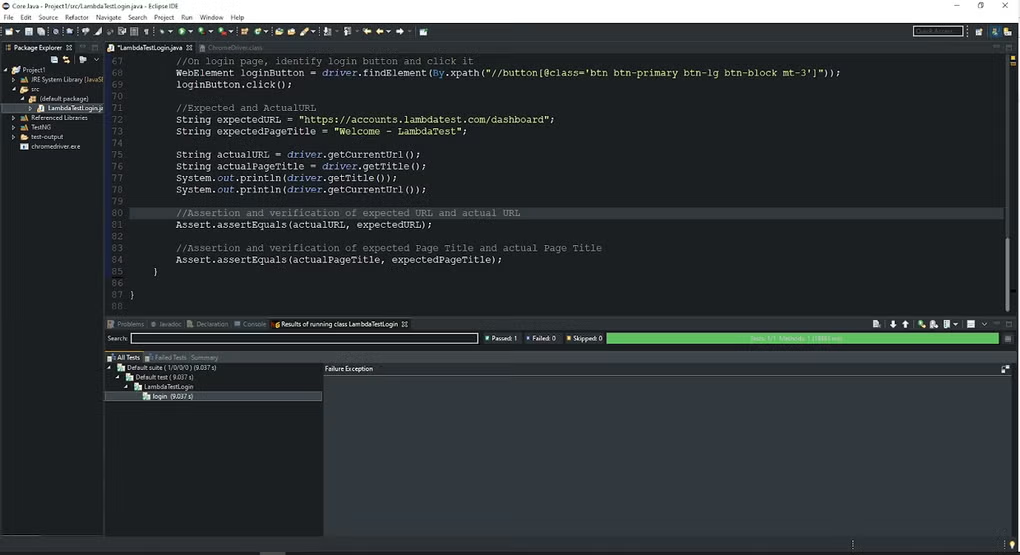
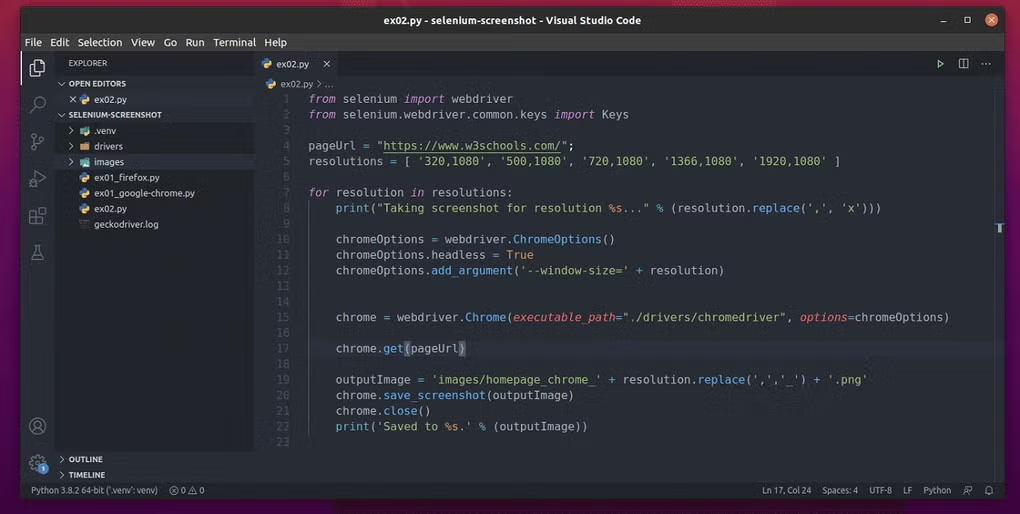
Normally, when developers or testers need to verify that a website works correctly, doing everything manually can be time-consuming. ChromeDriver solves this problem by allowing scripts to automatically open Chrome, click buttons, fill forms, navigate pages, and test website functionality.
It acts as a communication layer between Selenium commands and the Chrome browser. When a Selenium script sends instructions, ChromeDriver translates them into actions inside Chrome.
ChromeDriver is widely used in software testing, web scraping, automation projects, and continuous integration systems. Developers use it to test web applications across different scenarios without manual effort.
Another important advantage is compatibility with multiple programming languages such as Python, Java, C#, JavaScript, and Ruby. This flexibility makes it popular among developers worldwide.
Overall, ChromeDriver is an essential tool for modern web automation and browser testing.
💻 System Requirements (Detailed)
To run ChromeDriver smoothly, the following system requirements are recommended:
Minimum Requirements
- Operating System: Windows / macOS / Linux
- Browser: Installed version of Google Chrome
- Processor: Standard modern CPU
- RAM: Minimum 2GB RAM
- Storage Space: 50MB free space
- Programming Environment: Optional for automation scripting
Recommended Requirements
- RAM: 4GB or more
- Processor: Multi-core CPU
- Storage: SSD recommended for faster testing
- Development Tools: IDE such as VS Code or IntelliJ IDEA
- Internet: Required for updates and downloading dependencies
The ChromeDriver version should match the installed Chrome browser version.
🔄 Alternatives
If you want similar browser automation tools, you can try:
- GeckoDriver
- Microsoft Edge WebDriver
- Playwright
- Puppeteer
❓ FAQ
Q1. What is ChromeDriver mainly used for?
It is used for automating Google Chrome through Selenium and other testing frameworks.
Q2. Is ChromeDriver free?
Yes, ChromeDriver is completely free to use.
Q3. Does ChromeDriver require coding knowledge?
Yes, basic programming knowledge is usually required.
Q4. Why does ChromeDriver stop working sometimes?
Usually because the Chrome browser version and ChromeDriver version do not match.
Q5. Can ChromeDriver run without opening the browser window?
Yes, it supports headless mode for background automation.
Features
- ✔️ Automates Google Chrome browser
- ✔️ Works with Selenium WebDriver
- ✔️ Supports automated web testing
- ✔️ Cross-platform compatibility
- ✔️ Supports multiple programming languages
- ✔️ Helps with browser-based automation
- ✔️ Useful for web scraping projects
- ✔️ Lightweight and fast performance
- ✔️ Supports headless browser testing
- ✔️ Frequently updated for Chrome compatibility
👍 Pros & 👎 Cons
Pros
- Essential for Selenium automation
- Supports many programming languages
- Easy integration with testing frameworks
- Useful for automated QA testing
- Free and widely supported
Cons
- Chrome version compatibility issues can occur
- Requires technical knowledge
- Setup may confuse beginners
- Browser updates may require driver updates
Our Analysis
In my opinion, ChromeDriver is one of the most important tools for web automation and browser testing. It is reliable, lightweight, and works extremely well with Selenium-based automation frameworks.
The ability to automate browser tasks saves developers and testers a huge amount of time. Features like headless testing and multi-language support make it suitable for both small projects and enterprise-level automation systems.
However, beginners may initially struggle with setup and version compatibility. Once configured properly, though, ChromeDriver becomes a powerful tool for automated testing, scraping, and workflow automation. If you work with web development or QA testing, ChromeDriver is definitely an essential utility.
⚙️ Installation Guide (Step-by-Step)
Follow these steps to install ChromeDriver:
Step 1: Check Chrome Version
Open Google Chrome and check its version from Settings → About Chrome.
Step 2: Download ChromeDriver
Download the matching ChromeDriver version from the official Chrome for Testing website.
Step 3: Extract ZIP File
Use WinRAR or 7-Zip to extract the downloaded archive.
Step 4: Move Driver File
Place the ChromeDriver executable in a folder on your system.
Step 5: Add to System PATH
Add the ChromeDriver folder to environment variables for easier access.
Step 6: Install Selenium
Install Selenium using your preferred programming language package manager.
Step 7: Write Automation Script
Create a Selenium script to control Chrome.
Step 8: Run the Script
Execute the script and verify Chrome launches automatically.
About SoftwareDownloading Editorial Team
The SoftwareDownloading Editorial Team researches Windows software, compatibility information, features, alternatives, and software-related guides for SoftwareDownloading.in.
Our pages are prepared using available product information and relevant documentation. When an application has not been personally tested, we distinguish research-based analysis from hands-on testing. Learn more about our review process
Apps Specs
Developer
Licence
Free
Version
V 114.0.5735.90
Platform
Windows
Download Clicks
1
Page Reviewed
September 27, 2026
Top Downloads



Disclaimer
This content is provided for educational and informational purposes only. We do not host, store, or distribute any software files on our servers. All trademarks, product names, and logos belong to their respective owners.
We strongly recommend downloading software only from official websites or trusted sources. We are not responsible for any damage, data loss, or issues that may occur from the use of third-party software.
Users should ensure they comply with all applicable laws and software licensing agreements in their country before downloading or using any software mentioned on this website.