
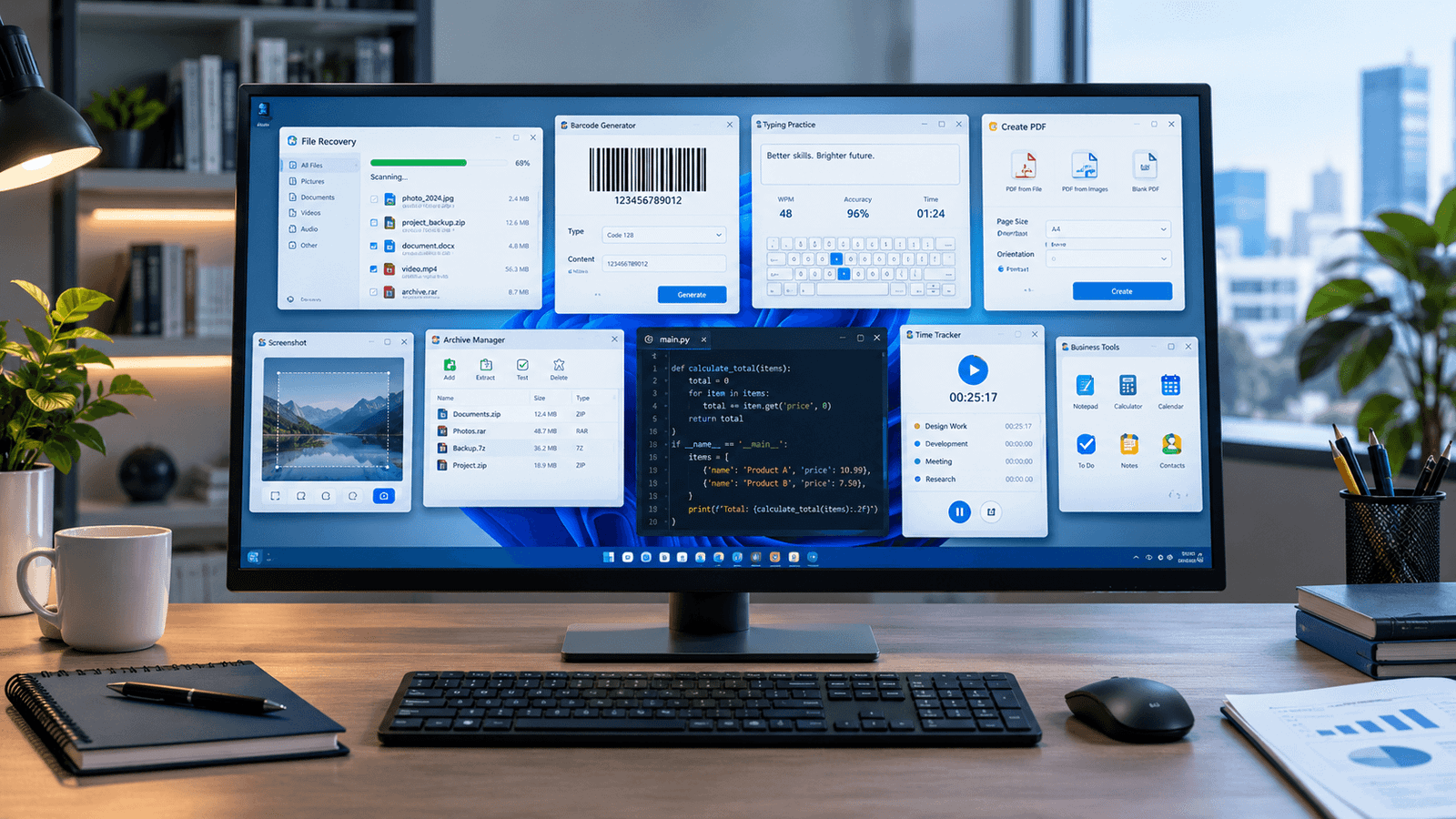
Windows users often install software only when they have a particular problem to solve.
Maybe you need to organize library records, create barcodes, improve typing speed, capture screenshots for documentation, open a specific file type, recover deleted files, manage printing, track time, or work with development tools.
The problem is that many software lists focus only on famous applications. That leaves out smaller Windows tools that can be useful for very specific tasks.
This guide takes a different approach.
Instead of recommending another collection of mainstream applications, we are looking at 20 useful Windows software tools for specific everyday, office, educational, technical, and file-management needs in 2026.
Several of these applications are already available on SoftwareDownloading.in, making this guide particularly useful for readers who want to discover less-obvious Windows software and explore individual software reviews.
The goal is not to install all 20 applications.
The better approach is to identify the task you actually need to perform and then choose the software that matches that requirement.
Quick Overview: Which Software Is Useful for Which Task?
| Software | Best For | Category |
|---|---|---|
| Library Mnagement | Library records and catalog management | Education / Business |
| Barillo Barcode Software | Barcode generation and labels | Business / Utility |
| KM Wakeup | Reminders and wake-up scheduling | Productivity |
| JetType | Typing practice and speed improvement | Education |
| TimeSnapper | Activity screenshots and time tracking | Productivity |
| PrintKey-Pro | Screenshot capture and documentation | Utility |
| JrPrinter | Lightweight document printing | Utility |
| PDF-XChange Lite | Creating PDFs through virtual printing | PDF / Utility |
| JAR File Opener | Opening Java archive files | Utility / Technical |
| TUGZip | Archive extraction and compression | File Management |
| ADL Uncompressor | Extracting compressed files | File Management |
| iTop Data Recovery | Recovering deleted files | Data Recovery |
| UltData – Windows Data Recovery | Windows data recovery | Data Recovery |
| Jihosoft WhatsMate | WhatsApp backup and transfer workflows | Data Management |
| Urdu IME | Urdu typing on Windows | Language |
| Desktop Digital Clock | Desktop clock and time display | Productivity |
| TP Clock | Custom clocks and time zones | Productivity |
| Brietling World Time | International time-zone tracking | Time Management |
| Dev-C++ | C/C++ programming | Development |
| Graphics Driver For Windows 32 & 64 Bit | Graphics-driver support | System Utility |
The important point is that these applications solve different problems. Some are specialized business tools, some are educational, some are utilities, and others are technical tools.

1. Library Mnagement – Manage Library Records More Efficiently
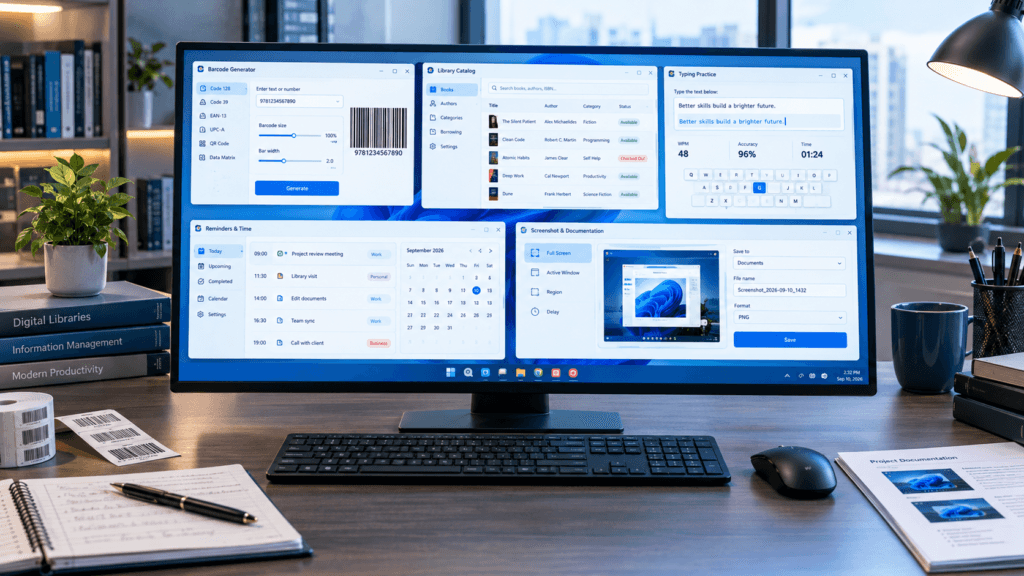
Libraries can have thousands of books, members, circulation records, and catalog entries. Managing everything manually can quickly become difficult.
Library Mnagement is designed around library-management workflows such as book tracking, catalog management, student records, circulation, digital libraries, barcode systems, and inventory control.
This makes it particularly relevant for schools, colleges, educational organizations, and smaller libraries that need a dedicated desktop-oriented management solution.
Useful for:
- Book catalog management
- Student/member records
- Book circulation
- Library inventory
- Barcode-based workflows
- Digital library management
Instead of maintaining multiple spreadsheets for different library activities, dedicated library-management software can provide a more structured workflow.
Best suited for: schools, colleges, libraries, educational institutions, and organizations managing physical book collections.
2. Barillo Barcode Software – Create Barcodes for Business and Inventory
Barcodes are useful far beyond large retail stores.
Small businesses, warehouses, shops, offices, libraries, and inventory departments may also need to generate labels and identify products or items.
Barillo Barcode Software focuses on barcode generation and label-printing workflows.
It can be useful when a business needs a straightforward way to create product identification labels without building a complicated inventory system from scratch.
Common uses include:
- Barcode generation
- Product labels
- Inventory identification
- Retail workflows
- Warehouse organization
- UPC/EAN-related barcode tasks
For a small business, even a simple barcode workflow can reduce manual identification and make inventory handling more systematic.
3. KM Wakeup – Simple Reminders for Windows
Not every productivity requirement needs a full project-management platform.
Sometimes the requirement is simply:
“Remind me at a specific time.”
KM Wakeup is a lightweight Windows utility designed around alarms, reminders, desktop notifications, and time-based productivity workflows.
It can be useful for:
- Meeting reminders
- Study sessions
- Work breaks
- Appointment reminders
- Daily routines
- Wake-up alarms
- Time-based tasks
The advantage of a lightweight reminder application is simplicity. If all you need is a scheduled alert, a large productivity platform may be unnecessary.
4. JetType – Practice Typing and Improve Keyboard Skills
Typing speed matters for students, office professionals, writers, data-entry workers, and anyone who spends a significant amount of time working on a keyboard.
JetType is focused specifically on typing-speed training and keyboard practice.
It can help users work on:
- Typing speed
- Typing accuracy
- Touch typing
- Keyboard familiarity
- Practice exercises
- Basic typing skills
For beginners, dedicated typing software can be more useful than simply typing random documents because it provides a structured practice environment.
Who can benefit?
Students can use it to develop keyboard skills, while office users can use regular practice to improve typing accuracy and efficiency.
5. TimeSnapper – Review How You Spend Time on Your PC
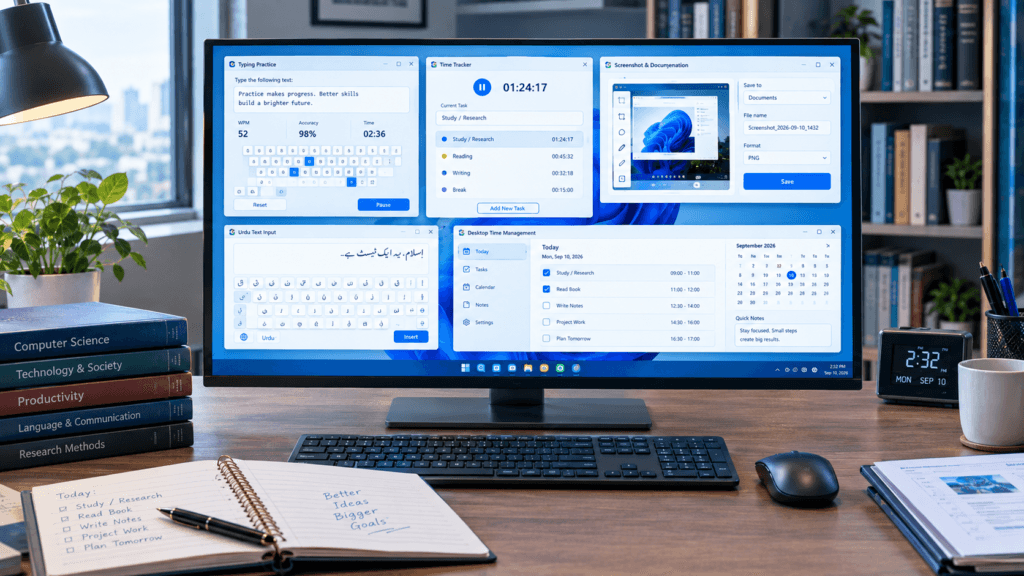
Time management becomes difficult when you do not know where your working hours actually go.
TimeSnapper takes a different approach by automatically capturing desktop screenshots and creating a visual record of computer activity.
This can be useful for:
- Productivity tracking
- Reviewing work sessions
- Activity timelines
- Workflow analysis
- Time-management experiments
- Understanding how long tasks actually take
The important use case is not simply watching screenshots.
The real value is being able to look back at your work session and understand how your time was spent.
For freelancers and professionals, this type of retrospective review can help identify interruptions and inefficient workflows.
6. PrintKey-Pro – Capture Screenshots for Documentation
Screenshots are useful in almost every professional environment.
You may need them when creating:
- Software tutorials
- Troubleshooting guides
- Training documents
- Technical reports
- Step-by-step instructions
- Support documentation
PrintKey-Pro focuses on screenshot capture and lightweight desktop image handling.
It can be particularly useful for users who frequently need to capture something on their Windows screen and use it in documentation.
For example, a technician can capture an error message, while a teacher can capture an application interface for a tutorial.
7. JrPrinter – Lightweight Printing for Everyday Documents
Printing is still important in offices, schools, shops, and home businesses.
While large office suites often include printing support, some users need a simpler tool for handling basic printing workflows.
JrPrinter focuses on lightweight document printing and batch-printing tasks.
It can be useful when you frequently work with multiple documents and want a straightforward printing workflow.
Possible uses:
- Office documents
- Text files
- Batch printing
- Routine document output
- Basic printing management
This type of utility is especially relevant for environments where printing is a regular part of daily work.
8. PDF-XChange Lite – Create PDFs Through Virtual Printing
PDF remains one of the most common formats for sharing professional documents.
One practical way to create a PDF is through a virtual printer.
PDF-XChange Lite provides a lightweight PDF-printing workflow that can convert printable documents into PDF files.
For example:
Document → Print → PDF
This approach can be useful when an application does not provide a dedicated “Export to PDF” button.
Useful for:
- Office documents
- Digital paperwork
- Paperless workflows
- Sharing documents
- PDF creation
- Printable reports
It is particularly useful for users who frequently need to convert ordinary printable documents into a shareable PDF.

9. JAR File Opener – Work With Java Archive Files
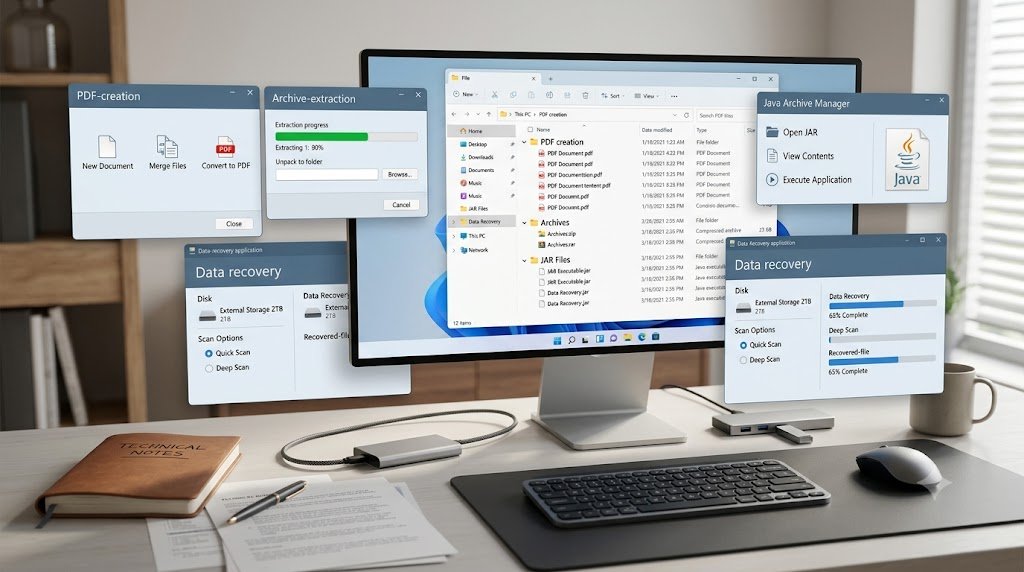
A JAR file is a Java Archive used to package Java classes, resources, and application components.
Windows users may encounter JAR files while working with Java-based software, development projects, utilities, or downloaded packages.
JAR File Opener is designed around opening and handling JAR files.
It can be useful for:
- Viewing JAR contents
- Extracting Java archive files
- Accessing packaged resources
- Working with Java applications
- Managing downloaded JAR packages
Users should still understand the source of any downloaded JAR file before opening or executing it.
10. TUGZip – Handle Compressed Files
Compressed archives are common when downloading software, transferring multiple files, or storing backups.
TUGZip is a file-compression and archive-extraction utility that can work with multiple archive formats.
Typical tasks include:
- Extracting archives
- Compressing files
- Opening downloaded packages
- Creating archives
- Managing compressed folders
A dedicated archive utility becomes especially useful when Windows’ built-in extraction support does not cover the format you encounter.
11. ADL Uncompressor – Extract Compressed Packages
Sometimes users do not need a complete compression suite.
They simply need to extract a compressed package.
ADL Uncompressor is designed for archive extraction and decompression workflows.
It can be useful for:
- Extracting downloaded archives
- Accessing compressed software packages
- Restoring archived files
- Opening compressed folders
- Basic file-management tasks
This makes it another example of a small utility that solves a very specific Windows problem.
12. iTop Data Recovery – Recover Deleted Files
Accidentally deleting an important file is one of the most frustrating Windows problems.
iTop Data Recovery is designed around recovering deleted files and restoring data from storage devices.
Possible recovery scenarios include:
- Accidentally deleted files
- USB storage
- External drives
- Formatted storage
- Lost photos
- Documents
- Other recoverable files
However, data recovery should be treated as a time-sensitive process.
If a file has been accidentally deleted, avoid unnecessarily writing new data to the same storage device because new data can potentially overwrite recoverable information.
13. UltData – Windows Data Recovery – Another Recovery Option
Not every recovery situation is identical.
UltData – Windows Data Recovery provides another software-based approach for recovering deleted or lost Windows data.
It is aimed at workflows involving:
- Deleted files
- Formatted drives
- USB devices
- Storage partitions
- Lost documents
- Photo recovery
- Windows storage recovery
When dealing with important files, users should avoid repeatedly experimenting with the affected drive.
A safer workflow is to stop unnecessary use of the storage device and evaluate recovery options carefully.
14. Jihosoft WhatsMate – WhatsApp Data Management
Messaging data can become important when it contains business conversations, documents, photographs, or other valuable information.
Jihosoft WhatsMate is designed around WhatsApp-related backup, transfer, recovery, and media-management workflows.
Potential uses include:
- WhatsApp backup
- Chat transfer
- Message management
- Media export
- Data migration
- WhatsApp-related recovery workflows
Before performing any migration or recovery operation, users should understand exactly what the software supports and maintain a separate backup of important data whenever possible.
15. Urdu IME – Type Urdu on Windows
Multilingual computing is increasingly important.
Windows users may need to type in Urdu for:
- Personal communication
- Educational work
- Office documents
- Social media
- Publications
- Local-language content
Urdu IME provides Urdu typing and Unicode input functionality for Windows.
It can be useful for users who want a dedicated input method instead of repeatedly switching between different typing workflows.
For multilingual users, a dedicated input method can make everyday writing considerably more convenient.
16. Desktop Digital Clock – Keep Time Visible on Your Desktop
A simple desktop clock can be surprisingly useful.
Desktop Digital Clock provides an always-visible time display that can be useful while working, studying, or monitoring multiple activities.
Possible uses include:
- Study sessions
- Office work
- Time tracking
- Multi-window workflows
- Workspace personalization
This is a good example of software that does one simple thing rather than attempting to become an all-in-one productivity platform.
17. TP Clock – Custom Desktop Time Management
Users who want more flexibility around desktop clock displays can also consider TP Clock.
Depending on the workflow, a customizable clock can be useful for:
- Desktop time display
- Alarms
- Time-zone tracking
- Workspace customization
- Scheduling activities
For users working with international clients or remote teams, keeping multiple time references visible can also help avoid scheduling mistakes.
18. Brietling World Time – Track International Time Zones
Remote work has made international time zones a daily concern for many professionals.
If you work with clients or colleagues in different countries, knowing their local time can make scheduling easier.
Brietling World Time is designed around world-time and international time-zone tracking.
It can be useful for:
- International meetings
- Remote teams
- Client scheduling
- Travel planning
- Global business communication
A dedicated world-time tool is particularly useful when your work regularly crosses multiple time zones.
19. Dev-C++ – A Lightweight Environment for C and C++ Learning
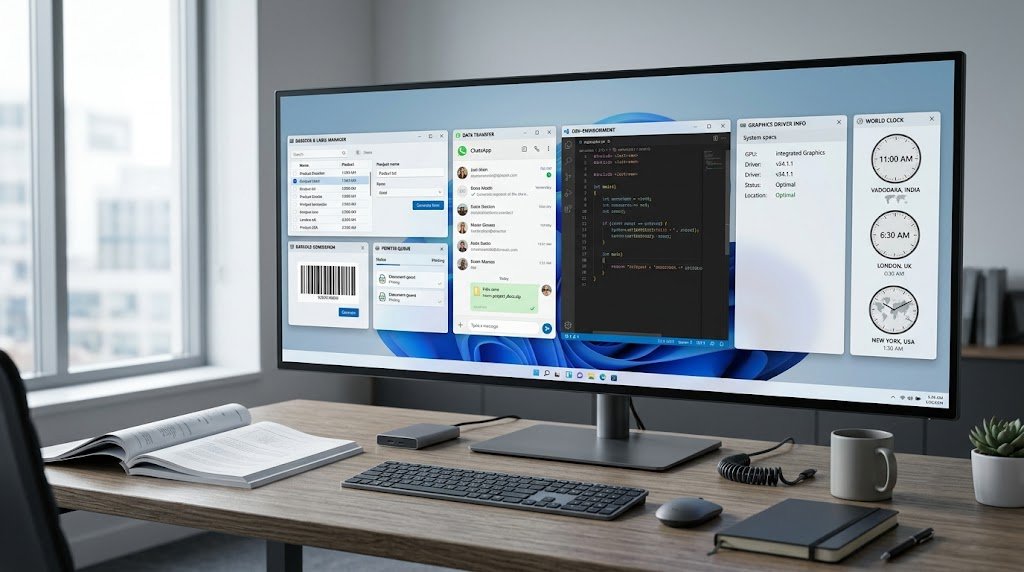
Programming students and beginner developers often need a simple development environment for learning C or C++.
Dev-C++ provides an integrated environment for writing and working with C/C++ programs.
It can support workflows involving:
- Writing source code
- Compiling programs
- Debugging
- Learning C/C++
- Beginner programming exercises
- Small development projects
For students learning programming fundamentals, a straightforward development environment can reduce unnecessary complexity.
It is particularly useful when the goal is learning programming concepts rather than managing a large enterprise development project.
20. Graphics Driver For Windows 32 & 64 Bit – A Technical Windows Utility
Graphics drivers are an important part of the Windows hardware stack.
A compatible graphics driver helps Windows communicate correctly with the installed graphics hardware and can affect display functionality, graphics acceleration, and application compatibility.
Graphics Driver For Windows 32 & 64 Bit is aimed at graphics-driver-related workflows.
Before installing any driver, users should always verify:
- GPU model
- Windows version
- System architecture
- Driver compatibility
- Hardware manufacturer
- Driver source
Driver installation is different from installing ordinary software. Using an incorrect driver can create display or compatibility problems, so verification should come first.
Comparison Table: Which Tool Fits Your Need?
| Software | Main Purpose | Best For | Difficulty |
|---|---|---|---|
| Library Mnagement | Library management | Schools and libraries | Medium |
| Barillo Barcode Software | Barcode creation | Shops and inventory | Easy |
| KM Wakeup | Reminders | Everyday users | Easy |
| JetType | Typing practice | Students and beginners | Easy |
| TimeSnapper | Activity tracking | Productivity review | Medium |
| PrintKey-Pro | Screenshots | Tutorials and documentation | Easy |
| JrPrinter | Printing | Offices and routine documents | Easy |
| PDF-XChange Lite | PDF creation | Office users | Easy |
| JAR File Opener | JAR files | Technical users | Medium |
| TUGZip | Compression | File management | Easy |
| ADL Uncompressor | Extraction | Everyday file handling | Easy |
| iTop Data Recovery | Data recovery | Deleted files | Medium |
| UltData | Data recovery | Lost Windows data | Medium |
| Jihosoft WhatsMate | WhatsApp data | Backup and transfer | Medium |
| Urdu IME | Urdu typing | Multilingual users | Easy |
| Desktop Digital Clock | Time display | Students and professionals | Easy |
| TP Clock | Clock/time zones | Time management | Easy |
| Brietling World Time | World time | International users | Easy |
| Dev-C++ | C/C++ development | Students/developers | Medium |
| Graphics Driver | Driver management | Technical users | Advanced |
How to Choose the Right Windows Software
The biggest mistake is choosing software simply because it appears in a long “top software” list.
Instead, start with the problem.
Need better typing skills?
Look at JetType.
Need to manage a library?
Consider Library Mnagement.
Need barcode labels?
Barillo Barcode Software may fit that workflow.
Need simple reminders?
Try KM Wakeup.
Need to understand how you spend computer time?
TimeSnapper is designed around activity tracking.
Need screenshots for tutorials?
Use PrintKey-Pro.
Need PDF creation through printing?
Consider PDF-XChange Lite.
Need to open a JAR file?
Look at JAR File Opener.
Need to extract archives?
TUGZip or ADL Uncompressor may be relevant.
Accidentally deleted important files?
Look at data-recovery tools such as iTop Data Recovery or UltData – Windows Data Recovery, while minimizing further writes to the affected drive.
Need Urdu typing?
Urdu IME is designed for that purpose.
Learning C or C++?
Dev-C++ can provide a straightforward development environment.
The best software choice is therefore dependent on the actual task rather than the popularity of the application.
Why Smaller Windows Utilities Still Matter in 2026
The Windows software ecosystem is full of large applications that try to perform dozens of tasks.
That can be useful, but it can also create unnecessary complexity.
A small specialized tool can sometimes be easier to understand and maintain.
For example:
Typing problem → JetType
Barcode problem → Barillo Barcode Software
Screenshot problem → PrintKey-Pro
Archive problem → TUGZip
JAR problem → JAR File Opener
Reminder problem → KM Wakeup
Urdu typing problem → Urdu IME
This task-oriented approach makes software discovery more practical.
Instead of asking:
“What are the 20 most popular Windows applications?”
A better question is:
“What Windows problem am I trying to solve?”
That change in thinking can lead to more useful software choices.
Utilities can solve specific problems, but installing more software is not always the answer to poor performance. If your computer feels sluggish, first diagnose a slow Windows 11 PC before adding another optimization tool.
Free vs Trial Software: What Should You Check?
Software licensing is another important consideration.
Some applications are completely free, while others may be trial-based or include limitations.
Before installing any software, check:
- License type
- Supported Windows version
- Latest available version
- Developer information
- System requirements
- Whether internet access is required
- Whether the application contains optional bundled software
- Whether important features require payment
Free does not automatically mean that every program is suitable for every user.
Likewise, a trial application can be useful if its specialized functionality solves a problem that free alternatives do not handle well.
Security Tips Before Installing Specialized Windows Software
Specialized utilities deserve the same security attention as mainstream software.
Before installation:
- Download software from a trustworthy source.
- Verify the software name and developer.
- Check the supported Windows version.
- Review the installer carefully.
- Avoid unnecessary bundled applications.
- Keep Windows security protections active.
- Scan suspicious downloads.
- Create backups before using recovery or system-level tools.
- Be particularly careful with drivers.
- Avoid running unknown executable files simply because they solve a particular problem.
This is especially important for tools that interact directly with storage devices, drivers, archives, or messaging data.
Frequently Asked Questions
1. Are these Windows software applications useful for everyday users?
Yes, but not every application is intended for everyone. These tools are designed for specific tasks such as typing, printing, barcode creation, file extraction, recovery, time management, programming, and library management.
2. Why use specialized software instead of a large productivity suite?
Specialized software can be easier to use when you only need one particular function. For example, someone who only needs barcode creation may not need a large business-management platform.
3. Which software is useful for typing practice?
JetType is designed for typing-speed training, keyboard practice, and improving typing accuracy.
4. Which software can help with screenshots?
PrintKey-Pro can be useful for screenshot capture and documentation workflows.
5. Which software can open JAR files?
JAR File Opener is designed for opening and working with Java Archive files.
6. Which software can extract compressed files?
TUGZip and ADL Uncompressor are designed for archive extraction and compressed-file management.
7. Which software can help recover deleted files?
iTop Data Recovery and UltData – Windows Data Recovery are designed around Windows data-recovery workflows.
8. Is data recovery software guaranteed to recover every deleted file?
No. Recovery depends on factors such as whether the deleted data has been overwritten, the condition of the storage device, the file system, and the type of data loss.
9. Which software is useful for Urdu typing?
Urdu IME is designed for Urdu text input and Unicode typing on Windows.
10. Which software is useful for C and C++ programming?
Dev-C++ provides a development environment for C and C++ programming workflows and can be useful for students and beginners.
11. Can these applications be used on Windows 11?
Many Windows applications can run on modern Windows systems, but compatibility can vary by software and version. Always check the individual software page and system requirements before installation.
12. Should I install all 20 applications?
No. The purpose of this guide is discovery, not mass installation. Choose software according to the specific task you need to perform.
Final Thoughts
Windows software does not have to be famous to be useful.
A small application can solve a very specific problem that a large software suite does not address efficiently.
Whether you need to manage library records, generate barcodes, improve typing, capture screenshots, create PDFs, extract archives, recover files, type in Urdu, monitor time, work with Java archives, or learn C/C++, there are specialized Windows tools available for these workflows.
The most practical approach is simple:
Identify the problem first. Choose the software second.
That way, your Windows PC stays more organized, and you avoid installing applications that you will rarely use.
For users who regularly explore new Windows software, SoftwareDownloading.in can also serve as a central place to discover software by category, compare different types of tools, and learn what each application is designed to do.