- Browser
- Web Browser
- Respondus Lockdown Browser
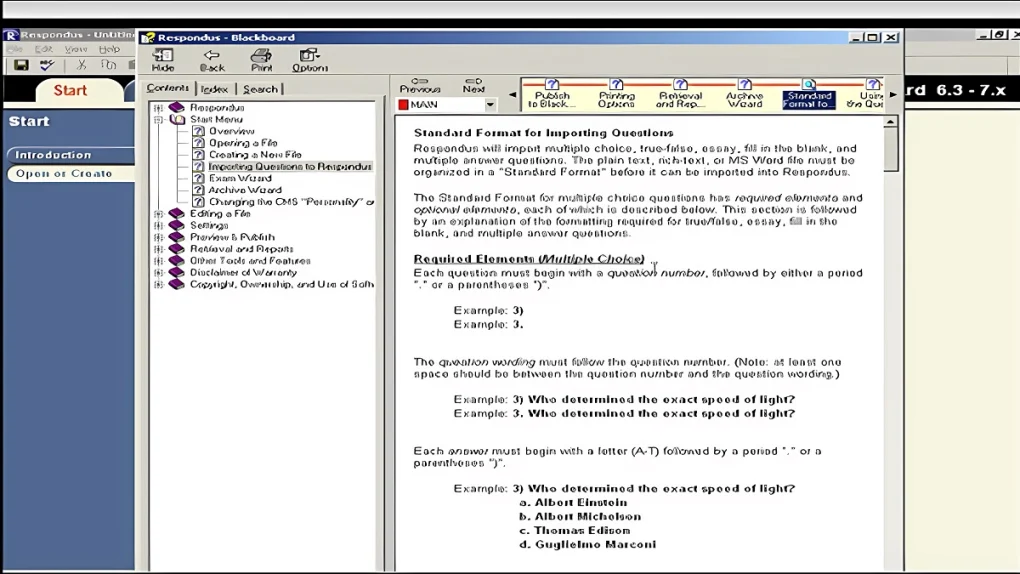
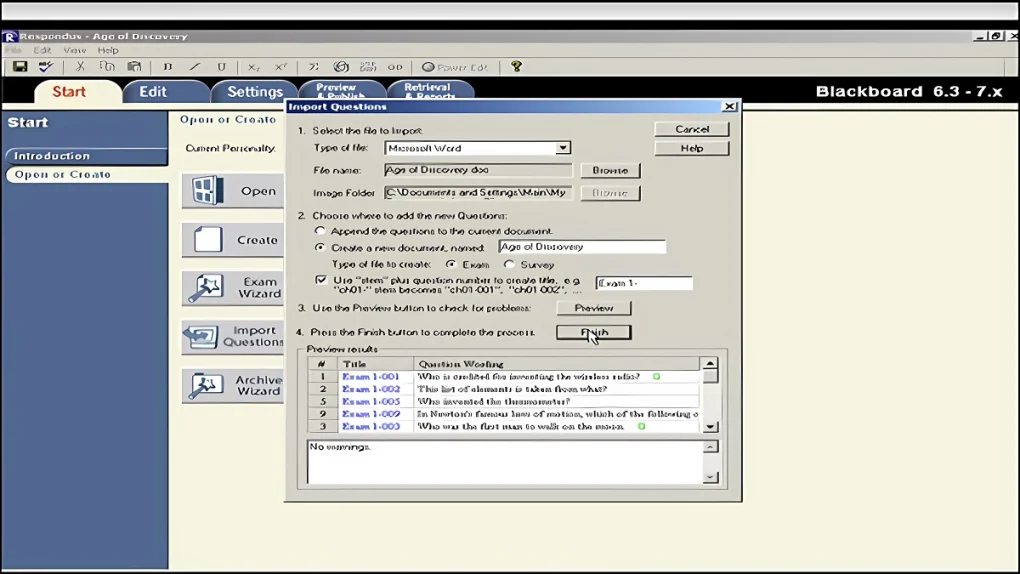
Respondus LockDown Browser is a specialized secure web browser developed by Respondus for online exams and assessments. The browser restricts access to other applications, websites, screen capture tools, and system functions during tests to help maintain academic integrity in online learning environments.
📌 What is Respondus LockDown Browser?
Respondus LockDown Browser is a custom browser specifically designed for secure online examinations and educational assessments. Unlike standard web browsers, LockDown Browser restricts students from accessing unauthorized resources while taking tests.
The browser is commonly integrated with learning management systems (LMS) used by schools, colleges, universities, and training organizations.
Respondus LockDown Browser is commonly used for:
- Online exams
- Remote assessments
- Educational testing
- Academic integrity enforcement
- Secure quiz environments
- Certification exams
- Classroom testing
- Remote learning assessments
One of the biggest strengths of Respondus LockDown Browser is exam security and environment restriction.
The software is commonly used by:
- Schools
- Universities
- Colleges
- Online education platforms
- Certification providers
- Training organizations
- Remote learning institutions
Depending on the institution and LMS integration, Respondus LockDown Browser may support:
- Secure exam environments
- Application blocking
- Website restriction
- Clipboard blocking
- Screen capture prevention
- Printing restrictions
- Multi-monitor detection
- Browser lockdown controls
- LMS integration
- Webcam monitoring support
- Audio monitoring
- Identity verification
- Automated proctoring
- Full-screen exam enforcement
- Assessment session logging
The browser is commonly integrated with major LMS platforms such as:
- Canvas
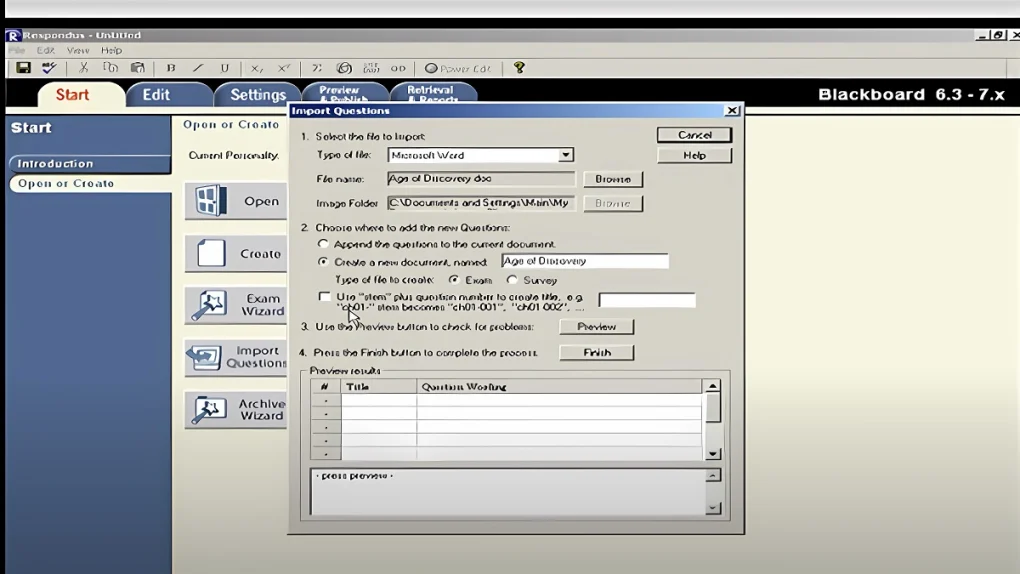
- Blackboard
- Moodle
- Brightspace
During an exam session, the browser may prevent users from:
- Opening new tabs
- Switching applications
- Accessing system shortcuts
- Copying or printing content
- Visiting unauthorized websites
- Running screen recording tools
Another important component is Respondus Monitor, an optional webcam-based remote proctoring system that can work alongside LockDown Browser.
Respondus Monitor may include:
- Webcam recording
- Facial detection
- Environment scanning
- Automated flagging systems
- Audio monitoring
Security features are intended to reduce cheating opportunities during online assessments.
The software is available for:
- Windows
- macOS
- iPad (limited support depending on institution)
The browser is generally not intended for everyday web browsing because it is optimized specifically for assessment security.
Institutions often require students to install LockDown Browser before accessing protected exams.
Some students and privacy advocates have raised concerns regarding:
- Webcam monitoring
- System access permissions
- Privacy implications
- Resource usage
- Compatibility issues
However, many educational institutions continue to use the software because of its strong exam restriction capabilities.
Overall, Respondus LockDown Browser acts as a secure educational assessment browser designed to maintain academic integrity during online examinations and remote testing environments.
💻 System Requirements (Detailed)
To run Respondus LockDown Browser smoothly, the following system requirements are recommended:
Minimum Requirements
- Operating System:
Windows 10 / Windows 11
macOS
iPadOS (limited support) - Processor:
Intel or AMD compatible processor - RAM:
Minimum 4GB RAM - Storage Space:
Around 300MB–500MB free disk space - Internet:
Stable internet connection required for online exams - Additional Hardware (for proctoring):
Webcam
Microphone
Recommended Requirements
- Processor:
Intel Core i3 / Ryzen 3 or higher - RAM:
8GB RAM or more - Internet Speed:
Stable broadband connection recommended - Additional Tools:
Frequently used with:- Canvas
- Blackboard
- Moodle
🔄 Alternatives
If you want similar online assessment tools, you can try:
- Safe Exam Browser
- Proctorio
- ExamSoft
- Honorlock
- ProctorU
❓ FAQ
Q1. What is Respondus LockDown Browser mainly used for?
It is mainly used for secure online exams and academic assessments.
Q2. Can students browse other websites during exams?
No, the browser restricts access to unauthorized websites and applications.
Q3. Does Respondus LockDown Browser record students?
If Respondus Monitor is enabled, webcam and audio recording may occur during exams.
Q4. Is Respondus LockDown Browser required by schools?
Many schools and universities require it for protected online assessments.
Q5. Does LockDown Browser work with LMS platforms?
Yes, it integrates with platforms such as Canvas, Blackboard, and Moodle.
Q6. Can screenshots be taken during exams?
No, screenshot and screen capture tools are typically blocked.
Q7. Is Respondus LockDown Browser a normal web browser?
No, it is specifically designed for secure online testing environments.
Features
- ✔️ Secure online exam environment
- ✔️ Application blocking
- ✔️ Website access restriction
- ✔️ Clipboard and copy protection
- ✔️ Screenshot prevention
- ✔️ Full-screen assessment mode
- ✔️ LMS platform integration
- ✔️ Multi-monitor detection
- ✔️ Printing restrictions
- ✔️ Webcam monitoring support
- ✔️ Audio monitoring integration
- ✔️ Automated proctoring support
- ✔️ Session security controls
- ✔️ Identity verification tools
- ✔️ Remote assessment compatibility
👍 Pros & 👎 Cons
Pros
- Strong online exam security
- Widely used in educational institutions
- Integrates with major LMS platforms
- Helps reduce cheating opportunities
- Supports remote assessment environments
- Webcam monitoring integration available
- Restricts unauthorized applications effectively
- Easy for institutions to deploy
Cons
- Not intended for regular browsing
- Privacy concerns related to webcam monitoring
- Can feel restrictive for students
- Compatibility issues occasionally reported
- Requires installation and permissions
- System resource usage may increase during monitored exams
Our Analysis
In my opinion, Respondus LockDown Browser is one of the most widely recognized tools for maintaining security during online exams and remote educational assessments. The browser is designed specifically to reduce cheating opportunities by restricting access to other applications, websites, shortcuts, and system functions.
One of the strongest advantages is deep LMS integration. Educational institutions can deploy secure testing environments relatively easily across remote learning systems.
The optional Respondus Monitor integration also adds webcam-based proctoring and automated monitoring, which became especially important during remote learning growth.
From an institutional perspective, the software provides practical tools for protecting exam integrity in online environments.
However, students often have concerns regarding privacy, webcam monitoring, system permissions, compatibility issues, and software restrictions. These concerns are understandable because the browser requires deep control over system behavior during exams.
Performance can also vary depending on hardware quality, operating system compatibility, and internet stability.
For educational institutions needing secure online assessment environments, Respondus LockDown Browser remains one of the most widely adopted and practical solutions available today.
⚙️ Installation Guide (Step-by-Step)
Follow these steps to install Respondus LockDown Browser:
Step 1: Obtain the Institution Link
Most schools provide a custom download link for students.
Step 2: Download the Installer
Download the correct version for your operating system.
Step 3: Run the Installer
Launch the setup file and allow permissions if requested.
Step 4: Complete Installation
Finish the installation process.
Step 5: Restart the System (If Required)
Some installations may request a reboot.
Step 6: Launch LockDown Browser
Open the application before accessing exams.
Step 7: Login Through LMS Platform
Access the exam through your institution’s LMS portal.
Step 8: Grant Webcam and Microphone Permissions
If Respondus Monitor is enabled, allow webcam and audio access.
Step 9: Complete Environment Checks
Some exams require camera checks and room scans.
Step 10: Take the Exam Securely
Complete the assessment inside the restricted browser environment.
About SoftwareDownloading Editorial Team
The SoftwareDownloading Editorial Team researches Windows software, compatibility information, features, alternatives, and software-related guides for SoftwareDownloading.in.
Our pages are prepared using available product information and relevant documentation. When an application has not been personally tested, we distinguish research-based analysis from hands-on testing. Learn more about our review process
Apps Specs
Developer
Licence
Free
Version
21.2.01
Platform
Windows
Download Clicks
5
Page Reviewed
September 26, 2026
Top Downloads


Related Topics
Disclaimer
This content is provided for educational and informational purposes only. We do not host, store, or distribute any software files on our servers. All trademarks, product names, and logos belong to their respective owners.
We strongly recommend downloading software only from official websites or trusted sources. We are not responsible for any damage, data loss, or issues that may occur from the use of third-party software.
Users should ensure they comply with all applicable laws and software licensing agreements in their country before downloading or using any software mentioned on this website.