- Utilities & Tools
- Screen Capture
- RecMaster

RecMaster is a screen recording application designed for capturing desktop activity, gameplay, webinars, online meetings, tutorials, and webcam video on Windows systems.
The software allows users to record:
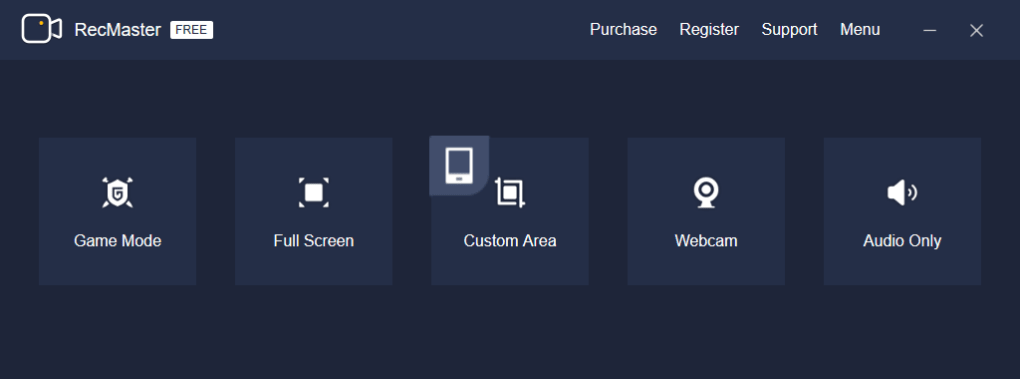
- Full desktop screens
- Selected screen regions
- Gameplay sessions
- Webcam footage
- System audio
- Microphone input
It is commonly used by:
- Gamers
- Teachers
- Students
- Content creators
- Office professionals
- Technical support users
because of its easy-to-use interface and flexible recording modes.
📌 What is RecMaster?
RecMaster is a Windows-based multimedia recording utility developed for capturing screen activity and saving recordings in video formats.
The software is commonly used for:
- Educational tutorials
- Gameplay videos
- Software demonstrations
- Online meeting recording
- Streaming content capture
- Presentation recording
Depending on the version, users may also access:
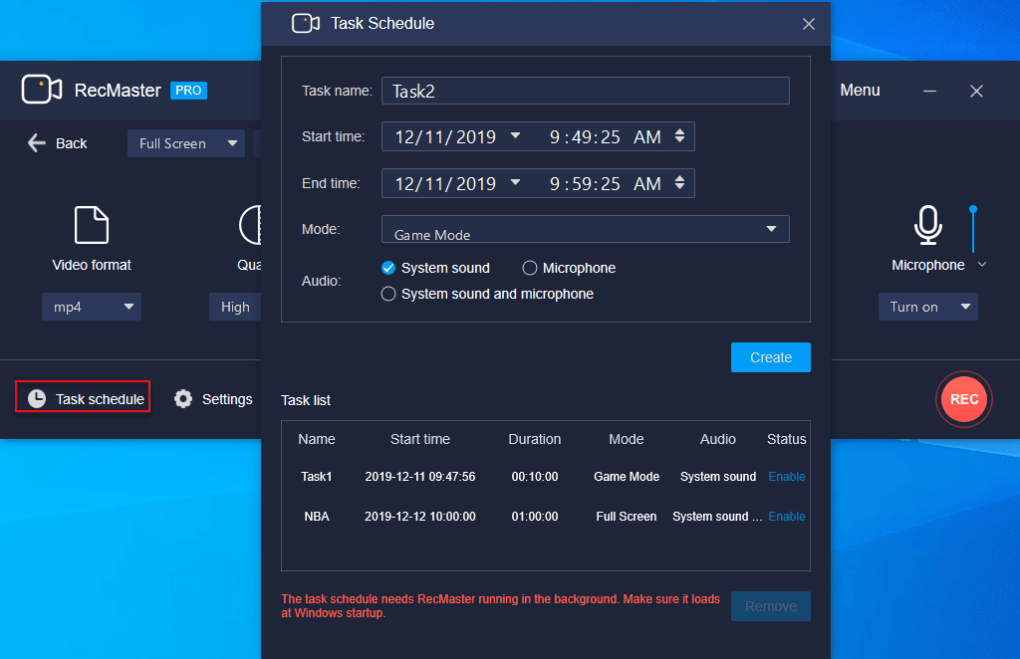
- Scheduled recording
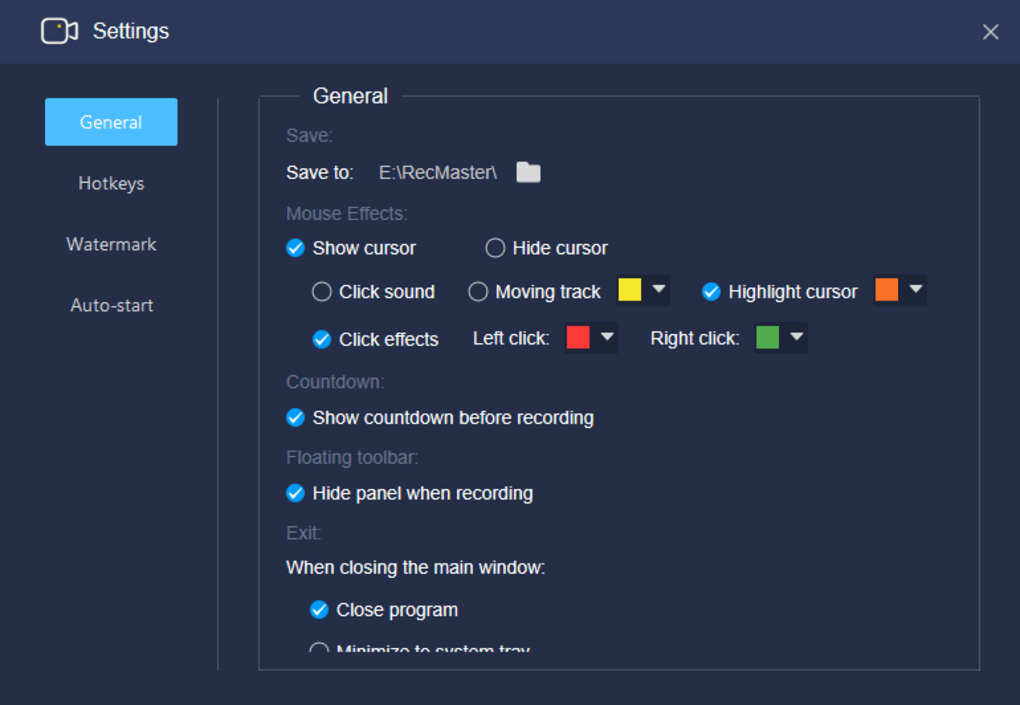
- Mouse highlighting
- Audio customization
- Screenshot tools
- Webcam overlays
The application focuses on lightweight and beginner-friendly recording workflows.
🚀 Key Uses
🎮 Gameplay Recording
Used for recording PC games and gaming highlights.
🧑🏫 Tutorial Creation
Helps users create educational and software demonstration videos.
💼 Meeting Recording
Captures webinars, presentations, and online conferences.
📹 Webcam Recording
Allows webcam video recording and overlays.
🖥️ Desktop Capture
Records browser activity, applications, and desktop workflows.
💻 System Requirements (General)
Minimum Requirements
- Operating System: Windows 7 / 8 / 10 / 11
- RAM: 2GB minimum
- Storage: Free space required for recordings
- Processor: Intel or AMD compatible CPU
Recommended Requirements
- RAM: 4GB or more
- Storage: SSD recommended for smoother recording performance
- Processor: Multi-core CPU
- GPU: Dedicated graphics recommended for gameplay recording
🔄 Alternatives
- OBS Studio
- Bandicam
- Action!
- Movavi Screen Recorder
- iTop Screen Recorder
- Debut Video Capture Software
❓ FAQ
Q1. What is RecMaster mainly used for?
It is mainly used for screen recording, gameplay capture, tutorials, and meeting recording.
Q2. Can it record webcam video?
Yes, webcam recording and overlays are supported.
Q3. Does it support gameplay recording?
Yes, dedicated gameplay recording modes are commonly available.
Q4. Can it record system audio?
Yes, microphone and system sound recording are supported.
Q5. Is it suitable for tutorials?
Yes, many users create tutorials and educational videos with it.
Q6. Is RecMaster free?
Free versions may exist, but advanced functionality often requires a paid license.
Features
✔️ Full-screen desktop recording
✔️ Custom area recording support
✔️ Gameplay recording mode
✔️ Webcam overlay integration
✔️ System audio and microphone recording
✔️ Scheduled recording functionality
✔️ HD video capture support
✔️ Mouse cursor highlighting
✔️ Screenshot capture tools
✔️ Multiple export format support
✔️ Audio customization settings
✔️ Lightweight recording engine
✔️ Beginner-friendly interface
✔️ Multi-mode recording workflows
👍 Pros & 👎 Cons
Pros
- Easy-to-use interface
- Multiple recording modes available
- Supports webcam and audio recording
- Useful scheduling functionality
- Lightweight compared to advanced studio software
- Suitable for beginners and casual creators
Cons
- Advanced editing features are limited
- Paid versions may unlock premium features
- Large HD recordings can consume storage quickly
- Professional streaming tools are limited
- High-quality recording may require stronger hardware
Our Analysis
RecMaster is a practical and beginner-friendly screen recording utility that balances simplicity and useful recording functionality.
Its biggest strengths are:
- Easy recording setup
- Multiple capture modes
- Webcam integration
- Lightweight workflow
This makes it especially useful for:
- Students
- Teachers
- Casual gamers
- Office users
- Beginner content creators
The software is approachable for users who want quick screen recording without learning complicated production tools.
However, professional streamers and advanced video editors may still require dedicated production software with more advanced editing and streaming capabilities.
Overall, RecMaster is a solid recording solution for tutorials, gameplay videos, webinars, and general desktop capture workflows.
⚙️ Installation Guide (General Overview)
Step 1: Download Software
Obtain RecMaster from a trusted source.
Step 2: Install Application
Run installer and complete setup.
Step 3: Launch Program
Open the recording dashboard.
Step 4: Select Recording Mode
Choose:
- Full screen
- Custom area
- Gameplay mode
- Webcam mode
Step 5: Configure Audio
Enable:
- System sound
- Microphone recording
- Webcam overlay (optional)
Step 6: Start Recording
Begin screen capture session.
Step 7: Save Video
Export recording in supported formats.
About SoftwareDownloading Editorial Team
The SoftwareDownloading Editorial Team researches Windows software, compatibility information, features, alternatives, and software-related guides for SoftwareDownloading.in.
Our pages are prepared using available product information and relevant documentation. When an application has not been personally tested, we distinguish research-based analysis from hands-on testing. Learn more about our review process
Apps Specs
Developer
Licence
Trial
Version
2.2.994.243
Platform
Windows
Download Clicks
3
Page Reviewed
September 26, 2026
Top Downloads




Related Topics
Disclaimer
This content is provided for educational and informational purposes only. We do not host, store, or distribute any software files on our servers. All trademarks, product names, and logos belong to their respective owners.
We strongly recommend downloading software only from official websites or trusted sources. We are not responsible for any damage, data loss, or issues that may occur from the use of third-party software.
Users should ensure they comply with all applicable laws and software licensing agreements in their country before downloading or using any software mentioned on this website.