
How to Free Up Space on Windows 11 (2026 Guide)
How to Free Up Space on Windows 11 Without Losing Files
Your Windows 11 computer displays a low disk space warning. The C drive is almost full, Windows updates need more storage, and you are not sure which files are safe to remove.
You might have already emptied the Recycle Bin or deleted a few downloads, only to discover that your available space has barely changed.
If you want to learn how to free up space on Windows 11, the most effective approach is not to install several PC cleaners or randomly delete folders.
Instead, you need to identify what is consuming storage, separate important data from unnecessary files, and use the right Windows features or applications for each task.
This guide explains how to find large files, clean temporary data, manage installed applications, move personal files, and avoid common mistakes that can lead to data loss.
You will also learn where tools such as WizTree, Everything, HandBrake, FreeFileSync, LocalSend and 7-Zip fit into a practical Windows storage-management workflow.
Quick Answer: How to Free Up Space on Windows 11
If your Windows 11 storage is almost full, start with these actions:
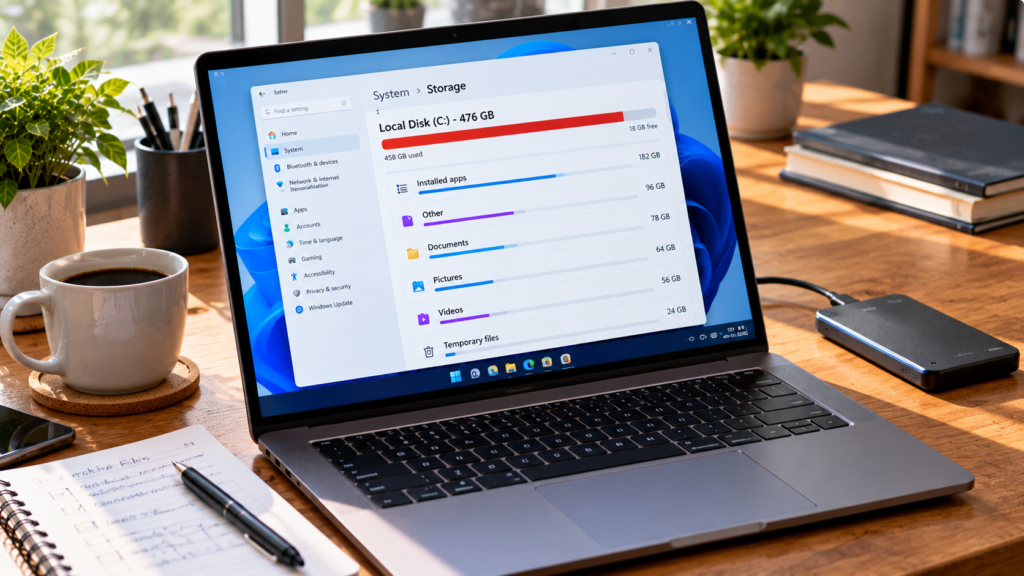
Open Settings → System → Storage to see what is using space.
Review Temporary files and remove only the categories you no longer need.
Enable Storage Sense for routine cleanup.
Identify unusually large files and folders.
Uninstall applications you no longer use.
Move important videos, photographs and archives to another drive.
Check whether old backups or duplicate downloads are taking up space.
Keep an independent backup before making major changes.
The safest cleanup strategy begins with inspection, not deletion.
1. Why Is My Windows 11 Storage Full?
A full C drive does not necessarily mean you have installed too many applications.
Storage consumption can come from several different sources.
| Storage category | Examples | Recommended action |
|---|---|---|
| Installed applications | Games, editors, development tools | Uninstall unused software |
| Personal files | Videos, RAW photos, documents | Review and move large files |
| Downloads | Installers, archives, duplicates | Remove unnecessary downloads |
| Temporary data | App caches, temporary system files | Use Windows cleanup tools |
| Windows system files | Updates, recovery components | Use supported Windows maintenance features |
| Backup files | Old disk images and archives | Check retention and recoverability |
| Cloud-synced files | Locally available cloud folders | Review sync and online-only settings |
| Virtual machines | VM disk images | Move or remove only when no longer needed |
Understanding which category is responsible is the first step toward recovering useful storage space.
2. Check What’s Taking Up Space in Windows 11
Before installing any additional software, use Windows’ built-in Storage settings.
Step-by-step instructions
Press
Windows + Ito open Settings.Select System.
Open Storage.
Wait for Windows to calculate storage usage.
Review the displayed categories.
Open a category to inspect its contents or available management options.
Pay particular attention to installed applications, temporary files, documents, pictures and other large storage categories.
What if Windows doesn’t show enough detail?
Windows Storage settings provide a useful overview, but they may not reveal every large folder in a convenient visual format.
That is when a disk-space analyzer can help.
3. Find Large Files and Folders Using WizTree
Best for: Discovering where storage is being consumed.
WizTree is a disk-space analysis application that helps users visualize large files and folders.
Instead of opening every directory manually, you can review storage usage across a selected drive.
How to use a disk-space analyzer
Open a reputable disk-space analysis application.
Select the drive you want to inspect.
Start the analysis.
Sort the results by size.
Review the largest folders.
Identify files you recognize and no longer need.
Move or delete files only after confirming their purpose.
Practical example
Imagine your 512 GB SSD has only 18 GB of free space.
A storage analysis reveals that:
An old video project occupies 65 GB.
Downloaded installation packages occupy 22 GB.
Archived project backups occupy 80 GB.
A virtual machine uses 45 GB.
This information is more valuable than deleting random temporary files because it identifies where meaningful storage savings may be possible.
Important warning
A disk-space analyzer can display Windows system folders and application data.
Do not delete unfamiliar files inside Windows, Program Files, ProgramData or AppData simply because they appear large.
Use the application’s own uninstall or cleanup procedure whenever possible.
Verdict: WizTree is useful for identifying storage problems, but it is not a substitute for understanding what the files do.
4. Find Old Downloads and Large Files with Everything
Best for: Searching filenames and locating known file types.
Everything is a Windows file-search utility that can help users locate files quickly.
While WizTree focuses on storage visualization, Everything is especially useful when you already know what you want to find.
For example, you might search for:
Old
.isoinstallation images.Downloaded
.zipand.7zarchives.Large
.mp4video files.Forgotten
.exeinstallers.Duplicate project exports with similar filenames.
Practical workflow
Suppose you regularly download software installers.
Over time, your Downloads folder may accumulate multiple versions of the same installer.
A filename search can help you locate these files so you can compare them and remove copies you no longer require.
Be careful: matching filenames do not automatically mean files are identical.
Verdict: Everything is useful for finding files. It does not determine whether those files are safe to delete.
5. Remove Temporary Files Using Windows Settings
Temporary files can accumulate through routine application and Windows activity.
Windows 11 includes tools for reviewing and removing certain categories of temporary data.
Steps
Open Settings → System → Storage.
Select Temporary files.
Allow Windows to calculate the available categories.
Review each selected item carefully.
Deselect anything you want to keep.
Select the removal option.
What should you check carefully?
Downloads: This folder may contain important installers, documents and personal files. Do not delete it automatically.
Recycle Bin: Deleted files may still be recoverable from the Recycle Bin. Empty it only when you no longer need those files.
Previous Windows installation: If present, removing this data may affect your ability to return to an earlier Windows version.
Other categories may contain temporary files that Windows can recreate, but the exact list depends on your system.
Avoid manual deletion of Windows folders
Do not attempt to recover storage by deleting random files from system directories.
Windows servicing, updates and recovery components can depend on files that are not obvious to ordinary users.
6. Enable Storage Sense for Automatic Cleanup
Storage Sense is a built-in Windows feature that can help manage certain temporary files and storage categories.
How to configure it
Open Settings → System → Storage.
Select Storage Sense.
Review the available cleanup settings.
Choose how frequently Storage Sense should run.
Review Recycle Bin and Downloads retention settings.
Save your preferred configuration.
Should you enable automatic Downloads cleanup?
Only if you understand the selected retention policy.
Some users keep installation packages, invoices or unfinished work inside Downloads.
Automatically removing those files could be inconvenient or harmful.
A better approach is to organize important downloads into dedicated folders before enabling aggressive cleanup rules.
7. Uninstall Unused Applications and Games
Applications and games can consume substantial storage.
Some applications also maintain additional content such as:
Downloaded assets
Game files
Cached media
Offline libraries
Language packs
Plugins
Project data
How to uninstall software
Open Settings → Apps → Installed apps.
Review the application list.
Sort by size where useful.
Identify applications you no longer use.
Open the application’s menu.
Choose Uninstall.
Follow the removal instructions.
Remember that Windows may not display complete storage usage for every application.
Don’t delete application folders manually
Deleting an application’s folder does not necessarily uninstall it correctly.
The application may have services, registry entries, shared components or other files that require the normal uninstaller.
8. Compress Large Video Files with HandBrake
Best for: Reducing the size of suitable video files.
Videos can occupy significant storage, particularly when they are recorded at high resolutions or high bitrates.
HandBrake is an open-source video transcoder that can convert videos using different codecs and compression settings.
When video compression makes sense
Imagine you have several large recordings that you need for reference but no longer require in their original editing quality.
You may be able to create smaller versions using an appropriate video codec and quality setting.
Basic workflow
Open HandBrake.
Select the source video.
Choose an appropriate output preset.
Review the format and video settings.
Select a destination.
Start encoding.
Compare the resulting file with the original.
Important limitations
Video compression can reduce image quality.
The amount of space saved depends on the original file, codec, bitrate and selected settings.
Some videos are already highly compressed and may not become significantly smaller.
For professional video editing, retain original footage or a suitable master copy.
Verdict: HandBrake can help reduce video storage requirements, but it should not be used to replace valuable originals without a deliberate archival decision.
9. Compress Documents and Project Folders with 7-Zip
Best for: Archiving compressible files and organizing completed projects.
7-Zip is a free, open-source archive utility that supports ZIP, 7z and other formats.
It can be useful when you want to package older documents, text files or project folders into compressed archives.
Example
Suppose you have completed a project containing:
HTML and CSS files
Text documents
Configuration files
Spreadsheets
Project notes
You can create a compressed archive for storage or transfer.
What compression cannot do
Compression does not guarantee substantial space savings.
JPEG photos, MP4 videos and many software installers are already compressed.
Creating another archive around these files may save little space.
Important advice
After creating an archive, confirm that it opens and contains the expected files before deleting the original folder.
If the archive is your only copy, you still have a single point of failure.
10. Move Important Files to an External Drive
Best for: Recovering internal storage without deleting valuable data.
Moving large personal files to another storage device is often safer than trying to compress everything.
An external SSD or HDD can be useful for:
Completed video projects
Photo archives
Older documents
Downloaded training materials
Large project exports
Archived installation packages
Safe transfer process
Connect a suitable external drive.
Create an organized destination folder.
Copy the selected files.
Wait for the transfer to finish.
Open several copied files to confirm accessibility.
Confirm the expected folders and file counts.
Remove the original files only when you are satisfied that the data is protected appropriately.
Copy first, delete later
For important files, copying is generally safer than immediately moving and deleting.
An external drive can also fail, so maintain another independent copy of irreplaceable data.
11. Organize External Storage with FreeFileSync
Best for: Comparing and synchronizing folders.
FreeFileSync is a file synchronization utility that can help users compare folders and manage transfers between storage locations.
For example, you might maintain a working project folder on your laptop and an archive folder on an external drive.
Practical workflow
Choose a source folder.
Choose a destination folder.
Compare the folders.
Review the proposed changes.
Select the appropriate synchronization behavior.
Execute the operation.
Verify the result.
Why configuration matters
Some synchronization modes propagate deletions.
If a file disappears from the source folder, the destination copy may also be removed during synchronization.
For important archives, use a configuration that preserves the copies and versions you need.
Verdict: FreeFileSync is useful for organized file transfers, but synchronization should not be confused with a complete versioned backup strategy.
12. Move Files Between Your Phone and PC with LocalSend
Best for: Local-network file transfers.
Sometimes storage problems involve several devices.
You may have photos and videos on a phone, laptop and another computer.
LocalSend can help transfer files between compatible devices on the same local network.
When it helps
You can use a local transfer workflow to move selected files to a computer or storage location where you have more capacity.
However, transferring files to another device does not automatically create a backup.
After the transfer, confirm that the files are accessible and independently protected before deleting the originals.
LocalSend is primarily a file-transfer tool, not a disk cleanup application.
13. Should You Delete Old Windows Backup Files?
Old backup archives and disk images can consume significant space.
But deleting them without understanding the backup structure can make recovery impossible.
Check these details first
Is this the only available backup?
Does the backup contain important files?
Is it part of an incremental backup chain?
Does your backup application manage retention automatically?
Have you successfully restored files from a newer backup?
Use the backup application’s supported retention or cleanup features where available.
Avoid manually deleting components of a backup chain.
14. What Not to Delete When Your C Drive Is Full
Some files may appear large but are essential to the operating system or installed applications.
Do not randomly delete:
Windows system folders
Files inside the Windows directory may be required for updates, startup and recovery.
Program Files and ProgramData
Applications may depend on shared files and configuration data stored in these locations.
AppData
This folder can contain user profiles, application settings, local databases and important working data.
Recovery partitions
Recovery partitions can be needed for Windows recovery features.
Pagefile and hibernation files
These files are managed by Windows and serve specific system functions.
Changing their configuration can affect system behavior.
If you need to adjust hibernation or virtual memory settings, use documented Windows configuration methods rather than manually deleting protected files.
15. Why Is My C Drive Still Full After Cleanup?
If available space barely changes after cleanup, investigate the underlying cause.
Applications may be creating new files
Some software continually generates caches, recordings, logs or project data.
Cloud files may be stored locally
A cloud-synced folder can occupy local storage depending on its availability settings.
Large folders may be hidden from your usual view
Use Windows Storage settings or a reputable disk-space analyzer to inspect usage.
Backup retention may be excessive
Old snapshots and backup archives can accumulate.
The drive may simply be too small
If your daily work genuinely requires more storage than your SSD can provide, cleanup may only offer temporary relief.
A larger SSD or additional storage may be the more appropriate long-term solution.
16. Best Tools for Windows 11 Storage Management: Comparison
| Tool | Main purpose | Does it directly clean storage? | Best use |
|---|---|---|---|
| Windows Storage Settings | Storage overview | Yes, selected categories | First diagnosis |
| Storage Sense | Routine cleanup | Yes, configured categories | Ongoing maintenance |
| WizTree | Disk-space analysis | Primarily identifies files | Finding large folders |
| Everything | File searching | No | Locating known files |
| HandBrake | Video transcoding | Creates potentially smaller videos | Large video collections |
| 7-Zip | File archiving | Can reduce compressible data | Project archives |
| FreeFileSync | Folder synchronization | No | Organizing external copies |
| LocalSend | File transfer | No | Moving files between devices |
The key is to choose software according to the actual problem.
Installing more utilities does not automatically create more free space.
17. A Practical Storage Cleanup Plan for Different Users
Students
Review old downloads, duplicated assignments, large recorded lectures and unused applications.
Keep important academic documents in organized folders with an independent backup.
Office users
Review downloaded reports, archived attachments, large document exports and outdated installation packages.
Do not delete business records without checking retention requirements.
Photographers
Review duplicate exports, temporary editing files and completed project folders.
Keep original RAW files and client deliverables protected before moving or removing local copies.
Video editors
Large media files often account for most storage consumption.
Consider moving completed projects to external storage and creating smaller reference versions when appropriate.
Developers
Review old project builds, virtual machine images, unused development environments and application caches.
Use the development tool’s documented cleanup commands rather than manually deleting unfamiliar project data.
18. How to Prevent Windows 11 Storage from Filling Up Again
Once you have recovered sufficient storage, focus on preventing the same problem from returning.
A simple maintenance routine can include:
Reviewing Storage settings monthly.
Keeping Downloads organized.
Uninstalling applications you no longer use.
Archiving completed projects.
Maintaining independent backups.
Reviewing large files periodically.
Configuring Storage Sense conservatively.
Monitoring available capacity before major Windows updates.
You do not need to run cleanup utilities every day.
A consistent, low-risk storage-management routine is more useful than aggressive deletion.
Frequently Asked Questions
How to free up space on Windows 11 without deleting files?
Start with temporary files, unused applications and Storage Sense. For valuable personal files, consider moving verified copies to another drive rather than permanently deleting them.
Why is my C drive full even though I have few files?
Installed applications, hidden application data, system components, virtual machines and old backups may consume space that is not obvious from your Documents folder.
What is the fastest way to find large files on Windows 11?
Use Windows Storage settings for an overview. A disk-space analyzer such as WizTree can help identify large folders and files.
Is it safe to delete temporary files in Windows 11?
Windows provides supported cleanup categories, but review each selection carefully. Downloads, previous installation files and other categories may contain data you want to keep.
Does compressing files free up disk space?
It can, particularly for compressible documents and text-based data. Already compressed photos, videos and archives may not become much smaller.
Can I delete everything in my Downloads folder?
Only after confirming that the folder does not contain important documents, installers, projects or other files you still need.
Is WizTree better than Everything?
They serve different purposes. WizTree helps visualize disk usage, while Everything is designed for fast filename searching.
Does FreeFileSync automatically back up my files?
FreeFileSync synchronizes folders according to its configuration. A synchronization task is not automatically equivalent to a versioned backup.
Should I use a PC cleaner to free up space?
Windows’ built-in storage tools are a sensible starting point. Additional utilities can help with specific tasks, but avoid applications that promise dramatic performance improvements without explaining their actions.
How much free space should I keep on Windows 11?
There is no single percentage that suits every computer. The appropriate amount depends on drive capacity, Windows updates, installed software and workload. Keep enough available space for updates, temporary operations and everyday use.
Final Verdict
Learning how to free up space on Windows 11 is primarily about understanding where your storage is going.
Start with Windows Storage settings and temporary-file cleanup.
Use WizTree or Everything when you need more detailed file discovery.
Consider HandBrake for suitable video files, 7-Zip for compressible archives, and FreeFileSync or LocalSend when organizing data across devices.
Most importantly, never treat a storage cleanup as a reason to remove files you cannot replace.
The best result is not simply a larger free-space number. It is a Windows computer with enough available storage, organized files and a reliable recovery plan.