

How to Backup Your Windows PC Properly: Complete Beginner’s Guide
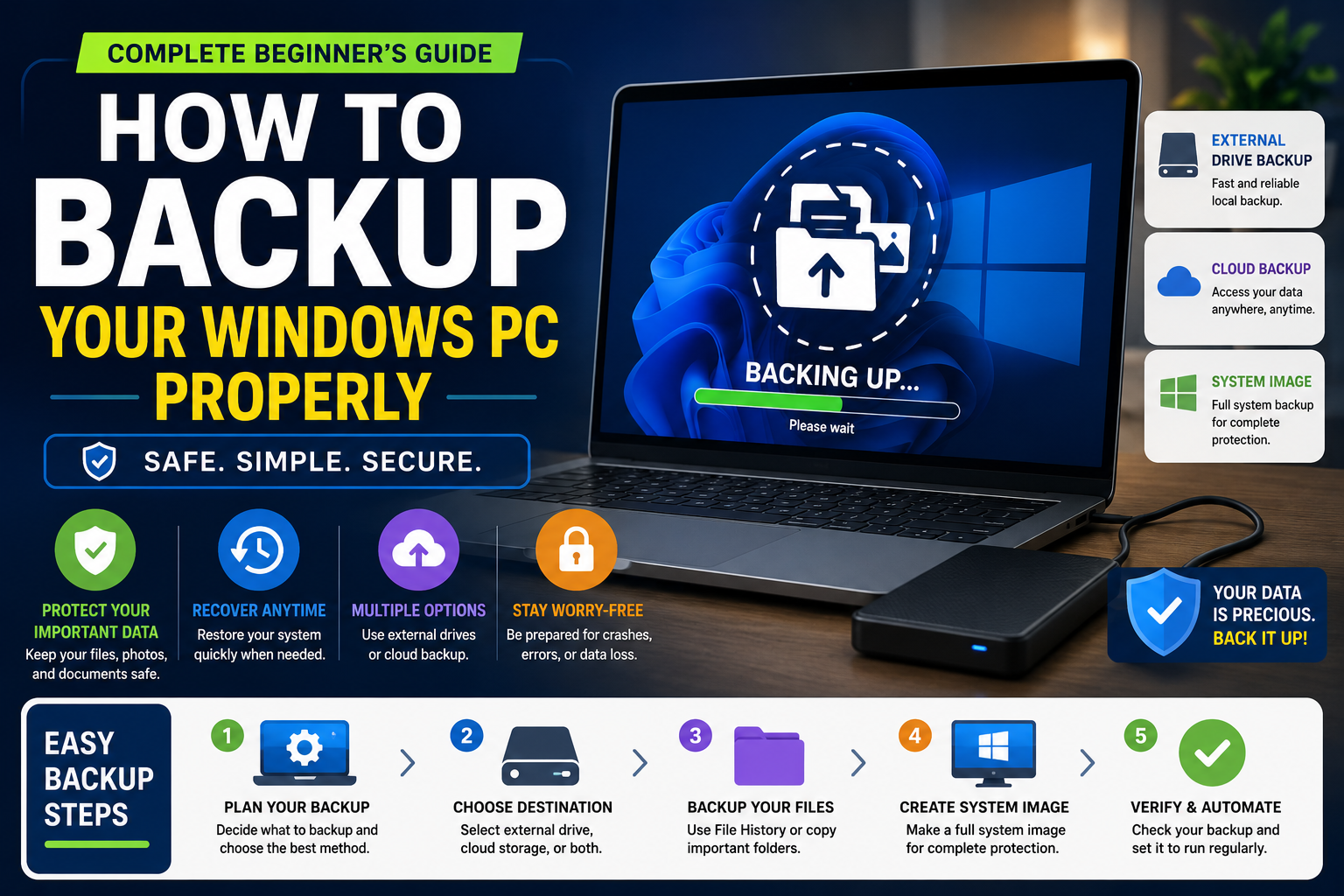
Introduction
Data loss can happen unexpectedly due to hardware failures, accidental deletion, malware attacks, system crashes, theft, or natural disasters. Whether you use your computer for work, education, business, or personal projects, having a reliable backup strategy is essential.
Many users only realize the importance of backups after losing valuable files. A proper backup system ensures that your documents, photos, videos, software settings, and important data remain protected even when something goes wrong.
In this guide, you’ll learn how to properly back up your Windows PC, which backup methods are available, and how to create a reliable backup routine.
What Is a Backup?
A backup is a copy of your important files and data stored separately from the original location.
Backups help you recover data when:
- Files are accidentally deleted
- Hard drives fail
- Windows becomes corrupted
- Ransomware encrypts data
- Devices are lost or stolen
Without backups, recovering important data may be impossible.
Why Regular Backups Are Important
Regular backups provide several benefits:
Protection Against Hardware Failure
Hard drives and SSDs can fail without warning.
Recovery From Accidental Deletion
Deleted files can be restored easily from backups.
Defense Against Malware
Backups protect your data from ransomware attacks.
Easy System Recovery
You can restore your computer after crashes or software issues.
Peace of Mind
Knowing your files are protected reduces stress and downtime.
What Should You Back Up?
Many users only back up documents, but a complete backup strategy includes much more.
Personal Files
- Documents
- PDFs
- Spreadsheets
- Presentations
Photos and Videos
- Family photos
- Travel pictures
- Personal videos
Work Projects
- Business documents
- Client files
- Project folders
Software Settings
- Browser bookmarks
- Application settings
- Email data
Important System Information
- Drivers
- Windows settings
- Activation details
The 3-2-1 Backup Rule
One of the most recommended backup strategies is the 3-2-1 rule.
Keep 3 Copies of Your Data
- Original data
- Local backup
- Secondary backup
Use 2 Different Storage Types
Examples:
- Internal drive
- External hard drive
or
- External drive
- Cloud storage
Keep 1 Copy Offsite
Examples:
- Cloud backup
- Remote storage
- Another physical location
This approach significantly reduces data loss risks.
Method 1: Use Windows File History
File History is a built-in Windows backup feature.
What It Backs Up
- Documents
- Pictures
- Desktop files
- Videos
- Music folders
Step 1: Connect an External Drive
Attach:
- External HDD
- External SSD
- USB storage device
Step 2: Open Backup Settings
Navigate to:
Settings → Update & Security → Backup
Step 3: Add a Drive
Click:
Add a Drive
Select your backup device.
Step 4: Enable File History
Turn on automatic backups.
Windows will regularly back up selected folders.
Advantages
- Free
- Automatic backups
- Easy file restoration
Disadvantages
- Limited scope
- Does not create a full system image
Method 2: Create a System Image Backup
A system image creates a complete copy of Windows.
Includes
- Operating system
- Programs
- Settings
- Files
Steps
Step 1: Open Control Panel.
Step 2: Select:
System and Security → Backup and Restore
Step 3: Click:
Create a System Image
Step 4: Choose a backup location.
Step 5: Start the backup process.
Advantages
- Complete system recovery
- Faster restoration after failures
Disadvantages
- Requires significant storage space
Method 3: BackUp to an External Drive
External drives remain one of the simplest backup solutions.
Recommended Storage
- External HDD
- External SSD
- NAS devices
Manual Backup Process
Step 1: Connect external storage.
Step 2: Copy important folders.
Step 3: Verify files were transferred.
Step 4: Safely disconnect the drive.
Advantages
- Simple setup
- Full control
Disadvantages
- Requires manual maintenance
Method 4: Use Cloud Storage
Cloud backups provide off-site protection.
Popular Options
Benefits
- Automatic synchronization
- Access from multiple devices
- Protection from hardware failures
Limitations
- Internet required
- Free storage may be limited
Method 5: Use Dedicated Backup Software
Advanced users often prefer backup software.
Popular Backup Solutions
- Macrium Reflect
- AOMEI Backupper
- EaseUS Todo Backup
- Acronis Cyber Protect Home Office
- Veeam Agent for Windows
Features
- Scheduled backups
- Incremental backups
- System image creation
- Disaster recovery
Types of Backups Explained
Full Backup
Creates a complete copy of selected data.
Advantages
- Easy restoration
Disadvantages
- Larger storage requirements
Incremental Backup
Only backs up files changed since the previous backup.
Advantages
- Faster backups
- Reduced storage usage
Disadvantages
- More complex restoration
Differential Backup
Backs up changes since the last full backup.
Advantages
- Faster recovery
Disadvantages
- Larger than incremental backups
Real-World Backup Strategy Example
Home User
- File History enabled
- Monthly system image
- Cloud storage for documents
Small Business User
- Daily incremental backups
- Weekly full backups
- Cloud replication
Student
- OneDrive synchronization
- Weekly external drive backup
Common Backup Mistakes
Keeping Only One Copy
A single copy is not a backup.
Ignoring Backup Verification
Always verify backup files.
Never Testing Recovery
Regularly test restoration procedures.
Forgetting Cloud Backups
Cloud storage adds important off-site protection.
How Often Should You Back Up Your PC?
Casual Users
Recommended:
- Weekly backups
Students
Recommended:
- Every few days
Professionals
Recommended:
- Daily backups
Businesses
Recommended:
- Multiple backups per day
Signs You Need a Backup Immediately
- Important work files exist only on one device.
- Hard drive health warnings appear.
- Frequent system crashes occur.
- You store irreplaceable photos or videos.
- No backup has been created in months.
Frequently Asked Questions
Does Windows include backup tools?
Yes. Windows includes File History and System Image Backup options.
Is cloud storage a backup?
It can be part of a backup strategy, but multiple backup copies are recommended.
How much storage do I need for backups?
At least enough to store your important files and preferably multiple backup versions.
Are external hard drives good for backups?
Yes. They remain one of the most affordable backup solutions.
Should I back up my entire system?
Creating occasional system images is highly recommended.
How often should backups run?
The frequency depends on how often your data changes.
What is the safest backup strategy?
The 3-2-1 backup rule is widely considered one of the safest approaches.
Can backups protect against ransomware?
Yes. Properly isolated backups can help restore data after ransomware attacks.
Final Verdict
Backing up your Windows PC is one of the most important steps you can take to protect your data.
Best Built-In Backup Tool
🏆 Windows File History
Best Full System Protection
🏆 System Image Backup
Best Off-Site Protection
🏆 Cloud Storage
Best Overall Strategy
🏆 Follow the 3-2-1 Backup Rule
By combining local backups, cloud storage, and regular backup schedules, you can greatly reduce the risk of permanent data loss and ensure your important files remain safe.
External Hard Drive vs Cloud Backup: Which Is Better?
When creating a backup strategy, many Windows users wonder whether they should use an external hard drive or a cloud backup service.
The truth is that both options have advantages and disadvantages, and the best choice depends on your needs, budget, and the importance of your data.
What Is an External Hard Drive Backup?
An external hard drive backup stores copies of your files on a physical storage device connected to your computer.
Common examples include:
- External HDDs
- External SSDs
- Portable storage drives
- Network Attached Storage (NAS)
Advantages of External Hard Drive Backups
One-Time Cost
After purchasing the drive, there are usually no monthly fees.
Fast Backup Speeds
Local backups are generally much faster than internet-based backups.
No Internet Required
You can create and restore backups even without an internet connection.
Large Storage Capacity
Modern external drives often provide:
- 1 TB
- 2 TB
- 4 TB
- 8 TB or more
of storage space.
Disadvantages of External Hard Drive Backups
Hardware Failure
External drives can fail unexpectedly.
Physical Damage
Drives may be damaged by:
- Drops
- Water exposure
- Fire
- Electrical issues
Theft Risk
If the drive is stolen along with your computer, both copies may be lost.
What Is Cloud Backup?
Cloud backup stores your files on remote servers managed by a service provider.
Popular cloud backup services include:
- OneDrive
- Google Drive
- Dropbox
- iCloud
- Backblaze
Advantages of Cloud Backup
Off-Site Protection
Data remains safe even if your computer is lost, stolen, or damaged.
Automatic Synchronization
Many cloud services automatically back up changes.
Access Anywhere
Files can be accessed from:
- PCs
- Smartphones
- Tablets
- Web browsers
Disaster Protection
Cloud backups protect against:
- Hardware failure
- Theft
- Fire
- Floods
Disadvantages of Cloud Backup
Requires Internet Access
Uploading and restoring large backups can take significant time.
Ongoing Subscription Costs
Many services charge monthly or yearly fees.
Storage Limits
Free plans often provide limited storage.
Comparison Table
| Feature | External Hard Drive | Cloud Backup |
|---|---|---|
| Initial Cost | Higher | Lower |
| Monthly Fees | No | Often Yes |
| Backup Speed | Fast | Depends on Internet |
| Recovery Speed | Fast | Depends on Internet |
| Off-Site Protection | No | Yes |
| Internet Required | No | Yes |
| Hardware Failure Risk | Yes | No |
| Accessibility | Local Only | Anywhere |
Which Option Is Better?
Choose External Hard Drive Backup If:
- You want fast backups.
- You need large storage capacity.
- You prefer one-time purchases.
- You frequently restore large files.
Choose Cloud Backup If:
- You want automatic backups.
- You travel frequently.
- You need access from multiple devices.
- You want protection from physical disasters.
The Best Solution: Use Both
Many IT professionals recommend combining both methods.
Example:
Local Backup
- External hard drive
- Weekly full backup
Cloud Backup
- Daily synchronization
- Off-site protection
This combination follows the popular 3-2-1 backup strategy and provides much better protection than relying on only one backup method.
Final Verdict
Neither solution is perfect on its own.
🏆 External Hard Drives offer speed and affordability.
🏆 Cloud Backups provide convenience and disaster protection.
For maximum data security, using both local and cloud backups together is generally the best approach.
How Often Should You Back Up Your Windows PC?
One of the most common backup questions is:
“How often should I back up my computer?”
The answer depends on how frequently your files change and how important your data is.
A good rule is:
The more often your data changes, the more often you should back it up.
Factors That Determine Backup Frequency
Data Importance
If losing a file would cause major problems, it should be backed up frequently.
Examples:
- Business documents
- Client projects
- Academic work
- Financial records
File Changes
Users who modify files daily need more frequent backups than users who rarely create new data.
Recovery Requirements
Consider:
- How much data can you afford to lose?
- One month?
- One week?
- One day?
- One hour?
Your answer determines your backup schedule.
Recommended Backup Frequency
Casual Home Users
Examples:
- Web browsing
- Family photos
- Personal documents
Recommended:
- Weekly backups
Students
Examples:
- Assignments
- Research projects
- Presentations
Recommended:
- Every 2–3 days
Freelancers
Examples:
- Client work
- Design projects
- Content creation
Recommended:
- Daily backups
Business Users
Examples:
- Financial records
- Customer information
- Operational documents
Recommended:
- Daily or multiple backups per day
Professional Creators
Examples:
- Video editing
- Photography
- Software development
Recommended:
- Continuous or automatic backups
Suggested Backup Schedule
Daily
- Documents
- Active projects
- Business files
Weekly
- Photos
- Downloads
- Personal folders
Monthly
- Full system image
- Complete computer backup
Example Backup Plan
Every Day
- Cloud synchronization
Every Week
- External drive backup
Every Month
- Full system image
This strategy provides strong protection without requiring much manual effort.
Signs You Need More Frequent Backups
You should increase backup frequency if:
- You work with important client files.
- You create content regularly.
- You run a business.
- You frequently modify documents.
- You cannot afford data loss.
Common Backup Mistakes
Backing Up Too Infrequently
Many users create one backup and forget about it.
Never Testing Backups
Always verify that backups can actually be restored.
Keeping Only One Backup Copy
Multiple backup copies provide much better protection.
Ignoring System Images
File backups are important, but full system backups can save hours of recovery work.
Final Recommendation
Home Users
🏆 Weekly backups
Students
🏆 Every 2–3 days
Professionals
🏆 Daily backups
Businesses
🏆 Multiple backups per day
Best Overall Strategy
🏆 Daily cloud backup + weekly external drive backup + monthly system image
Following this schedule provides excellent protection against accidental deletion, hardware failures, malware attacks, and other common causes of data loss.