- Utilities & Tools
- File Managers
- Anvi Folder Locker Free

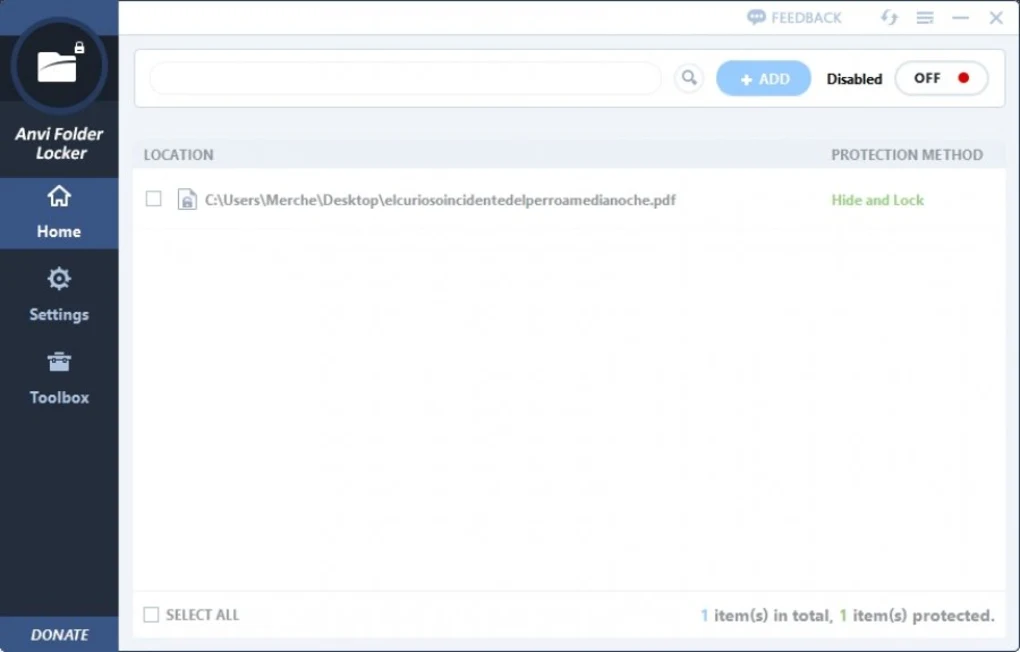
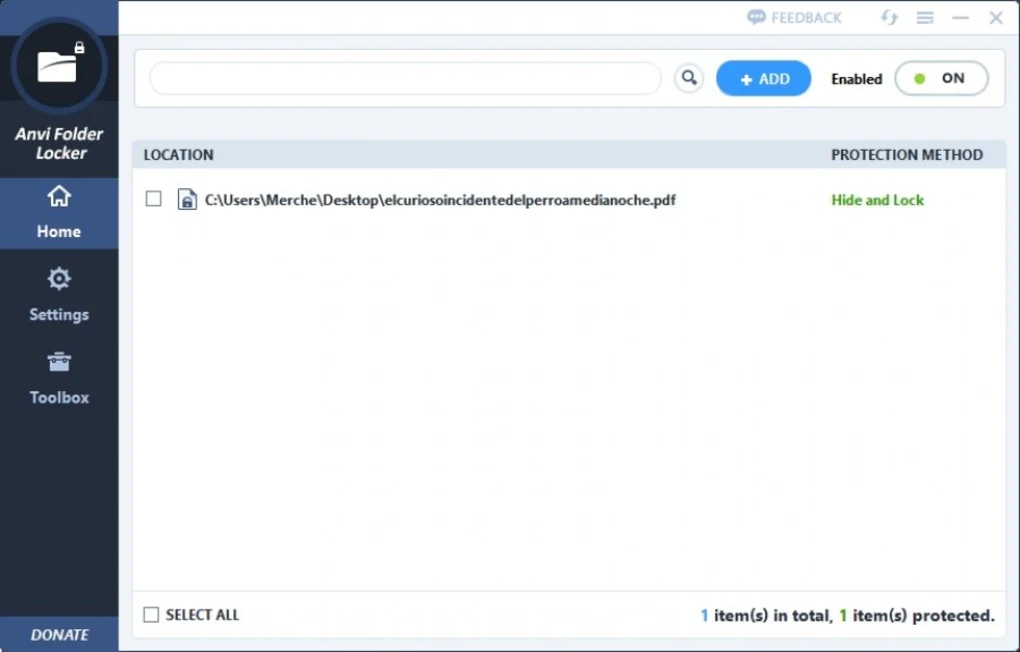
Anvi Folder Locker is a Windows security utility designed to hide, lock, and password-protect files and folders to prevent unauthorized access.
It allows users to apply different protection levels such as:
- Lock with password
- Hide folders from view
- Set read-only restrictions
- Combine hiding + locking for stronger protection
This tool is mainly used by users who want basic privacy protection for personal files without using complex encryption software.
📌 What is Anvi Folder Locker Free?
Anvi Folder Locker is a lightweight Windows utility that helps users protect their personal files by applying password-based locking and folder hiding features.
It works by restricting access to selected files or folders so that only users with the correct password can open them.
It is commonly used for:
- Personal document protection
- Privacy of sensitive files
- Preventing unauthorized access
- Basic data security on shared PCs
- Hiding confidential folders
🚀 Key Uses
🔐 File Protection
Used to secure personal or private files with a password.
👁️ Folder Hiding
Makes folders invisible in File Explorer.
🧑💻 Shared PC Privacy
Useful when multiple users share the same computer.
📁 Data Restriction
Prevents accidental deletion or modification of files.
💾 Basic Security Setup
Provides simple protection without advanced encryption tools.
💻 System Requirements (General)
Minimum Requirements
- Operating System: Windows XP / 7 / 8 / 10 / 11
- RAM: 512MB – 1GB minimum
- Storage: Very low disk space required
- Processor: Basic CPU
Recommended Requirements
- RAM: 2GB or more
- Storage: Any HDD/SSD
- Permissions: Administrator rights recommended
- System Type: 32-bit / 64-bit Windows
🔄 Alternatives
- Folder Lock
- Wise Folder Hider
- IObit Protected Folder
- Easy File Locker
- LockDir
❓ FAQ
Q1. What is Anvi Folder Locker used for?
It is used to lock and hide folders with password protection.
Q2. Is it safe to use?
Yes, but it is an older tool and not actively updated.
Q3. Can it encrypt files?
It provides basic protection but not strong modern encryption.
Q4. Can locked files be recovered without password?
No, password is required to access protected files.
Q5. Is it free?
Yes, it has a free version.
Q6. Does it work on Windows 11?
Yes, but compatibility depends on version stability.
Features
✔️ Password-protect folders and files
✔️ Hide folders from Windows Explorer
✔️ Lock and restrict file access
✔️ Read-only mode for files
✔️ Hide + lock combination mode
✔️ Simple user interface
✔️ Master password protection system
✔️ Quick add/remove protected items
✔️ Lightweight installation
✔️ Basic security controls
✔️ Easy enable/disable protection
✔️ Works on individual files and folders
👍 Pros & 👎 Cons
Pros
- Very easy to use
- Lightweight software
- Multiple protection modes
- Quick folder locking
- Good for beginners
- No complex setup
Cons
- Not actively updated (older software)
- Limited advanced encryption features
- No cloud integration
- No modern security enhancements
- Password recovery can be difficult
- Basic compared to modern security tools
Our Analysis
Anvi Folder Locker is a simple and lightweight file protection utility designed for basic privacy needs.
Its biggest advantage is ease of use. Even beginners can quickly lock or hide folders without technical knowledge.
It is useful for:
- Basic personal file protection
- Shared computer privacy
- Simple folder hiding needs
However, it has limitations because it is an older tool and does not offer modern encryption standards or active updates.
Overall, it is a basic but effective utility for simple folder locking and privacy protection on Windows systems.
⚙️ Installation Guide (General Overview)
Step 1: Install Software
Download Anvi Folder Locker from a trusted source.
Step 2: Launch Application
Open the program on Windows.
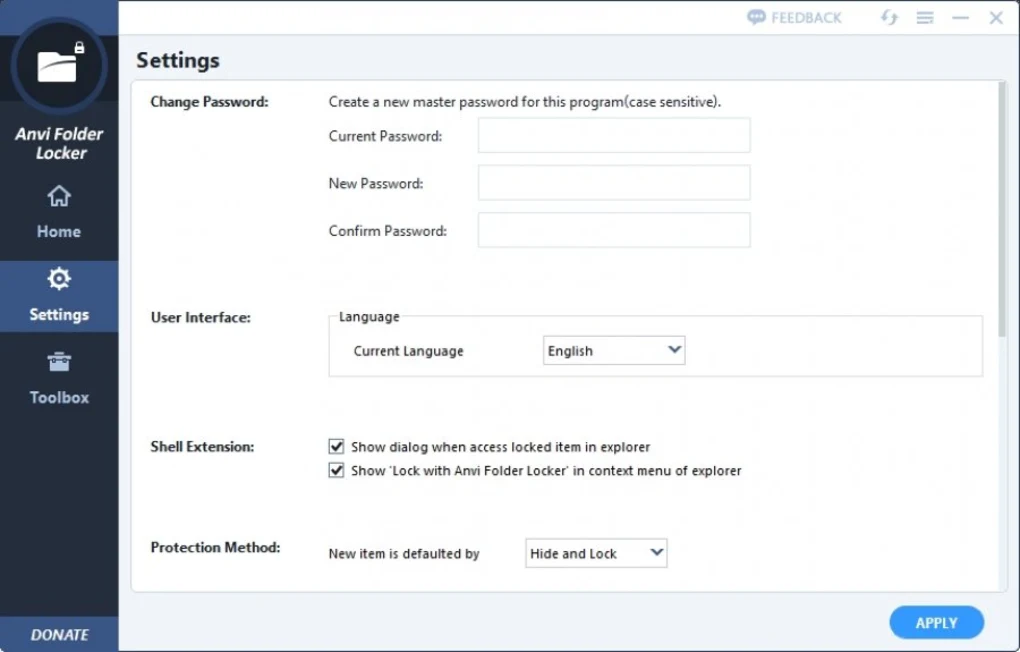
Step 3: Set Master Password
Create a secure master password for protection control.
Step 4: Add Files or Folders
Select items you want to lock or hide.
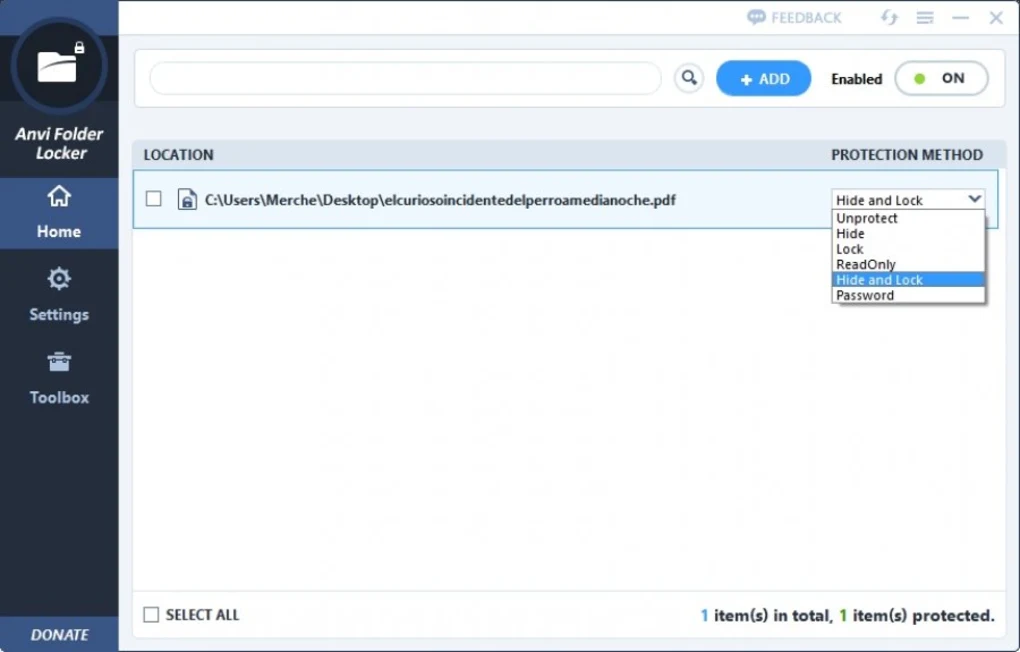
Step 5: Choose Protection Type
Select:
- Lock
- Hide
- Read-only
- Hide + Lock
Step 6: Apply Protection
Activate settings to secure your files.
Step 7: Manage or Unlock
Enter password to unlock or modify settings later.
About SoftwareDownloading Editorial Team
The SoftwareDownloading Editorial Team researches Windows software, compatibility information, features, alternatives, and software-related guides for SoftwareDownloading.in.
Our pages are prepared using available product information and relevant documentation. When an application has not been personally tested, we distinguish research-based analysis from hands-on testing. Learn more about our review process
Apps Specs
Developer
Licence
Free
Version
1.2.1370.0
Platform
Windows
Download Clicks
1
Page Reviewed
September 27, 2026
Top Downloads




Related Topics
Disclaimer
This content is provided for educational and informational purposes only. We do not host, store, or distribute any software files on our servers. All trademarks, product names, and logos belong to their respective owners.
We strongly recommend downloading software only from official websites or trusted sources. We are not responsible for any damage, data loss, or issues that may occur from the use of third-party software.
Users should ensure they comply with all applicable laws and software licensing agreements in their country before downloading or using any software mentioned on this website.