

For years, one of the first things many Windows users did after setting up a PC was install a collection of small utilities.
One application handled archives. Another customized the keyboard. Another helped recover files. Another organized notes, while additional tools filled gaps in Windows itself.
That relationship is gradually changing.
Windows 11 version 26H2 continues Microsoft’s move toward making more everyday functionality part of Windows itself. File Explorer is becoming more capable, Search is improving, recovery options are expanding, security controls are changing, and several previously separate experiences are becoming more deeply integrated into the operating system.
Microsoft describes Windows 11 26H2 as its next annual Windows 11 feature update. Importantly, eligible Windows 11 24H2 and 25H2 devices can move to it through an enablement package because the versions share the same servicing foundation. Microsoft Learn
That makes 26H2 interesting for another reason.
The question is no longer simply:
“What is new in Windows?”
A more useful question for everyday users is:
“As Windows gains more built-in capabilities, which third-party utilities still solve a problem better or differently?”
That is where the 26H2 story becomes much more practical.
Windows 11 26H2 Is Not Starting From Scratch
Users expecting an entirely separate operating system may need to adjust their expectations.
Microsoft says Windows 11 26H2 shares its servicing foundation with versions 24H2 and 25H2. Many improvements associated with the release have already been introduced progressively through monthly servicing, while 26H2 enables and consolidates selected capabilities as the annual feature release. Microsoft Learn
For eligible devices, Microsoft says the move can be delivered through a comparatively small enablement package rather than a conventional full operating-system upgrade. Microsoft Learn
This reflects a broader change in how Windows evolves.
Instead of saving every meaningful feature for one enormous yearly release, Microsoft increasingly delivers functionality throughout the year and then incorporates it into the annual Windows release.
For users, that means the Windows experience can change even before the version number does.
File Explorer Is Becoming More Than a Folder Browser
File Explorer is one of the clearest examples.
For decades, its fundamental purpose was straightforward: browse drives, folders and files.
Windows 11 26H2 expands that role.
Microsoft currently documents several File Explorer improvements, including additional archive-format support, preserved View and Sort preferences in certain folders, voice typing while renaming files, performance improvements to File Explorer Home and AI-related actions for supported scenarios. Microsoft Learn
The archive support is particularly interesting for utility-software users.
Microsoft lists additional support for formats including uu, cpio, xar and NuGet packages (nupkg). Microsoft Learn
That raises an obvious question.
Do We Still Need Dedicated Archive Utilities?
Sometimes yes.
Built-in archive support is convenient because it removes the need to install another application for straightforward file operations.
But dedicated tools can still make sense when a user’s requirements extend beyond what File Explorer provides.
This is where a focused utility such as ADL Uncompressor can be discussed contextually rather than presented as something every Windows user must install.
A person occasionally opening an archive may be perfectly satisfied with Windows.
Someone dealing with a particular workflow, format or dedicated extraction requirement may still prefer a specialized utility.
That distinction matters for modern software recommendations.
A useful software article should no longer say:
“Windows users need this application.”
It should explain:
“Windows can already do part of this job. Here is when a dedicated tool may still be useful.”
That is a much more credible way to discuss software in 2026.
Windows Search Is Getting Smarter Too
Search is another area receiving attention.
Microsoft says Windows 11 26H2 improves how Search handles installed applications, including better tolerance for partial names and typing errors. Search results can also provide clearer distinctions between apps, settings, files, web results and Microsoft Store suggestions. Microsoft Learn
Windows can additionally index frequently used folders automatically to improve subsequent file discovery, with controls available through Windows Search settings. Microsoft Learn
This sounds like a small change.
In everyday use, it could be more meaningful.
Users frequently remember what a document contained or roughly what an application was called without remembering exactly where it was saved.
Improving discovery reduces one of the oldest forms of PC friction: knowing that something exists but not knowing where it is.
Does Better Search Replace Organization Software?
Not necessarily.
Search and organization solve related but different problems.
Search helps you locate something.
Organization helps you create structure before you need to search.
That leaves room for focused information-management tools such as KeyNote NF, particularly for users who prefer deliberately organized notes rather than relying entirely on operating-system search.
This is an important theme running through Windows 11 26H2:
Built-in functionality can reduce the need for certain utilities without eliminating the value of specialized software.
Recovery Is Becoming a Bigger Part of Windows

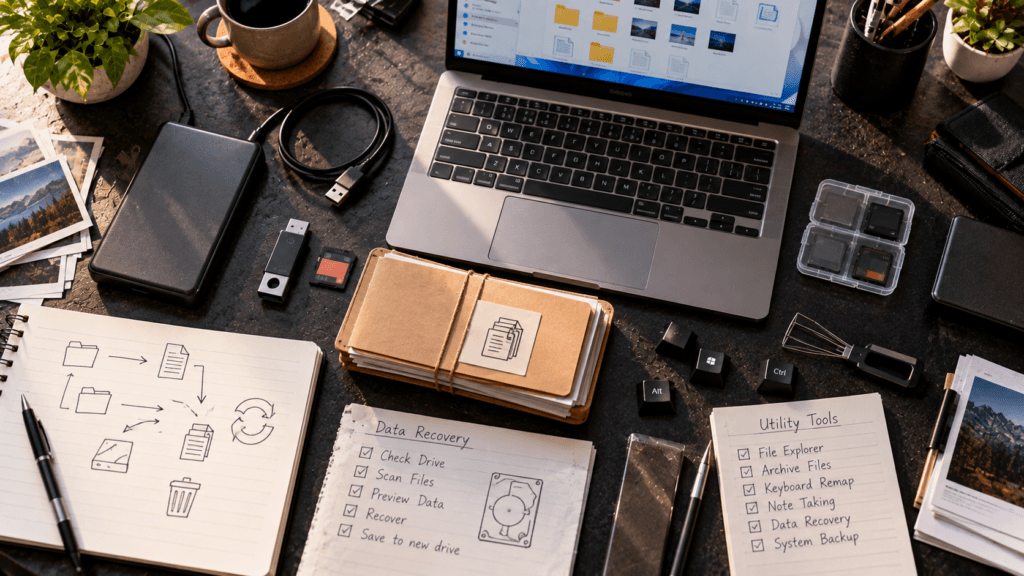
One of the more substantial areas in Microsoft’s current 26H2 documentation is recovery.
Microsoft documents Point-in-time restore for Windows, which can roll a PC—including apps, settings and personal files—back to a recent automatic restore point. Microsoft positions it as a way to reduce downtime and simplify troubleshooting when problems occur. Microsoft Learn
Windows also includes developments around Quick machine recovery, which can attempt remediation in supported recovery scenarios. Microsoft Learn
These capabilities are significant because recovery has traditionally been an area where Windows users frequently turn to third-party software.
But there is an important distinction.
Windows Recovery and File Recovery Are Not the Same Problem
Suppose a Windows update or configuration change causes a system problem.
A system-level recovery capability may be exactly what is needed.
Now consider a completely different situation:
You accidentally delete photographs from an external drive.
Or files disappear from removable storage.
Or an SD card contains data you can no longer access normally.
That is not necessarily the same recovery problem.
Dedicated utilities such as External Drive Data Recovery address storage/file-recovery scenarios rather than simply returning the Windows installation to an earlier working state.
This distinction becomes increasingly important as Windows gains more recovery features.
Users should identify what actually needs to be recovered before choosing a tool.
Is it:
- Windows itself?
- Windows settings?
- installed applications?
- a deleted document?
- photographs from removable storage?
- files from an external drive?
Calling all of these “recovery” hides meaningful differences.
Windows 11 26H2 makes the distinction worth understanding.
Keyboard Customization Still Shows Why Focused Utilities Matter
Windows can become more capable without every specialized utility becoming irrelevant.
Keyboard customization is a good example.
A user may want to change an inconvenient key, disable an unwanted key or work around a problematic physical key.
A focused application such as MapKeyboard addresses this narrow type of customization.
Microsoft also offers Keyboard Manager through PowerToys, providing key and shortcut remapping capabilities.
The interesting part is not which application “wins.”
It is that specialized requirements continue to exist even as Windows expands.
Someone who never needs keyboard customization does not need another utility.
Someone who does need it may value a small focused tool far more than another major Windows feature.
This suggests a useful principle for Windows software in 2026:
The future of utilities may be less about installing more software and more about installing the right software for a specific unresolved problem.
Windows Security Is Becoming More Integrated
Windows 11 26H2 also contains notable security changes.
Microsoft says Sysmon is now built into Windows, although it is off by default. Sysmon records system events that can be used for threat detection and can work with custom configuration files and Windows Event Log. Microsoft Learn
Microsoft also documents changes to Smart App Control: it can now be turned on or off without requiring a clean Windows installation. Microsoft Learn
Driver trust is changing as well. Microsoft’s 26H2 documentation describes a shift away from default trust for cross-signed third-party drivers, alongside compatibility auditing before enforcement. Microsoft Learn
For ordinary users, many of these changes will happen behind the scenes.
For administrators and technically inclined users, they show something larger:
Windows itself is taking on more responsibilities that once required separate security or diagnostic tooling.
The Taskbar Is Becoming More Flexible Again
Windows 11 has received criticism over the years for removing or restricting customization that existed in earlier Windows releases.
26H2 changes part of that picture.
Microsoft’s current documentation says users can position the taskbar at the bottom, top, left or right side of the screen. A smaller taskbar option is also documented for reducing icon size and taskbar height. Microsoft Learn
For users who remember older Windows desktop customization, that is a meaningful direction.
It also demonstrates why utility recommendations need to stay current.
A third-party customization application recommended several years ago may have solved a limitation that Windows itself later addresses.
Software recommendations therefore should not exist permanently without reevaluation.
Even Windows Update Is Changing
Another practical 26H2 change concerns updates themselves.
Microsoft says Windows Update can reduce the number of restarts by installing eligible updates together with the monthly security update where possible. Critical or expedited updates may still be handled separately. Microsoft Learn
Microsoft also documents improved behavior when a user manually puts the device to sleep: after completing an update, Windows can return the device to sleep. Microsoft Learn
Neither feature sounds dramatic enough for a product launch headline.
But these are exactly the kinds of changes users may notice over months of everyday PC use.
A good operating-system update does not always need to introduce a giant new application.
Sometimes removing small recurring frustrations is more useful.
Windows 11 26H2 Also Reflects the Rise of AI PCs

The Windows hardware landscape is changing alongside the operating system.
Microsoft recently announced new 12-inch Surface Pro and 13-inch Surface Laptop models based on Snapdragon X2 Plus, with availability beginning October 13 in select markets. Microsoft is emphasizing local AI processing, battery efficiency and NPU performance as part of that hardware generation. Windows Blog
That hardware direction fits several Windows developments already underway.
Microsoft’s 26H2 documentation includes NPU visibility in Task Manager, allowing supported PCs to expose NPU usage information through Processes, Users, Details and Performance views. Microsoft Learn
This is a useful indicator of where Windows is heading.
CPU and GPU activity have been familiar concepts for years.
NPU activity is gradually becoming another part of the Windows performance vocabulary.
So Are Traditional Windows Utilities Disappearing?
No.
Their role is changing.
There was a time when a Windows setup guide could simply recommend installing a long list of utilities immediately after Windows.
That approach is becoming less convincing.
Windows itself now handles more archive formats, provides increasingly capable recovery features, improves search, expands File Explorer, adds security functionality and restores customization options. Microsoft Learn
That does not make applications such as MapKeyboard, KeyNote NF, ADL Uncompressor or External Drive Data Recovery automatically obsolete.
Instead, it raises the standard they need to meet.
A third-party utility becomes valuable when it answers a question Windows still does not answer adequately for that particular user.
Do I need more control?
Do I need a specialized workflow?
Do I need support for a particular task?
Is the built-in Windows option sufficient for what I actually do?
Those are better questions than simply asking how many applications should be installed.
What Windows Users Should Do Before Installing Another Utility
The Windows 11 26H2 era suggests a simple approach.
First, identify the problem.
Then check whether Windows already provides an appropriate solution.
If the built-in option solves the problem cleanly, another application may not be necessary.
If Windows provides only part of the functionality, look for a focused utility that fills the remaining gap.
And if a dedicated application offers a workflow you genuinely prefer, built-in functionality does not automatically make that choice wrong.
This approach produces a cleaner PC and a more intentional software library.
Final Thoughts
Windows 11 26H2 is interesting not because every feature is completely new.
Its significance comes from the way Windows continues absorbing capabilities that once sat outside the operating system.
File Explorer handles more. Search understands more. Recovery is becoming more sophisticated. Security functionality is moving deeper into Windows. Taskbar customization is expanding, and Windows Update continues trying to make servicing less disruptive. Microsoft Learn
At the same time, specialized Windows utilities still have a role.
The difference is that they increasingly need a reason to exist.
For software users—and for anyone deciding what belongs on a modern Windows PC—that may be one of the most important changes of all.