
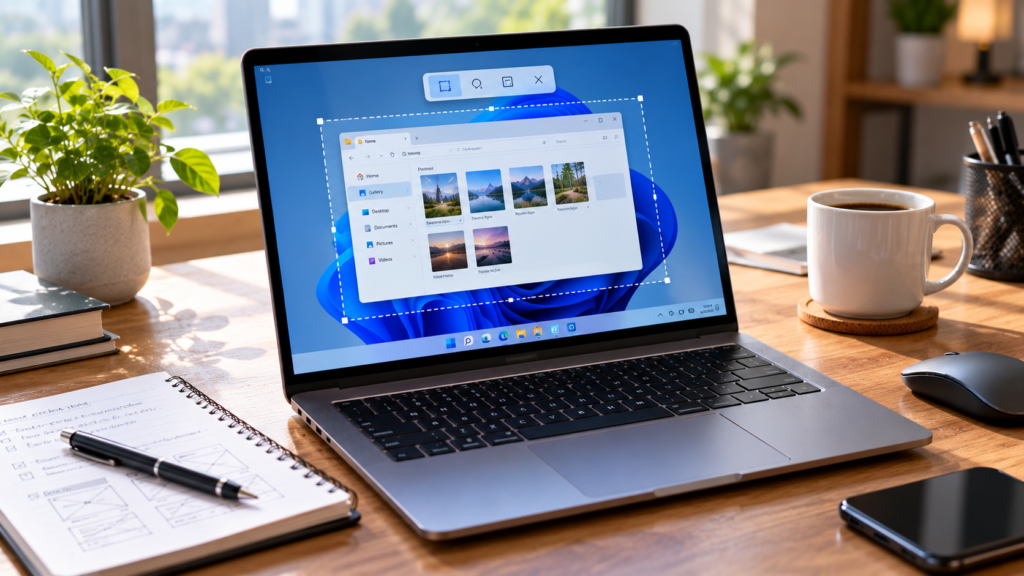
How to Take a Screenshot on Windows 11: 7 Easy Methods (2026)
Need to capture an error message, save an important conversation, share a software problem, or create a step-by-step tutorial?
Learning how to take a screenshot on Windows 11 is surprisingly simple once you know the right keyboard shortcuts.
Windows 11 includes several screenshot options, from capturing your entire desktop to selecting a small area of the screen. You can also capture individual windows, annotate images, and record short screen videos without installing additional software.
However, not every method works the same way. Some screenshots are saved automatically, while others are copied to the clipboard and must be pasted or saved manually.
This guide explains seven practical ways to take screenshots on Windows 11, where to find saved screenshots, how to capture scrolling pages, and what to do when screenshot shortcuts stop working.
Quick Answer: How to Take a Screenshot on Windows 11
The fastest method is to press Windows + Shift + S.
Your screen will dim, and the Windows Snipping Tool capture toolbar will appear. Select the area you want to capture, then open the screenshot notification to edit or save your image.
If you want to capture your entire screen and save it automatically, press Windows + PrtScn on a compatible keyboard.
For more options, use the following comparison table.
Windows 11 Screenshot Shortcuts: Quick Comparison
| Method | Shortcut | What It Captures | Where It Goes |
|---|---|---|---|
| Snipping Tool shortcut | Windows + Shift + S | Selected area or capture mode | Clipboard; automatic saving depends on settings |
| Full-screen screenshot | Windows + PrtScn | Entire screen | Usually Pictures → Screenshots |
| Print Screen | PrtScn | Screenshot or Snipping Tool interface | Depends on keyboard settings |
| Active window | Alt + PrtScn | Currently active window | Clipboard |
| Snipping Tool app | Start menu | Region, window or full screen | Clipboard and/or saved file |
| Game Bar capture | Windows + Alt + PrtScn | Supported game or app | Usually Videos → Captures |
| Dedicated screenshot utility | App-specific shortcut | Depends on application | Configurable location |
Tip: On some laptops, you may need to hold the Fn key to use PrtScn. The exact combination depends on the keyboard manufacturer.
Method 1: Take a Screenshot Using Windows + Shift + S
This is one of the most convenient ways to take a screenshot on Windows 11.
Step-by-step instructions
Open the application, webpage, or document you want to capture.
Press Windows + Shift + S.
Wait for the capture toolbar to appear.
Select a capture mode.
Drag the mouse around the required area, if necessary.
Open the screenshot notification to view or edit the capture.
Save the image if it has not already been saved automatically.

Available screenshot modes
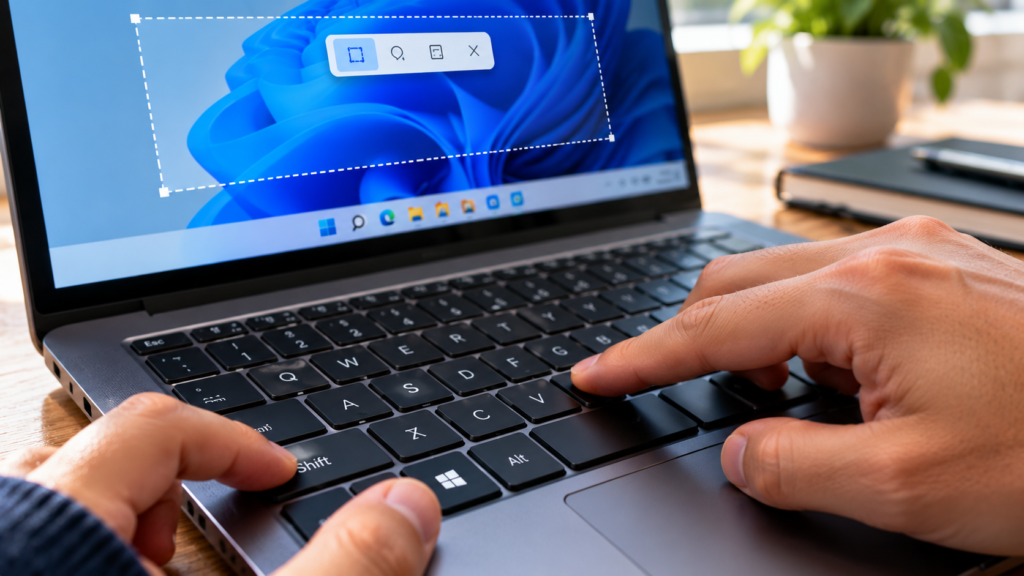
Rectangle: Select a rectangular part of your screen.
Window: Capture one application window.
Full screen: Capture the entire visible desktop.
Freeform: Draw an irregular selection around the content.
When should you use this method?
Use it when you want to capture a specific error message, a small part of a website, a software setting, or an important paragraph.
For most everyday tasks, this is the best starting point.
Method 2: Save a Full-Screen Screenshot Automatically
If you want to capture everything visible on your screen, Windows provides a convenient keyboard shortcut.
Press:
Windows + PrtScn
On supported keyboards and Windows configurations, this captures the screen and saves the image automatically.
Where is the screenshot saved?
Open File Explorer and navigate to:
Pictures → Screenshots
On a typical local Windows profile, the path may be:
C:\Users\YourUsername\Pictures\Screenshots
If OneDrive folder backup or another screenshot-saving feature is configured, the actual location may differ.
What if nothing happens?
Try Fn + Windows + PrtScn if your laptop requires a function-key combination.
You can also use Windows + Shift + S as an alternative.
If your keyboard does not have a standard Print Screen key, see Microsoft’s Print Screen keyboard shortcut guide
Method 3: Take a Screenshot Using the Print Screen Key
The Print Screen key is one of the oldest Windows screenshot shortcuts.
Depending on your Windows 11 configuration, pressing PrtScn may open the Snipping Tool capture interface or copy a full-screen screenshot to the clipboard.
How to use the clipboard method
Press PrtScn if your system is configured to capture to the clipboard.
Open Microsoft Paint, a document editor, or another compatible application.
Press Ctrl + V.
Edit the image if needed.
Save the result.
Why does PrtScn open Snipping Tool?
Windows 11 includes a setting that allows the Print Screen key to open screen capture.
Search Windows Settings for Print Screen to locate the relevant keyboard accessibility option.
The exact wording and location can vary by Windows version.
Method 4: Capture Only the Active Window
Sometimes you do not want to show your entire desktop.
For example, you may need a screenshot of an application settings window without revealing other programs or personal information.
Use:
Alt + PrtScn
Instructions
Click the window you want to capture.
Press Alt + PrtScn.
Open Paint or another image-compatible application.
Press Ctrl + V.
Save the screenshot.
This is especially useful for technical support, software tutorials, and documentation.
Why choose this method?
It can save time because you do not need to crop the rest of your desktop manually.
However, it captures the active window as displayed; it does not automatically include content outside the visible window.
Method 5: Use the Windows 11 Snipping Tool
The built-in Snipping Tool provides more control than a basic keyboard shortcut.
It can capture different screen regions and offers editing features.
How to open Snipping Tool
Open the Start menu.
Search for Snipping Tool.
Launch the application.
Choose the screenshot mode.
Select New.
Capture the required area.
Useful Snipping Tool features
Rectangular and freeform capture
Active-window capture
Full-screen screenshots
Pen and highlighter annotations
Cropping
Delayed captures
Text extraction on supported versions
Screen recording on supported Windows 11 versions
How to take a delayed screenshot
A delayed screenshot is useful when you need to capture a dropdown menu or an interface that disappears when you move the mouse.
Open Snipping Tool, choose an available delay, and start the capture.
During the countdown, open the menu or prepare the screen.
The capture interface will appear after the delay.
Do you need to download Snipping Tool?
Usually not. Snipping Tool is included with Windows 11.
If you want a detailed overview of its features, installation options, and compatibility, read our Snipping Tool for Windows guide.
For a complete explanation of capture modes, annotations, and screen recording, refer to Microsoft’s official Snipping Tool documentation.
Method 6: Take a Screenshot While Gaming
Windows 11 also includes Xbox Game Bar features for supported games and applications.
To open Game Bar, press:
Windows + G
You can access the Capture widget and take screenshots where capture is supported.
A commonly available screenshot shortcut is:
Windows + Alt + PrtScn
Where are Game Bar screenshots saved?
Game Bar captures are commonly stored in:
Videos → Captures
You can also inspect the capture settings in Windows or Game Bar to confirm the destination.
Important limitation
Game Bar is designed primarily for gaming and supported application capture.
It is not a complete replacement for Snipping Tool and may not capture every desktop interface or protected window.
For ordinary desktop screenshots, use Windows + Shift + S.
Method 7: Use Dedicated Screenshot Software
Windows 11’s built-in tools are sufficient for many users.
However, you may need additional features such as advanced annotations, reusable capture presets, automated workflows, or specialized image export options.
Several dedicated applications can help.
Sniptool — For annotated screenshots
Sniptool focuses on screenshot capture and visual annotations.
Depending on the version, its features can include arrows, shapes, text, highlights, and masking tools.
This makes it useful for explaining software settings, documenting problems, and creating illustrated instructions.
If you regularly need to mark important parts of an image, see our Sniptool for Windows overview.
Free Snipping Tool — For basic screenshot workflows
Free Snipping Tool is another option for users who want straightforward screenshot capture.
It focuses on selecting screen areas, saving images, and performing basic capture tasks.
The available features depend on the specific application version.
You can explore the Free Snipping Tool software page for its feature overview and compatibility information.
ScreenToGIF — For animated screen demonstrations
A static screenshot cannot always explain how a software problem happens.
Sometimes a short animated demonstration is more useful.
ScreenToGIF can capture screen activity and create animated GIFs with frame-by-frame editing.
For example, a developer can record a button that fails to respond, or a teacher can demonstrate how to complete a short software task.
Our ScreenToGIF for Windows guide explains its recording, editing, and export features.
Which tool should you choose?
Use Snipping Tool for everyday screenshots.
Consider Sniptool when annotations are important.
Use ScreenToGIF when the task is easier to explain through motion.
Avoid installing several screenshot utilities unless they provide genuinely different capabilities.
How to Take a Scrolling Screenshot on Windows 11
A scrolling screenshot captures content extending beyond the visible screen.
For example, you may want to save:
A long webpage
A lengthy document
A software settings panel
A long conversation
A product comparison table
Can Snipping Tool capture an entire scrolling page?
The standard Snipping Tool capture modes are designed around visible screen content. They do not provide a universal scrolling-capture feature for every application.
For long webpages, a browser’s built-in full-page capture capability may be more convenient.
Full-page screenshot in Microsoft Edge
Open the webpage in Microsoft Edge.
Open the browser’s screenshot feature.
Choose the full-page capture option if available.
Review the captured image.
Save the screenshot.
Browser menus and feature names may change between versions.
Alternative methods
Some dedicated screenshot utilities support scrolling capture for compatible windows.
However, scrolling capture is not guaranteed to work with every application, website, or dynamically loaded page.
For webpages with complex layouts, browser-specific capture tools may provide more consistent results.
How to Record Your Screen on Windows 11
A screenshot captures one moment.
A screen recording captures activity over time.
Screen recording is useful for:
Software tutorials
Error demonstrations
Educational presentations
Application walkthroughs
Training material
Technical support
Record using Snipping Tool
On supported Windows 11 versions:
Open Snipping Tool.
Select the recording mode.
Choose New.
Select the screen area.
Start recording.
Perform the actions you want to demonstrate.
Stop recording.
Save the resulting video.
You can also try Windows + Shift + R on supported versions to open the video capture interface.
Create a GIF instead of a video
For short demonstrations, an animated GIF may be more convenient.
For example, a three-second animation showing where to click in Windows Settings can be easier to follow than a full-length video tutorial.
ScreenToGIF is designed for this type of workflow.
Where Are Screenshots Saved in Windows 11?
This is one of the most common sources of confusion.
Not every screenshot method saves a file in the same location.
| Capture Method | Typical Destination |
|---|---|
| Windows + PrtScn | Pictures → Screenshots |
| Windows + Shift + S | Clipboard; automatic saving depends on settings |
| Alt + PrtScn | Clipboard |
| PrtScn | Clipboard or Snipping Tool, depending on settings |
| Xbox Game Bar | Videos → Captures |
| Third-party screenshot app | Application-specific save folder |
How to find a missing screenshot
First, open File Explorer and check Pictures → Screenshots.
Next, check Videos → Captures if you used Game Bar.
If you used a clipboard-based shortcut, open Paint and try Ctrl + V.
Finally, review the Snipping Tool settings and any OneDrive screenshot or folder-backup configuration.
If you cannot find the file, it may never have been saved to disk.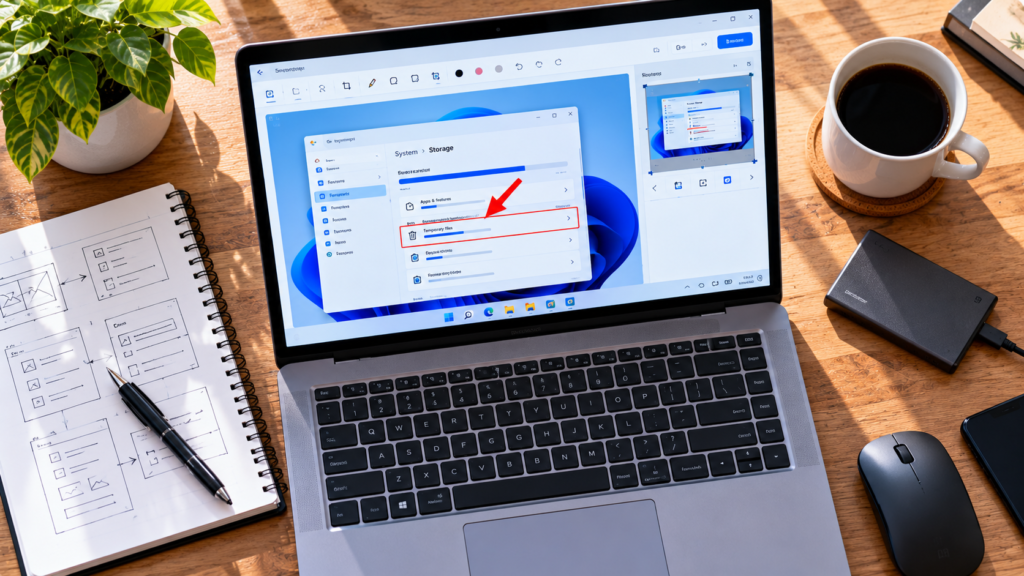
How to Edit a Screenshot on Windows 11
After capturing a screenshot, you may need to make it easier for another person to understand.
Common editing tasks include:
Cropping unnecessary areas
Highlighting a button
Drawing an arrow
Adding explanatory text
Removing irrelevant details
Hiding confidential information
Use Snipping Tool
Open the screenshot and select the available annotation or crop tools.
For basic markup, this is often sufficient.
Use Microsoft Paint
Paint can be useful when you want to resize an image, add text, or make simple visual changes.
Protect private information
Before sharing a screenshot, inspect it for email addresses, account details, personal messages, authentication codes, and other sensitive content.
For confidential information, use a reliable opaque redaction method rather than a light blur that might leave details recoverable.
Windows 11 Screenshot Not Working? Try These Fixes
If a screenshot shortcut suddenly stops responding, work through the following checks.
Fix 1: Try a different screenshot shortcut
Press Windows + Shift + S.
If this works but PrtScn does not, the issue may involve keyboard configuration rather than the entire screenshot system.
Fix 2: Check the Fn key
Some laptops assign multiple functions to the same keyboard keys.
Try the required Fn combination for your device.
Fix 3: Open Snipping Tool manually
Search for Snipping Tool in the Start menu.
If the application opens normally, attempt a capture directly.
Fix 4: Check keyboard settings
Windows can configure PrtScn to open the Snipping Tool interface.
Review the Print Screen setting if the key behaves differently than expected.
Fix 5: Check application updates
Open Microsoft Store and review available updates for Snipping Tool and other relevant Microsoft applications.
Fix 6: Check for shortcut conflicts
Some screenshot applications assign global keyboard shortcuts.
If two applications use the same shortcut, one may intercept the key combination.
Review the hotkey settings of installed screenshot utilities.
Fix 7: Repair Snipping Tool if necessary
Open:
Settings → Apps → Installed apps
Find Snipping Tool, open its available advanced options, and use Repair if that option is offered.
Resetting the application should be a later step because it may remove application-specific settings.
Screenshot Is Black: What Does It Mean?
A black screenshot does not always indicate that Windows is broken.
Possible causes include:
Protected video content
Graphics acceleration behavior
Application-specific capture restrictions
Display or driver problems
Remote desktop limitations
What should you do?
Try capturing an ordinary desktop window first.
If that works but a particular video or application remains black, the limitation may be specific to that content or software.
Do not assume that disabling security protections or digital rights management is an appropriate solution.
For ordinary application capture problems, check for application updates and graphics driver compatibility.
Screenshot Quality: PNG vs JPG
When saving screenshots, the file format can affect clarity and file size.
PNG
PNG is generally a good choice for:
Software interfaces
Text-heavy screenshots
Error messages
Charts
Technical documentation
It preserves sharp edges and text without JPEG-style compression artifacts.
JPG
JPG can be useful for photographic content when smaller file sizes are important.
However, aggressive JPEG compression can make small interface text look blurry.
Which format is best?
For most Windows software tutorials, PNG is the safer default.
If the screenshot contains mainly photographic content, JPG may be appropriate.
Best Screenshot Method for Different Situations
| Situation | Recommended Method |
|---|---|
| Capture an error message | Windows + Shift + S |
| Save the entire desktop | Windows + PrtScn |
| Capture one application window | Alt + PrtScn |
| Create an annotated tutorial | Snipping Tool or Sniptool |
| Capture a long webpage | Browser full-page capture |
| Record a short interface demonstration | ScreenToGIF |
| Record supported screen activity | Snipping Tool recording |
| Capture supported gameplay | Xbox Game Bar |
The best method depends on what you need to communicate.
For example, a single screenshot is usually better for showing an error code, while a short recording is more useful for demonstrating a sequence of actions.
Frequently Asked Questions
How to take a screenshot on Windows 11 without Print Screen?
Press Windows + Shift + S, select the screen area, and save the resulting screenshot through Snipping Tool.
What is the screenshot shortcut in Windows 11?
Windows + Shift + S is a convenient shortcut for selecting a screenshot area. Windows + PrtScn can save a full-screen screenshot automatically.
Where do screenshots go in Windows 11?
Full-screen screenshots saved with Windows + PrtScn typically appear in Pictures → Screenshots. Other methods may use the clipboard or a different folder.
How do I screenshot only one window?
Click the window, press Alt + PrtScn, and paste the result into Paint or another compatible application.
Can I take a screenshot on Windows 11 without downloading software?
Yes. Windows 11 includes Snipping Tool and built-in screenshot keyboard shortcuts.
How do I take a scrolling screenshot on Windows 11?
For a webpage, use a browser’s full-page screenshot feature where available. For other applications, you may need a compatible third-party scrolling capture utility.
Why is my screenshot not saving?
You may have used a shortcut that copies the screenshot to the clipboard rather than saving a file. Check Snipping Tool settings and try saving the image manually.
Why does Print Screen open Snipping Tool?
Windows 11 can configure the Print Screen key to launch screen capture. Review the Print Screen keyboard setting if you prefer another behavior.
Can Snipping Tool record video?
Yes. Supported Windows 11 versions include screen recording functionality in Snipping Tool.
What is the best free screenshot software for Windows 11?
For ordinary screenshots, the built-in Snipping Tool is sufficient for many users. Dedicated tools such as Sniptool or ScreenToGIF can be useful for more specialized workflows.
How do I take a screenshot on a Windows 11 laptop?
Use Windows + Shift + S. If using a Print Screen shortcut, you may also need the Fn key, depending on your keyboard.
Is PNG or JPG better for screenshots?
PNG is generally better for screenshots containing text, software interfaces, and sharp graphical elements. JPG may be more suitable for photographic content.
Final Verdict
Once you understand how to take a screenshot on Windows 11, capturing and sharing information becomes much easier.
For most users, Windows + Shift + S is the simplest way to capture a selected area. Windows + PrtScn is useful for automatically saving full-screen images, while Alt + PrtScn is convenient for capturing individual windows.
The built-in Snipping Tool provides additional editing and recording features without requiring another application.
When you need advanced annotations, specialized capture workflows, or animated demonstrations, applications such as Sniptool and ScreenToGIF offer additional options.
Start with the built-in Windows tools, choose a dedicated application only when your workflow requires it, and always review screenshots for private information before sharing them.