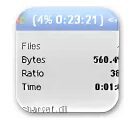
FreeArc is designed as a next-generation compression tool combining multiple algorithms such as LZMA, PPMD, and other specialized filters to improve compression efficiency.
The software focuses on:
- Multi-algorithm compression
- Automatic file-type detection
- High compression efficiency
- Archive management and recovery
Users commonly use compression tools for:
- Reducing file sizes
- Backup creation
- Data transfer optimization
- Archiving large datasets
- Storage space management
Depending on the version, FreeArc may support:
- LZMA / PPMD / GRZip algorithms
- Automatic compression switching
- Solid compression modes
- AES / Blowfish / Twofish encryption
- Recovery records for damaged archives
- Self-extracting archives (SFX)
- Plugin support for file managers
- Archive repair and validation tools
One major feature category is intelligent compression selection.
Instead of using one fixed algorithm, FreeArc analyzes file content and applies the most efficient method, such as:
- Text optimization filters
- Executable file preprocessing
- Binary data optimization
- Multimedia-aware compression
Another important advantage is high compression efficiency, often comparable or sometimes better than traditional archivers in certain benchmarks, though at the cost of complexity and speed in some modes.
However, the software has important limitations:
- No longer actively maintained
- Limited modern GUI support
- Compatibility issues with newer systems
- Not as stable as modern tools
📌 What is FreeArc?
FreeArc is a powerful open-source file archiver designed for high compression ratios, fast performance, and advanced data handling features.
It is known for combining multiple compression algorithms into one system to achieve better results than traditional ZIP or older archivers in many cases.
However, it is also considered discontinued / no longer actively maintained, although it is still used in compression experiments and by advanced users.
The software is commonly used for:
- High compression file archiving
- File compression and extraction
- Data backup optimization
- Large file reduction
- Advanced compression testing
- Experimental storage workflows
One of the biggest strengths of FreeArc is its smart compression system, which automatically chooses the best algorithm based on file type.
It is commonly used by:
- Advanced users
- Compression enthusiasts
- Developers
- Data archivists
- Backup users
- Tech experimenters
🚀 Key Uses
📦 High Compression Archiving
Compresses files using advanced algorithms for better size reduction.
⚙️ Automatic Algorithm Selection
Chooses different compression methods depending on file type.
💾 Storage Optimization
Helps reduce disk usage for large datasets and backups.
📤 File Sharing Efficiency
Reduces file size for easier transfers and uploads.
🧪 Compression Research
Used for testing and comparing compression performance.
💻 System Requirements (General)
Minimum Requirements
- Operating System: Windows XP / 7 / 8 / 10 / Linux
- RAM: 1GB minimum (2GB+ recommended for large files)
- Storage: Very small installation size
- Processor: Basic CPU (compression-heavy tasks are CPU intensive)
Recommended Requirements
- RAM: 4GB or more
- Storage: SSD recommended for faster compression
- CPU: Multi-core processor recommended
- Additional Notes: Performance depends heavily on compression settings
🔄 Alternatives
- 7-Zip
- WinRAR
- PeaZip
- Bandizip
- WinZip
- NanoZip (experimental compression tool)
❓ FAQ
Q1. What is FreeArc mainly used for?
It is mainly used for high-compression file archiving and advanced data compression workflows.
Q2. Is FreeArc still actively developed?
No, it is generally considered discontinued, though experimental versions exist.
Q3. Does it compress better than 7-Zip?
In some cases yes, especially with certain data types and settings.
Q4. Is FreeArc fast?
It can be fast in some modes, but high compression settings can be slow.
Q5. Does it support encryption?
Yes, it supports strong encryption methods like AES and others.
Q6. Is FreeArc good for daily use?
Not really—modern tools like 7-Zip or WinRAR are more practical.
Features
✔️ High compression ratio system
✔️ Multiple compression algorithms (LZMA, PPMD, GRZip)
✔️ Automatic algorithm selection
✔️ Advanced filtering system (text, binary, executables)
✔️ Strong encryption support
✔️ Solid compression mode
✔️ Recovery record support
✔️ Self-extracting archive creation
✔️ Plugin support (file managers)
✔️ Batch file processing
✔️ Archive testing and repair
✔️ Cross-format support (limited)
✔️ Lightweight installation
✔️ Offline operation
👍 Pros & 👎 Cons
Pros
- Very strong compression efficiency
- Advanced multi-algorithm system
- Good for experimentation
- Supports encryption and recovery features
- Can outperform older tools in some cases
Cons
- Discontinued / not actively maintained
- Complex setup compared to modern tools
- Slower compression in high settings
- Limited modern UI and support
- Not ideal for everyday users
- Compatibility issues on newer systems
Our Analysis
FreeArc is a very powerful but outdated compression tool that focuses heavily on achieving high compression ratios using advanced techniques.
Its biggest strengths are:
- Very strong compression engine
- Intelligent file-type processing
- Advanced features like encryption and recovery
This makes it useful for:
- Compression enthusiasts
- Experimental setups
- Benchmark comparisons
- Advanced backup strategies
However, its biggest weakness is that it is no longer actively maintained, which makes it less suitable for modern daily use compared to tools like 7-Zip or WinRAR.
Overall, FreeArc is best viewed as a high-performance experimental archiver rather than a modern everyday compression solution.
⚙️ Installation Guide (General Overview)
Step 1: Download Software
Obtain FreeArc from a trusted archive source.
Step 2: Install Application
Run setup or extract portable version.
Step 3: Launch Program
Open command line or GUI version (if available).
Step 4: Select Files
Choose files or folders for compression.
Step 5: Choose Compression Mode
Select:
- Fast compression
- High compression
- Maximum compression
Step 6: Start Compression
Begin archiving process.
Step 7: Extract Files
Use extraction command or GUI tool.
About SoftwareDownloading Editorial Team
The SoftwareDownloading Editorial Team researches Windows software, compatibility information, features, alternatives, and software-related guides for SoftwareDownloading.in.
Our pages are prepared using available product information and relevant documentation. When an application has not been personally tested, we distinguish research-based analysis from hands-on testing. Learn more about our review process


Apps Specs
Developer
Licence
Free
Version
0.666
Platform
Windows
Download Clicks
3
Page Reviewed
September 26, 2026
Top Downloads




Disclaimer
This content is provided for educational and informational purposes only. We do not host, store, or distribute any software files on our servers. All trademarks, product names, and logos belong to their respective owners.
We strongly recommend downloading software only from official websites or trusted sources. We are not responsible for any damage, data loss, or issues that may occur from the use of third-party software.
Users should ensure they comply with all applicable laws and software licensing agreements in their country before downloading or using any software mentioned on this website.