
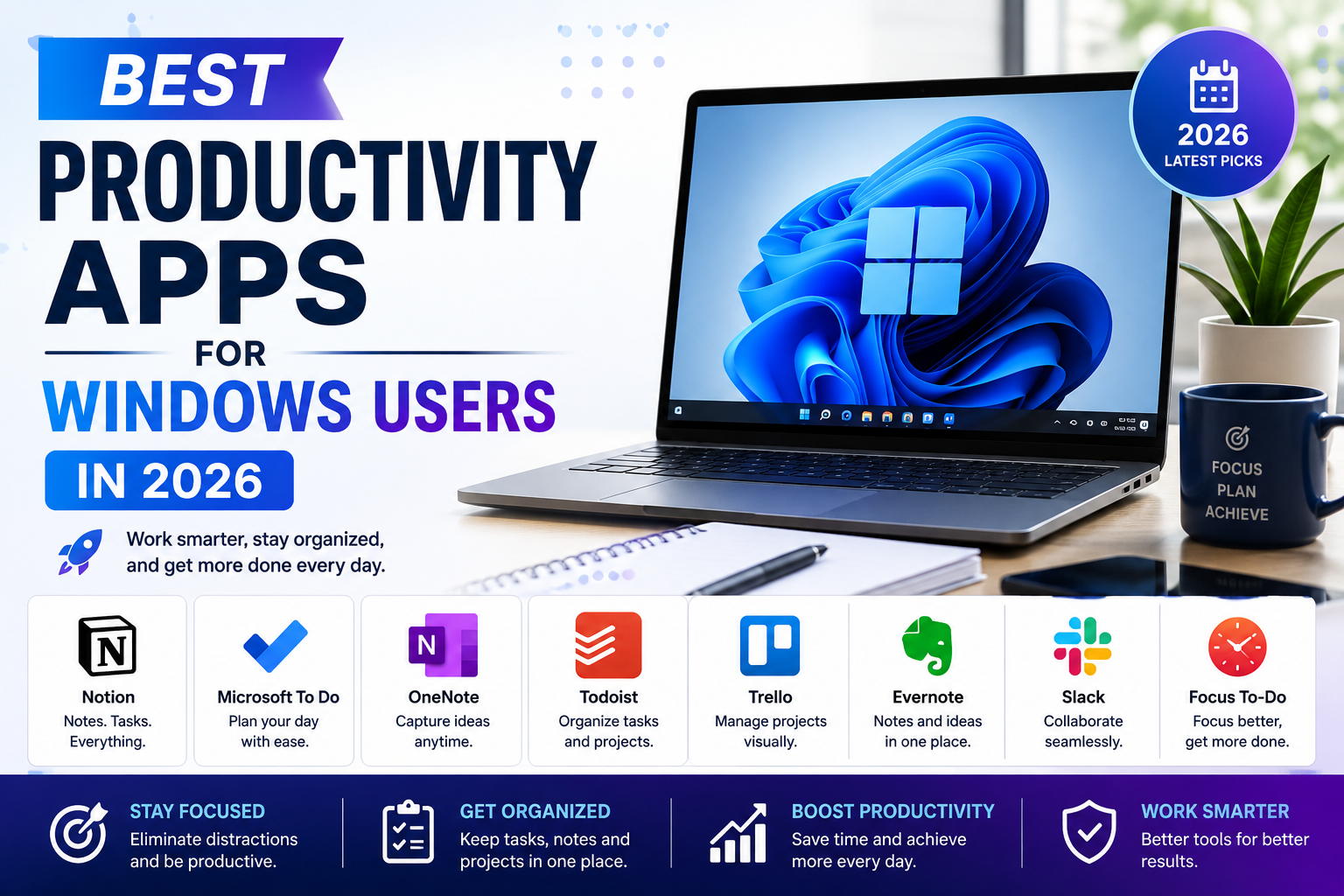
Windows 11 provides a capable foundation for everyday work, but most people still need additional applications for managing tasks, organizing notes, planning projects, storing files, and keeping important information accessible.
The challenge is not finding productivity software. There are thousands of options. The difficult part is choosing tools that solve a real problem without creating another layer of complexity.
A student may primarily need a reliable place for lecture notes and assignments. A freelancer may need task management, client documentation, and cloud storage. A small team may care more about project visibility and collaboration. Someone building a personal knowledge base may prefer local files and linked notes rather than a conventional cloud notebook.
This guide looks at eight useful productivity apps for Windows users in 2026 and, more importantly, explains what each tool is actually suited to.
Quick Comparison
| App | Main Purpose | Good Fit For |
|---|---|---|
| Microsoft OneNote | Notes & digital notebooks | Students, office users |
| Notion | Workspace & project organization | Freelancers, teams |
| Todoist | Task management | Personal and professional tasks |
| Trello | Visual project management | Small teams, visual workflows |
| Microsoft To Do | Simple task lists | Everyday planning |
| Evernote | Notes & information capture | Research and collected information |
| Obsidian | Personal knowledge management | Writers, researchers |
| Google Drive | Cloud file storage & collaboration | File sharing and collaborative work |
The important point is that these applications do not all solve the same problem. Installing several overlapping tools can actually make a workflow harder to maintain.
1. Microsoft OneNote — Flexible Digital Notebooks
Microsoft OneNote is built around notebooks, sections, and pages. That structure makes it useful for people who want to organize information in a way that resembles a physical notebook while retaining the advantages of digital search and synchronization.
A student, for example, could create one notebook for a semester, separate sections for subjects, and individual pages for lectures or assignments. A business user could instead separate meeting notes, client information, planning material, and reference information.
OneNote is particularly useful when notes contain more than plain text. Users can combine typed notes with images, drawings, links, and other material.
Consider OneNote when: you want flexible notebooks rather than a strict database or task-management system.
Potential limitation: large and poorly organized notebooks can become difficult to navigate, so a consistent structure is useful from the beginning.
2. Notion — A Flexible Workspace for Projects and Information
Notion takes a broader approach. Instead of concentrating only on notes, it can be configured for project information, documents, databases, task tracking, and team workspaces.
Its flexibility is its main advantage, but also something new users should consider carefully. A simple workspace can be useful; an unnecessarily complicated collection of databases, templates, and dashboards can become another system that needs constant maintenance.
For a freelancer, a practical workspace might contain a client list, current projects, deadlines, reference material, and project notes. A small team could use it to centralize internal documentation and project information.
Consider Notion when: notes, structured information and projects need to exist in the same workspace.
Potential limitation: the number of customization options can create a learning curve.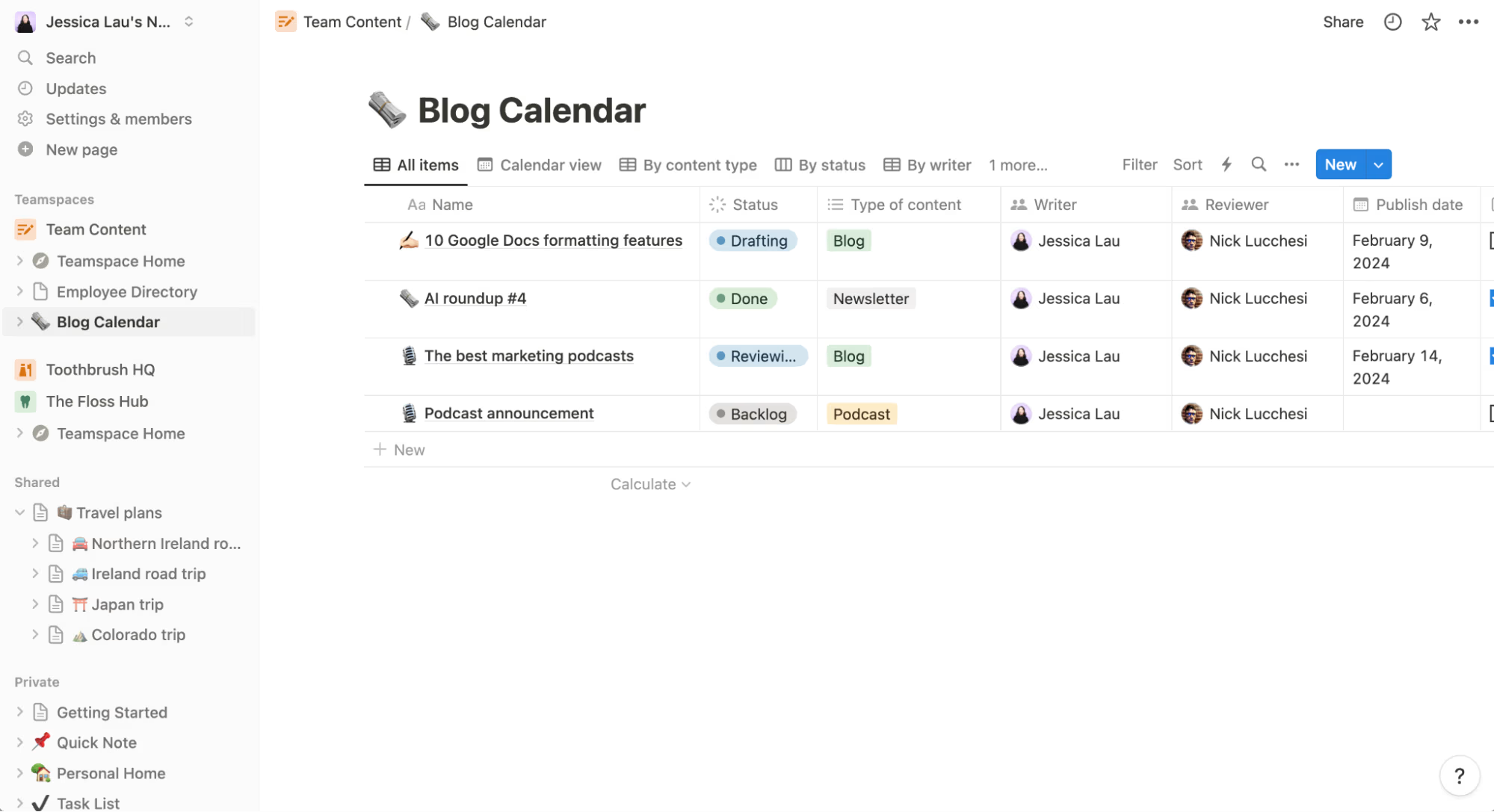
3. Todoist — Structured Task Management
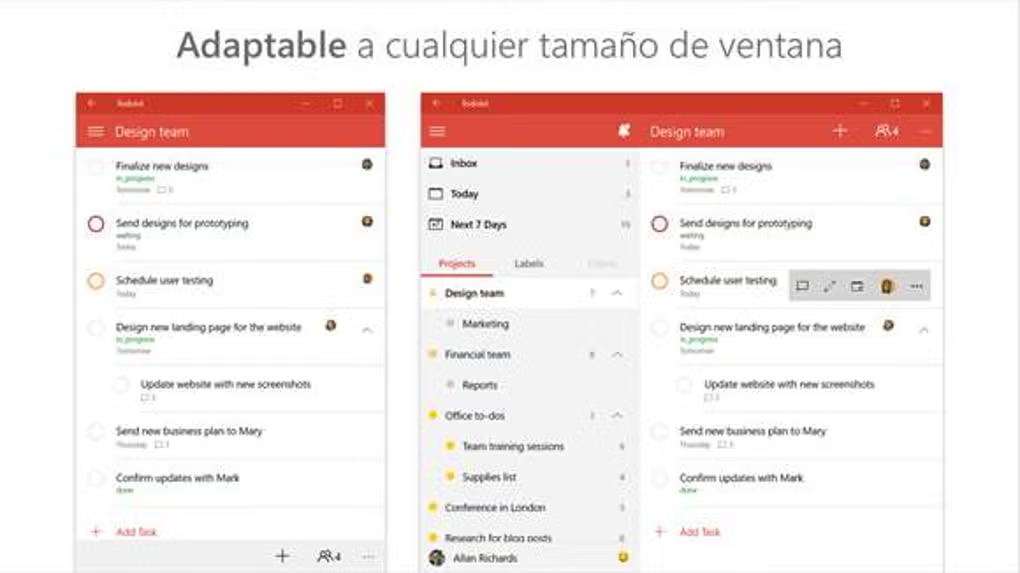
Todoist focuses primarily on tasks. That narrower purpose can be an advantage for users who do not want to build an entire workspace just to remember what needs to be done.
Tasks can be organized around projects, priorities, schedules, and recurring responsibilities. This makes it suitable for both personal planning and work-related task tracking.
A freelancer could separate client work into projects and keep recurring administrative tasks elsewhere. A student could organize assignments by subject and deadline.
Consider Todoist when: task management is the main problem you need to solve.
Potential limitation: some capabilities are associated with paid plans, so current plan limits should be checked before building a workflow around a specific feature.
4. Trello — Visual Project Tracking
Trello is based around boards, lists, and cards. Its visual approach works particularly well when work naturally moves through stages.
For example, a small content team could use:
Ideas → In Progress → Review → Completed
A photography business might instead create:
New Inquiry → Confirmed → Shoot Completed → Editing → Delivered
That makes project status easy to understand without opening a complicated project plan.
Consider Trello when: you prefer to see work moving visually through a workflow.
Potential limitation: very large or highly dependent projects may require more structured project-management capabilities.
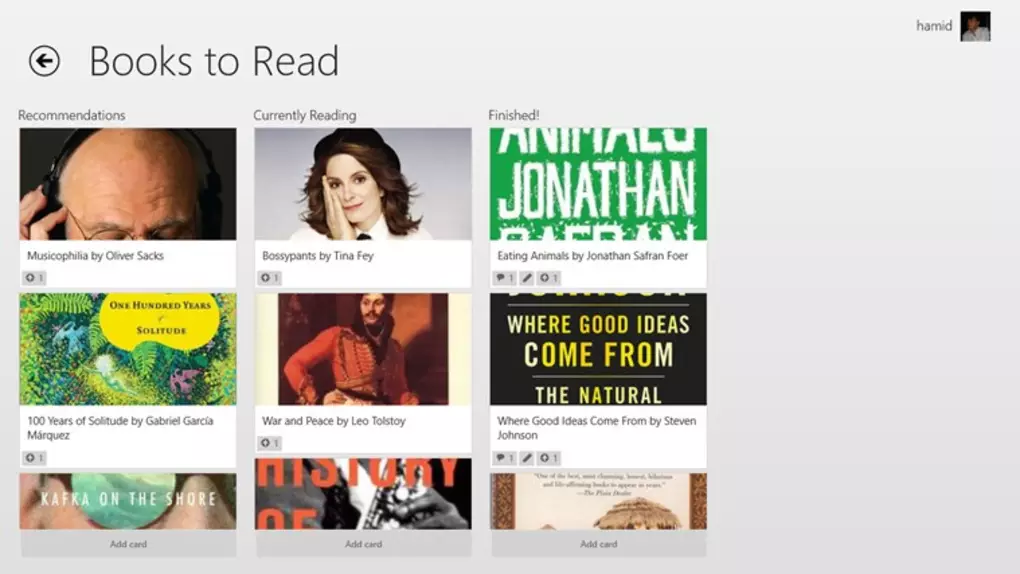
5. Microsoft To Do — Straightforward Daily Planning
Not everyone needs a complex project-management platform. Microsoft To Do is designed around lists and everyday task management.
Microsoft documents features such as My Day, due dates, reminders, steps and notes, and tasks can integrate with Outlook tasks. Microsoft Support
That makes it particularly useful for people already working within Microsoft’s ecosystem.
A simple setup might include lists for:
Today, Business, Personal, Follow-ups, and Recurring Tasks.
The goal is not to build an elaborate productivity system. It is simply to keep important tasks visible.
Consider Microsoft To Do when: you want a relatively straightforward task manager.
Potential limitation: users managing complicated projects may need a more specialized project-management application.
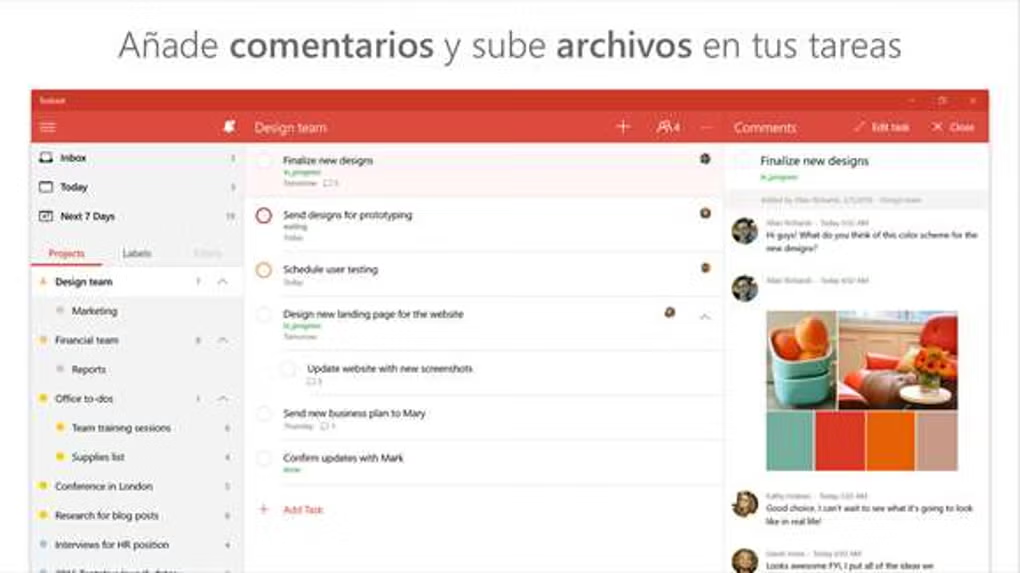
6. Evernote — Capturing and Organizing Information
Evernote is oriented toward collecting, organizing, and retrieving information.
This type of application can be useful when a significant part of your work involves gathering notes, webpages, documents, research material, and reference information.
The distinction between a note-taking application and a task manager matters here. If your main problem is missed deadlines, a dedicated task manager may be more appropriate. If the problem is that useful information is scattered across different places, an information-management tool can make more sense.
Consider Evernote when: capturing and retrieving reference information is central to your workflow.
Potential limitation: features and plan restrictions can change, so current pricing and plan details should be checked before deciding which tier suits your workflow.
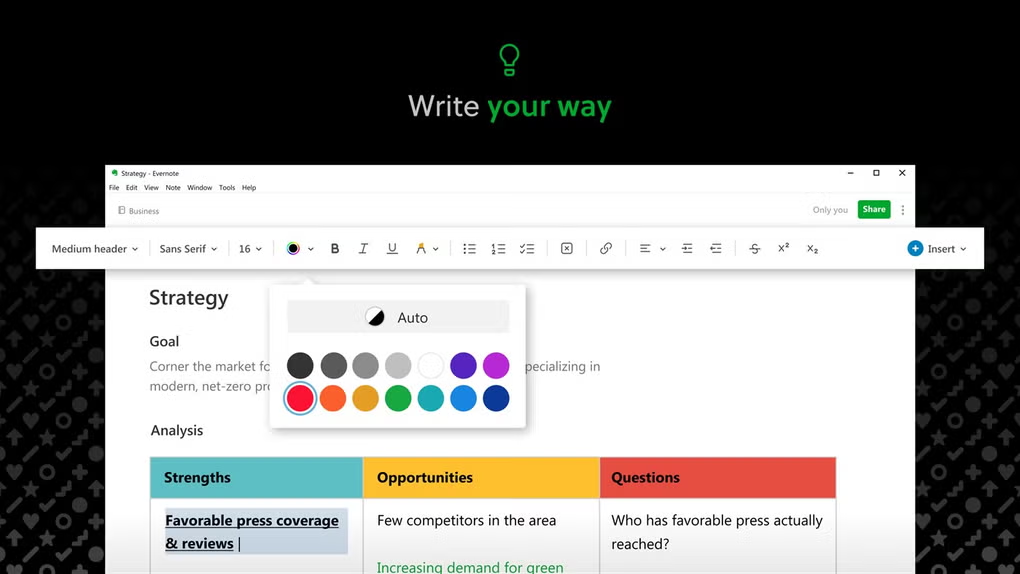
7. Obsidian — Building a Personal Knowledge Base
Obsidian is especially interesting for users who want notes to function as a connected knowledge base rather than simply a collection of pages.
Its linked-note approach can work well for research, writing, learning, technical documentation, or long-running projects where one idea frequently connects to another.
A writer, for example, might link research notes to topics, sources, article ideas, and drafts. Over time, those relationships can make older information easier to rediscover.
Obsidian is also attractive to users who value local note files and want more direct control over their knowledge base.
Consider Obsidian when: you want to build interconnected long-term knowledge rather than just short notes.
Potential limitation: its flexibility can require more initial learning than a conventional notebook.
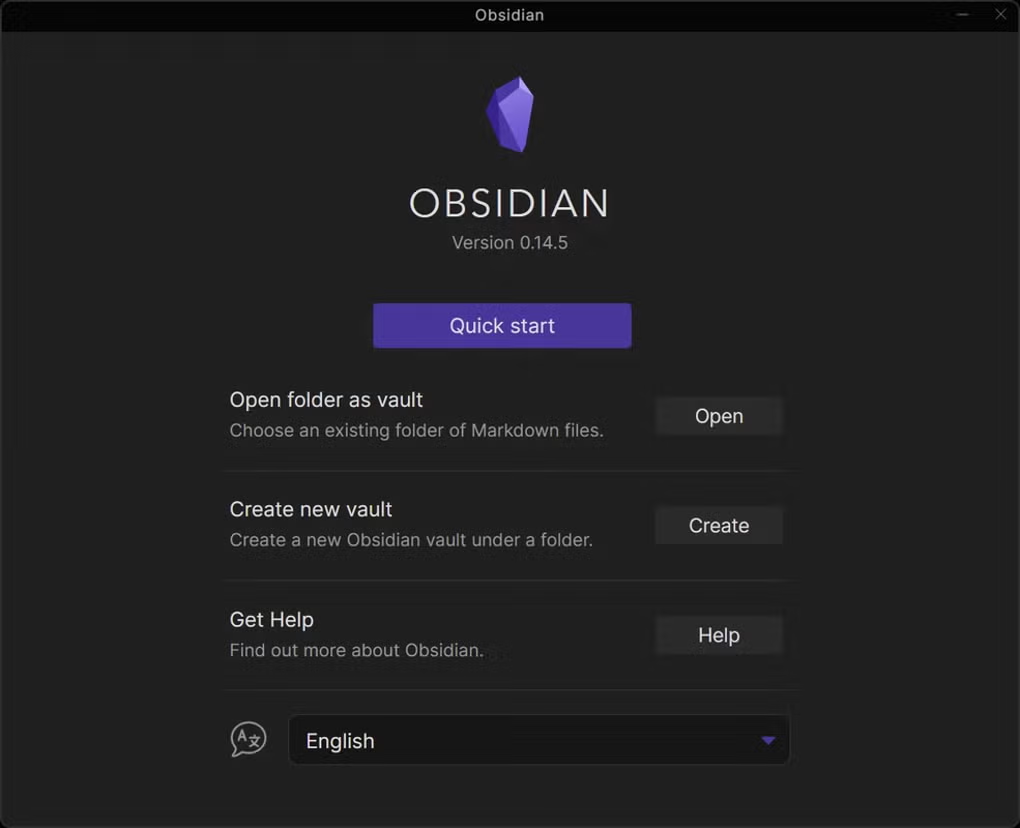
8. Google Drive — File Access and Collaboration
Productivity is not only about tasks and notes. File management becomes equally important when documents need to be available across devices or shared with other people.
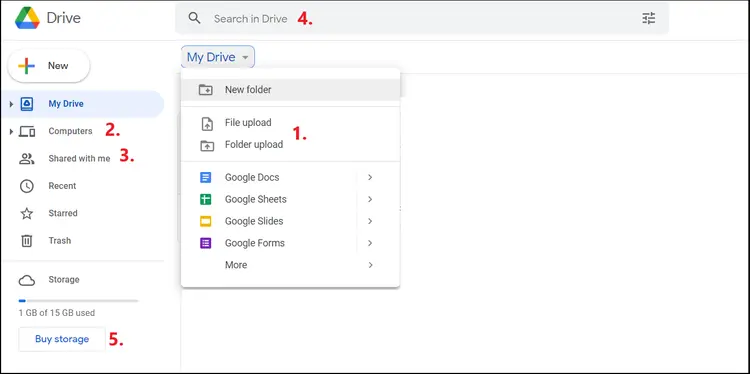
Google Drive provides cloud storage alongside Google’s document collaboration ecosystem. It can therefore fill the file-sharing layer of a productivity setup rather than replacing a dedicated task or note application.
For example, a freelancer might use a task manager for deadlines while keeping client deliverables and shared documents in Drive.
Consider Google Drive when: cloud file access and collaborative documents are important parts of your workflow.
Potential limitation: available storage and some functionality depend on the account or plan being used.
Choosing Apps by the Problem You Need to Solve
A useful productivity setup starts with the problem, not with the popularity of an application.
If you regularly forget small tasks, start with a task manager.
If notes are scattered everywhere, solve note organization first.
If team members cannot tell what stage a project has reached, consider a visual project-management system.
If research becomes difficult to retrieve later, consider a dedicated knowledge-management tool.
And if files are constantly being emailed back and forth, a shared cloud-storage workflow may be more useful than installing another task application.
Avoid Installing Too Many Overlapping Apps
One of the easiest productivity mistakes is installing several applications that perform essentially the same job.
For example, keeping some tasks in Microsoft To Do, others in Todoist, more in Notion, and additional reminders on paper can make it harder to know which list is authoritative.
The same applies to notes.
Using OneNote, Evernote, Notion and Obsidian simultaneously is not automatically more productive. Unless each application has a clearly defined role, information becomes fragmented.
A smaller workflow is often easier to maintain.
A Practical Three-Layer Productivity System
For many Windows users, a productivity system can be simplified into three layers:
Tasks: Where do I record what needs to happen?
Information: Where do I keep notes and reference material?
Files: Where do I store the documents required to complete the work?
A user could therefore combine Microsoft To Do for tasks, OneNote for notes, and cloud storage for files.
Another person could use Todoist, Obsidian, and Google Drive.
Neither combination is universally correct. The better system is the one that matches the user’s actual workflow and remains simple enough to use consistently.
Windows 11 Features Can Complement These Apps
Third-party productivity applications are only part of the workflow. Windows 11 itself includes features that can reduce unnecessary window switching and distractions.
For example, Microsoft highlights Snap layouts, multiple desktops, Windows Search and focus-related features as productivity capabilities in Windows 11. Microsoft
A practical workflow might use separate virtual desktops for business and personal tasks, Snap Layouts when comparing documents, and a task application for deadlines.
The point is to use software to remove friction—not to install applications simply because they are categorized as productivity tools.
Frequently Asked Questions
Do I need several productivity apps?
Not necessarily. Start with the smallest number of applications that solve your actual problems. Add another tool only when your existing setup cannot handle a specific requirement well.
Is Microsoft To Do useful for Windows users?
It can be particularly convenient for straightforward personal task management. Microsoft supports lists, My Day, due dates, reminders and integration with Outlook tasks. Microsoft Support
Is OneNote only for students?
No. Its notebook structure can also work for meeting notes, project documentation, research, reference information and other business or personal uses.
Should I use Notion or a dedicated task manager?
It depends on the workflow. Notion can combine multiple kinds of information in one workspace. If you primarily need a straightforward list of tasks and deadlines, a dedicated task manager may require less setup.
Can I use more than one productivity application?
Yes, provided each application has a defined responsibility. For example, one for tasks, one for notes, and one for file storage is much easier to maintain than several competing task managers.
Conclusion
The most useful productivity application is the one that removes a specific source of friction from your daily work.
OneNote can provide flexible notebooks. Notion can centralize projects and structured information. Todoist and Microsoft To Do can organize tasks. Trello provides a visual approach to workflows. Evernote and Obsidian approach information management in different ways, while Google Drive can handle the cloud-storage and collaboration layer.
Rather than installing every popular productivity app, identify where your current workflow breaks down and choose the smallest set of tools needed to fix it.
That approach produces a cleaner Windows setup and, more importantly, a productivity system you are more likely to keep using.