

Essential Windows Software Every User Should Install in 2026
Introduction
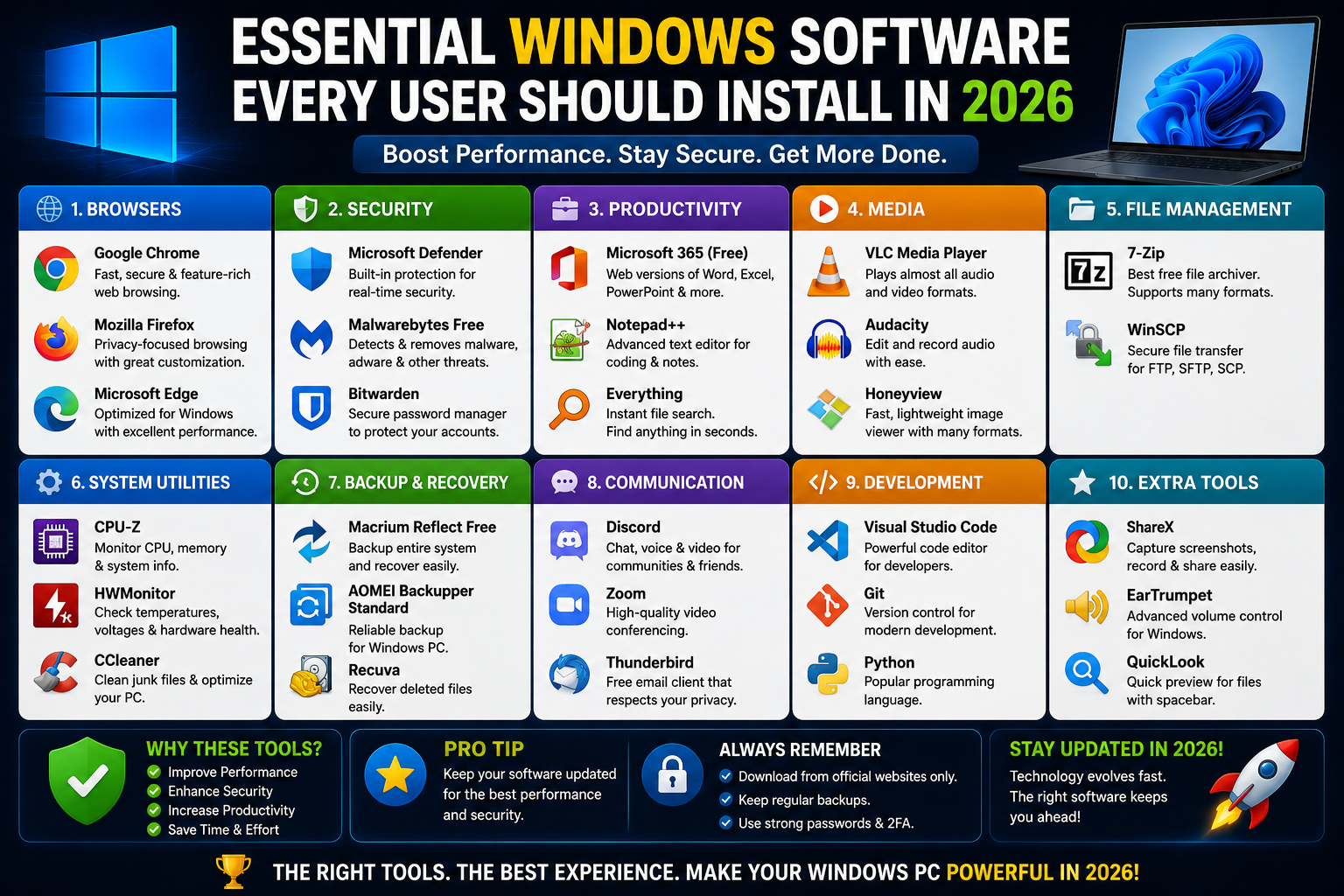
Windows comes with many built-in tools, but most users install additional software to improve security, productivity, file management, media playback, communication, and system maintenance.
Whether you’ve purchased a new PC or reinstalled Windows, having the right software can significantly enhance your computing experience.
In this guide, we’ll cover the essential Windows software that almost every user should consider installing.
Quick Overview
| Category | Recommended Software |
|---|---|
| Web Browser | Google Chrome, Firefox, Brave |
| Office Suite | Microsoft Office, LibreOffice |
| Media Player | VLC Media Player |
| File Compression | 7-Zip |
| PDF Reader | Adobe Acrobat Reader |
| Cloud Storage | Google Drive, OneDrive |
| Password Manager | Bitwarden |
| Backup Software | Macrium Reflect |
| Security Tool | Malwarebytes |
| Communication | Zoom, Microsoft Teams |
1. Web Browser
A modern web browser is one of the most important applications on any Windows PC.
Recommended Options
Google Chrome
Best for:
- Compatibility
- Extensions
- Google services
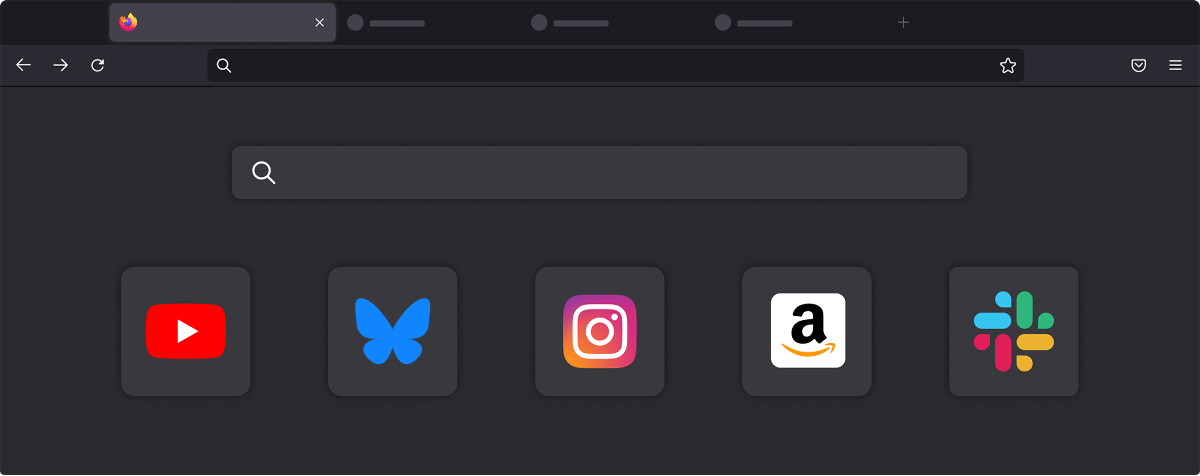
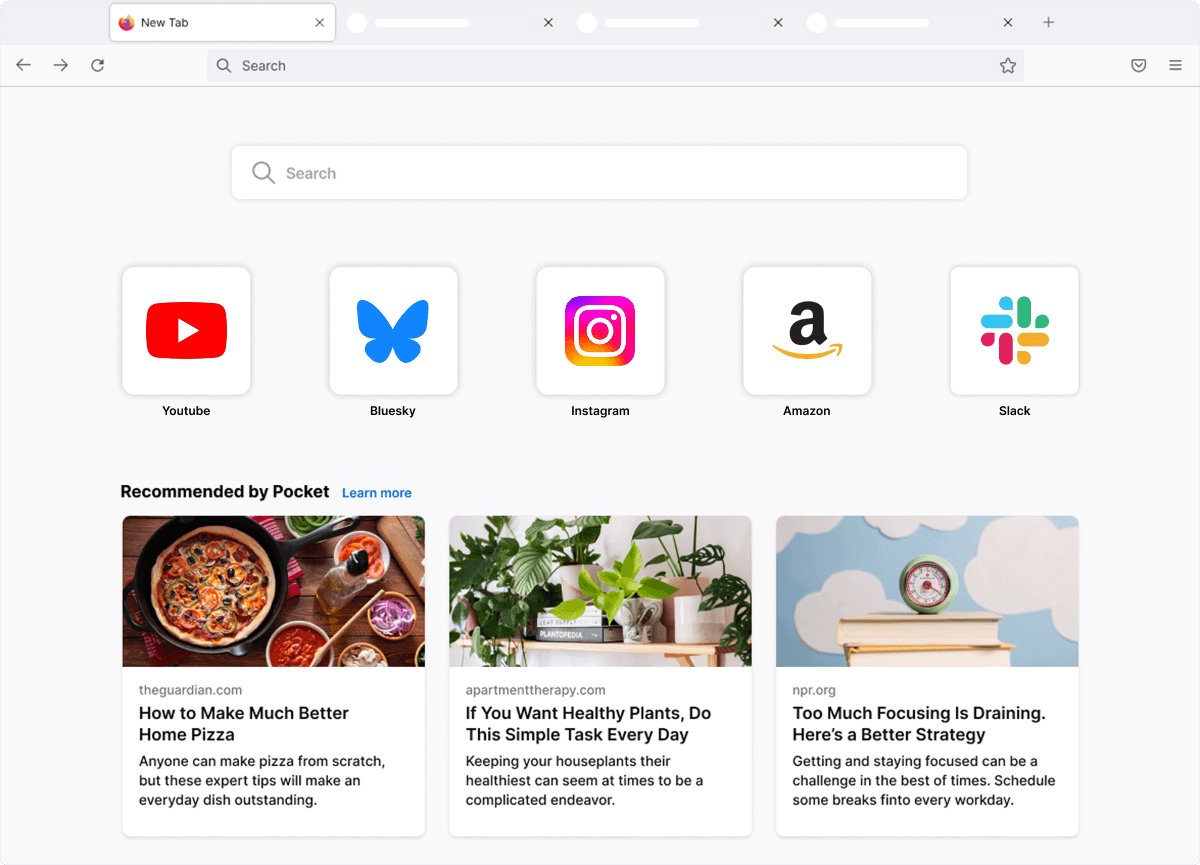
Mozilla Firefox
Best for:
- Privacy
- Customization
- Open-source users
Brave
Best for:
- Built-in ad blocking
- Privacy protection
- Faster browsing
Why Install One?
A quality browser improves:
- Security
- Performance
- Productivity
- Online privacy

2. Office Suite
Most users regularly work with documents, spreadsheets, and presentations.
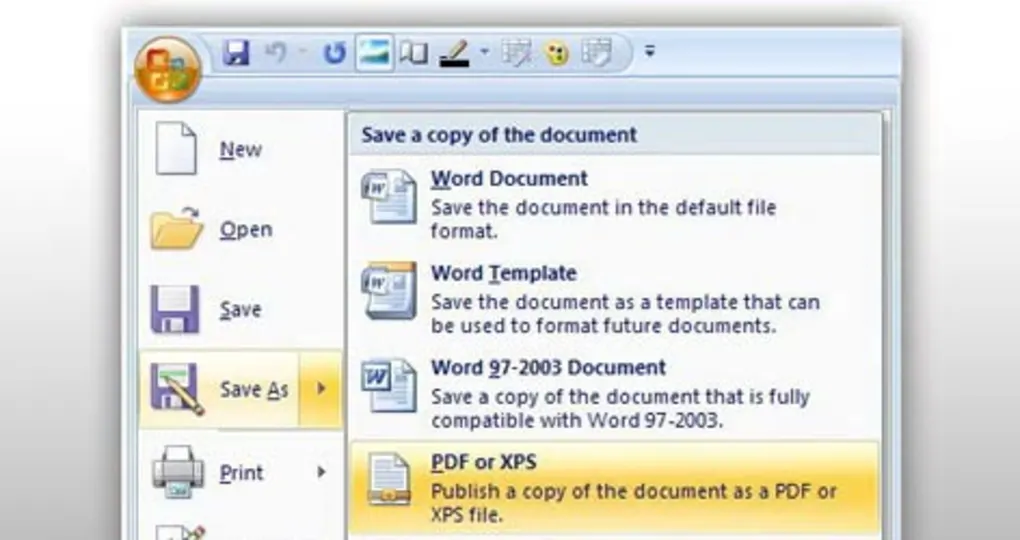
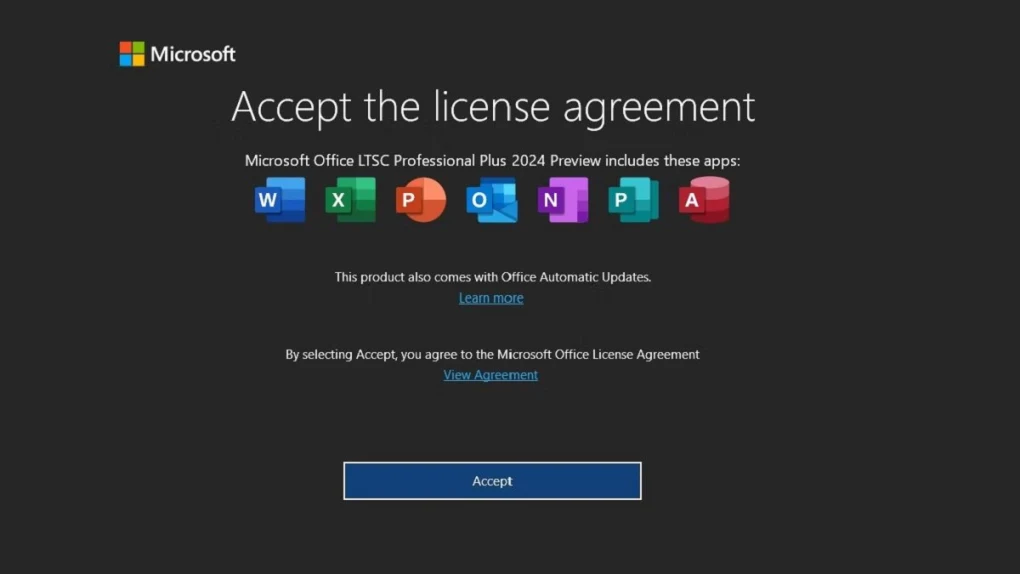
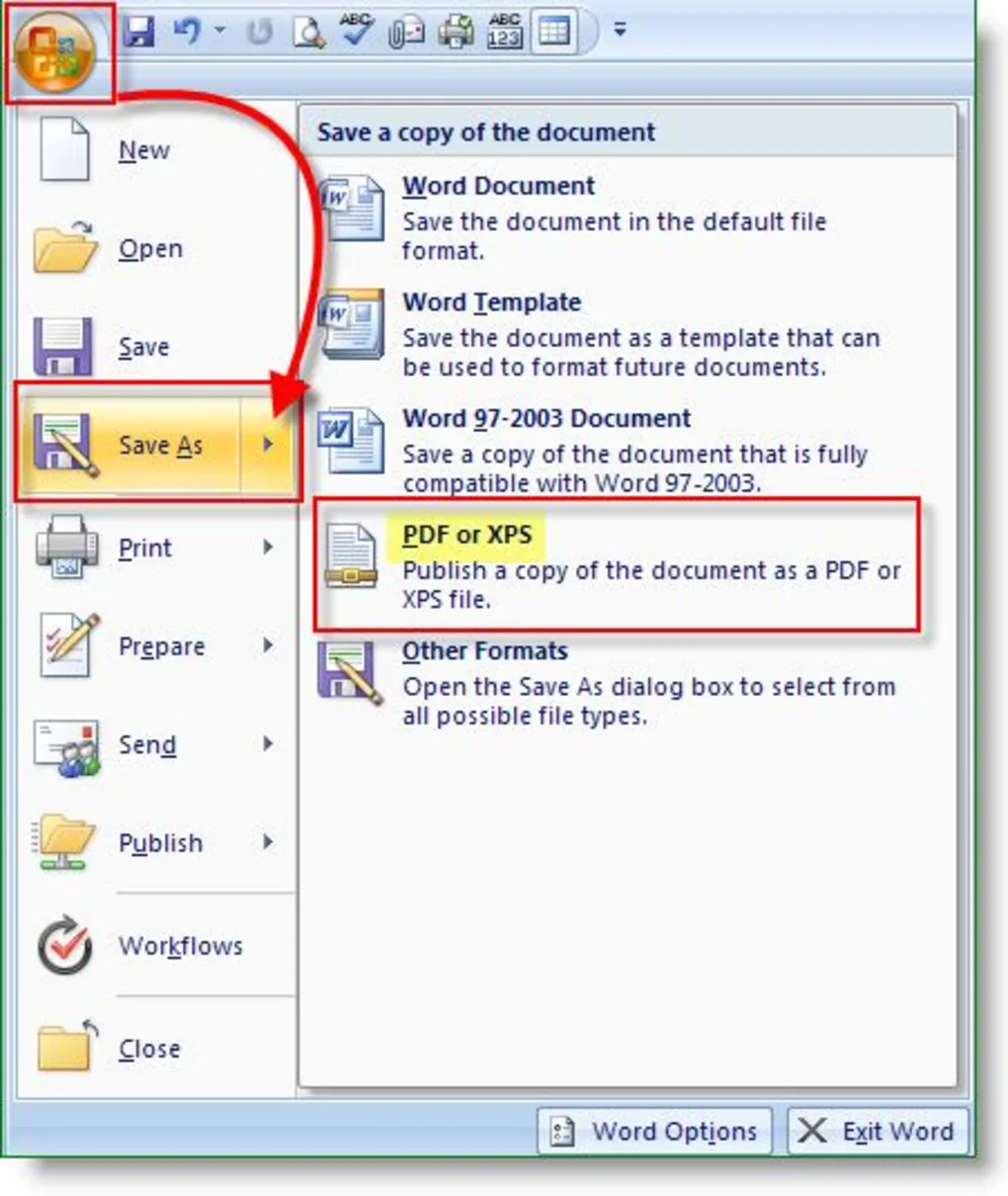
Microsoft Office
Includes:
- Word
- Excel
- PowerPoint
- Outlook
Best for professionals and businesses.
LibreOffice
Includes:
- Writer
- Calc
- Impress
Best for users seeking a free alternative.
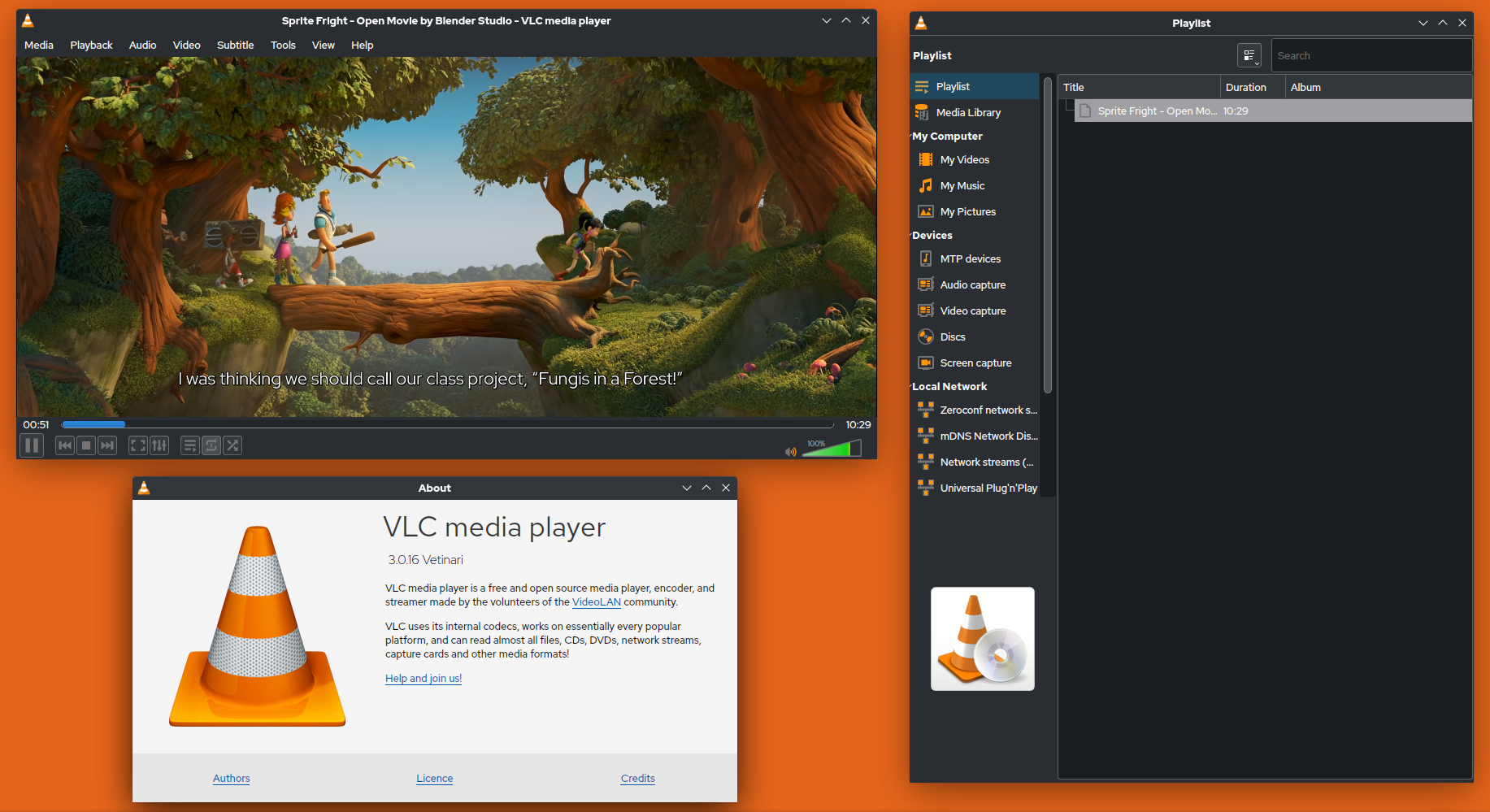
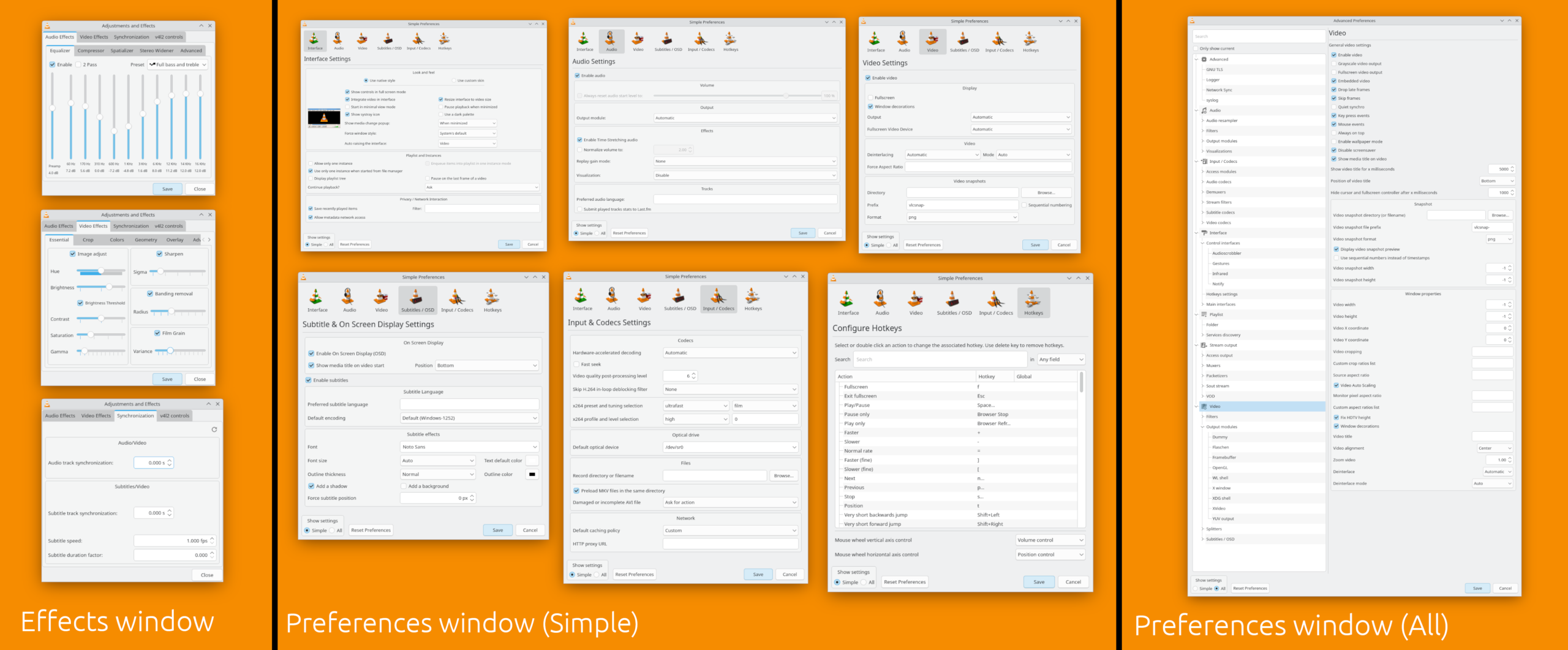
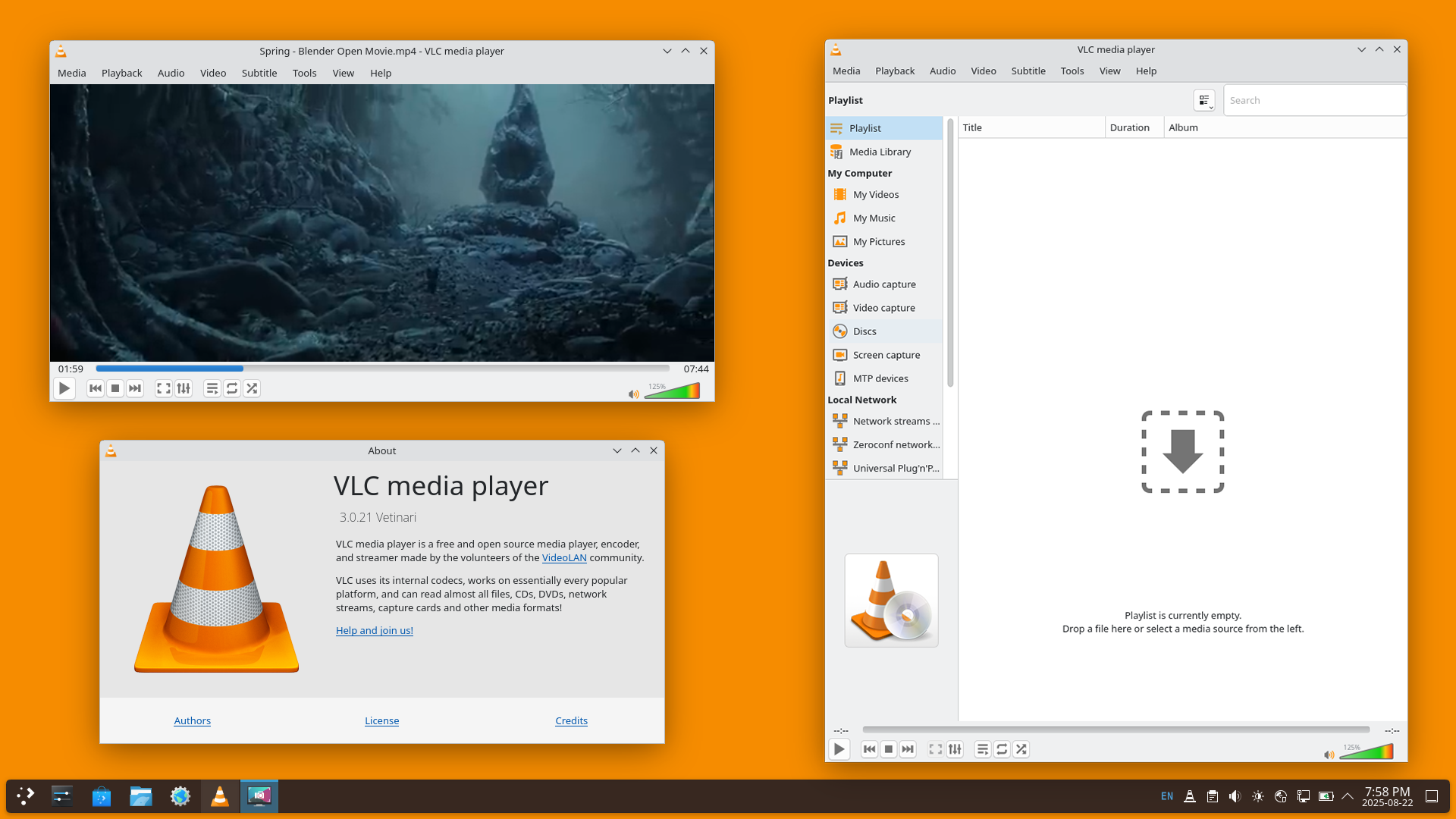
3. VLC Media Player
Why VLC Is Essential
Windows can struggle with some video and audio formats.
VLC supports:
- MP4
- MKV
- AVI
- MOV
- FLAC
- MP3
and many other formats.
Advantages
- Free
- Lightweight
- No additional codecs required
4. 7-Zip
Compressed files are common when downloading software and sharing data.
Supported Formats
- ZIP
- RAR
- 7Z
- TAR
- GZIP
Advantages
- Free
- Fast compression
- Strong encryption support

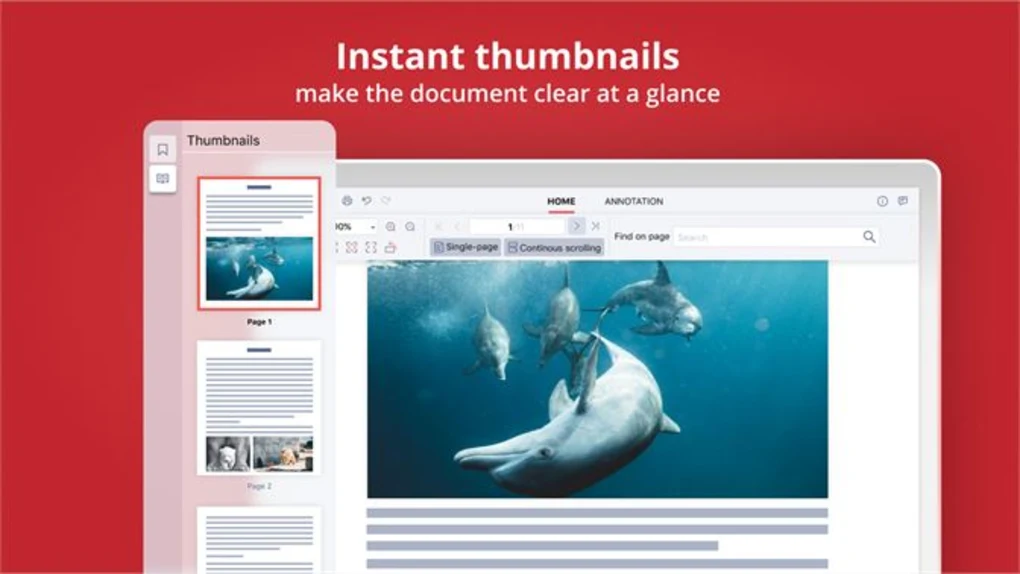
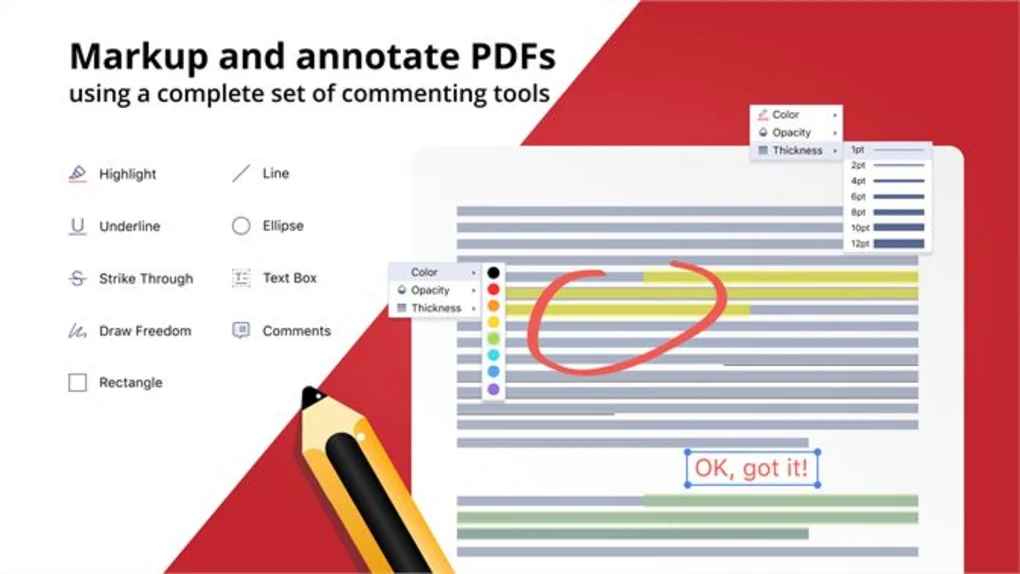
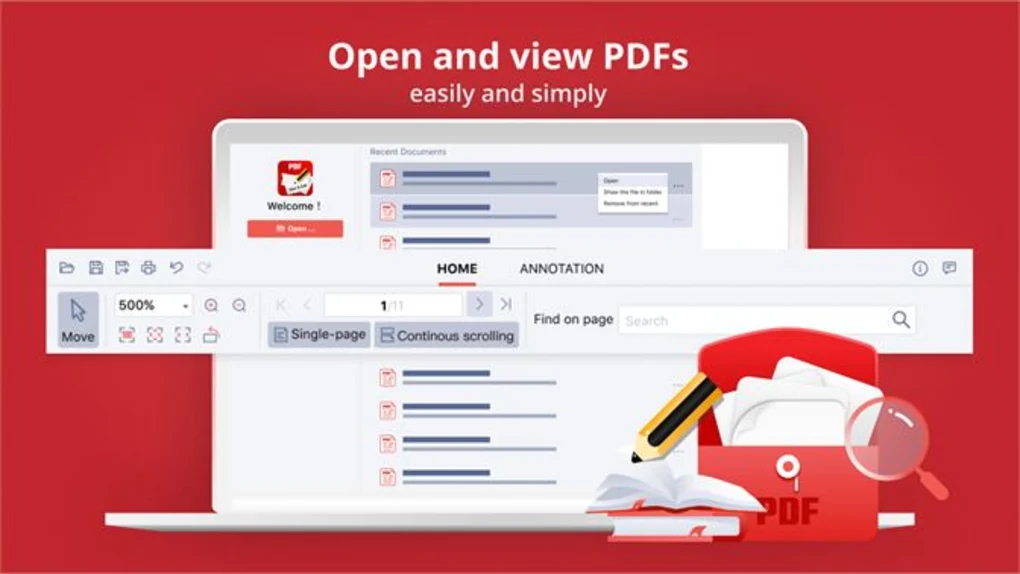
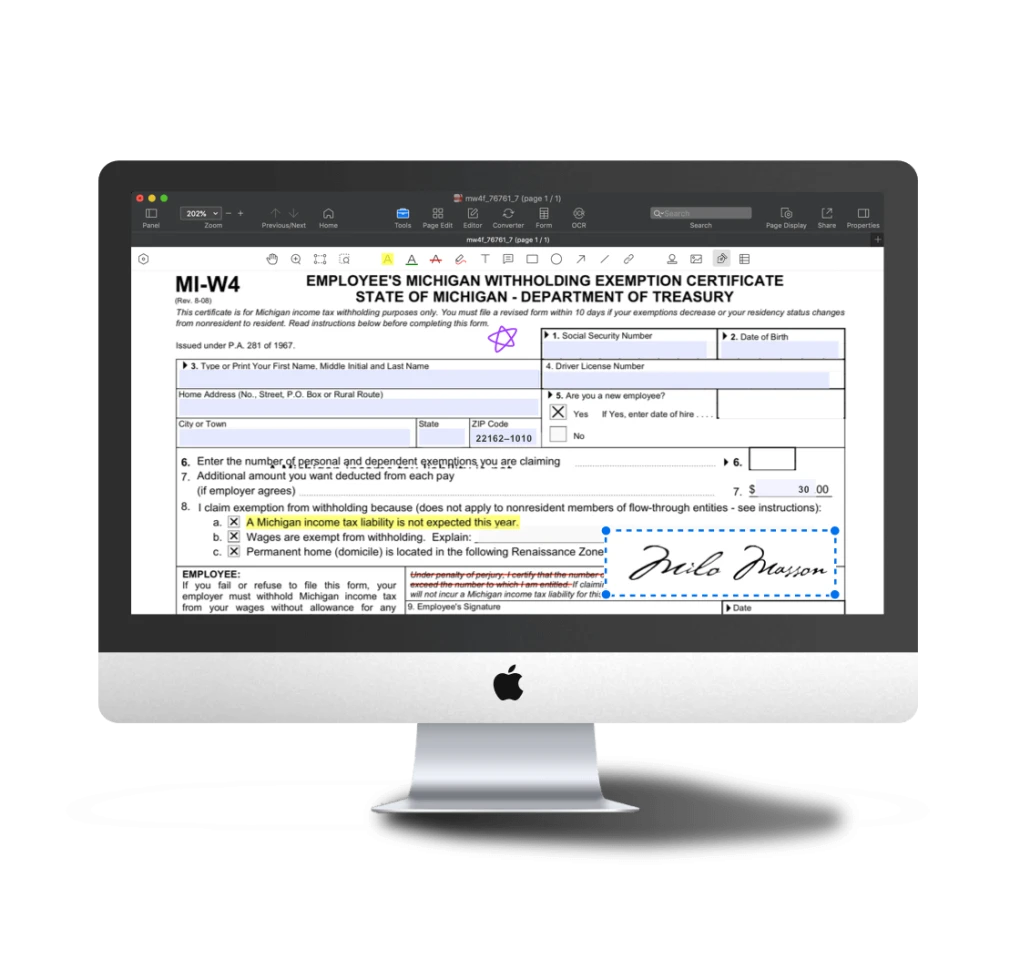
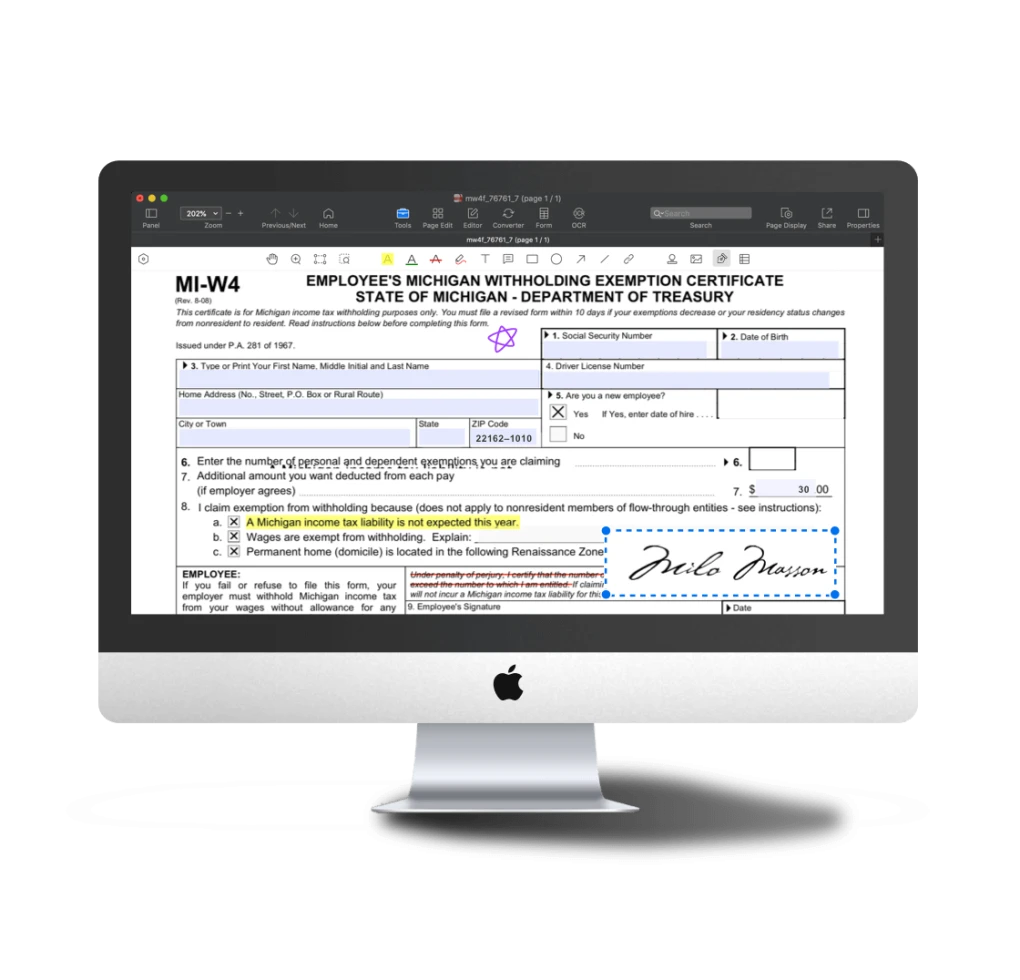
5. PDF Reader
PDF files are used extensively in education and business.
Recommended Software
Adobe Acrobat Reader
Features:
- PDF viewing
- Annotation
- Form filling
Alternative Options
- Foxit PDF Reader
- Sumatra PDF
6. Cloud Storage Software
Cloud storage provides backup and synchronization capabilities.
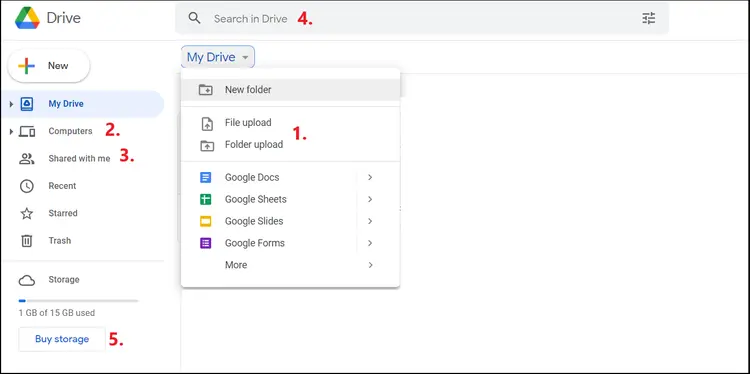
Google Drive
Best for:
- Collaboration
- Google Workspace users
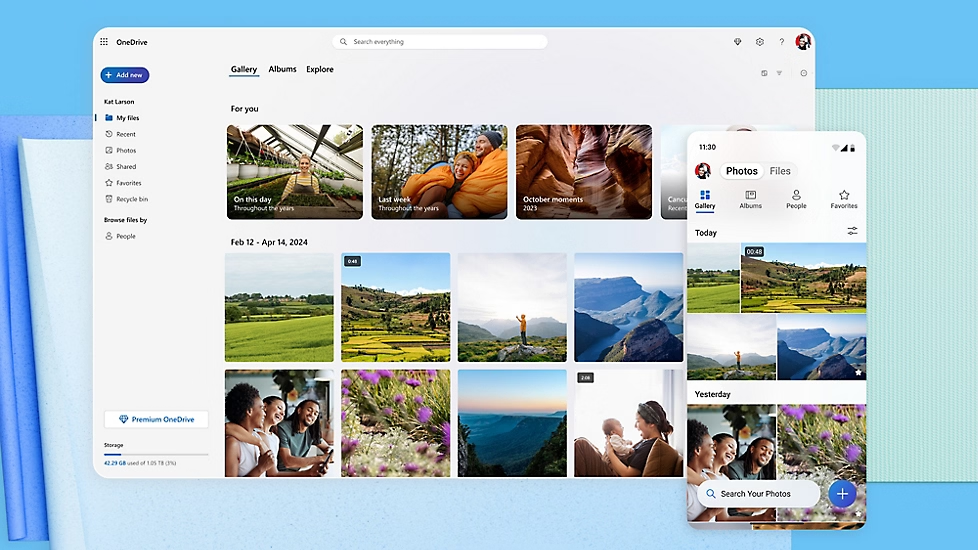
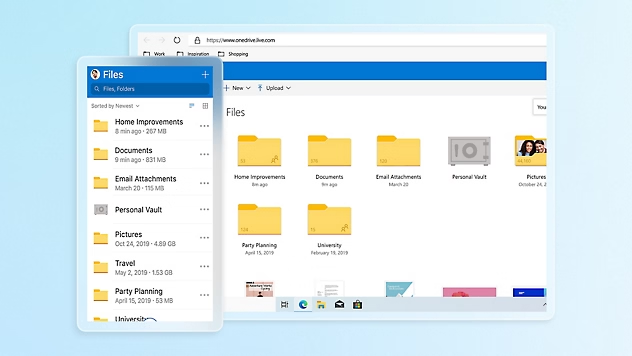
OneDrive
Best for:
- Windows integration
- Microsoft users
Benefits
- Automatic backups
- Access from multiple devices
- File sharing
7. Password Manager
Strong passwords are critical for online security.
Recommended Tool
Bitwarden
Features:
- Password storage
- Password generation
- Secure synchronization
Benefits
- Improved security
- Easier login management
8. Backup Software
Regular backups protect against accidental data loss.
Recommended Software
Macrium Reflect
Features:
- System image backups
- Disk cloning
- Scheduled backups
Benefits
- Disaster recovery
- Data protection
9. Malware Protection Tool
Windows Security provides solid protection, but some users prefer additional security layers.
Recommended Tool
Malwarebytes
Features:
- Malware scanning
- Adware detection
- Threat removal
Benefits
- Extra security layer
- Easy-to-use interface
10. Communication Software
Communication tools are essential for work, education, and collaboration.
Zoom
Best for:
- Video meetings
- Online classes
Microsoft Teams
Best for:
- Business collaboration
- Team communication
11. Screenshot and Screen Recording Tool
Capturing screenshots and recordings is useful for tutorials, troubleshooting, and work documentation.
Recommended Options
ShareX
Features:
- Screenshot capture
- Screen recording
- Annotation tools
OBS Studio
Features:
- Screen recording
- Live streaming
- Professional-quality capture
12. File Recovery Software
Accidentally deleted files can sometimes be recovered.
Recommended Tools
Recuva
Disk Drill
Windows File Recovery
These tools can help restore lost files from drives, USB devices, and memory cards.
13. Note-Taking Software
Organizing ideas and information improves productivity.
Recommended Options
Microsoft OneNote
Evernote
Obsidian
Best for:
- Notes
- Research
- Project planning
14. System Cleaning Utility
Over time, Windows accumulates temporary files and unnecessary data.
Recommended Software
CCleaner
Features:
- Temporary file cleanup
- Startup management
- Disk optimization
Benefits
- Improved storage management
- Cleaner system environment
Real-World Software Setup Example
Student Setup
- Chrome
- LibreOffice
- OneNote
- Google Drive
- VLC
Professional Setup
- Microsoft Office
- Chrome
- Teams
- OneDrive
- Bitwarden
Content Creator Setup
- OBS Studio
- VLC
- Google Drive
- Notion
- Brave Browser
How to Choose Software Safely
When downloading software:
Always Use Official Websites
Avoid:
- Unofficial mirrors
- Suspicious download portals
Check Reviews
Read user experiences before installing.
Keep Software Updated
Updates often contain:
- Security fixes
- Bug fixes
- Performance improvements
Common Software Installation Mistakes
Installing Too Many Programs
Unnecessary software can:
- Slow startup
- Consume storage
- Increase maintenance requirements
Ignoring Security Warnings
Always verify software authenticity.
Downloading From Unknown Sources
This increases malware risks.
Never Updating Applications
Outdated software may contain security vulnerabilities.
Frequently Asked Questions
Which software should I install first on a new Windows PC?
A browser, office suite, media player, password manager, and backup solution are good starting points.
Is Windows Security enough?
For many users, yes. However, some prefer additional tools such as Malwarebytes.
Which office suite is best?
Microsoft Office is the most feature-rich option, while LibreOffice is an excellent free alternative.
Which browser is best?
Chrome, Firefox, and Brave are all excellent choices depending on your priorities.
Why should I use a password manager?
Password managers improve security and simplify account management.
Is VLC better than the default Windows media player?
For format compatibility, VLC is generally more versatile.
How important are backups?
Backups are one of the most important ways to protect your data.
Should I install all of these applications?
No. Choose software based on your specific needs and workflow.
Final Verdict
The essential software for most Windows users includes:
🏆 Chrome or Firefox for browsing
🏆 Microsoft Office or LibreOffice for productivity
🏆 VLC Media Player for media playback
🏆 7-Zip for file compression
🏆 Bitwarden for password management
🏆 Google Drive or OneDrive for cloud storage
🏆 Macrium Reflect for backups
🏆 Malwarebytes for additional security
Installing the right software can improve productivity, security, organization, and overall computing experience while helping you get the most out of your Windows PC.
Free Software vs Paid Software: Which Should You Choose?
When installing software on a Windows PC, users often face an important decision:
Should you use free software or pay for premium applications?
The answer depends on your requirements, budget, and the features you need.
Fortunately, many free applications today offer functionality that rivals expensive paid alternatives.
What Is Free Software?
Free software can be downloaded and used without paying a license fee.
Examples include:
- LibreOffice
- VLC Media Player
- 7-Zip
- Notepad++
- Audacity
- OBS Studio
Many free tools are maintained by active developer communities and receive regular updates.
Advantages of Free Software
No Cost
The biggest benefit is obvious—you don’t have to pay anything.
This makes free software especially attractive for:
- Students
- Home users
- Small businesses
Easy Accessibility
Most free software can be downloaded and installed immediately.
No subscriptions or license activation are required.
Large Community Support
Popular free applications often have:
- Forums
- Tutorials
- User guides
- Community-created extensions
Frequent Updates
Many open-source projects receive regular updates and security improvements.
Disadvantages of Free Software
Limited Advanced Features
Some free applications lack professional-level tools.
Limited Technical Support
Many free programs rely on community support rather than dedicated customer service.
Inconsistent User Experience
Quality can vary significantly between different free applications.
What Is Paid Software?
Paid software requires users to purchase a license or subscription.
Examples include:
- Microsoft Office
- Adobe Photoshop
- Adobe Premiere Pro
- Acronis Cyber Protect
- Microsoft 365
These applications often target professional users and businesses.
Advantages of Paid Software
Advanced Features
Premium applications often provide:
- Professional tools
- Automation features
- Enterprise functionality
Dedicated Support
Paid software usually includes:
- Customer support
- Technical assistance
- Documentation
Better Integration
Many paid solutions integrate with other business applications and services.
Regular Updates
Software vendors frequently release:
- Security patches
- Performance improvements
- New features
Disadvantages of Paid Software
Cost
Licenses and subscriptions can become expensive over time.
Subscription Fatigue
Many modern applications require recurring monthly payments.
Vendor Lock-In
Switching platforms can sometimes be difficult after long-term use.
Feature Comparison Table
| Factor | Free Software | Paid Software |
|---|---|---|
| Cost | Free | Paid |
| Advanced Features | Limited | Extensive |
| Customer Support | Community Based | Dedicated Support |
| Updates | Usually Available | Regular Updates |
| Learning Resources | Community Driven | Official Documentation |
| Business Features | Limited | Strong |
Best Free Alternatives to Popular Paid Software
| Paid Software | Free Alternative |
|---|---|
| Microsoft Office | LibreOffice |
| WinRAR | 7-Zip |
| Adobe Photoshop | GIMP |
| Adobe Premiere Pro | DaVinci Resolve |
| Evernote Premium | OneNote |
| Camtasia | OBS Studio |
These alternatives can save users hundreds of dollars annually.
Which Should Students Choose?
Recommended Option
🏆 Free Software
Students can accomplish most tasks using:
- LibreOffice
- OneNote
- VLC
- OBS Studio
- 7-Zip
without spending money.
Which Should Businesses Choose?
Recommended Option
🏆 Mixed Approach
Businesses often benefit from combining:
- Free productivity tools
- Paid professional software
depending on operational needs.
Which Should Professionals Choose?
Recommended Option
🏆 Based on Workflow Requirements
If advanced features directly impact productivity, paid software may justify its cost.
Final Verdict
Best for Budget-Conscious Users
🏆 Free Software
Best for Professional Workflows
🏆 Paid Software
Best Overall Approach
🏆 Start with free software and upgrade only when specific advanced features become necessary.
Many Windows users discover that free applications meet most of their daily needs without requiring expensive subscriptions.
How to Keep Windows Software Updated and Secure
Installing software is only the first step. Keeping applications updated and secure is equally important.
Outdated software can expose your computer to:
- Security vulnerabilities
- Malware attacks
- Performance issues
- Compatibility problems
Regular maintenance helps ensure your system remains safe and reliable.
Why Software Updates Matter
Software updates often include:
Security Fixes
Developers regularly patch vulnerabilities discovered after release.
Bug Fixes
Updates resolve known issues that affect stability and performance.
New Features
Applications often gain additional functionality over time.
Compatibility Improvements
Updates help software work properly with:
- New Windows versions
- Updated hardware
- Modern file formats
Best Practices for Software Security
Download Software Only from Official Sources
Always obtain software from:
- Official developer websites
- Microsoft Store
- Trusted repositories
Avoid:
- Cracked software
- Suspicious download portals
- Unknown file-sharing sites
Enable Automatic Updates
Many applications support automatic updates.
Examples include:
- Google Chrome
- Firefox
- Microsoft Edge
- Microsoft Office
Automatic updates reduce the risk of running outdated software.
Keep Windows Updated
Windows updates often include critical security improvements.
To check for updates:
Settings → Windows Update → Check for Updates
Remove Unused Applications
Old software can create security risks.
Benefits of removing unused programs:
- Reduced attack surface
- More available storage
- Cleaner system management
Use Strong Passwords
For applications that require accounts:
- Use unique passwords
- Enable two-factor authentication
- Store credentials in a password manager
Scan Downloads Before Installation
Use:
- Windows Security
- Malwarebytes
to scan downloaded files.
This helps detect potentially harmful software before installation.
Common Security Mistakes
Ignoring Update Notifications
Delaying updates for months increases security risks.
Installing Cracked Software
Pirated software is one of the most common sources of malware infections.
Disabling Security Features
Many users disable antivirus or firewall protections unnecessarily.
Downloading Browser Extensions Without Verification
Extensions should only be installed from trusted sources.
Recommended Software Maintenance Schedule
Weekly
- Check for application updates.
- Remove temporary files.
- Review installed software.
Monthly
- Verify backup systems.
- Remove unused applications.
- Scan for malware.
Every 3–6 Months
- Review startup programs.
- Audit browser extensions.
- Check software licenses and subscriptions.
Signs That Software Needs Updating
You should update software immediately if:
- Security alerts appear.
- Performance problems occur.
- Features stop working properly.
- Compatibility issues arise.
- The developer releases a major update.
Security Checklist for Windows Users
✅ Keep Windows updated
✅ Enable automatic updates
✅ Use trusted download sources
✅ Remove unused software
✅ Maintain regular backups
✅ Use a password manager
✅ Scan downloads before opening
✅ Avoid cracked applications
Final Verdict
Keeping software updated is one of the simplest and most effective ways to improve Windows security.
Most Important Rule
🏆 Install software only from trusted sources.
Best Security Habit
🏆 Enable automatic updates whenever possible.
Best Long-Term Strategy
🏆 Combine software updates, regular backups, malware protection, and safe browsing practices.
By following these practices, Windows users can significantly reduce security risks while maintaining a fast, stable, and reliable computer.