

How to Transfer Files from Android to Windows 11: 7 Easy Methods That Work
Moving files from an Android phone to a Windows 11 computer should be simple. Yet many users encounter the same frustrating problems: the phone only charges when connected, the computer cannot detect the device, wireless sharing fails, or transferring hundreds of photos takes longer than expected.
The best solution depends on what you need to transfer.
A USB cable may be the most practical choice for a large collection of original photos and videos. Quick Share is convenient for nearby wireless transfers. Phone Link can help with regular cross-device sharing, while cloud storage is useful when the devices are in different locations.
This guide explains how to transfer files from Android to PC using seven practical methods. It also covers file locations, transfer limitations, common errors, and how to choose the right approach without unnecessarily installing extra software.
Quick Answer: Which Android-to-PC Transfer Method Is Best?
| Method | Best for | Internet required? | Extra setup |
|---|---|---|---|
| USB cable | Large photo and video folders | No | USB file transfer mode |
| Google Quick Share | Nearby wireless sharing | No cloud upload needed | Windows Quick Share app |
| Microsoft Phone Link | Regular phone-to-PC sharing | Network connectivity | Phone Link pairing |
| Wireless File Explorer access | Browsing phone folders from PC | Local connectivity | Compatible Android and Windows setup |
| Bluetooth | Small files | No | Bluetooth pairing |
| Cloud storage | Accessing files from different locations | Yes | Cloud account and storage |
| Local network file transfer | Repeated transfers on the same network | No external cloud required | Compatible sharing application |
The fastest method is not necessarily the most convenient. Choose according to file size, privacy, device compatibility, and how often you transfer data.
1. Transfer Files from Android to PC Using a USB Cable
A USB cable is a sensible first choice when transferring large files or many folders.
It does not require a cloud account, and it allows you to browse accessible phone storage through Windows File Explorer.
Step-by-step instructions
Connect your Android phone to the Windows 11 PC using a USB cable that supports data transfer.
Unlock the phone.
Open the Android notification panel.
Tap the USB connection notification, which may say “Charging this device via USB.”
Select File Transfer, Transferring files, or MTP, depending on your phone.
Open File Explorer on Windows.
Select This PC and open your connected phone.
Browse the available folders.
Copy the files you need and paste them into a folder on your computer.
The exact Android menu wording varies by manufacturer and Android version.
Where are Android photos stored?
Camera photos and videos are commonly found in:
Internal storage → DCIM → Camera
Screenshots may appear in:
Internal storage → Pictures → Screenshots
Downloaded documents are often stored in:
Internal storage → Download
Some applications save their files in separate directories, and Android’s storage restrictions may prevent direct access to certain app-specific folders.
Important: Copy before deleting
When moving important photos or client files, copy them to your PC first.
Open several transferred files to confirm they are readable. Check the total number of files and folder sizes where practical.
Only remove originals from the phone after confirming that the destination contains a complete copy.
Best for: Large photo collections, 4K videos, document folders, and offline transfers.
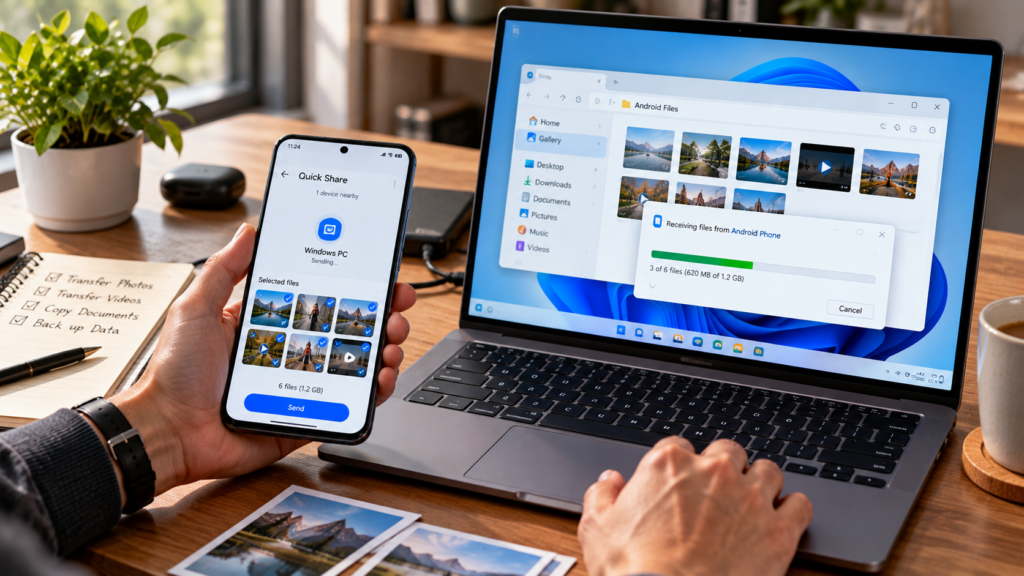
2. Transfer Files Wirelessly Using Google Quick Share
Google Quick Share allows compatible Android devices and Windows computers to exchange nearby files wirelessly.
It is useful when you want to send photos, PDFs, presentations, or videos without connecting a cable.
What you need
For Google’s Windows application, you generally need a supported 64-bit Windows 10 or Windows 11 PC, Bluetooth and Wi-Fi connectivity, and a compatible Android device.
Google provides separate guidance for Samsung PCs, which should use Samsung’s Quick Share application.
How to send files from Android to Windows 11
Install Quick Share on your Windows PC from Google’s official website.
Open the application and configure device visibility.
Enable the required wireless connections.
On your Android phone, select the photos or files.
Tap Share → Quick Share.
Select your Windows computer.
Accept the transfer if prompted.
Wait for completion and inspect the received files.
Google recommends keeping the devices nearby, within approximately five metres.
How to send files from PC to Android
Open Quick Share on Windows, select or drag in your files, choose the Android device, and approve the transfer on the receiving device if required.
Why Quick Share is useful
It avoids the inconvenience of cables for everyday sharing.
It also does not require uploading each file to a conventional cloud-storage account before the recipient can download it.
However, device discovery depends on compatible hardware, visibility settings, and network conditions.
Best for: Nearby wireless transfer of photos, documents and videos.
3. Use Microsoft Phone Link for Regular File Sharing
Windows 11 includes Microsoft’s Phone Link experience, which connects supported Android devices to your PC.
Phone Link is especially useful if you frequently switch between your phone and computer.
Depending on your device and supported features, it can provide access to notifications, photos, messages and file-sharing options.
Set up Phone Link
Open Phone Link on Windows 11.
Select Android.
Follow the on-screen pairing instructions.
Install or open Link to Windows on your Android phone if required.
Complete pairing and approve the necessary permissions.
Confirm that the phone and PC are connected.
Microsoft recommends using the same Wi-Fi network for the standard pairing experience.
Transfer a file from Android to PC
On supported versions:
Select a file on your Android phone.
Open the Share menu.
Choose Link to Windows – Send to PC.
Select the connected computer.
Wait for the transfer to finish.
Files received through this feature are generally stored in the Windows Downloads\Phone Link folder unless the location has been changed.
Transfer from PC to Android
On Windows, right-click a locally saved file, choose Share, and select Phone Link when the option is available.
Remember that the availability of specific Phone Link features depends on the Android device, application versions, and supported configuration.
Best for: People who regularly work with both an Android phone and Windows 11 PC.
4. Access Android Files Wirelessly in Windows File Explorer
One particularly useful Windows 11 feature allows compatible Android phones to appear directly in File Explorer.
This is different from connecting a phone through USB.
After the appropriate pairing and setup, you can browse supported phone storage wirelessly.
Requirements
Microsoft documents this feature for Windows 11 PCs with compatible Android devices running Android 11 or later and an appropriate version of Link to Windows.
How to enable it
Open Windows Settings.
Go to Bluetooth & devices.
Select Mobile devices.
Open Manage devices.
Pair your Android phone if it is not already connected.
Enable Show mobile device in File Explorer.
Open File Explorer and locate your phone.
You can then browse files and perform supported copy, move, rename and delete operations.
A caution about deleting files
File Explorer access may let you modify files on the phone itself.
Deleting a phone file is not the same as removing a downloaded copy from the PC.
Be careful when organizing folders, particularly if the files have not been backed up elsewhere.
Best for: People who want frequent wireless access to Android folders without manually sharing every individual file.
5. Transfer Small Files Using Bluetooth
Bluetooth can be useful when you need to transfer a small document and do not want to install additional software.
However, it is generally a poor choice for transferring large videos or hundreds of photographs.
Basic Bluetooth transfer process
Turn on Bluetooth on both devices.
Pair the Android phone with the Windows PC.
On Windows, open the Bluetooth file-transfer interface.
Select the option to receive a file.
On Android, select the file and use the Bluetooth sharing option.
Choose the paired computer.
Accept and save the transfer on Windows.
Windows menu names and available sharing options can vary.
Bluetooth transfer may be unavailable or limited on some device combinations.
When should you avoid Bluetooth?
Avoid using Bluetooth for large folders, high-resolution video projects, or time-sensitive transfers.
A USB cable or Quick Share will usually be more practical for those situations.
Best for: Occasional small files when other methods are unavailable.
6. Transfer Files Through Cloud Storage
Cloud storage is useful when your phone and PC are not physically near each other.
Services such as Google Drive, Microsoft OneDrive and Dropbox can make files accessible across devices.
Example using Google Drive
Open Google Drive on your Android phone.
Upload the required files.
Wait until the upload finishes.
Open Google Drive on your Windows PC.
Download the files or access them through the desktop integration.
Advantages
Cloud storage can help when you want to access documents across several devices.
It can also simplify sharing files with someone in another location.
Limitations
Uploads and downloads consume network bandwidth and may use mobile data.
Available storage depends on your plan.
Large videos may take significant time to upload, especially with slow upstream internet connections.
Sensitive business documents also require appropriate account security and sharing permissions.
Best for: Remote access, cross-device document availability and sharing files between locations.
7. Use a Local Wi-Fi File Transfer Application
A dedicated local-network file-sharing application can be useful when you frequently transfer folders between devices connected to the same network.
Some applications provide a browser interface, while others require companion apps on Android and Windows.
How the process generally works
Install a reputable application on the required devices.
Connect the phone and computer to the same trusted local network.
Start the file-sharing session.
Select the files or folders.
Choose the receiving device or destination.
Complete the transfer and verify the results.
A local Wi-Fi transfer does not necessarily require sending the files through an external cloud server.
However, the exact privacy model depends on the application.
What should you check before installing?
Look for clear publisher information, supported operating systems, current documentation, and a transparent explanation of how files are transmitted.
Avoid applications that require unnecessary permissions or expose an unsecured file-sharing service to the public internet.
Best for: Frequent transfers on a trusted home or office network.
8. Android Phone Not Showing on Windows 11? Try These Fixes
One of the most common file-transfer problems occurs when a connected phone charges but does not appear in File Explorer.
Fix 1: Unlock the phone
Many Android phones restrict file access while locked.
Unlock the device and reconnect it.
Fix 2: Change USB mode to File Transfer
Open the USB notification on your phone and select File Transfer or MTP.
Charging-only mode will not provide normal file browsing.
Fix 3: Try another USB cable
Some cables support charging but not data transfer.
Use a known data-capable cable.
Fix 4: Change the USB port
Connect directly to another USB port on the PC.
If possible, avoid an unreliable hub or adapter while troubleshooting.
Fix 5: Restart both devices
Restarting can clear temporary connection problems.
Fix 6: Check Windows Device Manager
If the phone is still missing:
Right-click Start.
Open Device Manager.
Check portable devices and USB-related entries.
Look for warning symbols or an unidentified device.
Review the device properties and available driver actions.
Do not download random driver packages from unofficial websites.
If a manufacturer-specific driver is required, obtain it from the phone manufacturer’s support site.
Fix 7: Test another transfer method
If USB continues to fail, try Quick Share or a supported wireless File Explorer connection.
This can help establish whether the problem is specific to the cable, USB connection, or Windows device detection.
9. Quick Share Not Finding Your Windows PC?
If your phone cannot discover your computer, check these points:
Quick Share is installed and open on Windows.
Bluetooth and Wi-Fi are enabled as required.
The devices are nearby.
Device visibility allows discovery.
The receiving device is ready to accept transfers.
The required app permissions are enabled.
Both devices are using compatible versions.
Also check whether a firewall, VPN, network-isolation feature, or device-management policy is interfering with discovery.
Do not permanently disable your firewall as a routine troubleshooting step.
If your PC is a Samsung model, verify that you are using the appropriate Samsung Quick Share application rather than assuming Google’s Windows installer is the correct edition.
10. How to Transfer Large Videos Without Losing Quality
Photographers, videographers and content creators often need to move large original files from a phone to a computer.
A 4K video may occupy several gigabytes.
The transfer method should preserve the original file rather than automatically converting it into a smaller version.
Recommended workflow
Use a data-capable USB cable when practical.
Create a clearly named destination folder on the PC.
Copy the original files without applying unnecessary compression.
Wait until the transfer completes.
Compare file counts and sizes.
Open several videos to confirm playback.
Back up the files before deleting anything from the phone.
Why sending videos through messaging apps may be unsuitable
Some messaging applications compress media or change the file’s format.
That can reduce image quality or remove information needed for editing.
When original quality matters, use a method that transfers the actual file.
11. How to Transfer Hundreds of Photos Without Creating a Mess
A large transfer is not complete just because the files have arrived.
You also need to organize them so they can be found later.
A practical folder structure might look like this:
Android Photo Archive/
  2026/
    2026-10-Client-Project/
      Camera/
      Screenshots/
      Edited/
    2026-09-Family-Photos/
      Camera/
      Videos/
Avoid duplicate filenames
Phone cameras and downloaded files may reuse similar filenames.
Do not blindly overwrite existing photos when Windows reports a conflict.
Review whether the files are duplicates or different images with matching names.
Preserve original files
Keep the original photos in a separate folder before editing or exporting them.
This is particularly important for photography, design and professional client work.
Verify the transfer
Check whether all expected folders and files were copied.
For especially important archives, file hashes or dedicated verification tools can provide stronger confirmation than simply comparing filenames.
12. Is USB or Wireless File Transfer Faster?
Transfer speed depends on several factors.
A USB connection can be limited by the cable, phone port, PC port, storage performance, and transfer protocol.
Wireless sharing depends on device hardware, radio conditions, distance, interference, and network configuration.
There is no universal speed figure that applies to every Android phone and Windows PC.
For a large collection of original files, a suitable USB connection is often a practical first choice.
For occasional photos and documents, Quick Share may be more convenient because it eliminates the cable.
13. Which Transfer Method Should You Use?
Choose USB when transferring large original photo folders, long videos, or substantial offline archives.
Choose Quick Share when both devices are nearby and you want convenient wireless sharing.
Choose Phone Link when your Android phone and Windows PC are already paired and you frequently move individual files between them.
Choose wireless File Explorer access when you want to browse and organize compatible phone storage directly from Windows.
Choose Bluetooth for occasional small files.
Choose cloud storage when your devices are in different locations or you need access from multiple computers.
Choose a local-network transfer application when you have a repeated workflow and need more control over folder sharing.
Frequently Asked Questions
How do I transfer files from Android to PC without USB?
Use Google Quick Share, Microsoft Phone Link, supported wireless File Explorer access, Bluetooth, cloud storage, or a trusted local-network transfer application.
Why does my Android phone only charge when connected to a PC?
The phone may be in charging-only USB mode, or the cable may not support data transfer. Unlock the phone and select File Transfer or MTP.
Can I transfer Android files to Windows 11 without internet?
Yes. USB and Bluetooth do not require internet access. Nearby wireless tools may also transfer files locally, although setup and connectivity requirements vary.
What is the easiest way to transfer photos from Android to Windows 11?
For a few photos, Quick Share is convenient. For a large photo library, USB copying through File Explorer may be easier to organize and verify.
Is Google Quick Share free?
Google provides Quick Share for compatible Android and Windows devices without a separate application purchase.
Can I transfer files from Windows 11 back to Android?
Yes. USB, Quick Share, Phone Link and several other methods support transfers in both directions, subject to device compatibility.
Where do files received through Phone Link go?
Microsoft documents the default Windows receiving location as the Downloads\Phone Link folder, with options to change the destination.
Does transferring photos reduce their quality?
Ordinary file copying preserves the original file. Some messaging or media-sharing services may compress content, so use a direct file-transfer method when original quality matters.
Why is Quick Share not detecting my laptop?
Check compatibility, Bluetooth, Wi-Fi, proximity, device visibility and application settings.
What is the best method for transferring large 4K videos?
A reliable data-capable USB connection is a practical choice for large original files. Verify the copied videos before deleting the originals.
Final Verdict
Learning how to transfer files from Android to PC is useful for much more than moving occasional photographs.
The right transfer method can simplify backups, reduce repetitive work, preserve original media quality, and make everyday document management easier.
For large folders, start with USB. For nearby wireless sharing, consider Google Quick Share. For regular connected-device workflows, explore Phone Link and wireless File Explorer access.
Cloud storage remains useful when your devices are not in the same location.
Whichever method you choose, treat file verification and organization as part of the transfer process—not an optional extra.
A successful transfer means your files have arrived intact, can be opened, and are stored somewhere you can find them again.
Related Reading
If you’re setting up a new Windows PC or looking for useful applications to improve your daily workflow, explore our guide to Best Free Software for Windows 11 for more software recommendations.