- Business & Productivity
- Remote PC
- Splashtop Personal – Remote Desktop
Splashtop Personal - Remote Desktop for Windows
Free
Splashtop Personal is designed to give users fast and smooth remote access to their own computers with strong performance, especially for media and gaming.
It helps users:
- Access personal computers remotely
- Stream games and videos
- Work from anywhere
- Manage files and applications
- Reduce dependency on physical access
- Improve productivity and flexibility
It is commonly used in:
- Remote work setups
- Home computer access
- Gaming and streaming
- Educational use
- Personal productivity workflows
- Media access systems
Depending on configuration, users may get:
- High-performance screen streaming
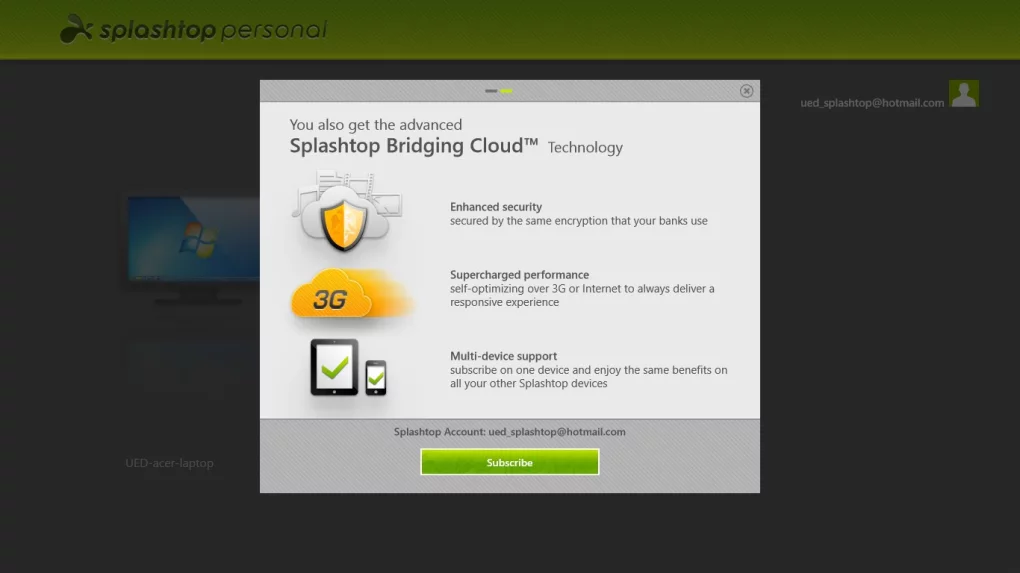
- Secure encrypted connections
- Multi-device access support
- File transfer capabilities
- Cross-platform connectivity
- Low-latency remote control
📌 What is Splashtop Personal?
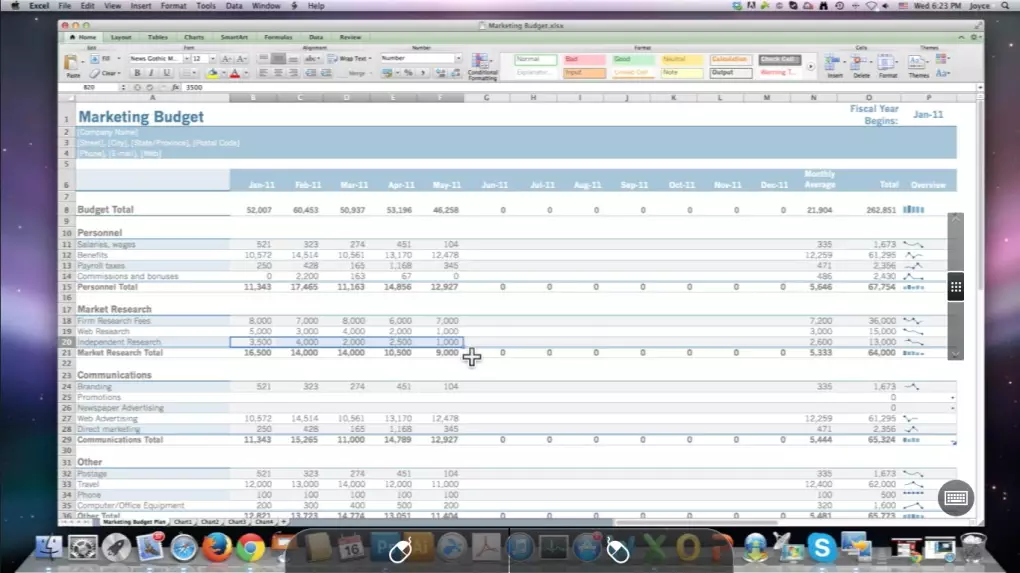
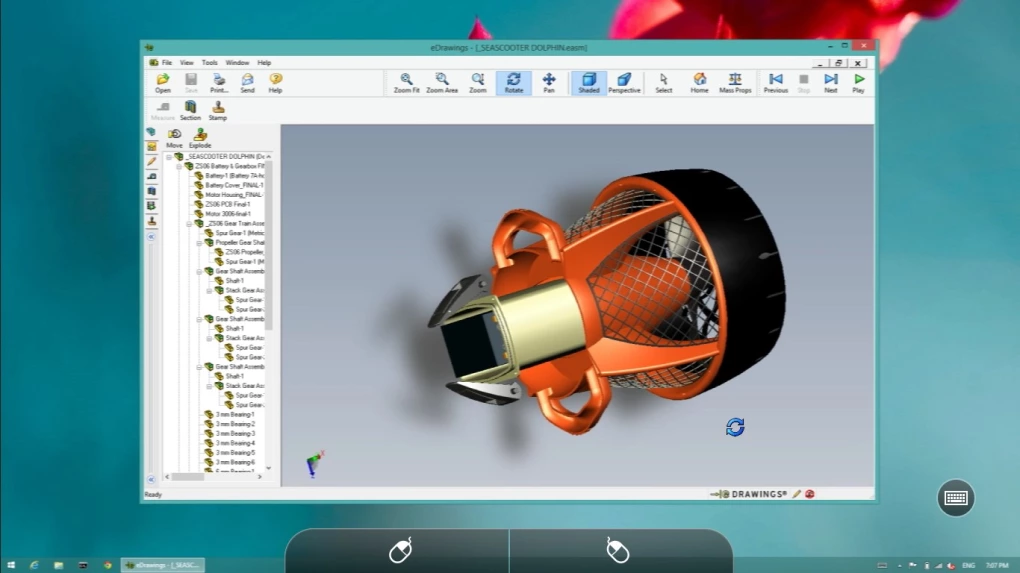
Splashtop Personal is a remote desktop application that allows users to access and control their home or personal computer from another device such as a laptop, tablet, or smartphone.
It is mainly designed for personal remote access and streaming your PC screen anywhere with high performance and low latency.
Common users include:
- Remote workers
- Students
- Gamers (for game streaming)
- Personal users
- IT learners
🚀 Key Uses
- Remote access to home PC from anywhere
- Accessing files and applications remotely
- Streaming PC games to mobile or laptop
- Watching media stored on PC
- Controlling desktop from phone or tablet
- Remote work and productivity tasks
- Accessing documents while traveling
- Basic remote troubleshooting
- Home computer monitoring
- Cross-device screen sharing
💻 System Requirements (General)
Supported Platforms
- Microsoft Windows
- macOS
- Android
- iOS
Basic Requirements
- Stable internet connection (required)
- 2GB–4GB RAM minimum
- Splashtop Streamer installed on host PC
- Splashtop app installed on client device
- Basic CPU support
Recommended Requirements
- High-speed broadband (for smooth streaming)
- 4GB+ RAM or more
- Updated OS versions
- Low-latency internet connection
- Dedicated GPU (for gaming/streaming use)
🔄 Alternatives
- TeamViewer
- AnyDesk
- Chrome Remote Desktop
- RustDesk
- RemotePC
- VNC Viewer
- Parsec (for gaming focus)
❓ FAQ
Q1. What is Splashtop Personal used for?
It is used for remotely accessing and controlling a personal computer from another device.
Q2. Is Splashtop Personal free?
Yes, it is free for local network use and personal use, but remote internet access may require a subscription.
Q3. Can I use it for gaming?
Yes, it supports game streaming with low latency.
Q4. Does it work on mobile?
Yes, it has apps for Android and iOS.
Q5. Is it secure?
Yes, it uses encrypted connections for remote sessions.
🔄 Best Alternatives
Features
✔ Remote desktop access
✔ High-performance streaming
✔ Game streaming support
✔ Cross-platform compatibility
✔ Secure encrypted connection
✔ Mobile and desktop apps
✔ File access support
✔ Low latency performance
✔ Multi-device access
✔ Easy setup system
✔ Smooth video playback support
✔ Personal use optimization
👍 Pros & 👎 Cons
Pros
- Very smooth performance
- Great for media and gaming
- Easy setup
- Works across devices
- Secure encrypted connection
- Reliable remote access
Cons
- Full remote access over internet may require paid plan
- Requires good internet for best performance
- Not as enterprise-focused as business tools
- Some advanced features locked behind subscription
- Limited offline usage
Expert Review
Splashtop Personal is one of the best-performing remote desktop tools for personal users, especially for smooth media streaming and gaming.
Its strongest advantages are:
- Very low latency performance
- Smooth remote streaming experience
- Easy setup and usability
- Good for both work and entertainment
It is especially useful for users who want a balance between productivity and high-performance remote access.
However, full remote access over the internet may require a paid plan.
How to Install
⚙️ Installation Guide (General Overview)
Step 1: Install Streamer on PC
Install Splashtop Personal Streamer on your computer.
Step 2: Install App on Device
Download Splashtop app on mobile or another PC.
Step 3: Create Account
Sign in with Splashtop account.
Step 4: Connect Devices
Ensure both devices are linked to same account.
Step 5: Enable Access
Allow permissions on host computer.
Step 6: Start Remote Session
Select PC and connect remotely.
Step 7: Control PC
Use keyboard, mouse, or touch controls.
Step 8: Adjust Quality Settings
Optimize resolution and performance.
Step 9: Transfer Files (Optional)
Move files if needed.
Step 10: End Session
Disconnect when finished.
Apps Specs
Licence
Free
Latest Update
June 24, 2026
Platform
Windows
Downloads
4
Devlopers
Splashtop Personal - Remote Desktop for Windows
Free
Top Downloads

Related Topics
Disclaimer
This content is provided for educational and informational purposes only. We do not host, store, or distribute any software files on our servers. All trademarks, product names, and logos belong to their respective owners.
We strongly recommend downloading software only from official websites or trusted sources. We are not responsible for any damage, data loss, or issues that may occur from the use of third-party software.
Users should ensure they comply with all applicable laws and software licensing agreements in their country before downloading or using any software mentioned on this website.
You may also like



Alternatives to
Expore Apps