
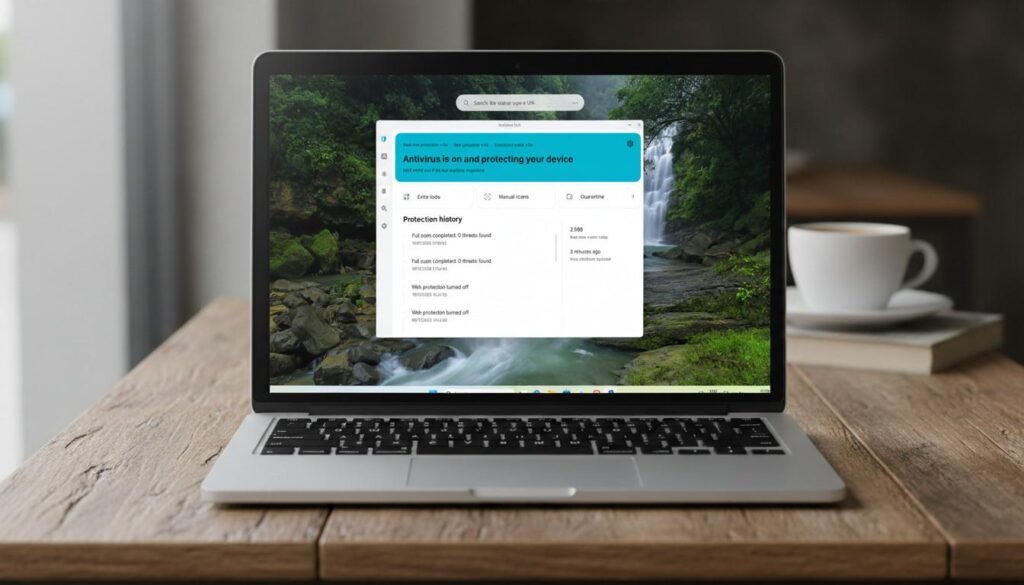
How to Check If a Windows Download Is Safe Before Installing It
Downloading software should make your work easier, not put your computer, personal files, or passwords at risk. However, not every download page is trustworthy, and even a file that looks legitimate may deserve a closer inspection before you open it.
Whether you are downloading a PDF editor, photo editor, screen recorder, file converter, driver utility, or another Windows application, there are several checks you can perform before installing it.
The good news is that you do not need to be a cybersecurity expert to follow these steps. Windows already includes useful security features, and several reputable services can help you investigate suspicious downloads.
In this guide, you will learn how to check a downloaded file, recognize common warning signs, verify its publisher, scan it for potential threats, and decide what to do when something does not look right.
Important: No single check can guarantee that a file is completely safe. Using several checks together provides a better basis for making an informed decision.
1. Check the Original Source Before Downloading
The first safety check should happen before the download even begins.
Whenever possible, obtain software from its official developer website or another reputable distribution platform. Search results, advertisements, download directories, and third-party mirrors can sometimes lead to misleading pages.
Before clicking a download button, check the following:
Does the website clearly identify the software developer?
Does the product have an official website and support information?
Does the download page identify the software version?
Are the operating system requirements clearly explained?
Does the download button lead to the expected installer?
Does the website ask you to install unrelated applications to obtain the software?
Be particularly careful when a download page displays several large buttons labeled “Download Now.” Some may be advertisements rather than the actual download link.
A website using HTTPS is helpful because it encrypts the connection, but HTTPS alone does not prove that the website or its software is trustworthy.
Practical tip: If you discover a program through a software directory, use the directory to learn about its features and requirements, then verify the developer and download source before installing it.
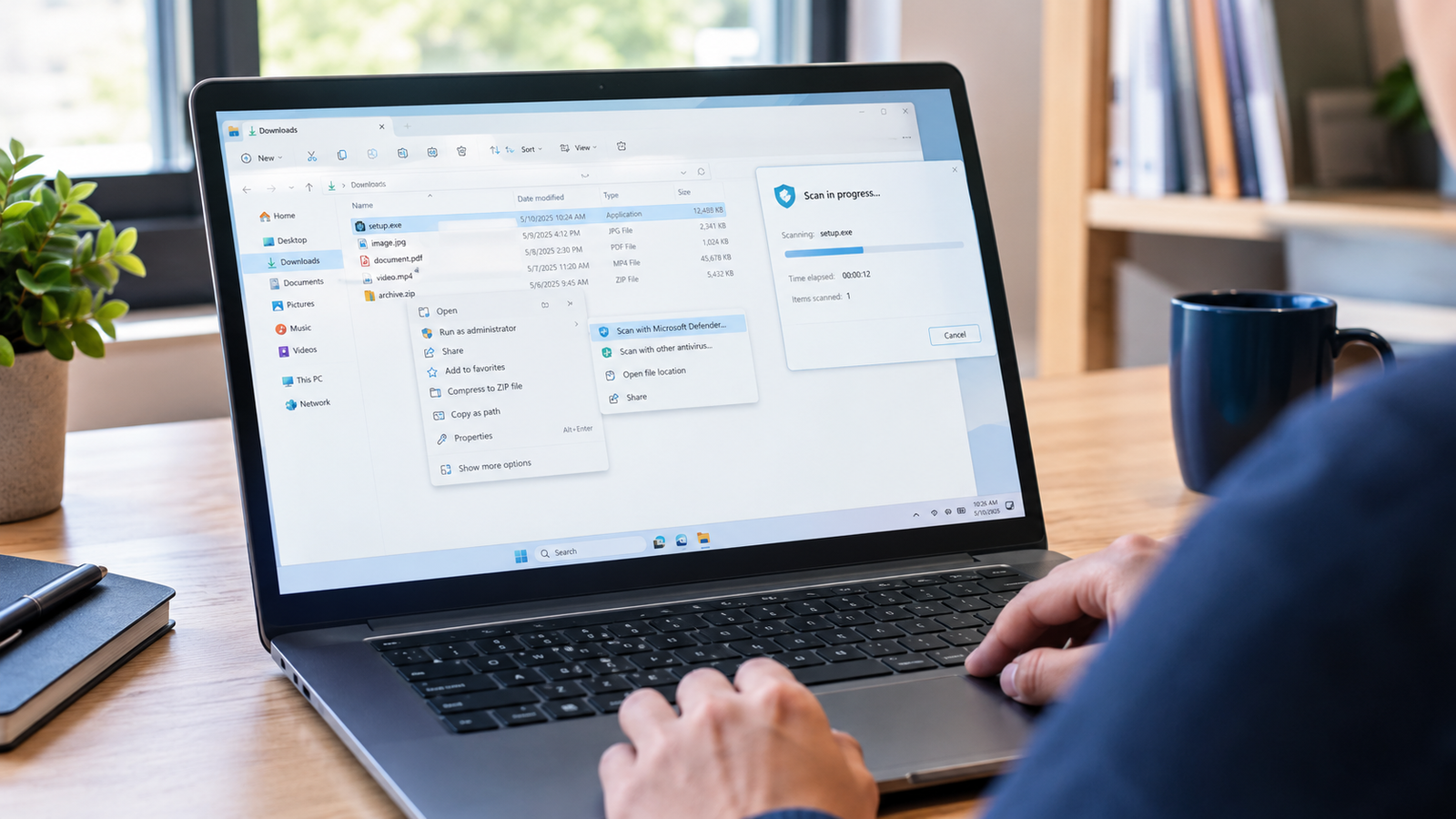
2. Scan the Downloaded File With Microsoft Defender
Windows includes Microsoft Defender Antivirus, which can scan files for known malware and other potentially unwanted threats.
You generally do not need to purchase another antivirus product just to perform a basic file scan.
Follow these steps:
Open File Explorer by pressing
Windows + E.Navigate to your Downloads folder.
Locate the file you want to check.
Right-click the file.
Choose the option to scan with Microsoft Defender. Depending on your Windows version, you may need to select Show more options first.
Wait for the scan to finish and review the result.
If Windows Security identifies a threat, do not open the file or attempt to bypass the warning. Follow the recommended security action.
If the scan finds nothing, that is a positive sign, but it is not a guarantee of safety. New or heavily modified threats may not always be detected.
You can also open Windows Security and review the protection status under Virus & threat protection.
When this check is useful: Use it when you download installers, ZIP archives, executable files, or other files from the internet.
3. Check a File With VirusTotal
VirusTotal is an online service that analyzes submitted files and URLs using multiple security detection engines.
It can be useful when you want a second opinion about a suspicious installer.
Visit the official service:
Then follow these steps:
Open the website in your browser.
Select the file analysis or file upload option.
Choose the downloaded file you want to investigate.
Review the available analysis results.
Examine whether detections come from one engine or several independent engines.
For example, suppose a file receives a detection from one engine while many others report no detection. That result needs further investigation; it does not automatically prove the file is malicious or harmless.
If multiple engines identify the file as malware, treat the result seriously and avoid running it until you have established that it is legitimate.
What if VirusTotal shows zero detections?
A zero-detection result means the participating engines did not flag the file in that analysis. It does not establish that the file is completely safe.
A new threat, a targeted attack, or a malicious file that has not yet been recognized could still pass this check.
Privacy warning: Before uploading a file, consider whether it contains personal or confidential information. Files submitted to public analysis services may be shared with security researchers or other service participants under the service’s policies. Do not upload private documents, business files, credentials, or sensitive data simply to check them.
For ordinary software installers, checking the file’s hash or using a public report may be preferable when an existing report is available.
4. Verify the Software Publisher’s Digital Signature
A digital signature can help establish who signed a Windows executable and whether the signed file has been modified since signing.
This is particularly useful when downloading professional applications, utilities, drivers, and installers.
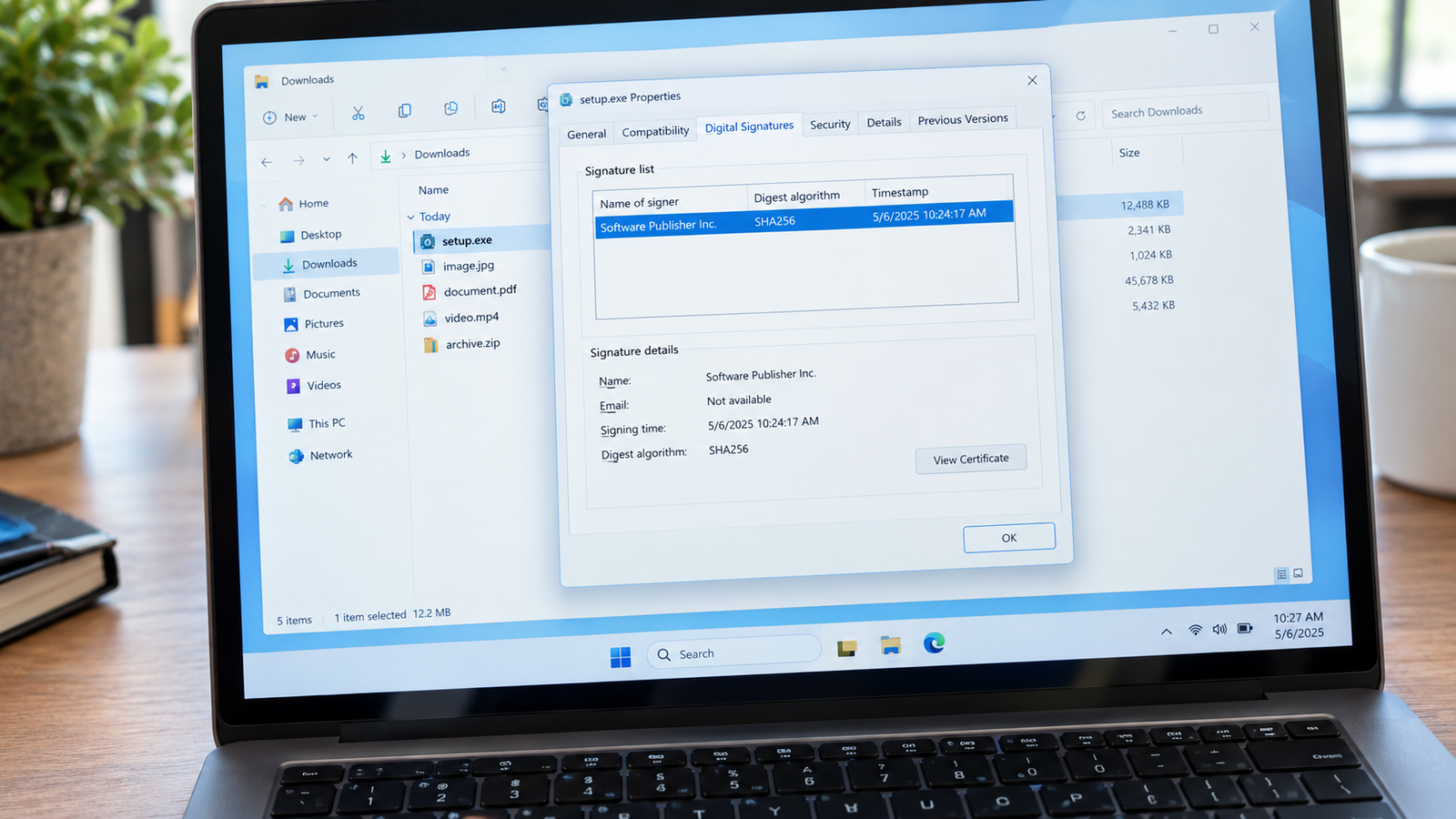
To inspect a file’s signature:
Open File Explorer.
Right-click the downloaded
.exeor.msifile.Select Properties.
Look for the Digital Signatures tab.
Select the signature, if present, and open its details.
Review the signer information and signature status.
Check whether the publisher name matches the developer you expected.
For example, if you intend to install an application from a recognized company but the signature identifies an unrelated publisher, stop and investigate before proceeding.
There are two important limitations:
Not every legitimate Windows application is digitally signed.
A valid signature does not guarantee that a program is free from vulnerabilities or malicious behavior.
The signature is one piece of evidence, not a complete security verdict.
5. Check the File Extension Before Opening It
Windows can hide file extensions by default, which makes it harder to identify the actual file type.
A filename may appear harmless at first glance, but its complete extension can tell a different story.
For example:
photo.jpg— a JPEG image file.report.pdf— a PDF document.setup.exe— a Windows executable.archive.zip— a compressed archive.invoice.pdf.exe— an executable that may be disguised as a PDF.
The last example is particularly important. A file named invoice.pdf.exe is an executable, not an ordinary PDF document.
To show file extensions in Windows 11:
Open File Explorer.
Select View.
Open Show.
Enable File name extensions.
The exact menu may differ slightly between Windows versions.
After enabling this setting, inspect unfamiliar downloads before opening them. Be cautious with executable files that arrive unexpectedly through email, messaging applications, or unfamiliar websites.
Remember that a filename and extension can be changed. The extension helps you recognize the apparent file type, but it cannot independently establish that the file is safe.
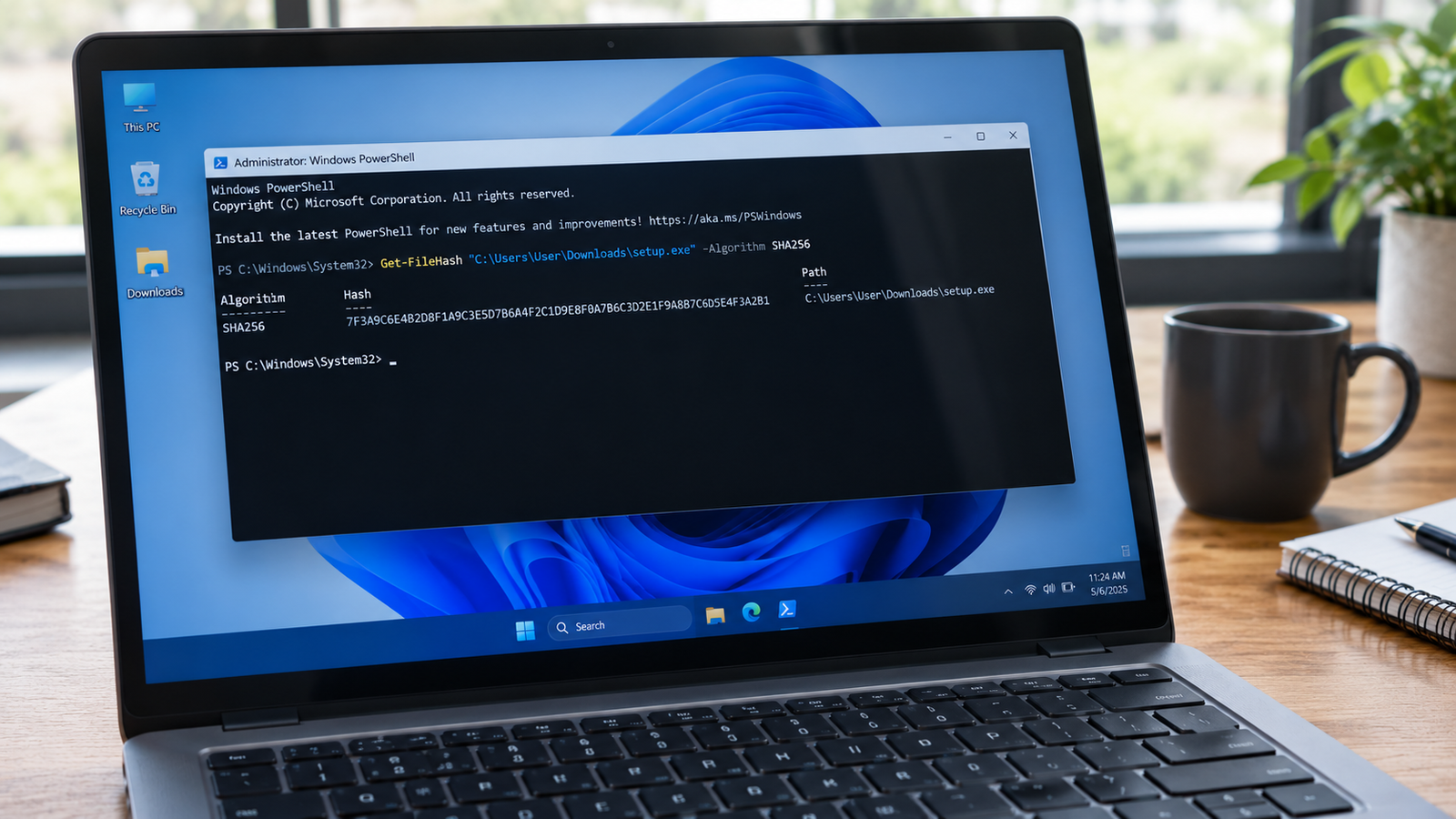
6. Compare the File’s SHA-256 Hash When Possible
A file hash is a unique-looking string calculated from the file’s contents. SHA-256 is a commonly used cryptographic hash algorithm.
If a developer publishes an official SHA-256 checksum for an installer, you can calculate the hash of your downloaded file and compare the two values.
On Windows, open Terminal or Command Prompt and run:
Get-FileHash "C:\Users\YourName\Downloads\setup.exe" -Algorithm SHA256Replace the example path with the actual location of your downloaded file.
Windows will display a SHA-256 hash. Compare it with the checksum published by the developer for the exact same version of the installer.
If the values match, the file’s contents match the file represented by that published checksum.
If they differ, do not assume the file is safe. Check that you are comparing the same version and that the published checksum is authentic. If the mismatch remains unexplained, download the file again from the verified source or contact the developer.
Important distinction: A hash does not tell you whether a file contains malware by itself. It is most useful for checking file integrity against a trusted reference.
7. Recognize Suspicious Download and Installation Behavior
Sometimes, the warning signs appear on the download page or during installation rather than in the file itself.
Be cautious if an installer:
Tries to install unrelated browser extensions or applications without a clear explanation.
Uses misleading buttons or deceptive permission prompts.
Requests administrator privileges without an apparent reason.
Tries to disable antivirus protection.
Displays unexpected warnings about your computer being infected.
Comes from a source that differs from the developer’s official distribution channel.
Requests passwords, payment details, or sensitive information unrelated to its function.
Some legitimate applications need administrator access for specific tasks, such as installing system drivers. The request alone does not prove that a program is malicious. Consider whether the requested permission makes sense for the software’s purpose.
If an installer unexpectedly asks you to disable security protection, stop rather than following the instruction simply to complete the installation.
Likewise, do not assume that every program described as a “PC cleaner,” “driver updater,” or “system optimizer” is necessary. Check what the application actually does before granting it access to your computer.
If your computer has also become unusually slow after installing an application, see our guide to troubleshooting a slow Windows 11 PC to investigate the possible cause.
8. Check the Software Version and System Requirements
An installer can come from the correct developer and still be unsuitable for your computer.
Before installing software, verify its compatibility with your system.
Check these details:
Operating system: Does the application support your Windows version?
Architecture: Is the installer intended for x64, x86, or ARM64 systems, as applicable?
Minimum requirements: Does your computer have sufficient memory, storage, and processing capability?
Version number: Are you downloading the intended release?
Update history: Does the developer provide information about maintenance or security fixes?
Installation requirements: Does the program require additional components or a restart?
You can find basic system information by opening Settings and navigating to System → About.
Avoid downloading an old installer from an unfamiliar mirror simply because it appears first in search results. Older releases may lack important fixes, although an older version can sometimes be necessary for compatibility with a particular workflow.
If you need an older release, verify its origin and check whether the developer still supports it.
If you are unsure whether to choose a portable application or a conventional installer, read our guide to portable vs installed software on Windows 11 before downloading.
9. What Should You Do if a Download Looks Suspicious?
If a file triggers a security warning or several checks raise concerns, do not keep opening it to see what happens.
Use this simple decision process.
If the file has not been opened:
Do not run the installer.
Check the original download source.
Scan the file with your installed security software.
Review its digital signature and available security analysis.
If the file remains suspicious, delete it and obtain a fresh copy from a verified source.
If you already ran the file and suspect it was malicious:
Disconnect the computer from the network if you believe an active compromise is occurring.
Run a security scan using Windows Security or another trusted security product.
Follow the security product’s recommended remediation steps.
If a serious infection is suspected, use a clean device to change important passwords and secure affected accounts.
For signs of persistent compromise, consider professional assistance or a clean Windows reinstall after safeguarding essential files.
Do not automatically delete every file that receives an isolated detection. Investigate the warning and use reputable security guidance. However, do not ignore a credible threat simply because the software appears familiar.
10. A Quick Windows Download Safety Checklist
Before installing your next application, use this checklist.
I checked the developer and original download source.
I reviewed the software version and Windows requirements.
I checked the complete filename and extension.
I scanned the downloaded file with security software.
I reviewed the digital signature when available.
I checked the file hash when an authentic checksum was published.
I investigated any unexpected security warnings.
I reviewed the permissions requested by the installer.
I avoided disabling security protection to force an installation.
You do not need to perform every advanced check for every routine download. Use more scrutiny when the source is unfamiliar, the software has elevated privileges, or the file triggers a warning.
For a program that will have access to sensitive information or your entire system, taking a few extra minutes to verify its origin is worthwhile.
Frequently Asked Questions
Is it safe to download software if Windows Defender finds no threat?
Not necessarily. A clean scan is useful evidence, but no antivirus product detects every possible threat. Verify the source and consider other checks for unfamiliar or high-risk downloads.
Is VirusTotal enough to prove that a file is safe?
No. VirusTotal can provide valuable additional information, but zero detections do not guarantee safety. File origin, digital signatures, developer information, and other evidence remain important.
Can a legitimate application be flagged as malware?
Yes. False positives can occur, including with legitimate applications that use uncommon packaging or behavior. Investigate the detection, verify the original source, and consult the developer or security vendor rather than blindly bypassing the warning.
Should I install a third-party antivirus to check downloaded files?
Not necessarily. Windows includes Microsoft Defender Antivirus, which provides built-in protection and file-scanning capabilities. Additional security software should be chosen based on your needs, not simply because you download applications frequently.
How can I tell whether a download button is fake?
Look carefully at the page layout, the link destination, and the identity of the publisher. Avoid buttons surrounded by misleading advertisements, and verify that the destination belongs to the intended developer or distribution platform.
Is a digitally signed program always safe?
No. A digital signature can help verify the signer’s identity and file integrity, but signed software can still contain vulnerabilities or malicious functionality.
Can I check an installer without running it?
Yes. You can inspect its source, scan it with security software, review its digital signature, calculate its hash, and check available security analysis without launching the installer. These checks reduce uncertainty but cannot establish absolute safety.
Final Thoughts
Downloading Windows software does not have to be a guessing game. By checking the source, scanning files, reviewing digital signatures, and recognizing suspicious installation behavior, you can make more informed decisions before allowing a program to run on your computer.
The most important habit is simple: verify first, install second.
When you are looking for your next Windows application, take the time to understand what it does, who publishes it, and whether it meets your requirements.
Explore SoftwareDownloading.in for software information, features, system requirements, and practical guidance that can help you make a more informed choice before installing your next application.