

File Backup vs System Image vs Disk Clone: Which Should You Use?
Imagine turning on your Windows 11 computer and discovering that your SSD has failed. Your documents, photographs, installed programs, and Windows settings may all be inaccessible.
Now consider a different situation: your computer works perfectly, but you accidentally delete an important project folder.
These problems require different recovery solutions.
Understanding file backup vs system image vs disk clone helps you protect your information without wasting storage space or choosing the wrong recovery method.
A file backup protects selected documents and folders. A system image captures a restorable snapshot of a Windows system or disk. A disk clone creates a copy of a source disk on another disk, typically for migration or replacement.
In this guide, you will learn how these three methods work, when to use each one, how to protect a Windows 11 computer, and how to avoid common backup mistakes.
Quick Answer: File Backup vs System Image vs Disk Clone
Choose file backup if your main concern is losing documents, photographs, videos, or project files.
Choose a system image if you want a way to restore Windows, installed applications, settings, and selected partitions after a serious system failure.
Choose disk cloning if you want to move your current Windows installation to a new SSD or replace an existing drive.
For comprehensive protection, file backups and periodic system images can complement each other. Disk cloning is especially useful during hardware migration.
File Backup vs System Image vs Disk Clone: Comparison Table
| Feature | File backup | System image | Disk clone |
|---|---|---|---|
| Main purpose | Protect important files | Restore a system or disk state | Copy or migrate a disk |
| Typical contents | Selected files and folders | Selected partitions, OS, applications and settings | Selected source disk or partitions |
| Destination | External drive, NAS or cloud | Backup image stored on suitable media | Another disk |
| Individual file recovery | Usually easy | Depends on backup software | Possible, but not its primary purpose |
| Windows recovery | Not by itself | Yes, with compatible recovery tools | Can work if the cloned drive is bootable |
| Scheduling | Common | Available in many tools | Less common as a recurring protection strategy |
| Version history | Available in many tools | Depends on software | Usually not |
| Best use | Everyday data protection | Disaster recovery | SSD or HDD migration |
The most important difference is what you need to recover: individual files, an entire system state, or a working copy on another disk.

1. What Is File Backup?
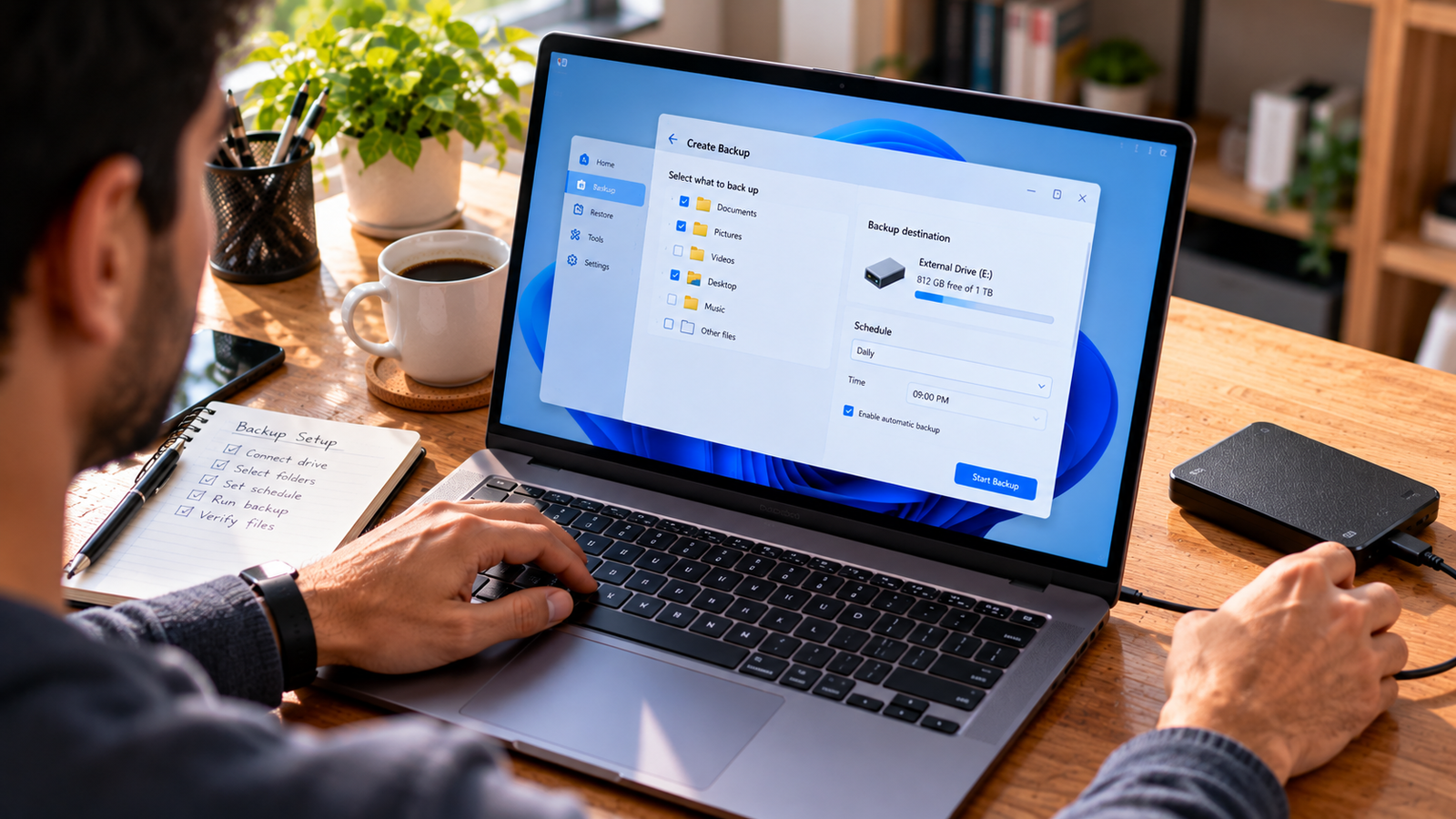
A file backup creates copies of selected files and folders so they can be recovered later.
For example, you might back up:
- Documents and spreadsheets
- Family photographs
- Wedding videos
- Business invoices
- Website project files
- Design files
- Downloaded documents
File backup software may support automatic scheduling, incremental backups, version history, encryption, and storage on external drives or network locations.
Example: Accidentally deleting a folder
Suppose you accidentally delete a folder containing three months of work.
If you have a recent file backup, you can restore the folder without reinstalling Windows or replacing your SSD.
This makes file backup one of the most practical protection methods for everyday users.
Advantages of file backup
File backups are generally easier to manage than full-system images. They can use less storage when only important data is selected.
Some backup solutions also preserve multiple versions of files, helping you recover an earlier version after accidental changes.
Limitations of file backup
A file backup does not automatically preserve a bootable Windows installation.
If your system drive fails, you may still need to reinstall Windows, applications, and drivers before restoring your personal files.
Best for: Students, home users, photographers, freelancers, office workers, and anyone whose most important assets are personal or business files.
2. What Is a System Image Backup?
A system image is a backup representation of selected partitions or an entire disk at a particular point in time.
Depending on the tool and configuration, it can include Windows, installed applications, system settings, boot-related partitions, and personal files.
Unlike an ordinary file backup, a system image is designed to help restore a larger system state.
Example: Windows stops booting
Suppose a Windows update, disk problem, or serious software failure leaves your computer unable to boot.
If you previously created a compatible system image and have suitable recovery media, you may be able to restore the backed-up system state.
This can save considerable time compared with reinstalling Windows and configuring every application manually.
Advantages of system image backup
- Helps recover a complete system state
- Can include applications and settings
- Useful before major system changes
- Suitable for disaster recovery
- Can support restoration to replacement storage, depending on the tool
Limitations of system image backup
System images can be large.
Restoration may require a recovery environment, suitable destination storage, and compatible backup software.
Hardware changes can also complicate restoration, particularly when restoring to a substantially different computer.
A system image should not be treated as a substitute for frequently updated file backups.
Best for: Users who want a recovery path after Windows failure, drive failure, or major system problems.
3. What Is Disk Cloning?
Disk cloning copies the contents and structure of a source disk to a destination disk.
It is commonly used when replacing a hard drive or upgrading to a larger or faster SSD.
A successful system-disk clone can preserve Windows, installed programs, partitions, and files, allowing the destination drive to replace the original.
However, bootability depends on the cloning method, partition layout, firmware configuration, and hardware compatibility.
Example: Upgrading from HDD to SSD
Imagine your computer has a 1 TB hard drive and you want to replace it with an SSD.
Rather than reinstalling Windows and applications, you can use compatible disk cloning software to copy the existing installation to the new drive.
After the clone is completed and verified, the new SSD can potentially become the computer’s system drive.
Advantages of disk cloning
- Useful for drive replacement
- Helps migrate Windows to another disk
- Can preserve applications and settings
- Avoids manually copying every file
- Supports many storage-upgrade workflows
Limitations of disk cloning
The destination disk may be overwritten during cloning.
Cloning a damaged or compromised source can carry existing problems to the destination.
A clone also represents a particular point in time. If the destination remains connected and is regularly overwritten, it may not provide useful historical recovery points.
Best for: Replacing an HDD, upgrading to an SSD, or moving an existing installation to compatible storage.
4. Disk Image vs Clone: What Is the Difference?
The search terms disk image vs clone and disk imaging vs cloning are often used interchangeably, but they describe different workflows.
A disk image stores backed-up disk information in an image format managed by backup software.
A disk clone writes a copy of source-disk content to another disk.
Disk image example
You create a system image on an external hard drive.
Later, if your Windows SSD fails, you install a replacement drive and use compatible recovery software to restore the image.
Disk clone example
You connect a new SSD and clone your existing system drive directly onto it.
After checking the result, you replace the original drive with the cloned SSD.
Which is better?
For maintaining restorable recovery points, disk imaging is generally more appropriate.
For moving an existing installation to replacement storage, cloning is usually more convenient.
Neither method is automatically better for every situation.
5. Image vs Clone: Which Is Better for SSD Upgrades?
If you are upgrading to a new SSD, disk cloning is often the most direct method.
However, imaging and restoring can be useful when direct cloning is inconvenient.
Choose cloning when:
- Both drives can be connected
- You want a direct migration
- The destination has enough usable capacity
- Your cloning software supports the partition layout
Choose imaging and restoring when:
- You cannot connect both drives simultaneously
- You want to keep a separate recovery image
- You are replacing a failed disk
- You prefer a staged backup-and-restore workflow
Before either operation, confirm that the destination capacity is sufficient for the data and partition layout.
Also check whether device encryption, BitLocker, or vendor-specific recovery partitions require special handling.
6. Which Backup Method Protects Against Ransomware?
No single backup method automatically guarantees ransomware protection.
The location and accessibility of the backup are critically important.
For example, a continuously connected external drive may also be exposed to malicious activity affecting the computer.
A stronger strategy combines appropriate backups with at least one protected copy that is offline, isolated, or immutable.
Practical ransomware protection approach
Maintain versioned file backups for frequently changing documents.
Keep periodic system images when restoring the entire Windows environment is important.
Store at least one recovery copy separately from the computer.
Test whether your files and system can actually be restored.
Important: Cloning an infected system does not remove the infection. It may reproduce the compromised state on the destination disk.
7. How to Back Up Important Files on Windows 11
For most home users, the first priority should be protecting personal files.
Step 1: Identify important folders
Start with Documents, Desktop, Pictures, Videos, and any folders used by your applications.
Do not assume every application stores important files in the standard Windows folders.
Step 2: Choose a backup destination
An external SSD, external HDD, network storage device, or reputable cloud backup service may be suitable.
Step 3: Select a backup method
Depending on your needs, Windows backup features, File History where available, cloud synchronization with recovery features, or dedicated file backup software may be appropriate.
For official instructions on protecting and restoring your files, see Microsoft’s Windows Backup and Restore guide.
Step 4: Enable automatic backups
Daily or more frequent backups may be appropriate for files that change regularly.
Step 5: Check version history
If your software supports multiple versions, configure retention according to available storage and recovery needs.
Step 6: Test restoration
Restore a small sample of files to a separate folder.
Confirm that the files open correctly.
A backup is more valuable when you know its recovery process works.
For a more detailed backup routine, follow our How to Back Up Your Windows PC Properly guide.
8. How to Create a System Image Backup on Windows 11
Creating a system image generally requires a suitable imaging tool and a destination with sufficient storage.
Step 1: Prepare backup storage
Connect an external drive or choose a supported network destination.
Step 2: Select imaging software
Choose a tool that supports your Windows version, disk configuration, and intended recovery environment.
Step 3: Select the required partitions
For a bootable Windows recovery image, the relevant system, boot, and recovery partitions may need to be included.
Step 4: Create the image
Run the backup and allow the operation to complete.
Step 5: Prepare recovery media
If supported, create recovery media and confirm that the computer can boot into the recovery environment.
Step 6: Verify the backup
Use the software’s verification feature when available.
Where practical, test the recovery process on suitable spare hardware or in an appropriate test environment.
Do not wait until your system fails to discover that the backup cannot be restored.
9. How to Clone a Windows Drive to a New SSD
Disk cloning requires extra caution because selecting the wrong destination can destroy existing data.
Step 1: Back up important files separately
Create an independent file backup before starting.
Step 2: Connect the destination SSD
Use an appropriate internal connection or compatible USB adapter.
Step 3: Check disk capacity
Confirm that the destination has sufficient space for the required partitions and data.
Step 4: Select the source and destination carefully
The source is your existing Windows drive.
The destination is the drive that will receive the clone.
Double-check both selections.
Step 5: Configure the cloning operation
Follow the software’s instructions for partition sizing, SSD alignment, and any encryption requirements.
Step 6: Run the clone
Avoid interrupting the process.
Step 7: Verify the new drive
Where practical, boot from the destination drive and check applications, personal files, and disk partitions.
Do not erase the original drive until the new installation has been verified and you have an independent backup.
10. Best Backup Software for Windows: What Features Matter?
Compare available tools in our Best Backup Software for Windows article before selecting a backup solution.
If you are searching for the best backup software for Windows, begin by identifying the recovery task rather than choosing software based only on popularity.
For file backup software
Look for:
- Automatic scheduling
- Incremental backup support
- Version history
- Clear restore options
- Encryption where appropriate
- External-drive or network backup support
For system image software
Look for:
- Windows 11 compatibility
- System and partition imaging
- Recovery media
- Backup verification
- Incremental or differential imaging, if needed
- Restore support for your hardware configuration
For disk cloning software
Look for:
- SSD and HDD support
- Clear source/destination selection
- Partition resizing
- Support for your boot configuration
- Documentation for encrypted drives
- Reliable post-clone verification procedures
A backup application does not need every feature. It needs the features that match your recovery requirements.
For software comparisons, explore our Best Backup Software for Windows guide, which covers tools for different backup workflows.
11. How Often Should You Back Up Your Windows PC?
The appropriate schedule depends on how much information you can afford to lose.
| Data or system | Suggested starting schedule |
|---|---|
| Frequently edited business documents | Daily or more often |
| Personal photos and documents | Daily or weekly, depending on changes |
| Active creative projects | Daily or after important work sessions |
| Windows system image | Periodically and before major changes |
| Disk clone | When migrating or replacing a drive |
These are starting points, not universal requirements.
A professional working on critical files may need much more frequent backups than someone who uses a computer occasionally.
12. The 3-2-1 Backup Rule Explained
The 3-2-1 backup rule is a useful framework for protecting important information.
It recommends:
- 3 copies of important data, including the working copy
- 2 different storage media or storage systems
- 1 copy stored offsite
For example, your documents might exist on your Windows PC, an external drive, and a separate cloud backup service.
For stronger protection, consider an offline or immutable copy and regularly verify recovery.
The goal is to avoid a single hardware failure, theft, or malicious event destroying every copy.
For additional guidance on protecting important information, read CISA’s recommendations for backing up your data.
13. Common Backup Mistakes to Avoid
Mistake 1: Using disk cloning as the only backup
A disk clone can help with migration, but it may not preserve historical file versions.
Mistake 2: Keeping every backup on the same computer
If the computer is stolen or physically damaged, local copies may be lost together.
If limited disk space is preventing regular backups, read our How to Free Up Space on Windows 11 guide.
Mistake 3: Never checking backup results
A scheduled job can fail because of storage problems, configuration errors, or disconnected drives.
Mistake 4: Confusing synchronization with backup
Cloud synchronization is useful, but deletions or unwanted changes may propagate between synchronized devices.
Check version history, retention, and recovery options.
Mistake 5: Ignoring recovery media
A system image may be difficult to restore if you cannot boot the required recovery environment.
Mistake 6: Erasing the original drive too soon
After cloning, verify that the destination works before deleting or reusing the source drive.
14. Which Backup Method Should You Choose?
Use the following decision guide.
| Your situation | Recommended approach |
|---|---|
| I accidentally deleted an important document | Restore from file backup |
| I want automatic protection for work files | Scheduled file backup |
| Windows will not boot | Restore a suitable system image |
| My SSD failed completely | Restore an image to replacement storage |
| I want to move Windows from HDD to SSD | Disk cloning |
| I want to keep recovery points from different dates | Versioned backups or image backups |
| I want protection against ransomware | Isolated, versioned and tested backups |
| I want to protect both Windows and my documents | File backups plus periodic system images |
For many users, the best strategy is not choosing just one method.
It is combining file backups for frequent data recovery with system images for broader disaster recovery.
Use disk cloning when replacing or migrating storage.
Frequently Asked Questions
What is the difference between file backup and system image?
A file backup protects selected files and folders. A system image captures a restorable state of selected system or disk partitions, potentially including Windows, applications, settings, and data.
Is a disk image the same as a disk clone?
No. A disk image stores backup data for later restoration, while a disk clone copies disk contents to another disk.
Which is better: disk image or clone?
A disk image is generally better for maintaining recovery points. A disk clone is generally better for direct drive migration.
Does a system image include Windows 11?
A properly configured Windows system image can include the operating system and partitions required for recovery.
Can I restore individual files from a system image?
Some imaging tools support browsing or mounting image backups to recover individual files. Availability depends on the software and image format.
Is disk cloning a good backup method?
Disk cloning can provide a point-in-time copy, but it is usually not the best sole backup strategy because it may lack version history and automated retention.
Can I clone Windows 11 to a smaller SSD?
Sometimes, if the cloning tool supports the operation and the used data and required partitions fit. Check the tool’s requirements before proceeding.
Does cloning copy viruses?
A clone can reproduce compromised files and system states. Cloning should not be considered a malware-removal method.
What is the best file backup software for Windows 11?
The best choice depends on whether you need scheduled backups, version history, encryption, cloud storage, or local external-drive backups.
What is the best system backup software for Windows?
Choose a tool that supports your Windows version, recovery media, system imaging, verification, and restoration to your intended hardware.
How often should I create a system image?
Consider periodic images and additional images before major system changes. The appropriate frequency depends on how much system configuration you are willing to recreate.
Do I need both file backup and system image?
Not everyone needs both, but combining them can provide more flexible recovery. File backups are useful for individual documents, while system images help with broader system restoration.
Final Verdict
Understanding file backup vs system image vs disk clone is essential when planning reliable Windows data protection.
File backup is the best starting point for protecting frequently changing personal and business documents.
System imaging provides a recovery option for larger Windows failures and system-drive problems.
Disk cloning is most useful when moving an existing installation to a replacement SSD or HDD.
For most Windows 11 users, a sensible strategy is to maintain automatic, versioned file backups, create periodic system images when needed, and keep at least one protected backup copy separate from the computer.
The best backup method is ultimately the one that allows you to recover the information you need when something goes wrong.