

How to Copy Text from a Screenshot in Windows 11
Have you ever needed to copy an error message, a sentence from an image, a phone number from a screenshot, or text displayed inside a video? The problem is that text inside an image cannot usually be selected like ordinary text on a webpage.
Typing everything manually takes time and can lead to mistakes. Fortunately, Windows offers ways to extract text from screenshots without retyping it.
In this guide, you will learn how to copy text from a screenshot in Windows 11 using the built-in Snipping Tool, how Microsoft PowerToys Text Extractor works, and what to do when text recognition does not produce accurate results.
Quick Answer: How to Copy Text from a Screenshot
If you are using a supported, updated version of Windows 11, follow these steps:
Press Windows + Shift + S to capture the area containing the text.
Open the screenshot in Snipping Tool.
Select Text actions, if available.
Choose the option to copy all text or select the specific text you need.
Open Notepad, Microsoft Word, or another application and press Ctrl + V to paste it.
The exact interface may differ depending on your Windows version and Snipping Tool updates.
Method 1: Use Windows Snipping Tool
Snipping Tool is a convenient starting point because it is included with Windows and can capture selected areas of your screen.
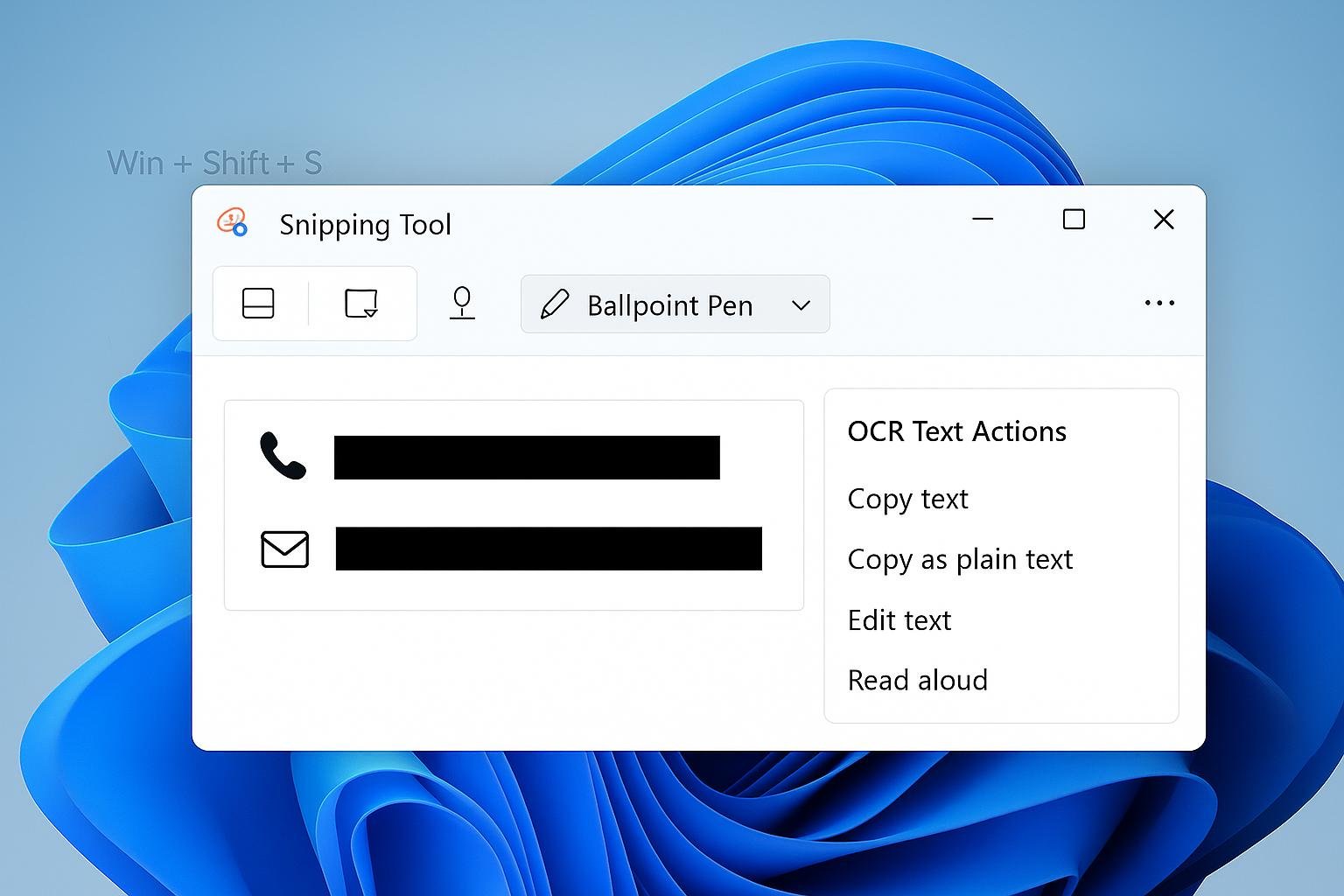
Its Text Actions feature can recognize words in an image and let you copy them as editable text.
Step 1: Capture the text
Open the webpage, application, image, or error message containing the words you want to copy.
Press Windows + Shift + S and select the relevant area of the screen.
Try to include the complete text without capturing too much unrelated content.
Step 2: Open the screenshot
Open the captured image in Snipping Tool. If a notification appears after taking the screenshot, select it to open the capture.
You can also open an existing screenshot or image in Snipping Tool when you want to extract text from a saved file.
Step 3: Select Text actions
Look for the Text actions option in the Snipping Tool interface.
When the feature is available, Windows analyzes the captured image and identifies recognizable text.
You may then be able to select individual words or copy all recognized text, depending on the available options.
Step 4: Paste the extracted text
Open Notepad, Microsoft Word, an email, or another application.
Press Ctrl + V to paste the copied text.
Read through the result before using it. Optical character recognition, also known as OCR, can occasionally misread characters, punctuation, numbers, or unusual fonts.
Best for: Copying text from a new screenshot, a saved image, an error dialog, or a document displayed on your screen.
Official reference: Microsoft Snipping Tool guide.
Method 2: Copy Text from Anywhere on Your Screen with Microsoft PowerToys
Sometimes you do not want to capture and save a screenshot. You simply want to copy a few words that are visible on your screen.
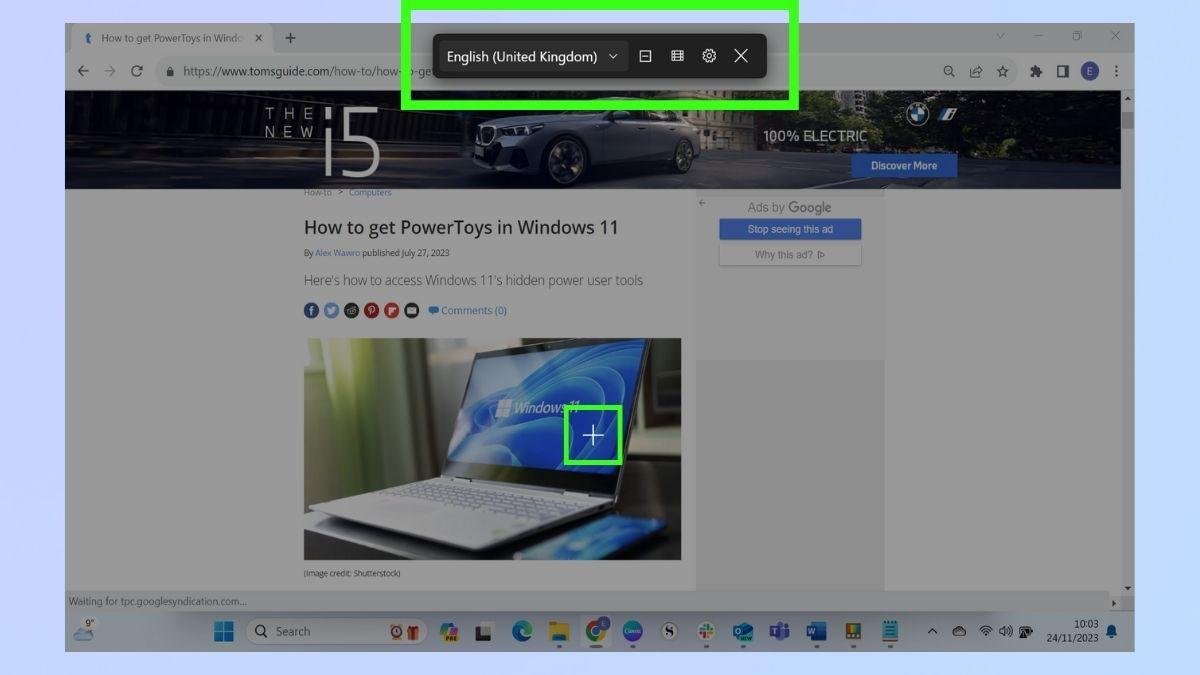
Microsoft PowerToys includes a utility called Text Extractor, designed for this type of task.
PowerToys is a collection of utilities that adds extra functionality to Windows. Text Extractor uses OCR to recognize text in a selected screen area and copy the result to the clipboard.
How to use PowerToys Text Extractor
Download Microsoft PowerToys from its official Microsoft Learn page.
Install the application and open PowerToys Settings.
Find Text Extractor and make sure the utility is enabled.
Display the text you want to copy.
Press Windows + Shift + T, which is the documented default shortcut.
Drag over the area containing the text.
Paste the recognized text into your preferred application.
You do not normally need to create a separate screenshot file for this workflow.
If the shortcut does not work, check whether Text Extractor is enabled and whether another application is using the same keyboard shortcut. You can review or change the shortcut in PowerToys Settings.
Best for: Quickly copying text from an application, an image, a video frame, or another area of the screen.
Official reference: Microsoft PowerToys Text Extractor documentation.
Explore our guide to Windows software compatibility problems if an application does not work correctly on your PC.
Method 3: What If the Text Is Already Saved in an Image?
If you already have a JPG, PNG, or screenshot file, you do not necessarily need to capture the screen again.
Try this workflow:
Open the image in Snipping Tool.
Look for the Text actions feature.
Select the text recognition option.
Copy the required text.
Paste it into Notepad or another application.
The availability of text recognition can depend on the installed application version and supported features.
If your image viewer does not offer text recognition, use Snipping Tool or Microsoft PowerToys instead.
If your computer also feels sluggish when opening folders or accessing screenshots, see our guide to fixing slow File Explorer in Windows 11.
Method 4: Copy Text from an Error Message
Error messages are a particularly useful reason to learn this technique.
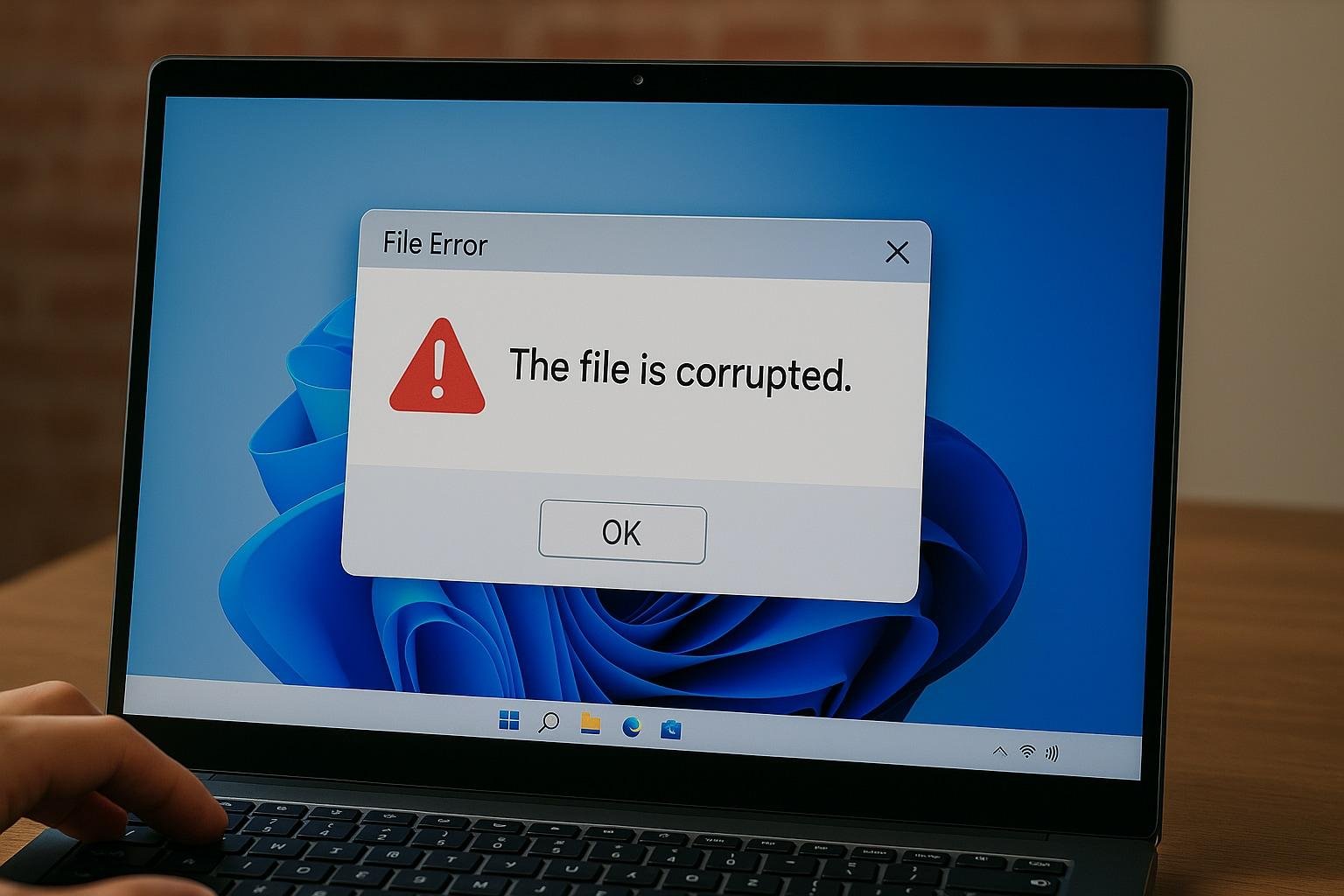
For example, an application might display an error that you cannot highlight or copy. You may want to search the exact wording online to find a solution.
Instead of typing the message manually:
Keep the error message visible on your screen.
Open Snipping Tool or use PowerToys Text Extractor.
Select the portion containing the error.
Copy the recognized text.
Paste it into a search engine or support message.
Check the result carefully before sharing it. Error messages can contain usernames, file paths, email addresses, or other information you may not want to publish.
If your problem involves an application that refuses to run, our guide to Windows software compatibility problems can be a useful starting point for finding the cause. Visit the relevant troubleshooting guide on SoftwareDownloading.in for more specific steps.
Why Is Text Recognition Not Working?
If Windows does not recognize the text correctly, try the following checks.
The image is blurry
OCR works best when the text is sharp and readable. Use the original image instead of a heavily compressed or enlarged copy.
The selected area is too large
Capturing an entire desktop can include menus, icons, and unrelated text. Select only the area you need.
The text is too small
Zoom in on the source when possible, then capture the text again. Make sure the complete characters are visible.
The language is not recognized correctly
OCR depends on supported languages and the relevant language components. Microsoft PowerToys documentation explains how to check language support and OCR language packs.
The text contains unusual formatting
Decorative fonts, handwritten text, complex tables, and multiple columns can produce inaccurate results. Compare the extracted text with the original image.
The feature is missing
Check for available Windows updates and update Snipping Tool through the Microsoft Store when applicable. PowerToys users should also confirm that Text Extractor is enabled.
If Windows itself has become slow while you work with screenshots and applications, follow our guide to diagnosing a slow Windows 11 PC.
Is It Safe to Use OCR Tools for Private Information?
Before copying text from screenshots, consider what the image contains.
Microsoft documents that text recognition in Snipping Tool is performed locally on your device. Nevertheless, the text you copy may remain in your clipboard or be stored by the application into which you paste it.
For private messages, financial documents, work files, or other sensitive content, avoid uploading screenshots to unfamiliar online OCR websites unless you understand their privacy practices.
Also, do not paste passwords, verification codes, or confidential information into public websites simply because you have extracted the text successfully.
Which Method Should You Choose?
| Your situation | Recommended method |
|---|---|
| You need to capture a new screenshot | Snipping Tool |
| You already have a saved image | Open it in Snipping Tool and check Text actions |
| You want to copy words directly from the screen | PowerToys Text Extractor |
| You need to copy an error message | Either method |
| The extracted text contains mistakes | Capture a clearer area and proofread it |
For most users, trying Snipping Tool first is a sensible option. If you regularly need to extract words from different applications without saving screenshots, PowerToys Text Extractor may fit your workflow better.
Frequently Asked Questions
Can I copy text from a screenshot without typing it manually?
Yes. On supported Windows versions, Snipping Tool can recognize and copy text from a screenshot. Microsoft PowerToys also provides a Text Extractor utility for selecting text directly from the screen.
Do I need to pay for Microsoft PowerToys?
Microsoft PowerToys is available as a free collection of Windows utilities. Download it from Microsoft’s official source and check its current system requirements before installing it.
Can I copy text from a video?
You can try selecting a readable frame with Snipping Tool or using PowerToys Text Extractor on the visible text. Results depend on image clarity, the text displayed, and the application’s behavior.
Does OCR always copy text perfectly?
No. OCR can misread characters, numbers, punctuation, and formatting. Always proofread the output, particularly when it contains technical commands, financial information, names, or important dates.
Can I use OCR without uploading my screenshot to a website?
Snipping Tool’s documented text recognition runs locally on the device. PowerToys also provides a local Text Extractor workflow. Even so, consider where the copied text is pasted and whether the destination application stores it.
Final Thoughts
Copying text from a screenshot does not have to involve manually typing every word. Windows Snipping Tool is a practical first option, while Microsoft PowerToys Text Extractor is useful when you want to select text directly from the screen.
Choose the method that matches your workflow, verify the extracted text, and use official download sources when installing additional utilities.
For more Windows tutorials, software information, and practical troubleshooting advice, explore SoftwareDownloading.in.