
How to Transfer Files from Phone to PC or Mac Without a USB Cable
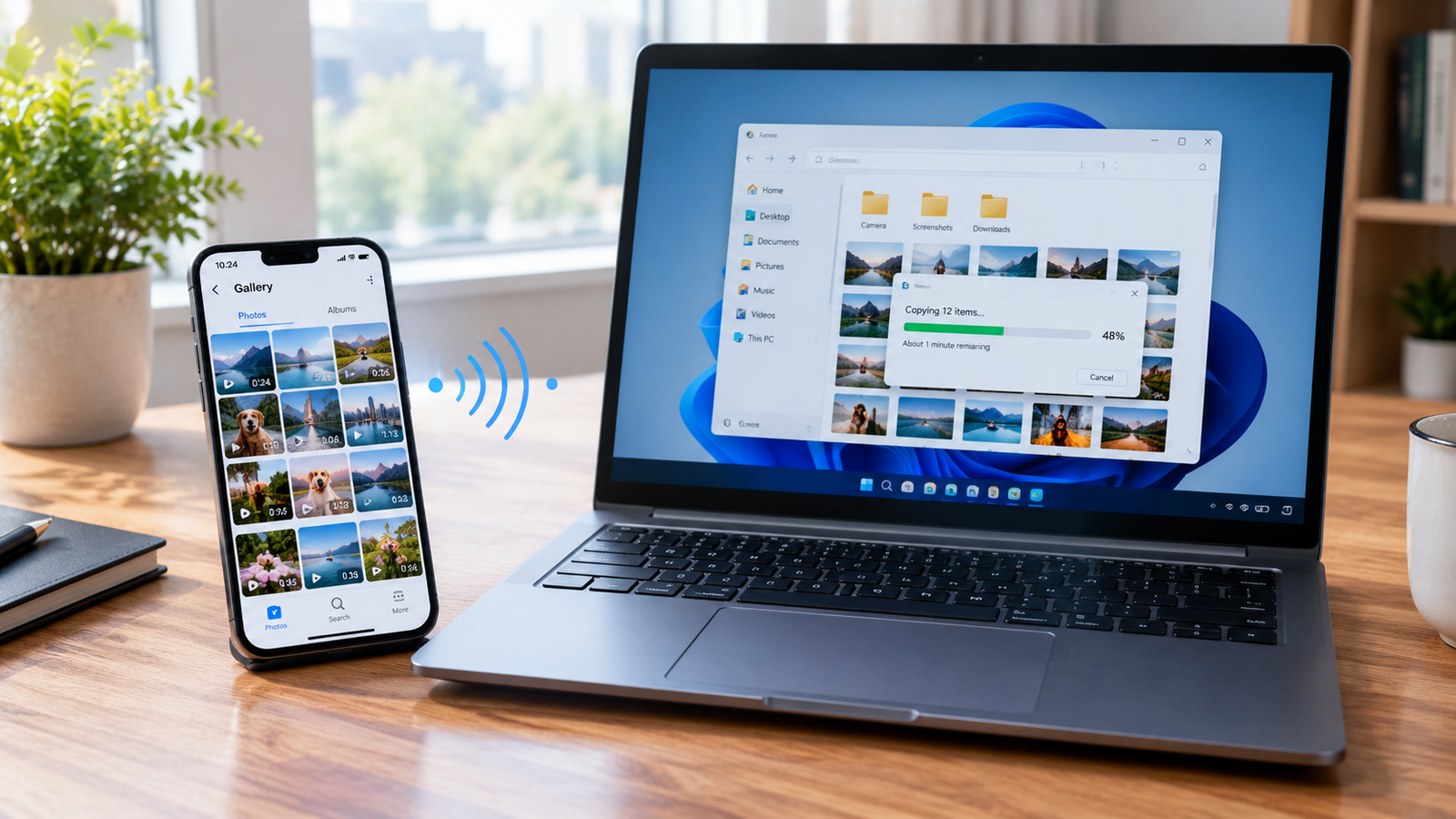
Transferring photos, videos, documents, and other files from your phone to a computer does not always require a USB cable. Whether you use an Android phone, an iPhone, a Windows PC, or a Mac, several wireless methods can help you move files quickly.
For most users who want to transfer files between different platforms, LocalSend is a practical option. It supports Windows, macOS, Android, and iOS, and transfers files over a local network without requiring an online account or an internet connection. Both devices must be connected to the same local network. Official LocalSend website.In this guide, you will learn how to transfer files wirelessly between Android phones, iPhones, Windows PCs, and Macs, along with alternative methods and solutions to common problems.Quick Answer: What Is the Easiest Way to Transfer Files Without USB?
If you want to transfer files without connecting a cable, choose a method based on your devices:- Android to Windows: LocalSend or Quick Share for Windows.
- Android to Mac: LocalSend.
- iPhone to Windows: LocalSend or iCloud, depending on the files you need.
- iPhone to Mac: AirDrop for convenient nearby sharing, or LocalSend for a cross-platform workflow.
Method 1: Transfer Files Using LocalSend
LocalSend is a free, open-source file-sharing application that allows nearby devices to exchange files over a local network. It can transfer photos, videos, documents, archives, and other file types without uploading them to a cloud storage service.What You Need Before Starting
Before using LocalSend, make sure:- You have access to both your phone and computer.
- LocalSend is installed on both devices.
- Both devices are connected to the same Wi-Fi network or compatible local network.
- The receiving device is switched on and LocalSend is open.
- Your firewall or network settings are not blocking local connections.
Step 1: Download LocalSend on Both Devices
Open the official LocalSend download page.Choose the version for your computer and phone:- Windows PC: Windows version
- MacBook or iMac: macOS version
- Android phone: Android version
- iPhone: iOS version
Step 2: Connect Your Phone and Computer to the Same Network
Connect both devices to the same Wi-Fi network. If your computer uses a wired local network connection, it may also work, provided the network allows communication between devices.A guest Wi-Fi network or a router setting called AP isolation may prevent devices from discovering one another.Step 3: Open LocalSend on Both Devices
Launch LocalSend on your phone and computer.Keep the app open while you start the transfer. The receiving device should appear in the sender’s device list when local discovery is working correctly.Device names can vary. Check the displayed device name before sending files, especially when several computers or phones are connected to the same network.Step 4: Select the Files You Want to Transfer
On your phone, open LocalSend and select the option to send files.Choose the photos, videos, documents, or other files you want to transfer. Depending on the app version and device, the available file-selection options may differ.Step 5: Choose Your Computer
Select your Windows PC or Mac from the available nearby devices.Check that you have selected the correct computer. If the receiving device asks you to approve the transfer, review the request and accept it only if you recognize the sender.Step 6: Accept the Transfer and Find Your Files
Once the receiving device accepts the request, LocalSend transfers the selected files over your local network.Check the destination shown in the app. Files are commonly saved in the Downloads folder by default, but the configured save location may differ.You can change the destination in the app’s settings if you prefer to keep transferred files in a specific folder.That’s it. You can use the same general process to transfer files from Android to Windows, Android to Mac, iPhone to Windows, or iPhone to Mac.If you are looking for more practical desktop utilities, explore our guide to useful Windows software in 2026.Method 2: Transfer Files from Android to a Windows PC
If you use an Android phone and a Windows computer, you have two useful options.Option A: Use LocalSend
Follow the steps in Method 1. Install LocalSend on both devices, connect them to the same local network, select the files on your Android phone, choose the Windows computer, and accept the incoming transfer.This is a good choice when you want to transfer different types of files without using cloud storage.Option B: Use Quick Share for Windows
Quick Share is another option for supported Android devices and Windows PCs.- Visit the official Android Quick Share website.
- Follow the instructions to obtain the appropriate Windows application.
- Set up Quick Share on your Windows PC.
- Enable Quick Share on your Android phone.
- Select the files you want to send and open the sharing menu.
- Choose Quick Share and select the intended receiving device.
- Accept the transfer if prompted.
Method 3: Transfer Files from Android to a Mac
Android and macOS do not share the same built-in file-sharing workflow as Apple devices. A cross-platform application such as LocalSend can make wireless transfers easier.- Download LocalSend for macOS from the official download page.
- Install LocalSend on your Android phone from the official source or app store.
- Connect both devices to the same local network.
- Open LocalSend on both devices.
- On your Android phone, select the files you want to send.
- Choose your Mac from the available devices.
- Accept the incoming transfer on your Mac if prompted.
- Open the destination folder to locate the transferred files.
Method 4: Transfer Files from an iPhone to a Windows PC
You can use LocalSend for a direct local-network transfer or iCloud when you want files to be available across devices through cloud syncing.Option A: Use LocalSend
- Install LocalSend on your iPhone from the App Store.
- Install the Windows version on your PC.
- Connect both devices to the same local network.
- Open LocalSend on both devices.
- Select the photos, videos, or documents you want to send from your iPhone.
- Choose your Windows PC from the device list.
- Accept the transfer on the receiving device if prompted.
- Check the destination folder on your PC.
Option B: Use iCloud for Files and Photos
iCloud is useful when you want your files or photos to sync through your Apple Account rather than transfer directly over a local network.- Make sure the relevant files or photos are available in iCloud.
- On your Windows PC, use Apple’s supported iCloud options or visit iCloud.com.
- Sign in with your Apple Account.
- Open the relevant section, such as Photos or iCloud Drive.
- Download the items you need to your computer.
Method 5: Transfer Files from an iPhone to a Mac
If both devices are Apple devices, AirDrop is often the simplest option for nearby transfers.Option A: Use AirDrop
- Turn on Wi-Fi and Bluetooth on your iPhone and Mac.
- Make sure AirDrop is enabled and the receiving device is discoverable.
- On your iPhone, open the photo, document, or other item you want to send.
- Tap the Share button.
- Select AirDrop.
- Choose your Mac from the available devices.
- Accept the transfer if prompted.
Option B: Use LocalSend
If you prefer to use the same transfer application on Windows, Mac, Android, and iPhone, LocalSend is another option.Install it on both devices, connect them to the same local network, select the files on your iPhone, choose the Mac, and accept the transfer.Alternative Ways to Transfer Files Without a USB Cable
LocalSend is not the only option. The best alternative depends on your devices, the file size, your internet connection, and whether you want to transfer files once or keep them synchronized.1. Cloud Storage
Services such as Google Drive, OneDrive, Dropbox, and iCloud let you upload files from a phone and download them on a computer.This is useful when the devices are in different locations or you want continued access to the same files. However, cloud transfers generally require internet access, sufficient storage, and sometimes an account or subscription.2. Quick Share
Quick Share is useful for compatible Android devices and Windows PCs. Its availability and workflow depend on device and operating-system compatibility.See the official Quick Share information.3. AirDrop
AirDrop is a convenient choice for transferring files between compatible Apple devices, such as an iPhone and Mac.It is not the right option for a standard direct transfer from an iPhone to a Windows PC.You can also explore our guide to Windows tools for specific tasks to find utilities for other everyday computing needs.Which Method Should You Choose?
| Your devices | Recommended method | Internet required for the transfer? |
|---|---|---|
| Android to Windows | LocalSend or Quick Share | No for LocalSend; Quick Share requirements may vary |
| Android to Mac | LocalSend | No |
| iPhone to Windows | LocalSend | No |
| iPhone to Mac | AirDrop or LocalSend | No for nearby transfers |
| Phone to computer in different locations | Cloud storage | Generally yes |
How to Fix Wireless File Transfer Problems
If your phone cannot find your computer or a transfer fails, try the following solutions.The Computer Does Not Appear in LocalSend
- Check that both devices are on the same local network.
- Keep LocalSend open on both devices.
- Check whether your router uses guest-network isolation or AP isolation.
- On Windows, check whether the network is configured as Private when appropriate.
- Review the app’s local network permission on iPhone or Mac.
- Check whether a VPN or firewall is blocking local connections.
The Transfer Is Too Slow
Transfer speed depends on your Wi-Fi equipment, signal quality, file size, and device performance.- Move both devices closer to the router.
- If supported, try a less congested 5 GHz Wi-Fi network.
- Avoid transferring large files while the network is heavily congested.
- Keep both devices awake and the transfer app open.