
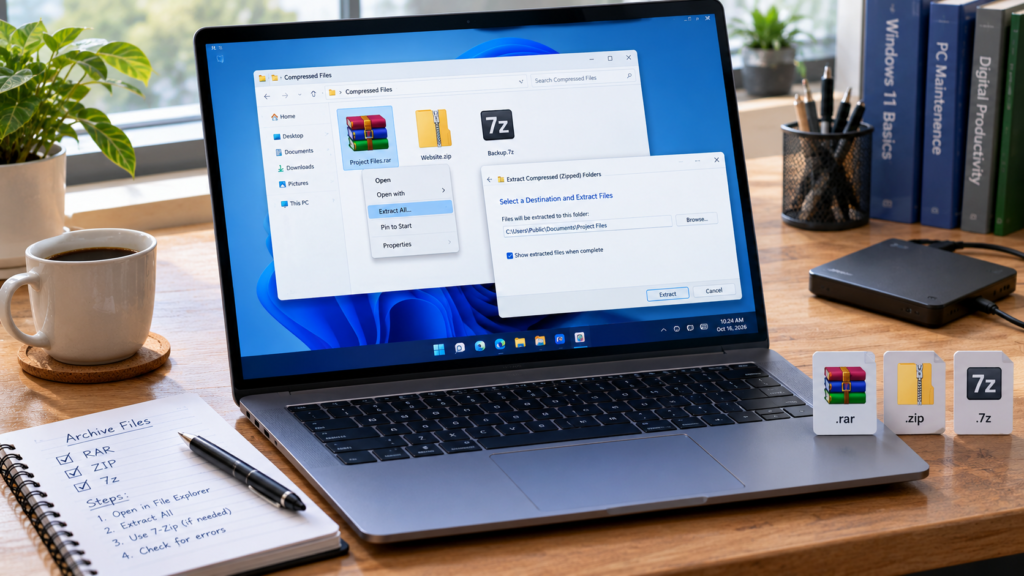
How to Open RAR, 7z and ZIP Files on Windows 11
If you want to learn how to open RAR files on Windows 11, you may not need to install WinRAR or another archive application. Modern Windows 11 versions support extracting many common archive formats directly through File Explorer, including RAR, ZIP and 7z files.
However, password-protected archives, missing extraction options and corrupted files can make the process confusing.
In this guide, we explain how to open RAR files on Windows 11 using built-in tools, when to use free applications such as 7-Zip, and how to extract ZIP and 7z files. You will also learn how to fix common extraction errors and handle multipart archives.
Quick Answer: Do You Need WinRAR or 7-Zip?
For ordinary ZIP, RAR and 7z files, Windows 11’s built-in File Explorer may be sufficient, depending on your Windows version and the archive’s features.
However, a dedicated archive manager can be useful when you need to:
Extract password-protected archives.
Create encrypted ZIP or 7z files.
Work with multipart archives.
Manage advanced compression settings.
Check archive integrity.
Handle formats not supported by File Explorer.
For many users, 7-Zip is a practical free option, while WinRAR remains relevant for users who work extensively with RAR archives.
1. ZIP vs RAR vs 7z: What’s the Difference?
Before extracting a file, it helps to understand the format.
| Feature | ZIP | RAR | 7z |
|---|---|---|---|
| Common use | Everyday file sharing | Compressed packages and multipart archives | High-compression archives |
| Windows 11 built-in support | Yes | Supported in modern Windows 11 | Supported in modern Windows 11 |
| Can contain multiple files | Yes | Yes | Yes |
| Password protection possible | Yes | Yes | Yes |
| Requires special software for some encrypted archives | Yes | Yes | Yes |
| Popular dedicated applications | 7-Zip, WinRAR | WinRAR, 7-Zip for extraction | 7-Zip, WinRAR |
ZIP is widely used because it is supported by many operating systems and applications.
RAR is commonly associated with WinRAR and supports features such as multipart archives and recovery records.
7z is an open archive format associated with 7-Zip. It supports high compression and AES-256 encryption.
The best format depends on compatibility, file types, compression requirements and whether encryption is necessary.
2. How to Open ZIP Files on Windows 11 Without Software
ZIP files are the easiest archive format to handle using Windows.
Step-by-step instructions
Open File Explorer by pressing
Windows + E.Navigate to the folder containing your ZIP file.
Right-click the ZIP archive.
Select Extract All.
Choose the destination folder.
Select Extract.
Open the extracted folder to access your files.
You can also double-click many ZIP files to browse their contents.
However, browsing a compressed archive is not always equivalent to extracting it.
If you intend to run an application or work with multiple related files, extract the complete archive to a normal folder first.
Example
Suppose you receive a ZIP archive containing a website template:
index.htmlstyle.cssscript.jsimagesfolder
Extract the complete archive before opening the HTML file. Otherwise, linked stylesheets, scripts or images may not work as expected.
3. How to Open RAR Files on Windows 11 Without WinRAR
On supported versions of Windows 11, File Explorer can open and extract ordinary RAR archives without requiring WinRAR.
Step-by-step instructions
Locate the
.rarfile in File Explorer.Right-click the archive.
Look for Extract All or the available extraction option.
Choose a destination folder.
Start extraction.
Open the resulting folder.
If the archive opens successfully, there is no need to install another application merely to access its contents.
What if Extract All does not appear?
Check your Windows version by pressing Windows + R, typing winver, and pressing Enter.
Older Windows builds may not offer the same archive support as newer releases.
Also, some RAR files use encryption or features that File Explorer does not support.
If Windows cannot extract the file, consider using a dedicated application such as 7-Zip or WinRAR.
4. How to Open 7z Files on Windows 11
A .7z file is a compressed archive commonly created with 7-Zip.
Modern Windows 11 releases can extract ordinary 7z archives directly through File Explorer.
Method 1: Use File Explorer
Find the
.7zfile.Right-click it.
Choose the available extraction option.
Select an output location.
Extract the contents.
Method 2: Use 7-Zip
If File Explorer does not support the archive’s encryption or another required feature:
Install 7-Zip from its official website.
Open 7-Zip File Manager.
Navigate to the archive.
Select the file.
Choose Extract.
Select a destination.
Enter the password if requested.
7-Zip can also integrate with the Windows context menu, although the exact menu location depends on your Windows version and configuration.
5. Best Free Software to Extract RAR, ZIP and 7z Files
Not every user needs a separate extraction utility. But when File Explorer is insufficient, these applications are worth considering.
7-Zip — Best free general-purpose archive manager
Official website: https://www.7-zip.org/
7-Zip is a free and open-source file archiver with support for many compressed formats.
It can create ZIP and 7z archives, extract RAR archives, and work with several additional formats.
Its features include encryption support, a file manager, command-line capabilities and Windows integration.
Best for: Users who need a free archive utility with broad format support.
Limitation: 7-Zip can extract RAR archives but does not create proprietary RAR archives.
WinRAR — Best for advanced RAR workflows
Official website: https://www.win-rar.com/
WinRAR is a dedicated archive management application associated with the RAR format.
It supports archive creation, extraction, encryption, multipart archives and recovery-related features.
Best for: Users who frequently create RAR archives or need RAR-specific capabilities.
Limitation: WinRAR is commercial software with an evaluation period; it should not be described as permanently free.
PeaZip — Free alternative with a graphical interface
Official website: https://peazip.github.io/
PeaZip is an open-source file and archive manager offering a graphical interface for managing compressed files.
It supports a wide range of archive operations and provides options for extraction, compression and file management.
Best for: Users who want an alternative interface and broad archive-management features.
Limitation: Available operations vary by archive format, so opening a format does not necessarily mean the application can create it.
Best Free Software for Windows 11
Which one should you choose?
If your only task is opening a standard ZIP file, use File Explorer.
If you need a free, flexible utility, start with 7-Zip.
If your workflow depends on creating RAR archives, consider WinRAR.
If you prefer another free graphical archive manager, evaluate PeaZip.
For a detailed comparison of the two most familiar archive utilities, see our separate guide: WinRAR vs 7-Zip.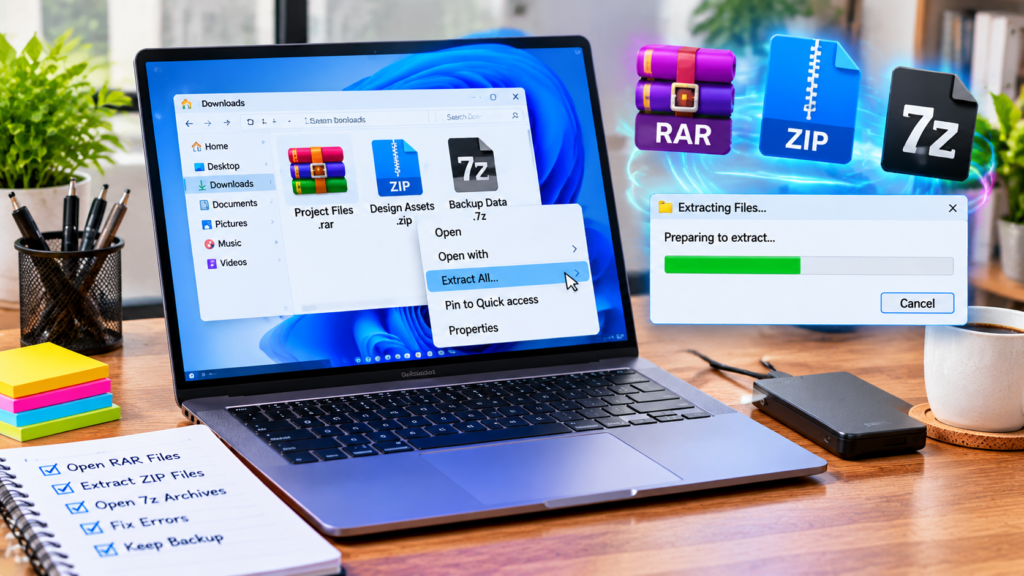
6. How to Extract Password-Protected RAR and 7z Files
A password-protected archive requires the correct password.
Windows 11’s built-in archive functionality does not support every encrypted archive operation.
A dedicated tool such as 7-Zip or WinRAR may be required.
Steps using 7-Zip
Open the archive in 7-Zip.
Select Extract.
Choose a destination folder.
Enter the password when prompted.
Confirm extraction.
If the password is incorrect, the extraction may fail.
Important security advice
Only enter archive passwords into software you trust.
Avoid uploading confidential archives to unfamiliar websites that promise to unlock them.
If you do not know the password, request it from the file’s sender.
Encryption cannot be reliably bypassed simply by renaming the archive or changing its extension.
7. How to Extract Multipart RAR Archives
Some large files are divided into multiple archive parts.
You might receive files such as:
project.part1.rar
project.part2.rar
project.part3.rar
These are usually components of one archive rather than three unrelated files.
Correct extraction process
Place all parts in the same folder.
Confirm that no part is missing.
Open the first part with a compatible archive manager.
Select Extract.
Allow the application to read the remaining parts automatically.
Do not extract each part independently unless the archive creator specifically instructed you to do so.
What if one part is missing?
The extraction may stop or produce incomplete output.
Obtain the missing part before trying again.
Renaming a missing part or duplicating another part will not reconstruct the original data.
8. How to Fix “Windows Cannot Complete the Extraction”
This error can have several causes.
Cause 1: The archive is incomplete
A transfer may have stopped before the entire file arrived.
Compare the file size with the sender’s information and obtain a fresh copy if necessary.
Cause 2: The destination folder is unavailable
Choose a folder where your account has permission to write files, such as a suitable location inside Documents.
Cause 3: The archive uses unsupported features
Try a compatible dedicated archive manager.
Cause 4: Insufficient storage space
Check available disk space before extracting large archives.
Compressed archives can expand substantially during extraction.
Cause 5: File or path problems
Very long paths or unusual filenames can complicate extraction in some environments.
Try extracting to a shorter destination such as a dedicated folder near the root of a suitable drive.
Do not disable Windows security protections just to force an archive to extract.
9. How to Fix “Cannot Open File as Archive” in 7-Zip
This message generally means 7-Zip cannot interpret the selected file as a valid supported archive.
Possible reasons include:
Incomplete file transfer.
Incorrect file extension.
Damaged archive structure.
Unsupported archive format.
Missing parts of a multipart archive.
What to do
First, confirm that the file is actually supposed to be an archive.
Next, check its size and obtain a fresh copy from the original source if necessary.
For multipart archives, confirm that all parts are present.
If the archive manager provides an integrity-checking function, use it to gather additional information.
Do not assume that every damaged archive can be repaired.
10. How to Fix CRC Failed or Data Error During Extraction
CRC and data-integrity errors indicate that extracted data does not match the expected integrity information or that processing has failed.
Possible causes include corrupted files, incomplete archive parts, incorrect passwords or storage-related problems.
Recommended troubleshooting order
Confirm the password if the archive is encrypted.
Verify that every multipart archive component is present.
Obtain a fresh copy from the original source.
Try a current compatible archive manager.
Check the destination drive if similar errors occur across unrelated files.
Do not trust files extracted from an archive that reports integrity failures without investigating the problem.
If an archive includes recovery records, compatible software may offer repair options, but successful recovery is not guaranteed.
11. How to Create ZIP and 7z Archives on Windows 11
Extracting and creating archives are different operations.
Windows 11 can create ZIP archives and, on supported versions, offers additional archive creation formats.
Create a ZIP archive
Select the files or folders.
Right-click the selection.
Choose the available compression option.
Select ZIP as the output format where applicable.
Confirm the output location.
The exact interface varies by Windows build.
Create a 7z archive using 7-Zip
Select the files or folders.
Open the 7-Zip archive creation interface.
Choose
7zas the archive format.Select the compression settings.
Configure encryption if necessary.
Create the archive.
Should you choose ZIP or 7z?
Choose ZIP when broad compatibility is the priority.
Choose 7z when you want the features and compression options offered by that format.
Compression results depend heavily on the source data.
Files such as JPEG images and many video formats are already compressed, so archiving them may produce only small size reductions.
12. How to Create a Password-Protected Archive
For sensitive files, encryption may be more important than compression ratio.
A dedicated archive manager can create encrypted archives.
Using 7-Zip, choose a supported format, enter a strong password, and select the appropriate encryption settings.
For 7z archives, AES-256 encryption is supported.
Where available, consider encrypting filenames as well as file contents.
Keep the password securely because losing it may prevent future recovery.
Remember that encryption protects the archive only according to its configuration and the security of the password.
It does not replace a broader data backup strategy.
13. Can You Open RAR Files on Windows 11 Without Installing WinRAR?
Yes, in many cases.
If you use a supported Windows 11 version and the RAR archive does not require unsupported features, File Explorer can handle ordinary extraction.
You may still want a separate archive utility when working with encrypted files, advanced archive options or multipart packages.
The key point is that RAR is a file format, while WinRAR is an application.
You do not automatically need WinRAR just because a filename ends in .rar.
14. Are RAR, ZIP and 7z Files Safe?
An archive is a container for files.
Its extension alone does not establish whether its contents are trustworthy.
An archive can contain harmless documents, software installers, scripts or potentially harmful files.
Before opening unfamiliar contents:
Confirm the sender and source.
Inspect the filenames.
Avoid running unexpected executable files.
Keep Windows security protections enabled.
Be cautious with archives that ask you to disable security settings.
Password protection is not proof that the contents are safe.Portable vs Installed Software
If an archive contains software, obtain it from the original publisher whenever possible.
15. Which Archive Format Should You Use?
Sharing documents with clients
ZIP is generally the most convenient choice because of its broad compatibility.
Compressing large project folders
7z can be useful when advanced compression settings are desirable.
Working with existing RAR packages
Use Windows File Explorer when supported, or a compatible archive manager when advanced features are required.
Sending confidential files
Choose a suitable encrypted archive format and communicate the password through an appropriate separate channel.
Long-term backups
Do not rely on a single compressed archive as your only backup.
Maintain independent copies and periodically verify that important files can be restored.
Frequently Asked Questions
How do I open RAR files on Windows 11 for free?
On supported Windows 11 versions, use File Explorer to extract ordinary RAR archives. For encrypted or unsupported archives, consider a compatible application such as 7-Zip.
Does Windows 11 support RAR files without WinRAR?
Yes. Modern Windows 11 versions include built-in RAR extraction support, although encrypted archive operations have limitations.
Can Windows 11 open 7z files?
Yes, supported Windows 11 versions can extract ordinary 7z files using File Explorer.
Is 7-Zip completely free?
Yes. 7-Zip is free and open-source software and can be used in commercial environments under its license terms.
Can 7-Zip create RAR files?
No. 7-Zip can extract RAR archives but does not create RAR archives.
Why won’t my RAR file extract?
Possible reasons include corruption, missing multipart components, an incorrect password, insufficient storage or unsupported archive features.
How do I open a password-protected ZIP file?
Use an archive manager that supports the archive’s encryption method and enter the correct password.
Is ZIP better than 7z?
ZIP generally offers broader compatibility. 7z provides advanced compression and encryption options. The better choice depends on your intended use.
Why does a ZIP file become larger after extraction?
The archive stores compressed data. Extraction restores the original files, which may occupy more storage than the compressed archive.
What is the best free RAR extractor for Windows 11?
7-Zip is a practical free option for extracting RAR files and managing many other archive formats.
How to open RAR files on Windows 11 without installing software?
To open RAR files on Windows 11, locate the archive in File Explorer, right-click it, and select the available extraction option. Supported Windows 11 versions can extract many ordinary RAR archives without third-party applications. For encrypted or unsupported archives, use a compatible archive manager such as 7-Zip or WinRAR.
Final Verdict
Opening RAR, ZIP and 7z files on Windows 11 is easier than it used to be.
For ordinary archives, Windows File Explorer may already provide everything you need.
When password protection, multipart archives, advanced compression or troubleshooting become important, a dedicated application such as 7-Zip or WinRAR can provide additional functionality.
For most users, the best approach is simple: start with Windows’ built-in tools, install a trusted archive manager only when necessary, and always preserve important original files before attempting repairs.
Understanding the difference between archive formats and extraction software will help you solve common problems without installing unnecessary applications.