

A Windows 11 computer can feel surprisingly slow even when its processor is not particularly busy. Applications may take too long to open, File Explorer might stop responding, and the desktop can freeze for several seconds. When you open Task Manager, you discover something unusual: Disk usage is at 100%.
That number looks alarming, but it does not automatically mean your storage drive is full, damaged, or about to fail.
The real question is: What is keeping the drive busy, and is that activity normal?
A Windows update, background file indexing, antivirus scanning, insufficient memory, or a slow mechanical hard drive can all contribute to high disk activity. Sometimes the problem lasts only a few minutes. In other situations, it continues long after startup and makes ordinary work difficult.
This guide explains how to diagnose Windows 11 100% disk usage before changing system settings, stopping services, or installing additional software.
First, Understand What 100% Disk Usage Actually Means
One of the most common misunderstandings about disk usage is confusing storage capacity with disk activity.
These are different measurements.
Disk space describes how much data is stored on your drive. For example, a 500 GB SSD might contain 350 GB of files.
Disk usage in Task Manager reflects how busy the storage device is handling read and write operations.
A drive can therefore show 100% activity even when plenty of free space remains. Similarly, a nearly full drive might show very little activity while the computer is idle.
This distinction matters because deleting files will not necessarily solve a disk activity problem.
If your C drive is actually running out of space, our separate guide explains how to free up C drive space on Windows 11 without randomly removing important files.
The 60-Second Disk Usage Diagnosis
Before trying any fixes, identify what is using the disk.
Press Ctrl + Shift + Esc to open Task Manager.
Select Processes.
Click the Disk column to sort processes by disk activity.
Watch the list for approximately one minute.
Open Performance → Disk to inspect the drive’s active time and response information.
Pay attention to whether the same process repeatedly appears near the top or whether several applications take turns using the drive.
For a more detailed view, press Windows + R, enter resmon, and open the Disk tab in Resource Monitor.
Resource Monitor can help you identify disk activity associated with individual processes and files.
What should you look for?
What you observe | Possible explanation | First action |
|---|---|---|
Disk reaches 100% just after startup | Startup applications or background maintenance | Wait briefly and check startup apps |
Windows Update is active | Update download, installation or servicing | Check update status |
SearchIndexer.exe is active | Windows Search indexing | Check indexing settings |
Antimalware Service Executable is active | Microsoft Defender scanning | Check Windows Security |
Memory is almost full | Paging activity due to RAM pressure | Close unnecessary applications |
High activity continues with no clear process | Driver, storage or hardware issue | Check disk health and system logs |
Disk spikes while copying large files | Expected read/write workload | Wait for transfer to complete |
The objective is not to force the disk percentage to zero. It is to understand whether the activity is expected, excessive, or associated with a persistent problem.
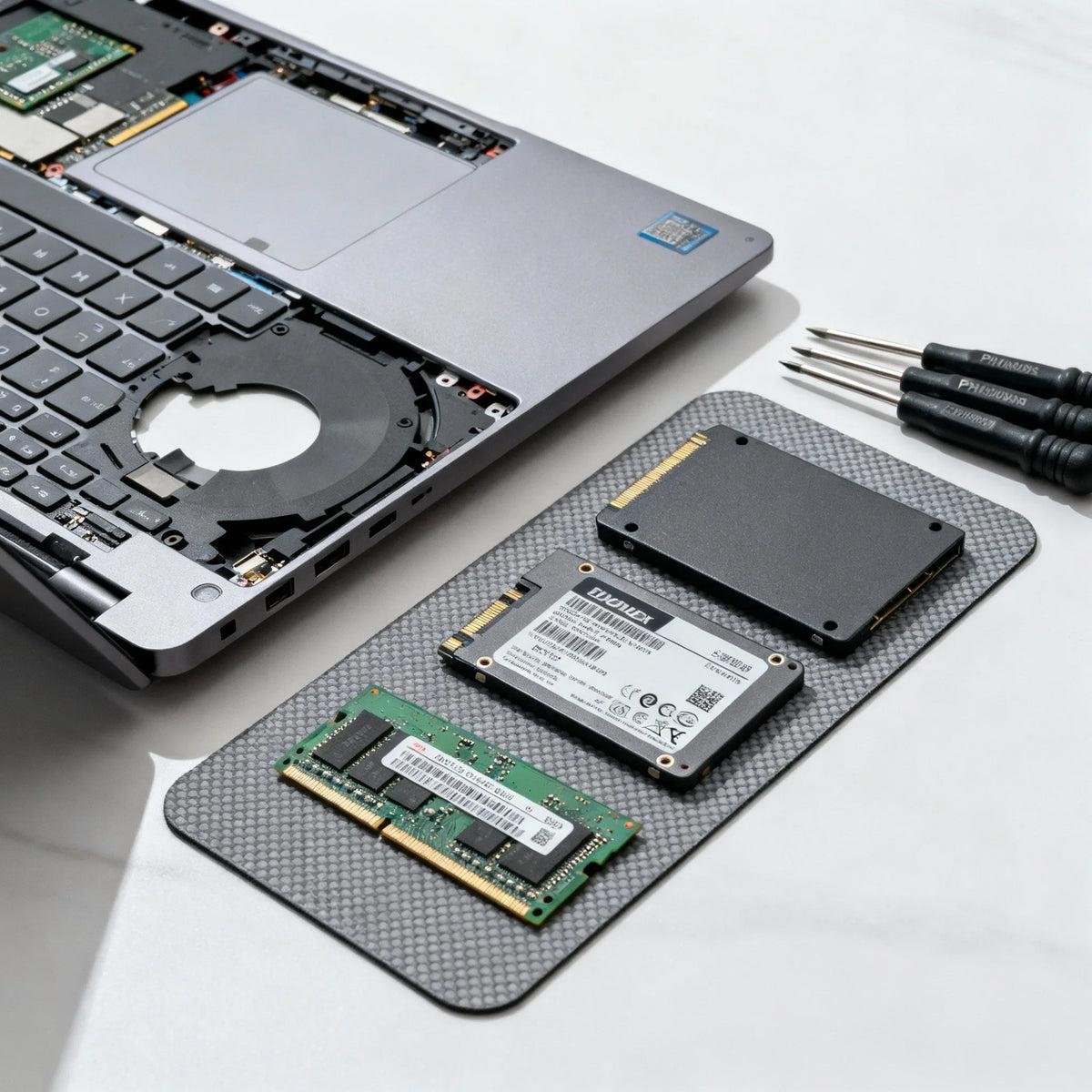
1. Windows 11 Shows 100% Disk Usage Immediately After Startup
Startup is one of the busiest periods for a Windows computer.
The operating system loads background services, checks scheduled tasks, starts installed applications, and may perform maintenance activities.
If several programs launch simultaneously, a slower drive can become overwhelmed.
What to do
Open Task Manager → Startup apps.
Review applications configured to launch automatically. Disable unnecessary startup entries, particularly applications you rarely need immediately after signing in.
Examples might include optional launchers, communication applications, or software update assistants.
Do not disable unfamiliar security or hardware-related entries without understanding their purpose.
Restart the computer and observe whether disk activity settles more quickly.
If startup is the only time your computer feels slow, there may be no reason to change Windows services or reinstall the operating system.
2. Check Whether Windows Update Is Responsible
Windows Update can generate substantial disk activity while downloading, unpacking, installing, and configuring updates.
This may be especially noticeable on older computers or systems with mechanical hard drives.
Open:
Settings → Windows Update
Check whether an update is downloading, installing, or waiting for a restart.
If installation is underway, allow it to complete. Restart the computer if Windows requests it, then reassess disk activity.
Avoid repeatedly interrupting updates simply because Task Manager shows high disk usage.
If high disk activity continues long after the update has finished, investigate other processes rather than assuming Windows Update is permanently responsible.
3. Windows Search Indexing Can Keep the Drive Busy
Windows Search maintains an index to make file and content searches faster.
When you add many files, reorganize folders, or configure indexing for additional locations, Windows may need to process substantial amounts of information.
Microsoft documents two main indexing approaches: Classic and Enhanced. Enhanced indexing covers more locations and may consume additional system resources.

How to investigate
Open Settings → Privacy & security → Searching Windows.
Depending on your Windows version, review the available search-indexing controls and indexed locations.
If you use Enhanced indexing but only search a few standard folders, consider whether Classic indexing would meet your needs.
Avoid excluding important work folders merely to reduce disk activity. Doing so may make searches less useful.
Also, do not permanently disable Windows Search as your first troubleshooting step. Search functionality is valuable, and the service may not be the actual cause.
4. High RAM Usage Can Become a Disk Problem
Sometimes Windows 11 100% disk usage begins with insufficient available memory rather than a storage problem.
When physical RAM becomes heavily occupied, Windows may rely more on its paging system to manage memory demands.
This can increase disk reads and writes, particularly when switching between applications.
For example, a computer might be running a browser with many tabs, an image editor, a video application, and several background utilities simultaneously.
If the system has limited memory, switching between those applications can become noticeably slower.
Check memory pressure
Open Task Manager → Performance → Memory.
Look at memory usage while the disk is busy.
Close applications you do not need, reduce excessive browser tabs, and check whether disk activity improves.
Do not disable the Windows paging file as a shortcut. Windows normally manages virtual memory automatically, and disabling it can introduce stability problems.
If the same workload repeatedly exhausts physical memory, a RAM upgrade may provide a more meaningful improvement than another optimization utility.
5. Understand the Difference Between HDD and SSD Disk Usage
The type of storage device matters.
A traditional hard disk drive uses moving mechanical components. Random reads and writes can create delays, particularly when many small files are accessed simultaneously.
An SSD has no moving read/write head and generally handles random access much more efficiently.
However, an SSD can still show 100% active time under demanding workloads or when something is wrong.
How to identify your drive
Open Task Manager → Performance → Disk and inspect the drive type shown where available.
You can also open Defragment and Optimize Drives from Windows Search to see whether Windows identifies the drive as a hard disk drive or solid-state drive.
If you use an HDD
Pay particular attention to persistent high active time, slow response times, and frequent pauses during basic operations.
If Windows itself is installed on an older mechanical drive, moving the operating system to a suitable SSD can significantly improve responsiveness in many everyday workloads.
If you use an SSD
Do not assume 100% activity means the drive is defective.
First inspect the process responsible, memory usage, storage capacity, update activity, and any available drive-health warnings.
Also avoid applying random SSD registry tweaks or manually disabling important Windows features without a diagnosed cause.

6. Check Available Storage Space
Although disk capacity and disk activity are different, very low free space can contribute to Windows performance problems.
Open Settings → System → Storage.
Review temporary files, installed applications, and large personal files.
Microsoft provides Storage Sense and Cleanup recommendations for managing unnecessary files and reclaiming capacity.
Do not manually delete unfamiliar folders inside the Windows or Program Files directories.
If storage capacity is the main problem, follow our dedicated C Drive Full on Windows 11 guide for a more detailed cleanup workflow.
7. Check Antivirus and Background Scanning
Security software may read large numbers of files during a scan.
This can temporarily increase disk activity, especially on systems with slower storage.
Open Windows Security → Virus & threat protection to review the available scan information.
If a scan is running, allow it to finish when practical.
A sudden increase in disk activity is not, by itself, evidence of malware. However, if you also notice suspicious processes, unexpected applications, or other security warnings, use Windows Security to investigate.
Avoid permanently disabling real-time protection merely to reduce disk usage.
If you have multiple security applications installed, check whether overlapping background protection is contributing to unnecessary resource consumption.
8. Investigate SysMain Carefully
SysMain is a Windows service associated with application-use patterns and system responsiveness.
Online troubleshooting discussions frequently suggest disabling SysMain whenever Task Manager displays 100% disk usage.
That is too broad a recommendation.
A service may contribute to disk activity on one computer without being responsible for the problem on another.
Before changing its configuration, identify whether SysMain-related activity is actually relevant to your system.
If you decide to perform a temporary diagnostic test, document the original service configuration and restore it afterward unless there is a specific reason to retain the change.
Do not treat permanently disabling SysMain as a universal Windows 11 performance fix.
9. What If Disk Usage Is 100% but Transfer Speed Is Very Low?
This is an especially useful diagnostic distinction.
A drive can report extremely high active time while transferring relatively little data.
That can happen when operations take a long time to complete, requests are queued, or the device is struggling with latency.
It does not prove that the drive is failing, but persistent high active time combined with low throughput and poor responsiveness deserves further investigation.
Open Resource Monitor → Disk and observe the available response-time and activity information.
If your computer also experiences repeated freezes, unusual drive noises from an HDD, file-access errors, or disappearing storage devices, prioritize backing up important data.
Do not repeatedly run intensive benchmarks against a drive that may be unstable.
10. Check Drive Health Before Attempting Major Repairs
When disk activity remains abnormal after ordinary background tasks have finished, drive health becomes more important.
First, make sure important documents, photographs, and project files are backed up to a separate storage device or reliable backup destination.
You can review Windows drive information and available health indicators. However, not every drive exposes the same health details through Windows.
For more advanced checks, a reputable drive manufacturer’s diagnostic utility may provide useful information for supported hardware.
If a drive is reporting errors, prioritize protecting your data over repeatedly attempting performance tweaks.
Should you run CHKDSK?
Windows includes the chkdsk utility for checking file-system problems.
A read-only check can help identify some issues, but commands that attempt repairs or scan for bad sectors may be time-consuming and can place additional demands on a problematic drive.
Back up important data first. Do not blindly run repair commands copied from unrelated troubleshooting guides.
If the drive appears to be physically failing, consider professional recovery assistance before attempting intensive repairs.
11. When Windows 11 100% Disk Usage Is Caused by One Application
Suppose Task Manager repeatedly shows one application generating high disk activity.
Instead of modifying Windows globally, investigate that application.
Ask these questions:
Is it importing, exporting, downloading, synchronizing, or indexing files?
Does the issue occur only when that application is running?
Is the application configured to start automatically?
Is it repeatedly accessing an external drive or network-synced folder?
Does closing the application reduce disk activity?
For example, photo-management software may read large numbers of image files while generating previews. Backup applications may scan folders before transferring data.
Such workloads can be legitimate, although they may need scheduling or configuration adjustments.
The best fix is often specific to the application rather than the entire operating system.
12. Should You Install a Disk Cleanup or Optimization Utility?
Additional software can be useful when it solves a clearly identified problem.
A file-management utility may help organize cluttered folders, while a storage-analysis tool may make large files easier to locate.
However, organizing files does not automatically fix excessive disk active time.
For example, Ideal File Sorter may be relevant when the problem involves organizing large collections of files, but it should not be presented as a direct repair tool for 100% disk activity.
Likewise, data recovery software is intended for recovering lost data under suitable conditions—not improving disk speed.
If you accidentally delete an important file during cleanup, read our Windows data recovery software guide before taking further recovery steps.
Be particularly cautious about utilities promising instant performance improvements through aggressive registry cleaning, service disabling, or undocumented system modifications.
13. A Practical Decision Table: What Should You Fix First?
Your situation | Recommended priority |
|---|---|
Disk spikes for a short time after login | Review startup applications |
Windows Update is installing | Allow update to finish |
SearchIndexer is frequently active | Review indexing locations |
RAM usage is consistently very high | Reduce memory pressure |
C drive has almost no free space | Use Windows storage cleanup |
One application dominates disk activity | Investigate that application |
Older HDD remains slow during routine work | Evaluate an SSD upgrade |
SSD has persistent latency or health warnings | Back up data and check drive health |
Disk is busy only during large transfers | Determine whether workload is expected |
The right solution depends on the pattern, not merely the percentage.
14. A Five-Minute Diagnostic Routine
If you want a repeatable process, follow this order:
Minute 1 — Identify the symptom. Determine whether disk activity occurs during startup, file transfers, application launches, or while the computer is idle.
Minute 2 — Inspect Task Manager. Sort processes by disk usage and check CPU and memory at the same time.
Minute 3 — Check Windows background activity. Review Windows Update, indexing, security scans, and startup applications.
Minute 4 — Inspect storage. Confirm the drive type, available space, and whether unusual response times are present.
Minute 5 — Choose one relevant action. Make a targeted change and observe whether the symptom improves.
Avoid changing several Windows settings simultaneously. Otherwise, it becomes difficult to know which change actually helped.
15. What Not to Do When Disk Usage Reaches 100%
Several commonly repeated fixes can create new problems when used without diagnosis.
Do not disable every Windows service associated with storage activity.
Do not disable Microsoft Defender simply because a scan is using the disk.
Do not turn off virtual memory to reduce paging activity.
Do not delete system files manually to create free space.
Do not assume that formatting or reinstalling Windows is the first solution.
And do not assume that a drive showing 100% active time is automatically defective.
A better troubleshooting approach is to preserve system stability, collect evidence, and make one relevant change at a time.
16. When 100% Disk Usage Is Only One Part of a Bigger Performance Problem
Sometimes disk activity is a symptom of a broader slowdown.
A computer may have high memory pressure, excessive startup programs, limited storage capacity, and an older hard drive at the same time.
In that situation, addressing only the disk percentage may not solve the entire problem.
Our main troubleshooting guide explains why Windows 11 is running slow and helps distinguish storage problems from CPU, memory, startup, and other performance issues.
This is particularly useful when disk activity returns to normal but applications still feel unresponsive.
Frequently Asked Questions
Why is my Windows 11 disk usage at 100% when nothing is open?
Background processes can continue working even when no application window is visible. Windows Update, indexing, security scans, synchronization, and maintenance tasks are possible explanations. Use Task Manager and Resource Monitor to identify the activity.
Does 100% disk usage mean my hard drive is full?
No. Task Manager disk usage and storage capacity are different measurements. A drive can be very busy while having plenty of free space.
Can 100% disk usage damage my SSD?
A temporary 100% reading does not itself indicate damage. Persistent abnormal activity, errors, and drive-health warnings should be investigated separately.
Should I disable SysMain to fix 100% disk usage?
Not automatically. Identify whether the service is contributing to the problem before changing its configuration. Permanent service changes should not be treated as universal fixes.
Why does disk usage reach 100% after starting Windows 11?
Startup applications, background maintenance, security activity, and updates can generate significant disk activity immediately after login.
Will upgrading from an HDD to an SSD fix high disk usage?
An SSD can substantially improve responsiveness on computers limited by a slow mechanical drive. However, it will not necessarily fix excessive activity caused by software, insufficient memory, or other problems.
Why is my SSD at 100% disk usage but the PC is still slow?
Possible explanations include high storage latency, demanding background operations, paging activity, software issues, or hardware problems. Check Resource Monitor, memory pressure, and drive health rather than relying only on the disk percentage.
Final Thoughts
Windows 11 100% disk usage is a symptom, not a complete diagnosis.
The most effective approach is to determine when the problem occurs, identify the responsible workload, check whether the storage device is healthy, and choose a fix that addresses the actual cause.
For many computers, the solution may be as straightforward as reducing startup applications, allowing Windows maintenance to finish, or freeing up storage space.
For others, persistent latency, insufficient RAM, or an aging mechanical drive may require deeper investigation.
Start with evidence, protect your data, and avoid unnecessary system changes. A measured approach is more useful than trying every optimization trick at once.