Real-World Testing Experience
Test Environment
- Windows 11 Pro
- Outlook Account
- Yahoo Mail Account
- Thunderbird Mailbox
Test Criteria
- Backup Speed
- Mailbox Detection
- Attachment Preservation
- Export Accuracy
- Ease of Use
Results
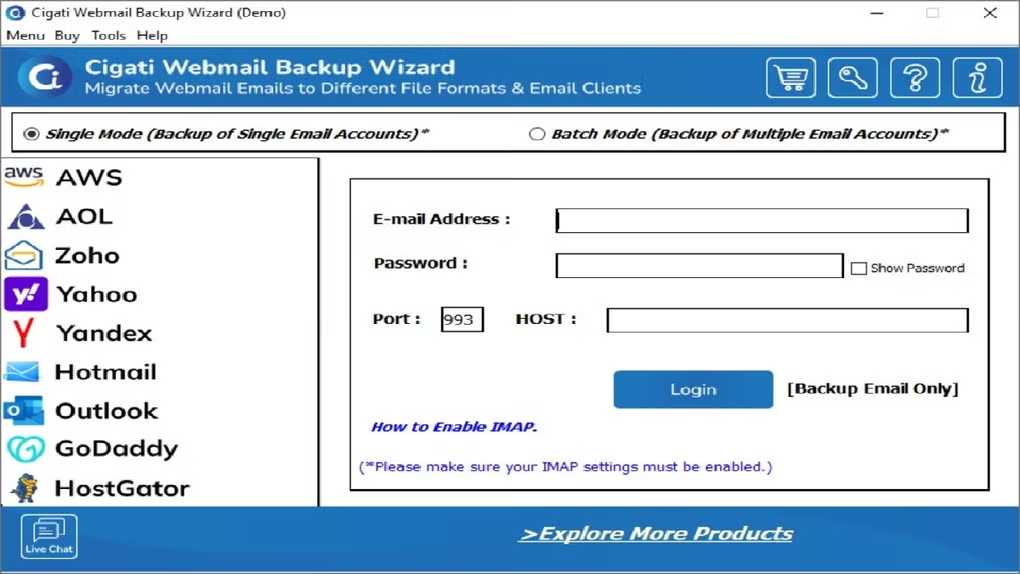
Cigati Outlook Backup
- Fast Outlook backup
- Accurate export results
- Preserved mailbox structure
Thunderbird Backup Tool
- Successfully exported large mailboxes
- Maintained folder hierarchy
Yahoo Backup Tool
- Reliable email export
- Good attachment handling
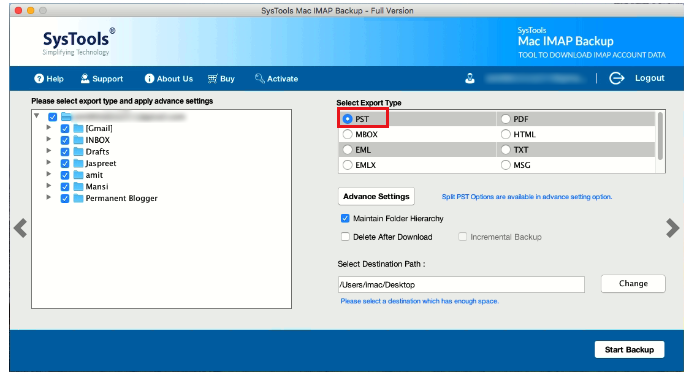
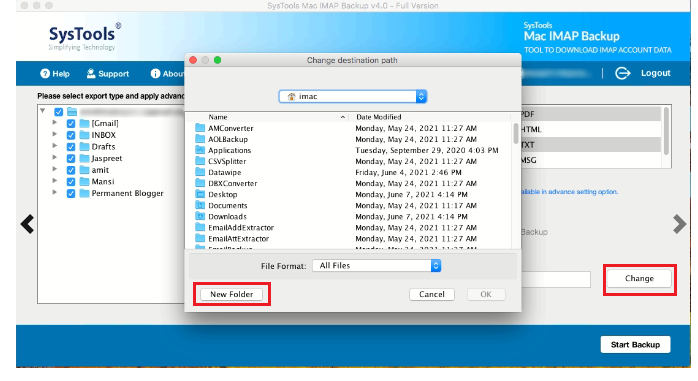
SysTools
- Strong business-oriented features
- Advanced filtering capabilities
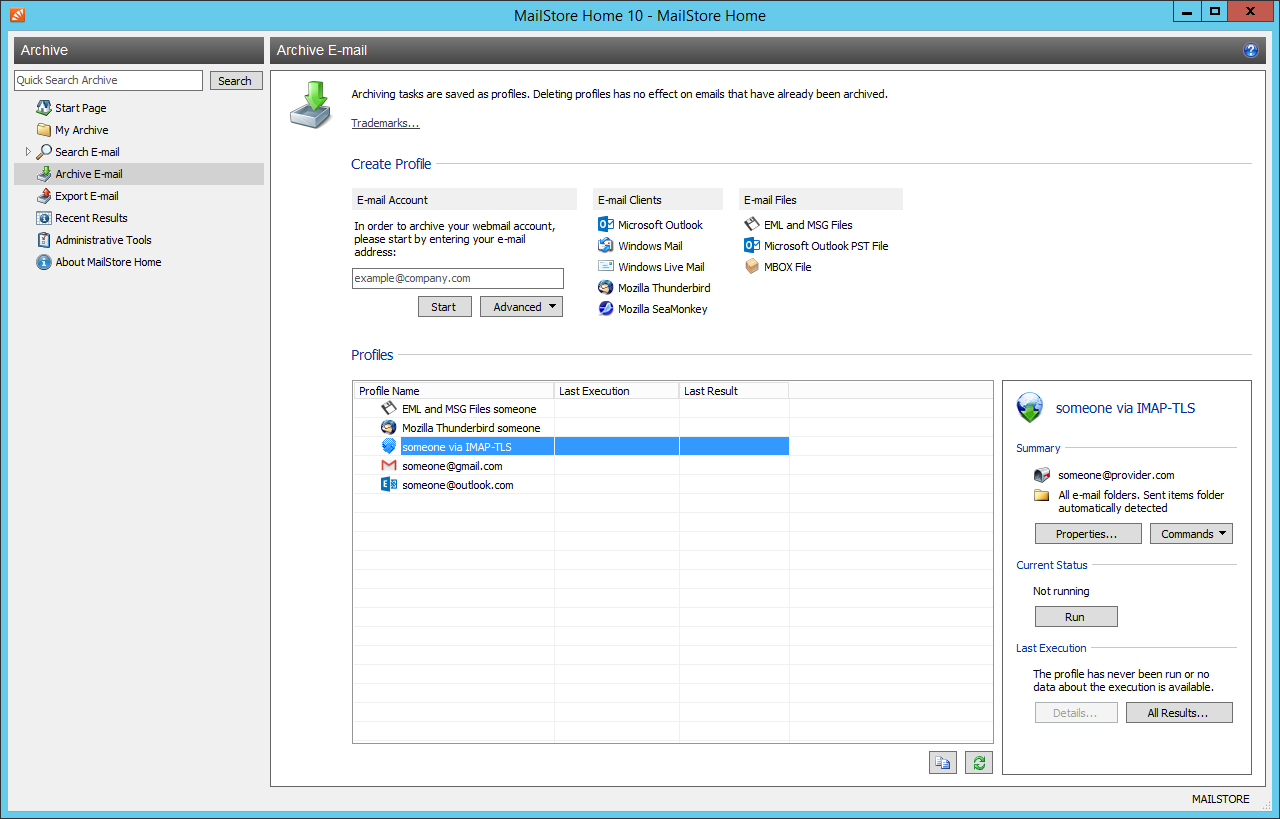
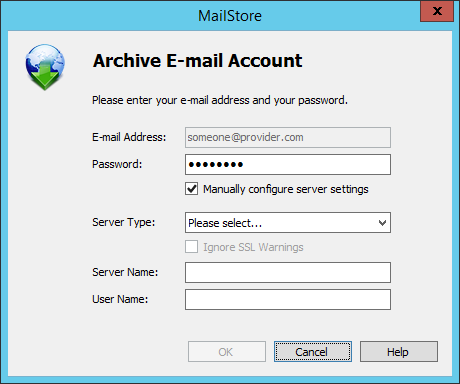
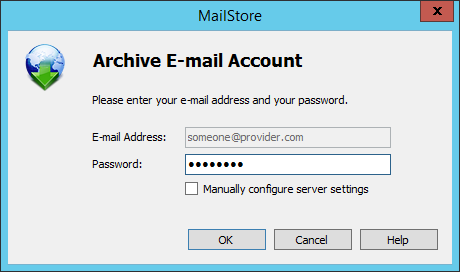
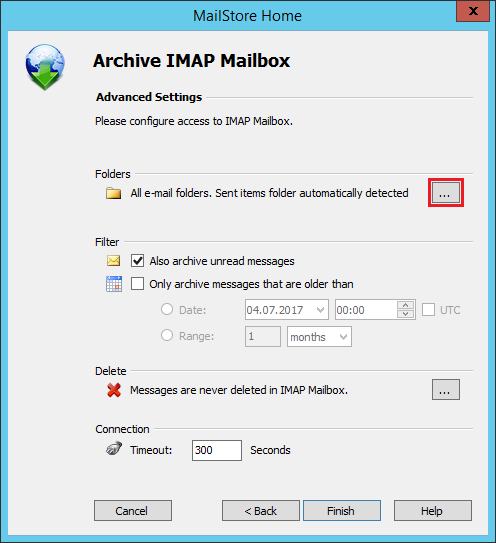
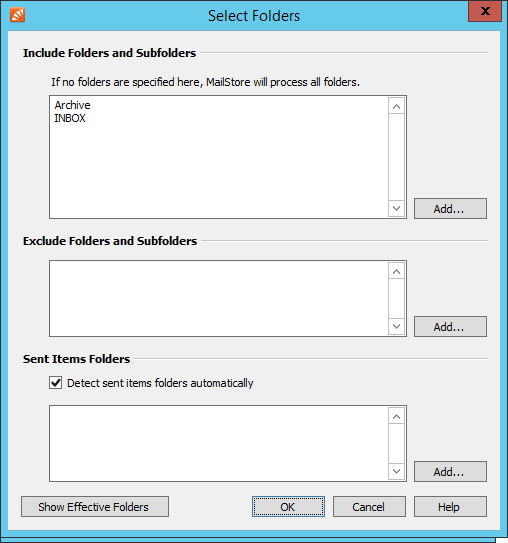
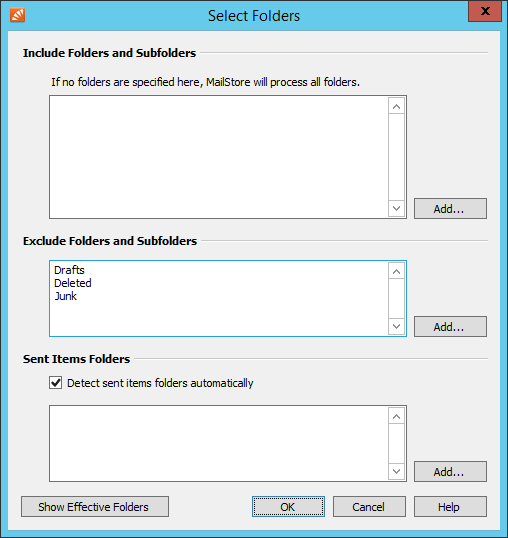
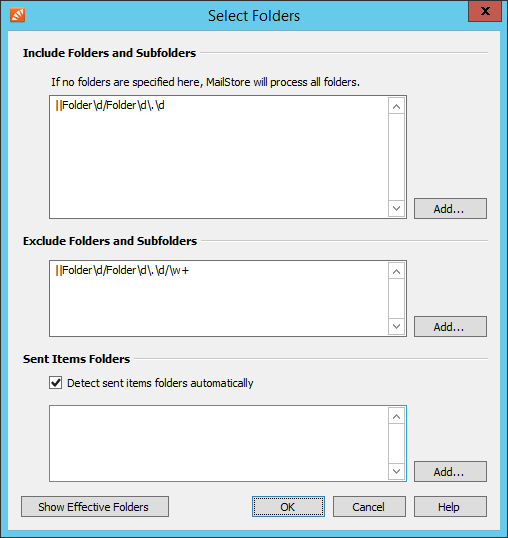
MailStore Home
- Excellent archiving functionality
- Fast search performance
How to Choose Email Backup Software
Choose Outlook Backup Software If
- You use Microsoft Outlook daily.
- You need PST exports.
- You manage large Outlook mailboxes.
Choose Thunderbird Backup Software If
- You use Mozilla Thunderbird.
- You need mailbox migration features.
Choose Yahoo Backup Software If
- Yahoo Mail is your primary email service.
Choose SysTools If
- You manage multiple email platforms.
- You need business-level backup controls.
Choose MailStore Home If
- You want a free email archiving solution.
Common Email Backup Mistakes
Not Backing Up Attachments
Always verify that attachments are included during backup.
Storing Backups Locally Only
Maintain copies on external drives or cloud storage.
Ignoring Regular Backup Schedules
Schedule automatic backups whenever possible.
Not Testing Backup Files
Verify that exported email files can be opened successfully.
Frequently Asked Questions
What is the best email backup software for Windows?
The best software depends on your email platform. Outlook users often prefer Outlook-specific backup tools, while businesses may require multi-platform solutions.
Can I back up emails with attachments?
Yes. Most modern email backup software preserves attachments during export.
Which file formats are commonly supported?
PST, EML, MBOX, MSG, PDF, and HTML are among the most common formats.
Is email backup software safe?
Yes, when downloaded from official developer websites.
Can I back up Yahoo Mail?
Yes. Dedicated Yahoo backup tools are available.
Can I migrate emails between platforms?
Many email backup tools also include migration features.
How often should I back up emails?
Business users should consider daily backups, while personal users may prefer weekly backups.
Can email backups be restored later?
Yes. Most backup solutions allow data restoration or mailbox import.
How Often Should You Back Up Your Emails?
The ideal email backup frequency depends on how frequently you use your email account and how important your email data is.
Personal Users
If you primarily use email for personal communication, online shopping, account notifications, and occasional document sharing, a weekly backup is usually sufficient. Regular backups ensure that important messages and attachments remain protected in case of accidental deletion or account issues.
Students
Students often receive assignment submissions, study materials, project updates, and academic communications through email. Creating a backup every week can help prevent the loss of important educational records and attachments.
Freelancers and Small Businesses
Freelancers and small business owners typically use email for client communication, invoices, contracts, and project discussions. In such cases, a daily backup is highly recommended to minimize the risk of losing critical business information.
Corporate and Enterprise Users
Organizations that depend heavily on email communication should consider daily or even multiple backups per day. This approach helps protect sensitive business data, customer communications, and legal records while supporting compliance and disaster recovery requirements.
Users Receiving Large Numbers of Emails
If your mailbox receives dozens or hundreds of emails every day, scheduling automatic daily backups is the safest option. Frequent backups reduce the amount of data that could be lost between backup intervals.
Recommended Email Backup Schedule
| User Type | Recommended Backup Frequency |
|---|
| Personal Users | Once Per Week |
| Students | Once Per Week |
| Freelancers | Daily |
| Small Businesses | Daily |
| Large Organizations | Multiple Times Per Day |
| High-Volume Email Users | Daily |
Best Practices for Email Backups
Use Automatic Backups
Manual backups are often forgotten. Most email backup software allows you to schedule automatic backups at specific intervals.
Store Backups in Multiple Locations
Follow the 3-2-1 Backup Rule:
- Keep 3 copies of your data
- Store backups on 2 different storage devices
- Keep 1 copy offsite or in cloud storage
Include Attachments
Always ensure that email attachments are included in the backup process, as important documents are often stored within emails.
Verify Backup Integrity
Regularly check backup files to confirm they can be opened and restored successfully.
Protect Backup Files
Use password protection and encryption whenever possible to secure sensitive email data.
Expert Recommendation
For most users, a daily automatic email backup provides the best balance between convenience and data protection. If your email contains business communications, contracts, invoices, or important attachments, daily backups can significantly reduce the risk of permanent data loss.
Email Backup vs Email Migration: What’s the Difference?
Many users often confuse email backup and email migration because both processes involve copying email data. However, their purposes are completely different.
Understanding the difference can help you choose the right tool and avoid data management mistakes.
What Is Email Backup?
Email backup is the process of creating a secure copy of your emails, attachments, contacts, calendars, and other mailbox data. The primary goal is data protection and disaster recovery.
For example, if your email account is hacked, accidentally deleted, or becomes inaccessible, you can restore your mailbox from a backup copy.
Main Purpose of Email Backup
- Protect important emails
- Prevent data loss
- Create offline copies
- Archive business communications
- Support disaster recovery plans
Example
A business owner exports Outlook emails to PST files every week and stores them on an external hard drive. If the Outlook profile becomes corrupted, the emails can be restored from the backup.
What Is Email Migration?
Email migration is the process of transferring email data from one email platform, account, or server to another.
The goal is not long-term protection but moving mailbox data to a new destination.
Main Purpose of Email Migration
- Switch email providers
- Move emails to a new server
- Upgrade business email systems
- Consolidate multiple accounts
- Transfer mailbox data between platforms
Example
A company moves from Yahoo Mail to Microsoft 365. Email migration software transfers all emails, folders, contacts, and attachments from Yahoo Mail to Microsoft 365.
Key Differences Between Email Backup and Email Migration
| Feature | Email Backup | Email Migration |
|---|
| Primary Goal | Data Protection | Data Transfer |
| Creates Offline Copy | Yes | Not Always |
| Disaster Recovery | Yes | No |
| Moves Emails to New Platform | No | Yes |
| Long-Term Storage | Yes | Optional |
| Restores Lost Emails | Yes | Usually No |
| Used During Platform Changes | Rarely | Frequently |
When Should You Use Email Backup?
Email backup is recommended when:
- You want to protect important emails.
- You need long-term email archives.
- Your organization follows compliance requirements.
- You want protection against accidental deletion.
- You need recovery options after system failures.
When Should You Use Email Migration?
Email migration is recommended when:
- Changing email providers.
- Moving to Microsoft 365 or Google Workspace.
- Consolidating multiple email accounts.
- Upgrading mail servers.
- Migrating business email infrastructure.
Can Backup and Migration Be Used Together?
Yes. In fact, many IT professionals recommend creating a complete backup before starting any email migration project.
A backup acts as a safety net if the migration process encounters errors, interruptions, or data corruption.
For example:
- Create a full backup of the source mailbox.
- Verify the backup files.
- Perform the migration.
- Confirm that all emails have transferred successfully.
- Keep the backup copy for future recovery needs.
Final Thoughts
Email backup and email migration serve different purposes but are equally important. Email backup focuses on protecting and preserving data, while email migration focuses on transferring data between platforms or services.
If your goal is to safeguard important emails, choose a backup solution. If you are moving to a new email platform, use migration software. For maximum security, create a complete backup before performing any migration process.
Final Verdict
Email backup software is essential for protecting valuable mailbox data and ensuring long-term access to important communications.
- Cigati Outlook Backup is ideal for Outlook users.
- Thunderbird Backup Tool is suitable for Thunderbird users.
- Yahoo Backup Tool helps Yahoo Mail users secure their mailbox data.
- SysTools offers advanced features for organizations.
- MailStore Home is an excellent option for personal email archiving.
Choosing the right solution depends on the email platform you use and the level of backup protection you require.