
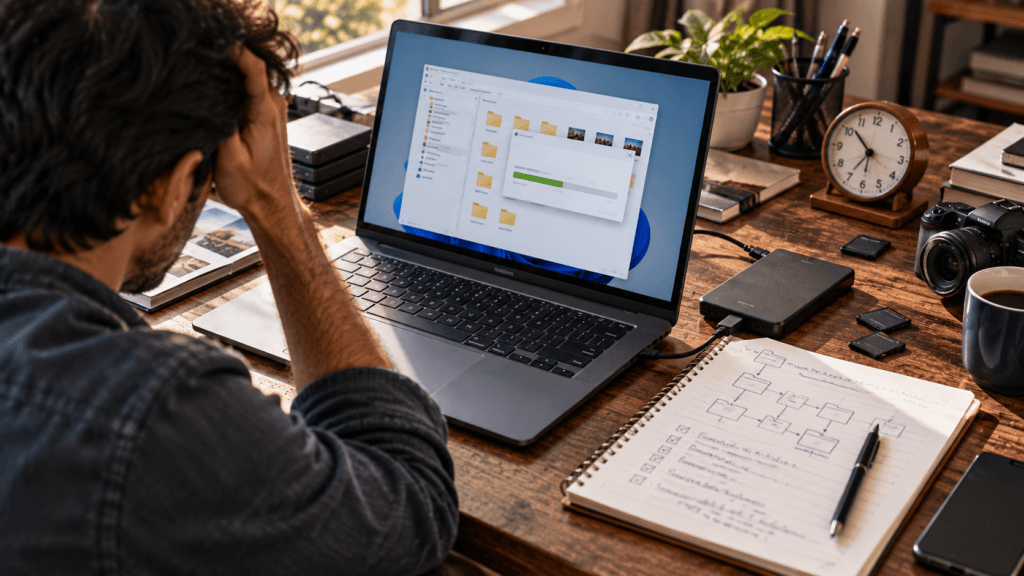
File Explorer is one of the most frequently used parts of Windows 11. Whether you are opening a folder, copying photographs, organizing documents, extracting archives, or accessing files stored in the cloud, File Explorer is usually involved.
That is why even a small delay can become frustrating.
You double-click a folder, but nothing appears immediately. The address bar shows a green progress indicator. A directory containing photographs takes unusually long to display thumbnails. Sometimes File Explorer remains stuck on “Working on It”, while other applications continue running normally.
In more severe cases, File Explorer stops responding, freezes when you right-click a file, or takes several seconds to open a folder that previously appeared instantly.
The difficult part is identifying what causes the slowdown.
A folder containing thousands of photographs may be slow for a different reason than a folder stored on OneDrive. A right-click delay can have little to do with the storage drive, while an Explorer window that freezes during file transfers may indicate disk or hardware problems.
This guide explains how to diagnose Windows 11 File Explorer slow performance based on the exact symptoms.
Instead of applying every suggested fix, you will learn how to identify the likely bottleneck and choose the most appropriate next step.
1. First, Identify What Is Actually Slow
Before changing any settings, observe when the delay occurs.
Does File Explorer take too long to open?
Does it open quickly but struggle with one particular folder?
Are thumbnails slow to appear?
Does the problem happen only when accessing a network drive or cloud folder?
Or does Explorer freeze when you right-click a file?
These differences matter.
Symptom | Possible cause | First investigation |
|---|---|---|
Explorer opens slowly | Home view, recent locations, system load | Test This PC and restart Explorer |
One folder loads slowly | Thumbnails, metadata, folder contents | Test Details view |
“Working on It” appears | Folder enumeration or metadata processing | Compare folder types and locations |
Green progress bar remains visible | Slow storage or folder processing | Check disk activity |
Right-click menu freezes | Third-party shell extension | Check installed Explorer integrations |
OneDrive folder loads slowly | Online-only files or synchronization | Check local availability |
Network folder is slow | Network or remote-server delay | Compare with a local folder |
All folders are slow | Broader system or storage problem | Check Task Manager |
The objective is to narrow the problem before attempting a repair.
2. Perform a 60-Second File Explorer Diagnosis
Start with a simple comparison.
Press Windows + E to open File Explorer.
Open This PC, then open a small local folder containing only a few ordinary files.
Next, open the folder that usually takes too long.
Compare the results.
If a small local folder opens immediately but a photo archive takes several seconds, the issue may be related to that folder’s contents, metadata, or storage location.
If every folder is slow, investigate broader Windows performance.
Now press Ctrl + Shift + Esc to open Task Manager.
Check the Processes and Performance tabs.
Pay attention to CPU usage, memory pressure, and disk activity while reproducing the delay.
If the disk repeatedly reaches very high active time, read our detailed guide to Windows 11 100% disk usage.
A slow File Explorer window is not always a File Explorer problem. Sometimes it is simply the visible symptom of a storage bottleneck.
3. Restart Windows Explorer Without Restarting Your PC
Windows Explorer manages File Explorer windows and important parts of the Windows desktop interface.
Occasionally, restarting the Explorer process can resolve temporary responsiveness problems.
Steps
Press Ctrl + Shift + Esc.
Open Task Manager.
Find Windows Explorer in the Processes list.
Right-click it.
Select Restart.
The taskbar and desktop may briefly disappear and reload.
Save any active file operations before doing this because restarting Explorer can interrupt Explorer-managed transfers.
After the restart, open the same folder again.
What does the result tell you?
If the problem disappears temporarily but returns later, investigate what happens before the slowdown reappears.
For example, does it return after opening a particular folder, connecting a network drive, or using a right-click command?
If restarting Explorer makes no difference, continue with more specific diagnostics.
Microsoft also recommends checking Windows updates and restarting the device when File Explorer fails to open or start correctly.
4. Fix Folders Stuck on “Working on It”
The message “Working on It” can appear while File Explorer gathers information needed to display a folder.
This may involve enumerating files, reading metadata, determining file types, generating thumbnails, or waiting for a storage location.
Large folders containing mixed media are particularly worth investigating.
Try changing the folder view
Open the affected folder.
Select View → Details.
Compare the loading behavior with Large icons or Extra large icons.
If Details view loads much faster, thumbnail generation or preview-related processing may be contributing to the delay.
This does not prove that thumbnails are the only cause, but it provides a useful clue.
Check folder optimization
Right-click the affected folder and open Properties → Customize.
Look for Optimize this folder for.
Windows may offer categories such as General items, Documents, Pictures, Music, or Videos.
For a folder containing many different file types, try General items and compare its behavior.
Avoid applying the change to all subfolders automatically unless you understand the effect and want the same configuration throughout that folder structure.
Folder optimization is a diagnostic option, not a guaranteed performance fix.
5. Why Photo and Video Folders Often Load Slowly
Photographers, video editors, designers, and content creators frequently work with folders containing hundreds or thousands of large media files.
A directory might include JPEG photographs, RAW camera files, PSD documents, video clips, thumbnails, and exported images.
Displaying these files can require more processing than displaying a small folder of ordinary documents.
File Explorer may need to retrieve metadata, read file properties, and generate previews.
Some specialized formats depend on additional codecs or thumbnail handlers.
A practical test for photographers
Open the affected folder in Details view.
Then switch to Large icons.
If the delay becomes noticeably worse in icon view, investigate thumbnail generation and installed preview handlers.
If both views are equally slow, examine storage activity, file count, cloud availability, and the underlying drive.
For large photo archives, organizing files into manageable project folders may also improve everyday navigation.
However, splitting folders is an organizational decision; it is not a universal fix for slow storage hardware.
6. Clear Thumbnail Cache Only When Necessary
Windows stores thumbnail information to avoid regenerating previews unnecessarily.
If thumbnails are missing, incorrect, or behaving inconsistently, clearing the thumbnail cache may be worth trying.
Steps
Open Settings → System → Storage.
Select Temporary files.
Wait for Windows to calculate available categories.
Review the Thumbnails category.
Select only the temporary data you intend to remove.
Confirm the cleanup.
The exact interface may vary with your Windows version.
Windows will regenerate thumbnails as needed.
Important limitation
Clearing the thumbnail cache may temporarily make folder loading slower because previews must be rebuilt.
It should not be used as a routine daily optimization method.
Use it when thumbnail behavior provides a reason to suspect a cache-related problem.
7. Check Whether File Explorer Home Is Causing the Delay
Windows 11 File Explorer can open to Home, where recent files, pinned items, and other locations may be displayed.
If Explorer is slow when first launched but local folders open normally afterward, compare the startup location.
Change the opening location
Open File Explorer.
Select the three-dot menu.
Open Options.
Under the General tab, find Open File Explorer to.
Choose This PC, if available.
Apply the change.
Close File Explorer and reopen it.
If This PC opens more quickly, the difference may help narrow the problem to content shown in Home or its associated locations.
Should you clear File Explorer history?
If recent items are outdated or cause usability problems, you can review the privacy and history controls in Folder Options.
However, clearing history is not guaranteed to improve performance, and it removes convenient recent-item information.
Try the less disruptive startup-location comparison first.
8. Investigate OneDrive and Cloud-Synchronized Folders
Cloud storage introduces another layer of complexity.
A file visible in File Explorer may not be fully stored on your computer.
With OneDrive Files On-Demand, some files are available online and downloaded when required.
Microsoft explains that users can mark selected files or folders as Always keep on this device when local availability is needed.
How to identify a cloud-related delay
Compare the affected OneDrive folder with a small folder stored locally outside the synchronized directory.
Check the file availability indicators.
If the issue occurs only with online-only content, network availability, synchronization status, or cloud file retrieval may be involved.
For frequently used files, consider making the relevant folder available offline.
Be aware that doing so consumes local storage space.
Do not disable synchronization blindly
Disabling cloud synchronization may interfere with backups, file availability, or collaboration.
Investigate the specific folder and synchronization state before changing account-wide settings.
9. File Explorer Slow When Accessing a Network Drive
A network folder may appear alongside local drives, but its responsiveness depends on additional components.
These can include Wi-Fi quality, local network conditions, the remote computer, shared storage hardware, and authentication.
If File Explorer becomes slow only when opening a mapped network drive, test a local folder first.
Then check whether the remote device is online and reachable.
If you use a laptop, compare the connection under normal network conditions.
A useful isolation method
Try opening a small folder on the network share.
Then compare it with a larger directory on the same share.
If every network folder is slow while local folders remain responsive, investigate the network path or remote storage.
If only one shared folder is slow, investigate that folder’s contents, permissions, or remote-server workload.
Do not treat network delays as proof that Windows itself needs reinstalling.
10. Fix File Explorer Freezing When You Right-Click
Right-click delays deserve separate attention because they can involve applications integrated directly into File Explorer.
Archive utilities, cloud storage applications, graphics tools, and other software may add commands to the context menu.
These integrations are often implemented using shell extensions.
Microsoft documents how shell extensions interact with Explorer and warns that a faulty in-process extension can cause the host process to hang or crash.
How to narrow down the problem
First, identify whether the freeze happens with every file or only a particular file type.
For example:
Does right-clicking a folder freeze Explorer?
Does the problem occur only with image files?
Does it happen after installing an archive utility?
Does Show more options trigger the delay?
Check whether the issue started after installing or updating a program that integrates with File Explorer.
If a specific application is strongly implicated, update or repair it using the publisher’s instructions.
For advanced diagnosis, Microsoft’s Sysinternals Autoruns can help inspect Explorer-related integrations.
However, disabling shell extensions should be done carefully. Avoid changing Microsoft components or disabling large groups of entries without recording the original configuration.
A third-party extension is a possible cause, not an automatic diagnosis.
11. Check Whether Windows Search Indexing Is Involved
Windows Search indexing helps Windows locate files and information more efficiently.
Indexing activity may consume resources, especially after major file changes or when large collections are added.
However, slow File Explorer folder navigation and slow Windows Search results are not necessarily the same issue.
When indexing deserves investigation
Look for delays that coincide with high background activity or heavy file changes.
Open Settings → Privacy & security → Searching Windows to review available indexing settings.
You can also inspect Windows Search-related activity in Task Manager.
Do not disable Windows Search simply because File Explorer feels slow.
Doing so can reduce search functionality without addressing the actual cause.
If the problem is specifically slow or missing search results, that deserves its own troubleshooting process.
12. Check Available Storage and Drive Performance
File Explorer relies on the underlying storage device to read folder contents and file metadata.
A slow or unhealthy drive can therefore affect navigation, previews, copying, and opening files.
Open Task Manager → Performance → Disk while reproducing the issue.
Look at active time and transfer activity.
If the drive remains heavily occupied, investigate which process is responsible.
Also check available storage under Settings → System → Storage.
A nearly full system drive can complicate updates, temporary-file operations, and normal application behavior.
For safe storage cleanup, see our guide to free up C drive space on Windows 11.
HDD versus SSD
A mechanical hard drive may be particularly sensitive to workloads involving many small files and frequent random reads.
An SSD typically handles these access patterns more efficiently, but an SSD can still become slow because of hardware issues, background workloads, or other system problems.
If you notice repeated read errors, unusual drive behavior, or unexplained file corruption, prioritize backing up important data before attempting intensive repairs.
13. Check for Windows Updates and Recent Changes
Sometimes File Explorer performance changes after an operating system update, application installation, driver change, or system configuration adjustment.
Rather than assuming the latest update is responsible, establish a timeline.
When did the problem begin?
Did you install a new file-management utility?
Did a cloud storage application update?
Did a graphics application add new preview handlers?
Open Settings → Windows Update and review available updates and update history.
Microsoft includes Windows updates among its recommended steps when File Explorer will not open or start.

If a problem began immediately after a change, investigate that change using documented recovery or update procedures.
Avoid uninstalling unrelated updates or making broad registry modifications based only on timing.
14. Repair Windows System Files When Broader Symptoms Exist
If File Explorer repeatedly crashes and other Windows components also malfunction, system file corruption may be worth investigating.
This is a more advanced step and should not be the first response to one slow photo folder.
Open Windows Terminal or Command Prompt as administrator.
Run:
DISM /Online /Cleanup-Image /RestoreHealthAfter it completes, run:
sfc /scannowThese tools can help repair certain Windows component and system file problems.
They do not directly repair every storage issue, shell extension, or application-specific problem.
Do not interrupt the commands unnecessarily, and review any reported errors.
If important files are at risk or the drive appears unhealthy, back up data before pursuing additional repairs.
15. For Developers: How Shell Extensions Can Slow File Explorer
File Explorer performance is not only a Windows-user concern.
Developers who create file-management tools, archive utilities, cloud clients, preview handlers, and context-menu integrations can affect Explorer responsiveness.
Microsoft documents several types of shell extensions, including context-menu handlers, thumbnail handlers, property handlers, and icon overlay handlers.
Some extension handlers execute inside the process hosting the Windows Shell.
That means a poorly implemented extension can affect the responsiveness or stability of File Explorer itself.
Avoid expensive work during menu creation
A context-menu handler should avoid unnecessary blocking operations while Explorer is preparing a menu.
Lengthy file analysis, network requests, or complex initialization can contribute to noticeable delays.
Handle failures predictably
Extensions should manage unavailable resources, invalid files, and unexpected conditions without destabilizing the host process.
Test realistic folders
A developer should evaluate behavior with large directories, mixed file types, cloud-backed locations, and slow storage.
Testing only a small folder on a fast development computer may not reveal problems experienced by ordinary users.
Minimize unnecessary Explorer integration
Not every application needs a context-menu command, icon overlay, or custom preview handler.
If a simpler integration satisfies the product requirement, it may reduce complexity and potential failure points.
Microsoft’s Shell extension documentation provides guidance on the available extension mechanisms and their implementation requirements.
16. File Explorer Troubleshooting Decision Table
Use the following table to decide what to investigate first.
If you notice… | First action | Next investigation |
|---|---|---|
Explorer opens slowly | Compare Home with This PC | Recent locations and startup behavior |
One photo folder is slow | Switch to Details view | Thumbnails and metadata |
“Working on It” persists | Compare with a small local folder | Folder contents and storage |
Right-click freezes | Identify affected file types | Shell extensions |
OneDrive folder is slow | Check file availability | Cloud synchronization |
Network share is slow | Compare local and remote folders | Network and server performance |
Disk active time is very high | Inspect Task Manager | Storage workload |
Explorer crashes repeatedly | Restart and check updates | Event logs and system integrity |
This symptom-based approach is generally more efficient than applying every optimization tip in sequence.
17. A Five-Minute Diagnostic Routine
If you want a shorter workflow, follow these steps in order.
Minute 1: Open File Explorer and compare a small local folder with the affected folder.
Minute 2: Change the affected folder to Details view and check whether the delay improves.
Minute 3: Open Task Manager and observe CPU, memory, and disk activity while reproducing the problem.
Minute 4: Determine whether the affected location is local, cloud-synchronized, or network-based.
Minute 5: If the issue remains unexplained, restart Windows Explorer and check whether the problem returns under the same conditions.
At the end of this process, you should have a clearer idea of whether the problem relates to folder contents, storage performance, synchronization, Explorer integration, or broader Windows behavior.
You may not have solved the problem yet, but you will have narrowed the investigation considerably.
18. What Not to Do When File Explorer Is Slow
Several popular troubleshooting suggestions can create unnecessary risks.
Avoid deleting random files from Windows system directories.
Do not disable Windows security protections simply to make folders open faster.
Avoid running unknown registry-cleaning utilities that promise instant performance improvements.
Do not repeatedly clear thumbnail caches without evidence of a thumbnail problem.
Avoid disabling all startup applications, services, or shell extensions without understanding what they do.
And do not reinstall Windows simply because one folder takes too long to load.
A measured diagnostic process is safer and usually more informative.
19. When Slow File Explorer Is Part of a Bigger Windows Problem
Sometimes File Explorer is only one of several applications experiencing delays.
You may also notice slow startup, unresponsive programs, heavy disk activity, or reduced performance when several applications are open.
In that situation, the issue may involve overall system resources rather than File Explorer alone.
Our broader guide to why Windows 11 is running slow explains how to distinguish CPU, RAM, storage, startup, and background-process bottlenecks.
Use that guide when slow folder navigation is accompanied by wider performance problems.
Frequently Asked Questions
Why is Windows 11 File Explorer so slow?
Possible causes include slow storage, thumbnail generation, large folders, cloud synchronization, network delays, third-party shell extensions, or broader system resource pressure. The correct diagnosis depends on when the delay occurs.
How do I fix File Explorer stuck on “Working on It”?
Start by comparing the affected folder with a small local folder. Switch to Details view, review the folder’s contents and storage location, and check disk activity in Task Manager.
Why does File Explorer show a green loading bar?
The progress indicator can appear while Explorer processes folder information or waits for file-system operations. Persistent delays may warrant investigating thumbnails, metadata, storage performance, or remote locations.
Does clearing File Explorer history make it faster?
It may help in some situations involving recent locations, but it is not a universal performance fix. Compare the startup location before clearing history unnecessarily.
Why does File Explorer freeze when I right-click?
One possible cause is a third-party shell extension installed by another application. Investigate the affected file types and recently installed Explorer integrations.
Can OneDrive make File Explorer slow?
Cloud-backed files may require synchronization or downloading before they are fully available. Check file availability and compare cloud folders with local folders.
Will upgrading from HDD to SSD fix slow File Explorer?
An SSD can improve many storage-intensive operations, especially on systems using older mechanical hard drives. However, it will not necessarily resolve problems caused by shell extensions, network shares, or application errors.
Should I disable Windows Search indexing?
Not as a general fix. Indexing can use system resources, but disabling it may reduce search functionality without solving the underlying File Explorer problem.
Why do folders with RAW photographs load slowly?
Large RAW files, thumbnails, metadata extraction, installed preview handlers, and storage performance may contribute. Compare Details view with thumbnail-heavy views to narrow the cause.
Can software developers cause File Explorer to freeze?
Yes. Certain shell extensions run within Explorer’s process. Faulty or blocking extension code can affect its responsiveness or stability.
Final Thoughts
When Windows 11 File Explorer is slow, the most effective solution begins with identifying the specific operation that takes too long.
A folder stuck on “Working on It” may require a different investigation from a slow right-click menu, an online-only OneDrive folder, or a network share.
Start with simple comparisons. Check the folder type, view mode, storage location, and system activity before changing Windows settings.
For photographers and other users managing large media libraries, thumbnail and metadata processing deserve particular attention.
For developers, reliable shell extensions and efficient Explorer integrations are important parts of delivering a responsive Windows application.
Most importantly, avoid treating every File Explorer slowdown as a reason to install an optimization utility or reset Windows.
A clear diagnosis gives you a better chance of resolving the actual problem without creating new ones.